You snap a photo, send it to a client, upload it to a marketplace, or post it publicly and without realizing it, the image may still contain location coordinates, device details, timestamps, and camera information.
That hidden information is image metadata.
For many everyday users, the issue only becomes obvious after discovering that a photo still exposes where it was taken or what device captured it. Social platforms strip some metadata automatically, but not all of them do, and private sharing apps often preserve everything.
Thats why more people now look for ways to clean image metadata online directly from their phones instead of relying on desktop software.
If your workflow also includes preparing files for upload or sharing, tools like image compression for smaller uploads https://filemazing.com/compress-image can help reduce file size after metadata cleanup without changing your editing apps.
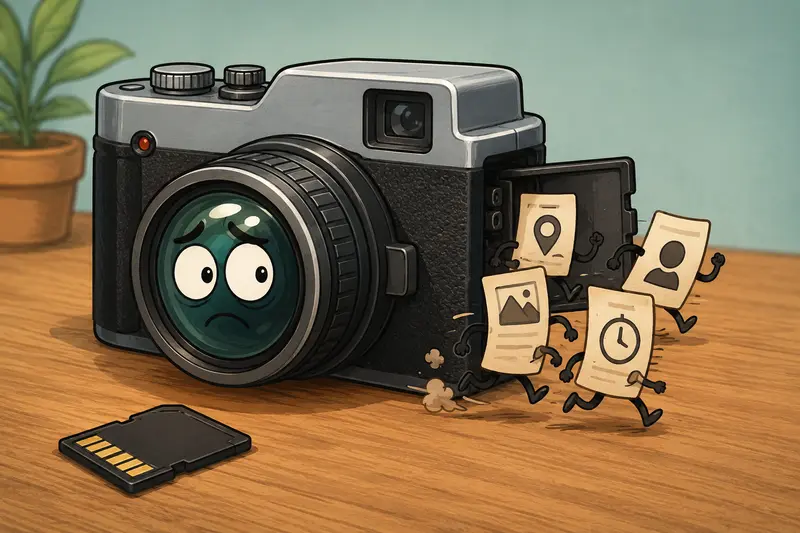
What actually happens when you remove EXIF data?
Most photos contain EXIF metadata short for Exchangeable Image File Format. This data can include:
- GPS location
- Device model
- Camera settings
- Date and time
- Editing software details
- Orientation information
Using a photo privacy metadata remover strips out those hidden details while keeping the visible image intact.
In practical terms, the photo still looks the same to people viewing it. The difference is that background information no longer travels with the file.
This matters more on mobile than many users expect. Smartphones automatically embed a surprising amount of data into every image.
A mobile-friendly way to remove EXIF online
One reason people avoid metadata cleanup is that traditional desktop tools feel excessive for a quick task.
Thats where Filemazing Metadata Scrubber https://filemazing.com/metadata-scrubber fits naturally into mobile workflows.
Because the tool runs in the browser, you can upload images directly from your phone without installing software or dealing with complicated export settings. The platform focuses heavily on privacy-safe image cleanup, and uploaded files are treated as temporary processing artifacts instead of permanent cloud storage.
The workflow is intentionally lightweight:
- Upload the image from your device, cloud storage, or URL
- Run the metadata scrubber
- Download the cleaned version
- Share or store the sanitized image
For people handling batches of screenshots, marketplace photos, or client assets, the browser-based approach saves time compared to transferring files back to a desktop first.
And yes this is one of those rare cases where mobile processing is genuinely less annoying than the professional alternative.

What we tested on mobile
To evaluate how practical this actually feels on a phone, we tested a small batch of 18 JPG images taken on an Android device:
- Total upload size: 96MB
- Mixed content: travel photos, screenshots, product shots
- Original metadata included GPS coordinates and device details
- Processing done entirely in a mobile browser
The cleaned files retained visual quality with no noticeable changes during zoom inspection. File sizes dropped slightly in some cases because non-essential metadata blocks were removed.
One useful observation: screenshots generally contain far less sensitive metadata than camera photos. Images captured directly through the camera app usually carry the most embedded information.
That distinction matters when cleaning large photo libraries.
Another practical takeaway: PNG exports sometimes remain larger after metadata cleanup because PNG prioritizes lossless quality. If smaller upload size matters more than pixel-perfect preservation, converting cleaned images to JPG afterward can help.
For that workflow, using a format conversion tool for cleaned images https://filemazing.com/format-converter makes the transition easier without needing another app.
The mistake many users make with cleaned photos
A surprisingly common problem appears after editing.
Many mobile editing apps reintroduce metadata during export.
For example:
- Cropping inside social apps may regenerate timestamps
- Some gallery editors preserve device information
- Cloud sync exports occasionally restore location tags
So if privacy matters, metadata removal should usually happen near the end of the workflow, not the beginning.
That small sequencing change prevents accidental reattachment of sensitive information later.
This becomes especially important for:
- freelance creators sending previews
- marketplace sellers uploading inventory photos
- students sharing scanned assignments
- remote teams exchanging screenshots internally
In real workflows, the issue is rarely how do I remove metadata once?
Its how do I avoid putting it back accidentally?

Where this is genuinely useful
Not every image needs metadata removal. But there are realistic situations where it helps a lot.
Selling products online
Marketplace photos often expose device details and timestamps unnecessarily.
Sharing travel photos publicly
GPS metadata can reveal exact locations, including home addresses if photos were taken nearby.
Sending client previews
Designers and freelancers sometimes remove metadata before delivering draft assets externally.
Uploading scanned documents
Photos of IDs, forms, or receipts can unintentionally expose extra data through embedded metadata.
Managing social content
Marketers frequently process large batches of campaign visuals before distribution across platforms.
Preparing compressed upload sets
After metadata cleanup, many users also run image compression for faster sharing and uploads https://filemazing.com/compress-image to reduce transfer size further.
A few tradeoffs worth knowing
Metadata removal is helpful, but there are a couple of practical considerations.
Some apps rely on metadata
Gallery sorting, date organization, and geolocation albums may stop working correctly after cleanup.
PNG vs JPG behaves differently
PNG preserves image quality better but can produce larger files. JPG usually gives smaller outputs but introduces lossy compression.
Batch processing requires balance
Cleaning hundreds of images at once saves time, but large uploads depend heavily on mobile network stability.
Many users underestimate this last part until a hotel Wi-Fi connection decides to become philosophical halfway through an upload.
Why browser-based cleanup works well on mobile
Dedicated desktop editors still make sense for photographers and advanced production teams. But for general users, browser tools solve most practical privacy concerns faster.
Filemazing leans into that lightweight approach:
- browser-based processing
- no mandatory software installation
- token-based pricing with predictable usage
- cloud import support via Google Drive and Dropbox
- temporary file retention instead of long-term storage
- API access for automated workflows
The token model is also easier to predict than subscription-heavy alternatives for occasional use. Metadata scrubbing itself uses relatively low processing cost compared to heavier operations like PDF rendering or media conversion.
That matters for people who only process files periodically rather than daily.
Helpful habits for safer image sharing
A few habits reduce privacy issues significantly:
- Disable camera location tagging if you rarely need it
- Clean images before uploading to forums or marketplaces
- Recheck edited exports for regenerated metadata
- Compress images after cleanup when possible
- Store original versions separately from sanitized copies
And if your workflow begins with documents instead of images, tools like PDF to image conversion for cleanup workflows https://filemazing.com/pdf-to-image can help extract pages before processing metadata-sensitive exports.
Common questions
Does removing metadata reduce image quality?
Not usually. Metadata exists separately from visible image pixels. Cleaning EXIF information generally leaves appearance unchanged unless additional compression is applied afterward.
Is it safe to remove EXIF online?
Using a privacy-focused browser tool is typically safer than uploading files to unknown services with unclear retention policies. Filemazing processes uploads as temporary jobs rather than long-term storage.
Can I clean metadata directly from an iPhone or Android device?
Yes. Browser-based tools work well on modern mobile devices without requiring desktop software.
What image formats support metadata removal?
JPG, PNG, TIFF, and some WebP files commonly support metadata cleanup workflows, although supported metadata fields differ by format.
Will social media remove metadata automatically?
Some platforms strip location data, but behavior varies widely. Private sharing apps and messaging services may preserve metadata entirely.
Is batch cleanup possible?
Yes. Batch processing is especially useful for creators, marketers, and teams handling recurring uploads or media libraries.
Final thoughts
Cleaning metadata is one of those small privacy habits that quietly solves bigger problems later.
Most people dont notice hidden image data until after something sensitive has already been shared. Running a quick metadata cleanup step on mobile helps reduce that risk without changing how your photos actually look.
For everyday workflows, a browser-based tool like Filemazing Metadata Scrubber https://filemazing.com/metadata-scrubber keeps the process lightweight, practical, and accessible from almost any device.
And if you regularly prepare files for upload, sharing, or client delivery, combining metadata cleanup with compression and format conversion creates a much cleaner overall workflow.