When you send large files to a client, you are not only delivering content. You are also making decisions about access, trust, and accidental exposure.
This is especially true for photographers, designers, editors, agencies, and operations teams who regularly hand off large folders, proofs, raw assets, PDFs, or exports through email, shared links, or temporary transfer services.
Password protection is one of the simplest ways to add friction against unauthorized access. It is not perfect security on its own, but it is often a smart extra layer when a file is about to leave your controlled environment.
When password protection makes the most sense
Not every file needs to be protected. The best use cases are the ones where the content is valuable, private, or easy to forward incorrectly.
- client deliverables before final approval
- contracts, invoices, and private PDFs
- raw photo selections and image proofs
- internal reports shared outside the team
- archives moving through multiple people or vendors
Large files are particularly messy because they often travel through shared links, mirrored downloads, and email threads with many participants.
What password protection actually does
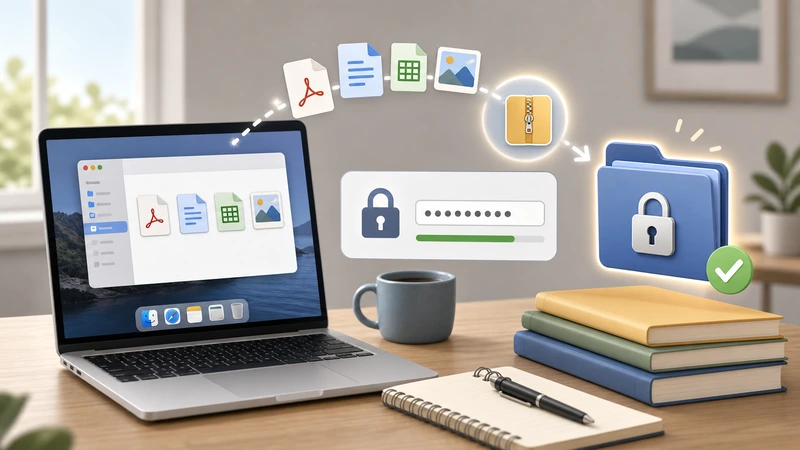
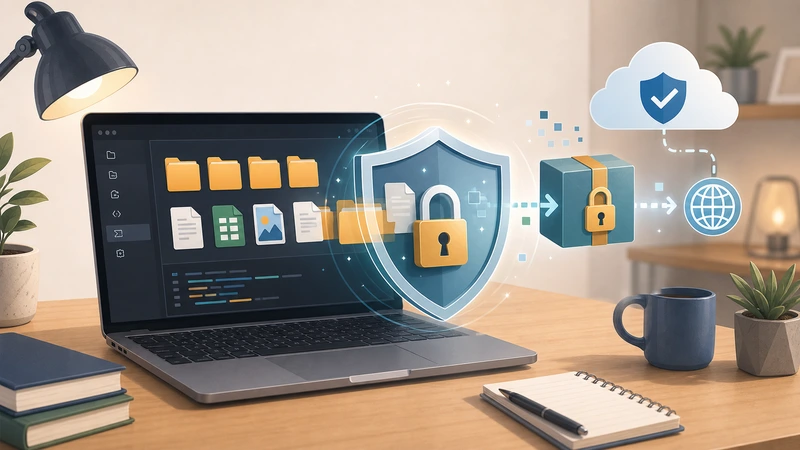
At a practical level, it creates a second requirement for access. Someone may receive the file or the download link, but they still need the password to open the protected output.
That is useful in situations like:
- a link is forwarded accidentally
- an email thread includes the wrong person
- a download stays accessible longer than expected
- a recipient stores the file in a weakly controlled location
Again, this does not solve everything. It does reduce the damage of routine mistakes.
What password protection does not solve
It is just as important to understand the limits.
It does not replace secure handling
If the password travels in the same message as the file link, you have added less protection than you think.
It does not fix bad retention habits
If you or the recipient store sensitive files everywhere forever, password protection alone is not enough.
It does not make a weak password strong
Short or predictable passwords are still weak. Use something unique and avoid reusing client-facing passwords across multiple jobs.
A sensible client handoff workflow
- Prepare the final file or archive.
- Protect it with a password before outside sharing.
- Send the file or download link through one channel.
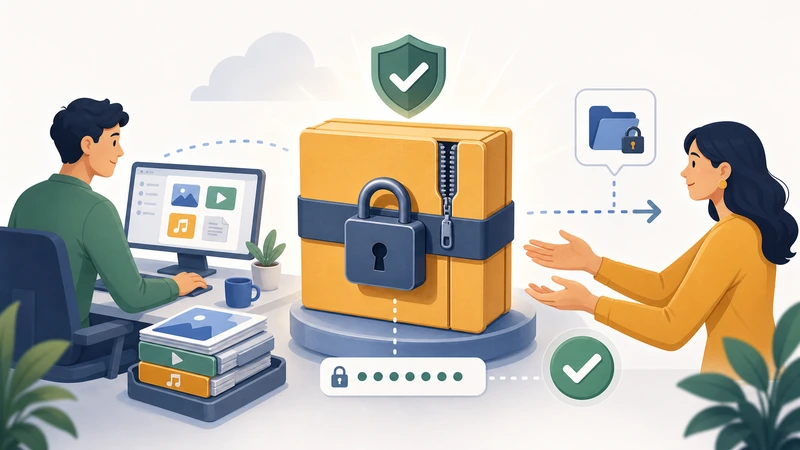
- Send the password through a different channel when possible.
- Tell the client how long the file will remain available.
This is not overkill. It is simple operational discipline, and clients usually understand it immediately when the reason is explained clearly.
Why this matters for photographers and creative teams
Creative deliveries are often large, time-sensitive, and easy to reshare. A link to proofs, edited image sets, or campaign assets can quickly move beyond the intended recipient.
That does not always create a catastrophe, but it does create unnecessary exposure. Password-protecting the delivery is a straightforward way to reduce that risk while still keeping the workflow client-friendly.
Filemazing's Encrypt File tool is designed for this sort of browser-based protection step, especially when you want to secure a handoff without building a heavier local security process around a one-off job.
How to handle very large files more safely
Large files create a few extra considerations:
- Recipients may need more time to download them.
- The transfer method matters more because retries are common.
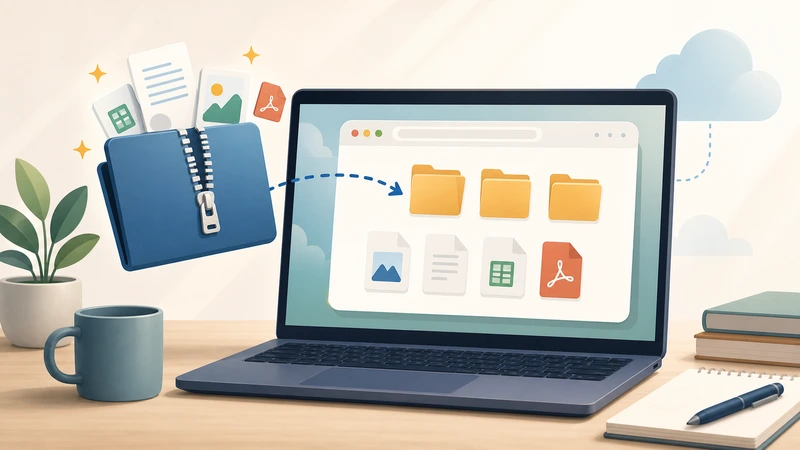
- Compressed bundles may be easier to manage than loose files.
- Temporary retention windows should be communicated clearly.
If the delivery includes many assets, consider whether the better workflow is to archive them first and then protect the archive before sending it onward.
Choosing a good password-sharing habit
A few habits make a big difference:
- do not include the password in the same message as the file link
- use a different channel such as SMS, chat, or a phone call when possible
- avoid reusing the same simple password for every client
- tell the recipient to store the password securely if they will need the file later
Frequently asked questions
Should I password-protect every client file?
No. Use it where the content is sensitive, commercially valuable, or likely to be forwarded beyond the intended recipient.
Is password protection enough on its own?
It is a useful layer, but it works best when combined with separate password delivery and reasonable file retention habits.
What about large photo or design packages?
Those are strong candidates because they are easy to reshare and often contain client-private material.
Can I do this without installing desktop software?
Yes. A browser workflow can be a practical option when you want a quick protection step before delivery.
Final takeaway
Password-protecting large files is not about theatrics. It is about reducing the cost of ordinary mistakes in client delivery.
If a file would be inconvenient, embarrassing, or commercially risky to expose, adding password protection before you send it is usually worth the extra minute. When you want that step without extra software overhead, Filemazing Encrypt File gives you a straightforward browser-based way to do it.