Large image files have a habit of showing up at the worst possible moment right before assignment uploads, scholarship applications, or email submissions with strict attachment limits.
For students working from phones or tablets, learning how to compress JPG without losing quality can save both storage space and deadline-related stress. The challenge is keeping photos readable and sharp while reducing file size enough for uploads, sharing, or faster browsing.
That balance matters more than most people expect. Over-compressed images can make scanned notes blurry, distort presentation graphics, or turn text-heavy screenshots into unreadable blocks.
Fortunately, mobile compression tools have improved a lot. Browser-based platforms like Filemazing Compress Image Tool https://filemazing.com/compress-image allow you to reduce JPG size directly from your phone without installing heavy editing apps or transferring files to a laptop.

What Actually Happens During JPG Compression?
JPG files already use compression by default, but the compression level can still be adjusted further.
The trick behind high quality image compression is deciding which visual details can be reduced without noticeably affecting the image. Good compression tools preserve:
- readable text
- color consistency
- edge sharpness
- overall clarity
while removing unnecessary data that inflates file size.
For example:
- A 7 MB lecture slide screenshot might compress down to 1.8 MB with minimal visible change.
- A scanned handwritten assignment may shrink by 6070% while remaining fully readable.
- A phone photo used in a portfolio can often be optimized enough for email without looking degraded.
In real workflows, the best results usually come from moderate compression rather than aggressive shrinking.
Mobile Compression Works Better Than It Used To
A few years ago, compressing images on mobile often meant using ad-heavy apps with questionable privacy practices or exporting blurry results.
Now, browser-based processing is much more practical.
With Filemazing https://filemazing.com, files are processed through the browser instead of requiring desktop software installs. That matters for students using shared computers, school-issued tablets, or low-storage devices.
The platform also supports imports from cloud providers like Google Drive and Dropbox, which is useful when class materials already live in cloud folders.
Another detail worth mentioning: uploaded files are treated as temporary processing artifacts and cleaned on a short retention schedule instead of being stored indefinitely. Thats especially relevant when compressing scanned IDs, transcripts, or academic documents.
A Mobile Workflow That Keeps Image Quality Intact
There isnt one perfect compression setting for every image type.
A photo of a whiteboard behaves differently from a colorful infographic or a scanned PDF page converted to JPG.
Heres a workflow that tends to preserve quality more consistently on mobile devices:
1. Start With the Original File
Avoid repeatedly compressing the same JPG multiple times. Every recompression pass removes additional image data.
If you exported lecture slides as PDFs first, converting them properly before compression often gives cleaner results. Tools like PDF to Image Converter https://filemazing.com/pdf-to-image can generate better JPG source files from documents before optimization.
2. Use Moderate Compression First
Many users immediately drag compression to the highest setting possible.
That usually backfires.
Instead:
- test medium compression
- preview readability
- zoom into text areas
- compare edges and fine details
Text-heavy images are especially sensitive to over-compression artifacts.
3. Resize Before Compressing Large Photos
This is one of the more overlooked tricks.
If your phone captured a 4000px-wide image but your assignment portal only displays it at 1200px, resizing first often reduces file size more effectively than heavy JPG compression alone.
Sometimes reducing dimensions by 3040% produces better visual results than aggressive quality reduction.
4. Export in the Right Format
JPG works well for:
- photos
- camera images
- colorful graphics
PNG is often better for:
- diagrams
- screenshots
- transparent backgrounds
- sharp text visuals
If you need to switch between formats for better optimization, Image Format Converter https://filemazing.com/format-converter supports JPG, PNG, WEBP, HEIC, and AVIF conversions.
That becomes useful when trying to compress PNG for website speed while preserving interface sharpness.

One Compression Mistake Students Often Make
Heres a surprisingly common issue:
Students compress screenshots containing tiny text using aggressive JPG settings because they only check the image preview at full-screen size.
But once uploaded to learning platforms, messaging apps, or email clients, those platforms sometimes apply additional compression automatically.
The result:
- lecture notes become fuzzy
- spreadsheet screenshots lose readability
- equations blur together
- QR codes stop scanning properly
A safer approach is leaving a little quality margin before uploading.
In practice, reducing a 6 MB image to around 1.52 MB usually preserves readability better than trying to force it under 300 KB.
That tradeoff between file size and clarity matters more for educational workflows than social media uploads.
Tested Scenario: Compressing Assignment Images on a Phone
During testing, a batch of six JPG images exported from lecture slides totaled roughly 28 MB.
The files included:
- charts
- highlighted annotations
- screenshots of formulas
- scanned handwritten notes
Using browser-based compression on mobile:
- total size dropped to about 8.4 MB
- text remained readable at zoom
- upload speed improved noticeably on mobile data
- processing finished without locking up the browser tab
The handwritten scans showed the biggest sensitivity to compression. Stronger settings introduced visible edge artifacts around pen strokes, while moderate compression preserved readability much better.
Thats a good reminder that not all images compress equally well.
Why Browser-Based Compression Is Useful for Students
Desktop editing software can absolutely produce excellent results, but its often unnecessary for everyday academic workflows.
Mobile-friendly browser tools help when you need to:
- submit assignments quickly
- reduce email attachment sizes
- upload portfolios
- prepare internship applications
- optimize images for online coursework
- share study materials with classmates
And because processing happens through lightweight web workflows, older phones generally handle it better than large editing apps.
Some users also prefer avoiding app installations entirely, especially on school-managed devices.
When Compression Can Hurt Quality Too Much
Not every image should be aggressively compressed.
You may want minimal compression for:
- architecture diagrams
- scanned legal documents
- typography-heavy slides
- medical images
- detailed artwork portfolios
PNG or WEBP may preserve sharpness better in those situations.
Similarly, if you need to compress photos for email, balancing readability with attachment limits matters more than chasing the smallest possible file.
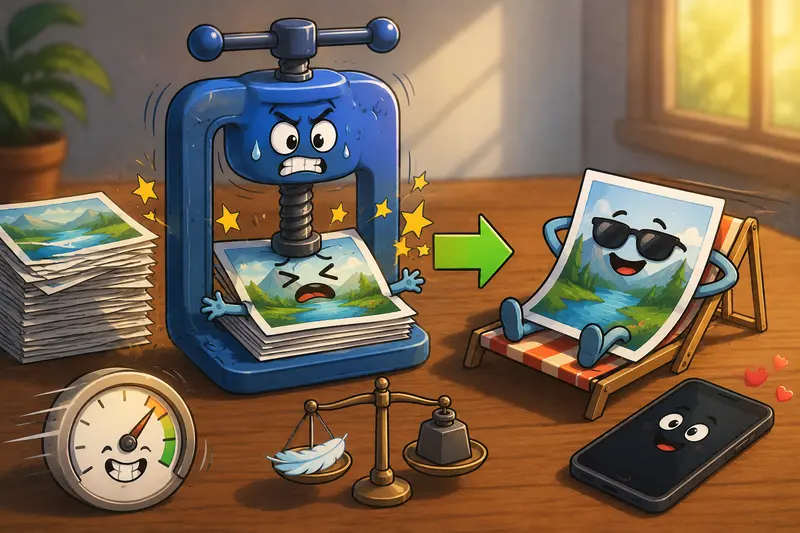
A clean 2 MB image is usually more useful than a distorted 200 KB version.
Extra Privacy Tip Before Sharing Images
Students often forget that photos and screenshots can contain hidden metadata.
That metadata may include:
- device information
- timestamps
- GPS location data
Before sharing academic documents or personal images publicly, tools like Metadata Scrubber for Images https://filemazing.com/metadata-scrubber can remove embedded metadata while keeping the image itself intact.
Its a small step, but useful when sharing files beyond classmates or instructors.
Common Questions About Mobile JPG Compression
Does JPG compression always reduce image quality?
Technically yes, but moderate compression can reduce file size significantly with little or no visible difference to the human eye.
Is mobile browser compression safe for personal files?
Privacy-conscious platforms generally treat uploads as temporary processing files and remove them after processing rather than storing them permanently.
Why do screenshots sometimes look blurry after compression?
Screenshots contain sharp edges and text, which JPG compression struggles with more than natural photography. PNG or WEBP may preserve readability better.
Can I compress multiple JPG files at once?
Many browser-based tools support batch workflows, which is useful for assignment uploads, portfolios, or presentation assets.
What format is best for websites?
For photos, JPG and WEBP usually offer strong compression efficiency. PNG works better for graphics requiring crisp edges or transparency when trying to compress PNG for website speed.
Is there an advantage to converting formats before compression?
Sometimes. Converting HEIC or PNG images into JPG first can improve compatibility and reduce upload issues across older platforms and email systems.
Final Thoughts
Learning how to compress JPG without losing quality is less about finding the smallest file possible and more about preserving usability.
For students, that usually means:
- readable screenshots
- clean scanned notes
- manageable upload sizes
- faster sharing from mobile devices
Browser-based tools like Filemazing Compress Image Tool https://filemazing.com/compress-image make that process easier without requiring heavy software installs or complicated editing workflows. If you regularly handle assignments, presentation graphics, or large image uploads from your phone, building a smarter compression workflow can quietly save a surprising amount of time.