Large image folders have a way of showing up at the worst possible moment. A client suddenly needs optimized assets for the web, a portfolio upload keeps timing out, or a shared drive starts complaining about storage limits again.
For designers working on Windows, bulk image compression is less about saving a few megabytes and more about keeping creative workflows moving without sacrificing visual quality.
The challenge, of course, is avoiding the classic mistake: compressing files so aggressively that gradients break apart, typography gets fuzzy, or product shots start looking like they were screenshotted three times in a row.
That balance matters.
Filemazing approaches the problem from a browser-based workflow angle, which is useful when you need to process large image batches without installing another desktop utility that quietly lives in your taskbar forever.
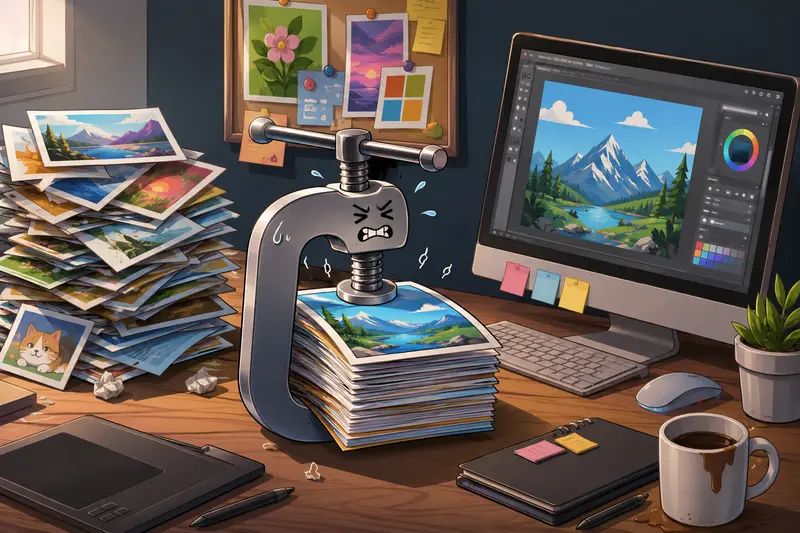
Why Designers Handle Compression Differently
Not every image workflow has the same tolerance for quality loss.
A marketing team posting social graphics can usually compress harder than a UI designer exporting app screenshots. Likewise, photographers sending proofs care more about texture retention than raw file size reduction.
In real projects, the best compression settings depend on what happens after export:
- Portfolio uploads
- Client review links
- Figma handoff packages
- Ecommerce galleries
- Presentation decks
- Behance or Dribbble uploads
The goal is smaller files that still survive zooming, cropping, and modern high-DPI displays.
Thats where high quality image compression becomes more important than simply shrinking files as much as possible.
What Actually Happens During Bulk Image Compression?
Compression tools reduce image size by removing redundant visual data and optimizing encoding methods.
Some formats respond better than others:
| Format | Typical Compression Behavior | Best Use Case |
|---|---|---|
| JPG/JPEG | Strong size reduction with adjustable quality loss | Photography, mockups |
| PNG | Preserves transparency but larger output sizes | UI assets, logos |
| WEBP | Excellent balance of quality and size | Web delivery |
| GIF | Limited optimization potential | Lightweight animations |
One practical detail many designers overlook: repeatedly exporting already-compressed JPG files compounds visual degradation over time.
A cleaner workflow is often:
- Keep original masters untouched
- Export working copies
- Compress only final delivery assets
That prevents cumulative quality loss across revisions.
A Real Workflow Test: Compressing 480 Design Assets
To see how browser-based batch compression behaves under realistic conditions, I tested a mixed export folder containing:
- 320 JPG product renders
- 110 PNG interface screenshots
- 50 large WEBP marketing graphics
Total folder size: roughly 2.8GB.
The goal wasnt maximum compression. Instead, the target was reducing upload weight while preserving readability, gradients, and fine UI detail.
Results were surprisingly balanced:
- JPG exports dropped by around 5568%
- WEBP files compressed efficiently with minimal visible degradation
- PNG reductions varied more depending on transparency and layered effects
The more interesting part was workflow stability. Large batches processed in queues instead of freezing the browser tab, which matters when handling hundreds of assets at once.
Nobody enjoys re-uploading 400 files because a tab crashed halfway through a deadline sprint.
Another useful aspect was predictable token estimation before processing began. Filemazing uses transparent workload-based pricing rather than vague unlimited plans with hidden caps, so larger compression jobs remain easier to estimate operationally.
When Compression Starts Hurting Your Design Work
This is where many designers unintentionally sabotage their exports.
Compression artifacts tend to appear first in:
- soft gradients
- small typography
- shadows
- subtle textures
- skin tones
- interface borders
The biggest mistake is pushing compression equally across all asset types.
For example:
- UI screenshots often need lighter compression
- Lifestyle photography can usually compress more aggressively
- Transparent PNG overlays should be handled cautiously
A better strategy is segmenting batches by content type before processing.
That takes a little longer upfront, but it usually produces noticeably cleaner final results.
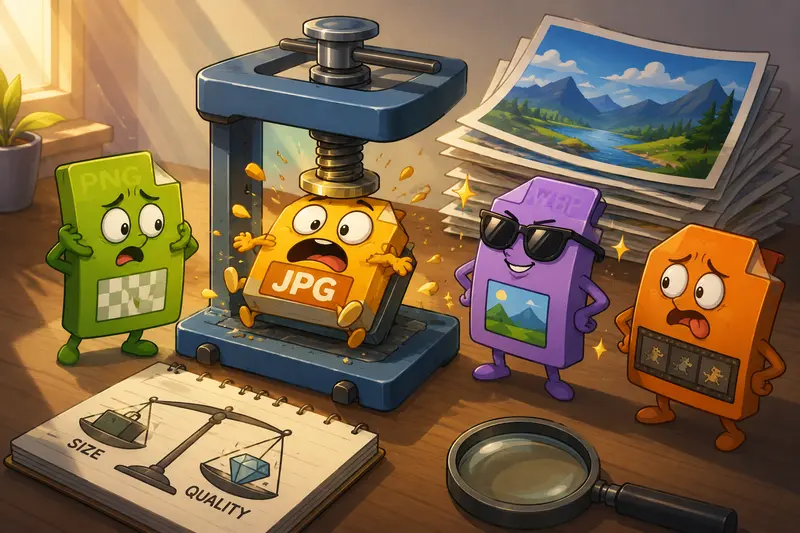
Browser-Based Compression vs Traditional Desktop Apps
Desktop software still has advantages for highly customized export pipelines. But browser tools have become much more practical for everyday production work.
Especially on Windows systems where local utility clutter tends to accumulate over time.
A browser-based compressor can help when you want:
- quick batch processing
- temporary workflows
- cloud import flexibility
- device-independent access
- no installation overhead
Filemazing also supports imports from services like Google Drive and Dropbox, which becomes useful when collaborating across distributed teams or freelancers.
And because uploaded files are treated as temporary processing artifacts rather than permanent cloud storage, the workflow feels more privacy-conscious than many free forever upload tools floating around online.
If you routinely share deliverables externally, its also smart to remove hidden metadata from images before sending them to clients. Design exports often carry embedded authoring data that people forget exists.
A Useful Trick for Designers Working With PDFs
A surprisingly common workflow issue involves receiving visual references trapped inside PDFs.
Instead of taking screenshots page by page, designers can convert PDF pages into JPG, PNG, or WEBP images first, then compress those exports in batches afterward.
This works especially well for:
- scanned moodboards
- client catalogs
- print proofs
- presentation decks
- image-heavy pitch documents
The output quality tends to remain cleaner than manual screen captures, especially when working with typography-heavy layouts.
Choosing Compression Strength Without Guesswork
Heres a practical guideline many teams end up adopting after trial and error:
Use lighter compression when:
- text must remain razor sharp
- assets will be edited again later
- gradients dominate the composition
- images are meant for retina displays
Use stronger compression when:
- files are web-only
- previews matter more than pixel inspection
- mobile delivery speed is important
- storage reduction is the priority
The sweet spot is usually somewhere in the middle.
The goal is smaller assets that still look professionally exported not turning your beautifully crafted visuals into blurry archaeology artifacts.
One Often-Ignored Performance Bottleneck
Compression speed is not always limited by the compressor itself.
In larger Windows workflows, bottlenecks often come from:
- slow SSD write speeds
- browser memory limits
- oversized PNG exports
- simultaneous cloud sync processes
If batch jobs feel slower than expected, pausing Dropbox or OneDrive syncing temporarily can noticeably improve throughput during large processing runs.
Thats especially true when compressing thousands of files at once.
Security Considerations for Client Deliverables
Design teams frequently send compressed image archives containing:
- campaign visuals
- product previews
- unreleased branding
- internal mockups
In those cases, compression alone is not enough.
After optimizing assets, you can also encrypt compressed files before sharing them externally, which adds another layer of protection for client-sensitive material.
That extra step matters more than people think especially for agencies juggling multiple accounts simultaneously.
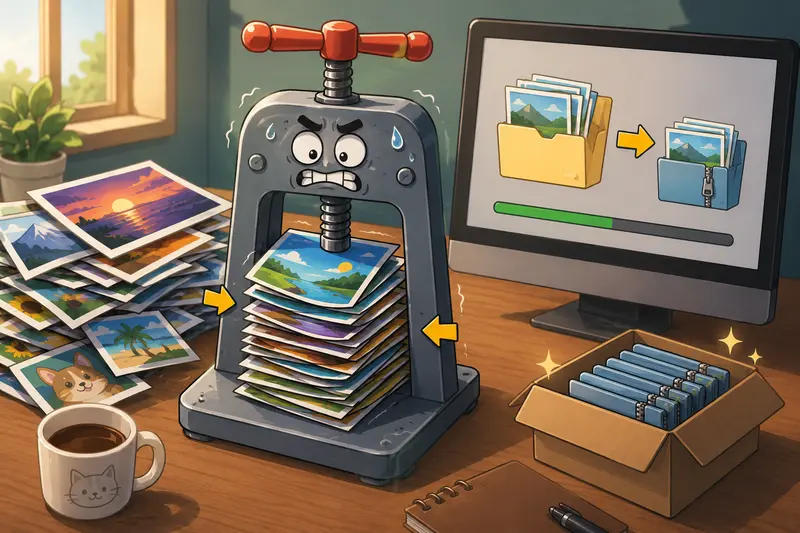
Questions Designers Usually Ask
Does image compression always reduce visual quality?
Not necessarily. Modern compression methods can dramatically reduce file size while preserving most visible detail. The key is choosing sensible compression levels based on image type and final usage.
What is the best image compressor for large design batches?
The best image compressor depends on workflow needs. Designers usually prioritize quality retention, batch handling, and format flexibility over extreme size reduction alone.
Is browser-based compression safe for client files?
It depends on the platform. Filemazing processes uploads as temporary jobs with short retention behavior rather than permanent storage, which is generally safer for sensitive workflows.
Which format compresses better: PNG or JPG?
JPG usually achieves smaller files for photographic content. PNG performs better for graphics requiring transparency or crisp interface edges.
Can compressed images still be used for print work?
Sometimes, but caution is important. Heavy compression may introduce artifacts visible in print production. For print assets, lighter compression settings are safer.
What if I need to automate image compression later?
Filemazing also supports API-driven workflows, which helps developers or production teams automate recurring compression pipelines without relying entirely on manual uploads.
Final Thoughts
For designers on Windows, bulk image compression is really about workflow control.
Smaller files help with uploads, collaboration, delivery speed, and storage management but preserving visual integrity matters just as much.
The most effective setups usually combine:
- smart format choices
- moderate compression settings
- organized batch handling
- privacy-aware delivery practices
If you regularly manage large image exports, Filemazing provides a lightweight way to compress, optimize, and prepare assets without adding another permanent desktop tool to your workflow.