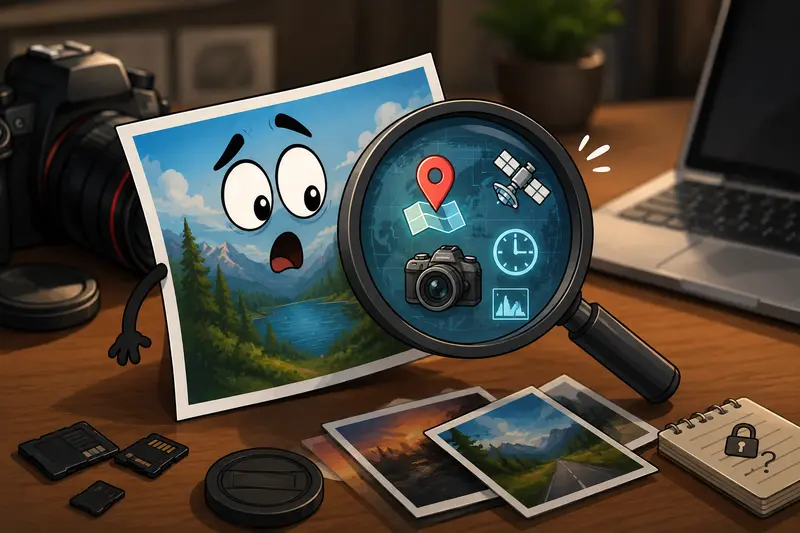
Photographers often spend time perfecting color, exposure, and composition then accidentally share location coordinates, camera serial numbers, editing history, or copyright notes hidden inside the image itself. That extra information is useful during editing workflows, but not always something you want attached to client proofs or public uploads.
If your goal is to remove metadata from images before sharing galleries, emailing previews, or posting work online, macOS gives you a few options. Some are built into the system, while others handle larger batches and privacy-focused cleanup more efficiently.

What You Need to Know First
Image metadata is embedded information stored inside files like JPG, PNG, TIFF, and RAW formats. Depending on the camera and editing software, metadata may include:
- GPS location
- Camera model and lens data
- Exposure settings
- Creation timestamps
- Copyright information
- Editing software history
- Thumbnail previews
For photographers, removing metadata is usually about one of three things:
- Protecting client privacy
- Preventing location exposure
- Reducing unnecessary hidden data before delivery
The challenge is that many Mac workflows only remove part of the metadata, not all of it.
Why Photographers Run Into This Problem
A common scenario looks like this:
You export 120 edited JPGs from Lightroom, upload them to a client folder, then realize every image still contains exact shooting locations and device information.
Nature photographers deal with this constantly. Wedding photographers sometimes expose private venue addresses without realizing it. Commercial photographers may unintentionally include workflow details from editing applications.
And yes drone photographers especially learn this lesson quickly.
A Practical Way to Clean Image Metadata on Mac
For occasional files, Preview on macOS can remove some location information. But if you regularly deliver batches of images, a dedicated cleanup workflow is usually faster and more consistent.
Thats where Filemazing Metadata Scrubber https://filemazing.com/metadata-scrubber becomes useful for photography workflows.
Because it runs entirely in the browser, theres no desktop software to install, which is convenient when switching between editing machines or working remotely from a laptop. The tool is designed around temporary processing rather than long-term file storage, which matters when working with client media.
The workflow is straightforward:
- Upload image files
- Choose metadata scrubbing
- Process files in batches
- Download cleaned copies
If you later need to change image types for delivery, you can also use the format conversion workflow for cleaned images https://filemazing.com/format-converter to export alternate formats after metadata removal.
What Happened During a Real-World Test
To see how practical this felt in an actual photography workflow, we tested a batch of exported Lightroom JPGs on a MacBook Air M2.
Test setup
- 48 JPG files
- Total size: 612 MB
- Exported from Lightroom Classic
- Included GPS coordinates and camera EXIF data
- Mixed portrait and landscape shots
Results
The metadata scrub removed:
- GPS coordinates
- Camera serial references
- Software history entries
- Embedded thumbnails
Image quality remained visually unchanged after inspection at 100% zoom.
One important observation: file sizes dropped slightly after cleanup because some embedded preview data disappeared with the metadata.
Thats useful when photographers need lighter client-delivery folders without introducing additional compression artifacts.
The batch process also avoided the repetitive export inspect re-export loop many Mac users end up doing manually.
One Overlooked Detail: Metadata Can Survive Format Changes
A surprising number of photographers assume converting a JPG into PNG automatically removes metadata. Sometimes it does. Sometimes it absolutely does not.
Certain export tools preserve:
- EXIF blocks
- ICC profile references
- software tags
- preview data
So if privacy matters, its smarter to scrub metadata first, then convert formats afterward if needed.
For example, some photographers first use a PDF-to-image workflow for contact sheets and proof pages https://filemazing.com/pdf-to-image before cleaning metadata and delivering final assets separately.
This avoids accidentally distributing hidden document details alongside exported image previews.

When Removing Metadata Makes the Most Sense
Not every image needs aggressive cleanup. Internal archive files often benefit from retaining camera and exposure information.
But photographers commonly remove hidden photo data in situations like:
- Sending preview galleries to clients
- Uploading wildlife photography online
- Sharing behind-the-scenes images publicly
- Delivering press assets
- Exporting social media versions
- Providing competition submissions
Travel photographers, in particular, often strip GPS coordinates before posting location-sensitive work publicly.
JPG vs PNG After Metadata Removal
Theres a practical tradeoff worth mentioning here.
JPG
- Smaller delivery sizes
- Faster uploads
- Better for client galleries and email
- More compression artifacts possible
PNG
- Cleaner graphics and overlays
- Larger files
- Better for screenshots or layered exports
- Less practical for large photography batches
For photographers delivering high volumes, cleaned JPG exports are usually the best balance between privacy, quality, and transfer speed.
PNG only becomes the better choice when preserving transparency or graphic sharpness matters more than file size.
Some file formats cooperate nicely. Others behave like they were invented during an argument.
A Few Workflow Tweaks That Save Time
After cleaning metadata regularly, a few patterns tend to help:
Keep an untouched master archive
Always retain original RAW or exported files with full metadata for your own cataloging and editing reference.
Create a separate delivery folder
Avoid overwriting originals. This makes version tracking easier during client revisions.
Clean files before encryption
If client privacy matters, remove metadata first, then secure the files afterward using an encrypted file-sharing workflow https://filemazing.com/encrypt-file.
Batch similar file types together
Mixed-format exports sometimes create inconsistent metadata results across applications.
Where Browser-Based Processing Actually Helps
Some photographers assume browser tools are slower than desktop software, but thats not always true anymore.
In practice, browser-based workflows help because:
- theres no installation overhead
- updates happen automatically
- batch processing is centralized
- uploads can come from local storage, URLs, Dropbox, or Google Drive
- temporary processing reduces long-term storage concerns
Filemazing also uses transparent token pricing instead of subscriptions, which makes occasional cleanup tasks easier to predict financially.
For metadata scrubbing specifically, token usage is relatively lightweight compared to heavier media-processing operations.
Common Situations Photographers Use Metadata Cleanup For
- Preparing wedding galleries for public portfolios
- Removing GPS data from landscape photography
- Cleaning stock image submissions
- Sending media kits to publishers
- Exporting images for client review systems
- Sharing drone photography safely online
Large image batches tend to appear exactly when deadlines become inconvenient.
FAQ
Does removing metadata reduce image quality?
No. Metadata removal only strips hidden information attached to the file. The visible image itself remains unchanged unless additional compression is applied separately.
Can Mac Preview remove all photo metadata?
Not always. Preview can remove some location information, but deeper EXIF and software-related metadata may still remain depending on the image format.
Is metadata removal useful for RAW files?
Usually photographers keep metadata in RAW archives for editing reference. Cleanup is more commonly applied to exported delivery files like JPGs or PNGs.
How fast is batch metadata cleanup?
Processing speed depends on file count and total size. In testing, a 48-image JPG batch completed quickly enough for normal client-delivery workflows without noticeable delays.
Are uploaded images stored permanently?
Filemazing processes uploads as temporary workflow artifacts rather than long-term storage. Files are cleaned on a short retention schedule after processing.
Can cleaned images be converted afterward?
Yes. After metadata cleanup, photographers often use image format conversion tools https://filemazing.com/format-converter to create alternate delivery formats for clients or web publishing.
Final Thoughts
For photographers, metadata is useful right up until the moment it becomes public.
If you routinely share exported images with clients, publishers, agencies, or online audiences, taking a minute to remove hidden metadata can prevent accidental oversharing and simplify delivery workflows at the same time.
A browser-based tool like Filemazing Metadata Scrubber https://filemazing.com/metadata-scrubber fits especially well into modern Mac workflows because it handles batch cleanup quickly, avoids permanent file retention, and works without installing another utility onto your editing machine.