Linux gives developers plenty of ways to work with PDFs, but converting documents into JPG images can become surprisingly time-consuming when dealing with scanned manuals, reports, documentation exports, or image-heavy PDFs. Whether youre creating thumbnails, extracting visual assets, or preparing documents for web publishing, knowing how to efficiently convert PDF to JPG can save considerable effort.
For occasional jobs, command-line tools may be enough. For recurring workflows, browser-based solutions and automation-friendly services can significantly reduce processing overhead.
What You Need to Know First
If your goal is to convert PDF to JPG on Linux, you have several options:
- Native command-line utilities such as Poppler and ImageMagick
- Desktop applications
- Browser-based conversion platforms
- API-driven automation services
The right choice depends on volume, quality requirements, and whether you need manual or automated processing.
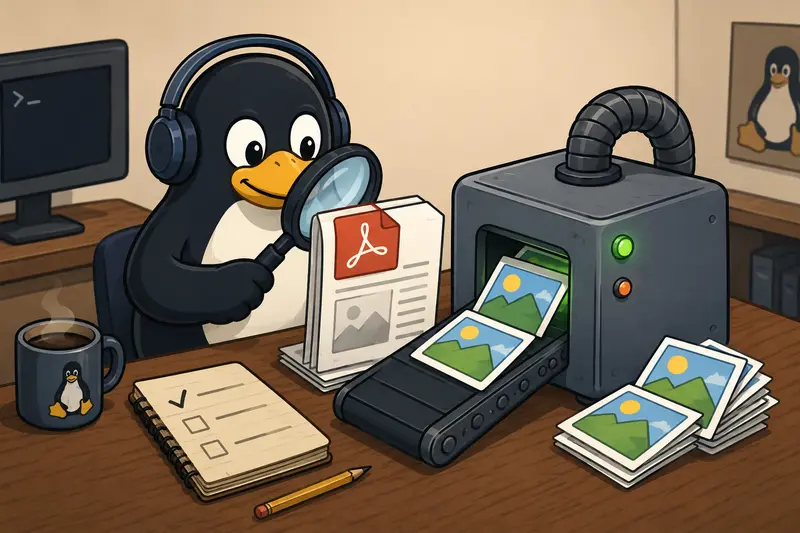
Common Linux Methods for PDF to JPG Conversion
Linux users typically approach PDF image conversion in one of three ways.
Using Popplers pdftoppm
Many distributions include the Poppler package.
pdftoppm -jpeg document.pdf outputThis command creates one JPG file per PDF page.
Advantages:
- Fast execution
- Minimal dependencies
- Reliable for standard documents
Limitations:
- Less convenient for large batches
- Requires scripting for workflow automation
Using ImageMagick
ImageMagick offers extensive control over output settings.
convert -density 300 document.pdf output.jpgBenefits include:
- Adjustable resolution
- Flexible image processing
- Broad format support
Potential drawbacks:
- Security policies may restrict PDF processing
- Higher memory consumption on large files
Browser-Based Conversion
For developers who occasionally need conversions without managing packages or dependencies, browser-based tools provide a practical alternative.
This is especially useful when working across multiple Linux distributions, containers, or remote environments.
Why Browser-Based Conversion Is Becoming More Popular
Modern development workflows increasingly prioritize portability.
Instead of installing separate conversion utilities on every machine, browser-based services allow file processing from:
- Linux workstations
- Cloud desktops
- Containers
- Remote servers
- Shared development environments
This approach also avoids version compatibility issues between distributions.
If you need to combine several documents before exporting them as images, you can first use a tool to merge PDF files and then convert the resulting document in a single workflow.
A Browser-Based Option for Developers
One solution worth considering is Filemazing PDF to Image:
https://filemazing.com/pdf-to-image
Filemazing is a browser-based file processing SaaS designed for converting, cleaning, compressing, and preparing files without requiring desktop software installations.
Its toolkit includes:
- PDF to image conversion
- PDF merging
- Image compression
- Archive extraction
- Audio conversion
- Metadata scrubbing
- Format conversion
- File encryption
For developers, one notable advantage is its support for both interactive use and API-driven workflows. Teams can process files through the web interface or integrate conversion jobs into automation pipelines.
The platform emphasizes bulk processing efficiency as its primary strength. Large document sets are handled through queued processing and job tracking, allowing workloads to continue without blocking the interface.
A supporting advantage is its automation and API capability, making it useful for development teams handling recurring document processing tasks.
Pricing uses a transparent token system rather than subscriptions. Operations consume tokens according to workload characteristics such as:
- File size
- Page count
- File quantity
- Media duration where applicable
For PDF-to-image conversions, token usage is calculated using factors including base cost, file size, page count, and file count. This allows users to estimate costs before processing and avoid unexpected charges.
Filemazing also supports:
- Local uploads
- URL imports
- Google Drive imports
- Dropbox imports
From a privacy standpoint, uploaded files are treated as temporary processing artifacts and removed through short-retention cleanup routines rather than being stored as permanent user content.
Real-World Testing Results
To evaluate a practical batch PDF to image conversion scenario, I tested a collection of technical documents commonly encountered in development environments:
- 12 PDF files
- Total size: approximately 145 MB
- 327 combined pages
- Mix of scanned documentation and vector-based PDFs
Observed results:
- Image-heavy scanned pages converted consistently
- Text remained readable at higher resolution settings
- Multi-page exports completed without page ordering issues
- Large jobs benefited from queue-based processing instead of locking up the browser session
One useful takeaway was that scanned PDFs often require slightly higher output quality settings than digitally generated PDFs. Otherwise, diagrams and small labels may lose clarity after JPG compression.
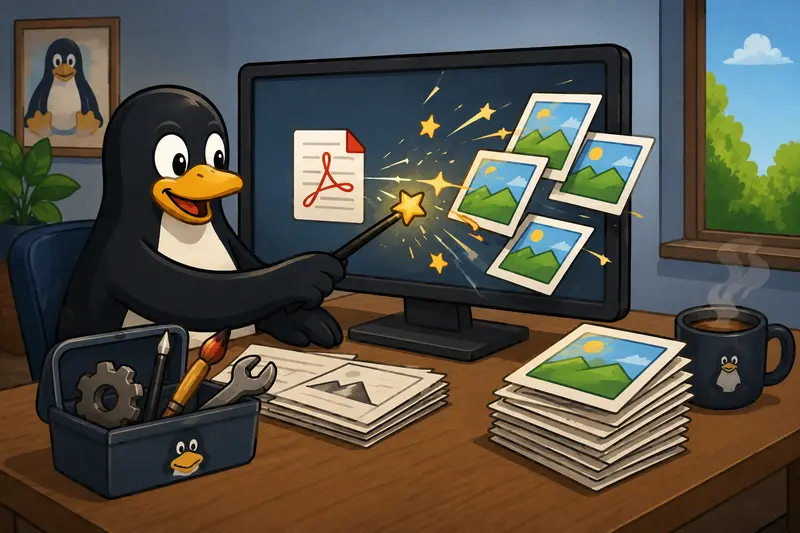
Workflow Efficiency Recommendations
Developers often focus on conversion speed and overlook downstream processing.
A few practices can make PDF image workflows much more efficient:
Consolidate Before Converting
When handling multiple related reports, combine them first using a PDF merging workflow. This reduces management overhead and simplifies automation.
Compress After Export
JPG files generated from large PDFs can quickly consume storage space.
Running the output through an image compression tool often reduces file size substantially while maintaining acceptable visual quality for documentation and web publishing.
Remove Metadata When Necessary
Images derived from documents may contain metadata that is unnecessary for distribution.
A metadata scrubbing tool can help remove unwanted metadata before sharing converted files externally.
Quality Versus File Size: The Main Tradeoff
One of the most important decisions during PDF image conversion is balancing output quality against storage requirements.
Higher Quality
Pros:
- Sharper diagrams
- Better OCR performance
- Improved readability
Cons:
- Larger JPG files
- Increased transfer times
- Higher storage consumption
Smaller Files
Pros:
- Faster uploads
- Reduced storage usage
- Better web delivery performance
Cons:
- Potential artifacting
- Reduced text clarity
- Less accurate OCR results
For developer documentation and technical manuals, a moderate-to-high resolution setting generally provides the best balance.
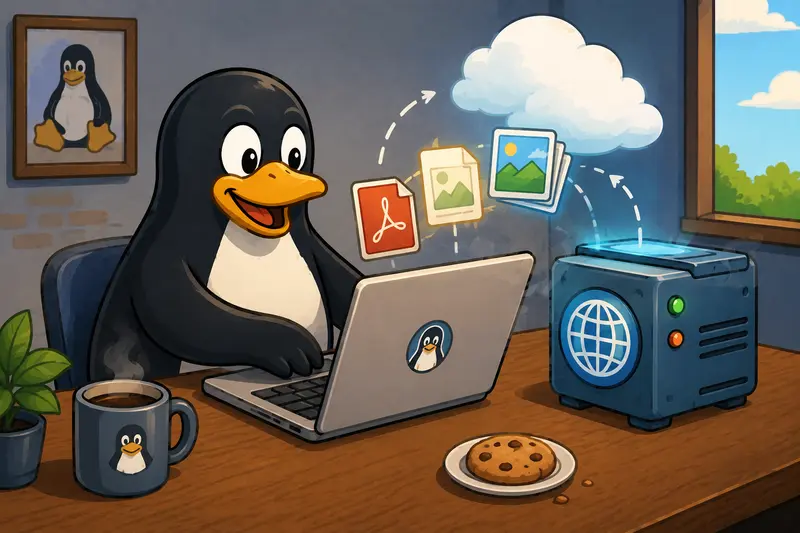
Where PDF-to-JPG Conversion Helps Most
Developers and technical teams frequently use this process in situations such as:
- Creating documentation thumbnails for internal portals
- Publishing PDF manuals as image-based web content
- Generating previews for file management systems
- Extracting diagrams from engineering reports
- Building training materials from existing PDFs
- Creating image datasets from scanned document archives
In many workflows, image output is easier to process programmatically than PDFs.
Key Advantages of Converting PDFs to JPG
A few benefits stand out:
| Benefit | Why It Matters |
|---|---|
| Universal compatibility | JPG files work almost everywhere |
| Easier sharing | Many platforms handle images better than PDFs |
| Web optimization | Images can be compressed and resized efficiently |
| Automation potential | Fits well into developer pipelines |
| Visual extraction | Individual pages become reusable assets |
Frequently Asked Questions
What is the best PDF to JPG converter for Linux users?
The answer depends on your workflow. Command-line tools such as Poppler and ImageMagick are excellent for local processing, while browser-based services can be more convenient for bulk jobs and cross-platform environments.
Does converting a PDF to JPG reduce quality?
Potentially. JPG uses lossy compression, so quality settings matter. Higher-resolution exports help preserve text and diagram clarity.
Can I perform batch PDF to image conversion?
Yes. Both command-line tools and browser-based services support processing multiple files. Batch processing becomes especially valuable when dealing with large document collections.
Is browser PDF image conversion safe?
It depends on the provider. Look for services that use temporary processing, short retention periods, and cleanup policies. Filemazing processes uploaded files as temporary artifacts rather than long-term storage.
Should I use JPG or PNG?
JPG is generally better for photographs and smaller file sizes. PNG may be preferable for screenshots, line art, and diagrams requiring maximum sharpness.
Can developers automate PDF image conversion?
Yes. API-enabled services make it possible to integrate conversion directly into CI/CD pipelines, content workflows, and document processing systems.
Final Thoughts
Linux offers several effective ways to convert PDF to JPG, from traditional command-line utilities to modern browser-based platforms. For developers handling occasional conversions, local tools remain useful. For larger workloads, recurring jobs, and automated pipelines, a browser-based service with queue management and API support can streamline the process considerably.
If your workflow involves frequent document processing, Filemazing provides a practical combination of bulk conversion capabilities, predictable token-based pricing, temporary file handling, and automation-ready infrastructure that fits naturally into modern development environments.