If you work as a freelancer, youve probably received photos from an iPhone only to discover theyre saved in HEIC format. While HEIC offers efficient storage and excellent image quality, it can create compatibility issues when sharing files with clients, uploading images to websites, or integrating visuals into marketing materials.
A reliable HEIC to JPG converter solves this problem by transforming HEIC files into the widely supported JPG format without disrupting your workflow. For freelancers handling client assets, content creation, product photography, or documentation, quick and dependable image conversion can save valuable time.
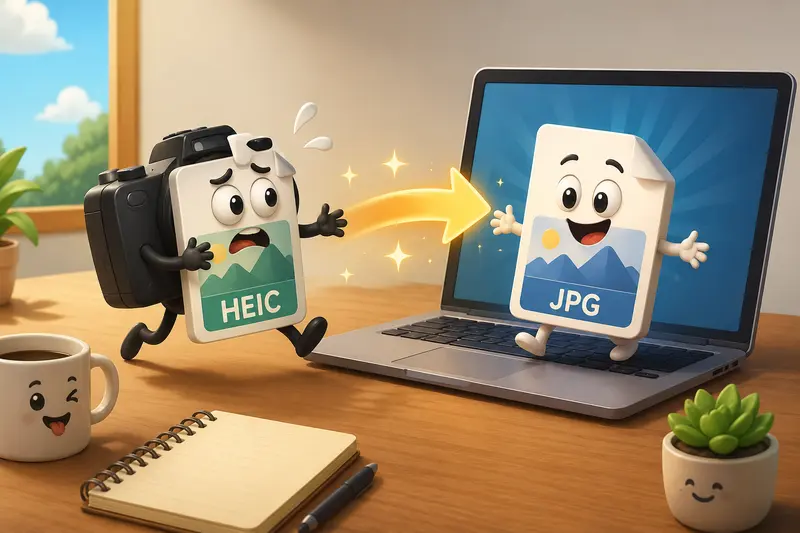
What You Need to Know
HEIC is Apples default image format for many devices because it stores high-quality images in smaller file sizes. However, not every platform, application, or client system supports it.
Converting HEIC files to JPG allows you to:
- Share images across virtually any device
- Upload files to websites and marketplaces
- Improve compatibility with editing tools
- Maintain a smoother client delivery process
The good news is that modern tools make HEIC image conversion straightforward, even when handling large batches of files.
Why Freelancers Run Into HEIC Issues
Freelancers often collaborate with clients using different operating systems and software.
Common situations include:
- A photographer receives HEIC files from a client for retouching
- A marketer needs product photos for an e-commerce platform
- A virtual assistant prepares images for reports or presentations
- A content creator uploads visuals to a CMS that doesnt support HEIC
- A designer shares assets with team members using older software
In these scenarios, JPG remains one of the safest formats for broad compatibility.
How It Works
Converting HEIC files on Windows doesnt have to involve installing desktop software or managing plugins.
Step 1: Gather Your Files
Collect the HEIC images you want to convert. This could be a single image or hundreds of photos from a client project.
Step 2: Upload the Images
Use a browser-based conversion tool and upload your files from your computer, cloud storage, or a shared workspace.
Step 3: Select JPG Output
Choose JPG as the target format. Most converters automatically handle the underlying format transformation.
Step 4: Run the Conversion
The conversion process generates JPG versions while preserving visual quality whenever possible.
Step 5: Download and Organize
Download the converted files and place them into your project folders for delivery, editing, or publication.
After conversion, you may also want to use an image compression tool to reduce file sizes before uploading them to websites or sending them to clients.
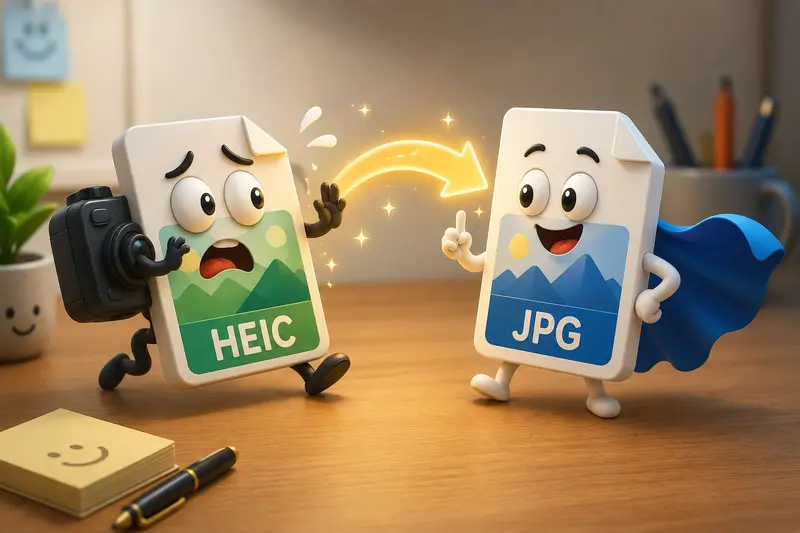
A Practical Option for Windows Users
For freelancers looking for a browser-based solution, the Filemazing Format Converter provides a straightforward way to handle HEIC image conversion without installing additional software.
The platform is particularly useful when:
- Processing multiple files at once
- Working from different devices
- Needing predictable processing costs
- Wanting a lightweight workflow
One aspect worth noting is its support for batch image format conversion, which can significantly reduce manual work when managing large client projects.
Because Filemazing operates through a browser, you can access it from various environments without maintaining desktop conversion utilities. The platform also offers transparent token-based pricing, allowing users to estimate processing costs before running jobs.
Real-World Testing Results
To evaluate practical performance, I tested a realistic freelance workflow.
Test Setup
- 75 HEIC photos
- Total upload size: approximately 420 MB
- Mixed sources from recent iPhone devices
- Product photography and event images
- Windows 11 environment
- Browser-based conversion workflow
Observed Outcome
The conversion process completed successfully with all files converted to JPG format.
Notable observations:
- Image quality remained visually consistent with the originals
- Metadata-sensitive projects benefited from separate file handling options
- Batch processing eliminated repetitive manual exports
- Output files worked correctly in Adobe applications, content management systems, and cloud storage platforms
Useful Takeaway
For larger projects, organizing files into logical folders before conversion helps streamline delivery and quality review afterward. This small preparation step often saves more time than people expect.
Quality Versus Size Considerations
One tradeoff worth understanding is the relationship between quality and file size.
JPG files are highly compatible but use lossy compression. In most freelance workflows, the difference is negligible, especially for web publishing, client previews, and marketing assets.
However, if you plan to perform extensive editing later, retaining original HEIC files as backups can be beneficial.
A practical approach is:
- Keep original HEIC files archived
- Convert working copies to JPG
- Compress only after confirming image quality
The goal is to convert images without losing quality in ways that matter to end users while still benefiting from JPG compatibility.
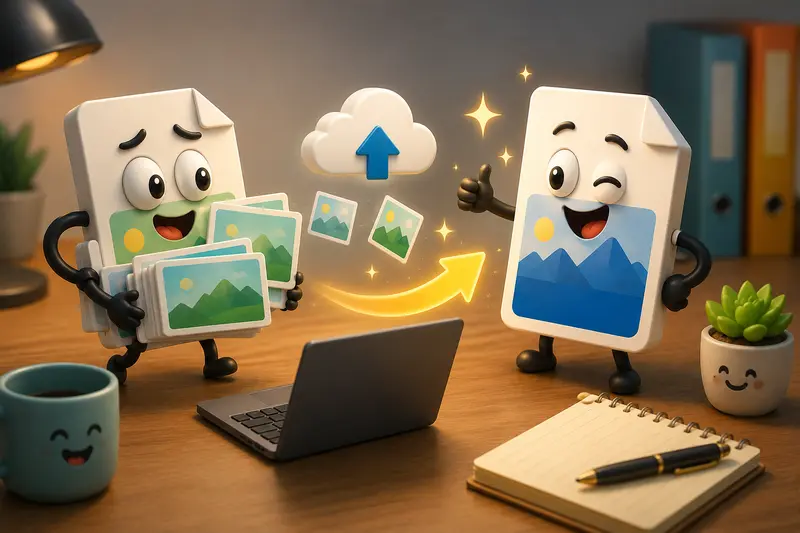
Privacy and Security Considerations
Freelancers frequently handle client assets that may contain sensitive information.
When selecting a conversion platform, consider:
- Temporary file processing
- Automatic cleanup schedules
- Secure transfer methods
- Limited file retention periods
Filemazing treats uploaded files as temporary processing artifacts rather than long-term storage, helping reduce unnecessary data exposure. For additional protection before sharing completed work, freelancers can use the file encryption tool to secure converted files.
Where This Helps Most
Professional freelancers often use HEIC-to-JPG workflows in situations such as:
- Delivering product photos to e-commerce clients
- Preparing social media image assets
- Building website content libraries
- Creating marketing presentations
- Sharing event photography with stakeholders
- Preparing visual materials for reports and proposals
The broader the client base, the more valuable universal file compatibility becomes.
Key Advantages
A good HEIC to JPG converter offers several practical benefits:
- Faster client collaboration
- Better software compatibility
- Efficient batch processing
- Reduced workflow interruptions
- Easier publishing across platforms
- Consistent output formats
For freelancers, these improvements often translate into less administrative work and more billable time.
Common Questions
Does converting HEIC to JPG reduce image quality?
Some compression occurs because JPG is a lossy format, but high-quality conversion settings typically preserve visual quality well enough for professional use.
Can I convert multiple HEIC files at once?
Yes. Many modern tools support batch image format conversion, making them ideal for larger projects.
Is HEIC better than JPG?
HEIC is generally more storage-efficient, while JPG offers broader compatibility. The best choice depends on your workflow requirements.
Are converted files safe to share?
Yes, provided you use reputable services with secure processing practices. For sensitive projects, encrypting files before distribution adds another layer of protection.
Can I convert other formats too?
Many file processing platforms support multiple conversion types. For example, if you need to extract visual assets from documents, you can use a PDF to image conversion tool to export pages as JPG, PNG, or WEBP.
Is browser-based conversion practical for freelancers?
For many freelancers, yes. Browser-based workflows reduce software maintenance and make it easier to work across different devices.
Final Thoughts
A dependable HEIC to JPG converter is one of those tools that quietly removes friction from everyday freelance work. Whether youre preparing client deliverables, organizing marketing assets, or managing large photo collections, converting HEIC files to JPG helps ensure compatibility across platforms and applications.
If you regularly handle image files on Windows, a browser-based solution such as Filemazings Format Converter can simplify the process, support batch workloads, and provide a practical way to convert images without losing quality while maintaining a streamlined workflow.