Managing scattered PDF files is one of those tasks that seems small until it suddenly becomes urgent. A school form arrives separately from the scanned signature page, travel documents sit in different downloads folders, and receipts somehow multiply overnight.
That is why many people look for ways to join PDFs into one file without installing heavy desktop software or dealing with account creation walls.
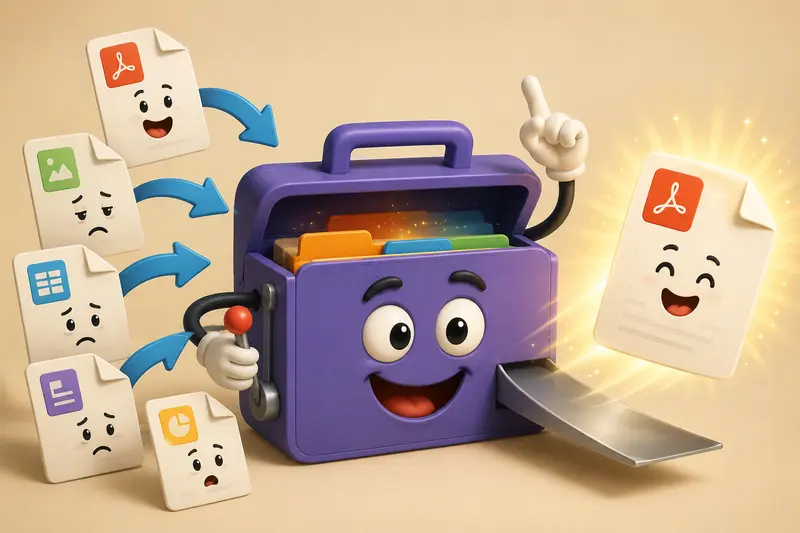
Modern browser tools have made the process much more practical. Instead of downloading bulky applications, users can merge documents directly in the browser, organize pages quickly, and export a single combined file ready for sharing or archiving.
The Short Version
If your goal is to:
- combine multiple PDFs into a single organized document
- avoid software installation
- handle batch uploads in the browser
- keep workflows privacy-conscious
then a browser-based tool like Filemazing Merge PDF handles the process efficiently while supporting both small personal tasks and larger document batches.
It is especially useful for people who regularly deal with receipts, scanned paperwork, reports, forms, or exported documents from different apps.
Why People Merge PDFs More Often Than They Expect
Most general users are not creating giant legal archives every day. The need usually appears through ordinary situations:
- combining bank statements for an application
- sending multiple signed forms together
- merging lecture notes into one study file
- packaging invoices for accounting
- organizing travel documents before a trip
- storing scanned household paperwork
And yes, there is always that one file someone forgot to attach until the last minute.
The ability to perform a batch PDF merge becomes especially useful when handling many related files at once instead of repeatedly opening and exporting documents individually.
How the Workflow Typically Looks
The process itself is fairly straightforward when the tool is designed well.
1. Upload Your PDF Files
Add files from:
- local storage
- Google Drive
- Dropbox
- direct URLs
This helps when documents are spread across devices or cloud storage.
2. Arrange the File Order
Reordering matters more than people think. Contracts, scanned pages, and receipts can quickly become confusing if the sequence is wrong.
3. Start the Merge Process
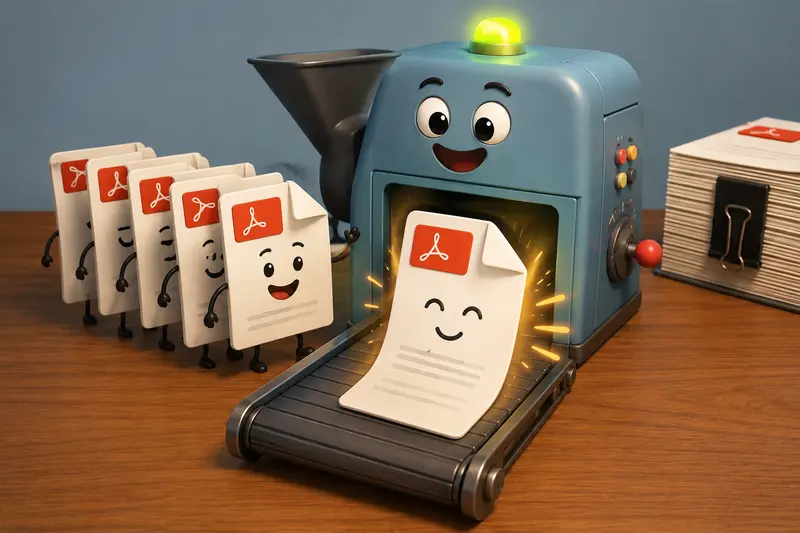
The platform processes the files in the browser workflow queue and generates a combined output document.
4. Download the Final PDF
Once complete, you receive a unified file that is easier to store, email, print, or archive.
If your source files arrived inside compressed folders, the archive extraction tool can help unpack ZIP or RAR collections before merging documents together.
A Practical Look at Filemazing
Filemazing approaches document handling differently from many traditional desktop utilities.
The platform runs entirely in the browser and focuses heavily on:
- lightweight workflows
- privacy-conscious temporary processing
- scalable batch handling
- predictable token-based pricing
For general users, the biggest advantage is convenience. There is no need to maintain another installed application that only gets opened twice a month.
At the same time, the platform supports larger operational workloads for teams and developers through API-based automation.
Another useful detail is transparency. Token costs are calculated from factors like:
- file count
- page count
- file size
- workload complexity
That predictability helps users avoid the vague premium feature surprises common on some file tools.
The merge PDF workflow itself is designed to support both occasional personal use and heavier recurring document tasks.
Real-World Testing Notes
To see how well the process handled mixed documents, a test batch included:
- 12 PDF files
- roughly 180 total pages
- a mixture of:
- scanned receipts
- exported invoices
- presentation handouts
- smartphone-scanned documents
Total upload size was approximately 68 MB.
What Happened
The merge completed smoothly in the browser without noticeable formatting corruption. Text-based PDFs remained searchable, while scanned image-based pages preserved their original appearance.
A useful observation appeared during testing: very large image-heavy scans naturally increased processing time more than standard text PDFs. That is fairly typical because scanned pages behave more like image collections than lightweight document layers.
One practical takeaway:Before merging oversized scans, compressing unnecessary image data can noticeably reduce upload and export times.
Users who later need individual visuals from the merged document can also use the PDF to image converter to export selected pages separately.
One Thing Many Users Overlook: Scan Quality Matters
Here is a non-obvious issue that affects merged PDFs more than people expect.
When combining scans from multiple devices:
- some pages may use different resolutions
- color profiles may vary
- page dimensions may not match perfectly
The result can feel inconsistent inside the final merged file.
Helpful Recommendation
Before merging:
- keep scans at similar DPI levels
- avoid mixing ultra-high-resolution phone scans with low-quality office scans
- rotate pages beforehand if needed
This reduces visual jumps between pages and keeps file sizes more manageable.
Some people accidentally create a 300 MB PDF because one phone camera exported every receipt at poster-print quality. Storage tends to become dramatic exactly when email attachment limits appear.
Privacy Considerations Are Increasingly Important
A growing number of users prefer tools that do not treat uploaded files as permanent cloud storage.
Filemazing processes uploads as temporary working files rather than long-term document archives. Files are cleaned on a short retention schedule after processing completes.
That matters for:
- financial paperwork
- personal records
- signed forms
- client documentation
For additional privacy preparation, users can remove embedded hidden information using the metadata cleaning tool before sharing sensitive documents externally.
Metadata removal is especially useful for exported office documents that may contain:
- author names
- software details
- timestamps
- hidden editing history
Situations Where Merging PDFs Helps Most
Household Organization
General users often combine:
- utility bills
- warranties
- insurance forms
- tax-related documents
into a single archive for easier retrieval later.
School and Coursework
Students regularly merge:
- lecture slides
- assignment pages
- scanned notes
- submission forms
into one upload-ready file.
Travel Preparation
Combining:
- hotel confirmations
- visa paperwork
- tickets
- itineraries
into one PDF can simplify offline access during travel.
Freelance and Side Projects
Invoices, contracts, screenshots, and supporting documents frequently need to be submitted together to clients or platforms.
Tradeoffs Worth Knowing
No merge workflow is perfect for every situation.
Here are a few realistic considerations:
| Consideration | Practical Impact |
|---|---|
| Very large scanned files | May increase browser memory usage |
| Mixed page dimensions | Can create uneven page appearance |
| Image-heavy PDFs | Usually process slower |
| Older browsers | May struggle with huge batch uploads |
| Poor scan quality | Can make merged documents harder to read |
That does not mean the process fails only that file quality and consistency still matter.
What Makes Browser-Based Merging More Practical Today
A few years ago, many online PDF tools felt unreliable or overloaded with ads and restrictions.
Modern browser-based systems now handle:
- larger workloads
- cloud imports
- queue management
- temporary processing
- batch operations
much more effectively.
The convenience factor is significant for general users because the workflow works across:
- laptops
- workstations
- shared computers
- mobile-friendly browsers
without requiring dedicated installations.
Frequently Asked Questions
Can I combine PDFs without creating an account?
Yes. Many users specifically look for ways to combine PDFs without signup, and browser-based tools like Filemazing support guest usage with free daily tokens available for lightweight tasks.
Does merging PDFs reduce document quality?
Usually no. Standard PDF merging keeps existing pages intact. However, low-quality scans remain low-quality after merging because the source content itself does not improve.
Is there a file limit for batch PDF merge operations?
Limits can depend on browser memory, upload size, and processing workload. Extremely large image-heavy batches may take longer to complete.
Is it possible to merge PDFs online free?
Yes. Users can perform a merge PDF online free workflow through available free token allocations before upgrading for larger processing needs.
Are uploaded files stored permanently?
No. Filemazing uses temporary processing workflows rather than permanent file hosting. Uploaded files are cleaned after processing according to retention handling policies.
Can merged PDFs later be converted into images?
Yes. After combining documents, users can export pages individually using the PDF-to-image workflow when visual extraction is needed.
Final Thoughts
The ability to join PDFs into one file has quietly become one of the most useful everyday document tasks for modern users.
Whether organizing household paperwork, preparing travel documents, submitting coursework, or managing freelance files, combining PDFs into a single structured document reduces clutter and simplifies sharing.
Browser-based tools like Filemazing make that workflow more flexible by supporting:
- batch operations
- cloud imports
- privacy-conscious processing
- transparent pricing
- installation-free access
For general users, that balance between convenience and practical functionality matters far more than flashy features.