Small business documents rarely arrive neatly packaged. One invoice is exported from accounting software, another page is scanned from a printer, a signed agreement lands by email, and the supporting files are sitting in a ZIP folder somewhere.
When you need to combine PDF files online from a desktop, the best approach is to use a browser-based merge tool that can handle multiple uploads, preserve page order, process larger files reliably, and avoid turning a simple admin task into a software-installation project.
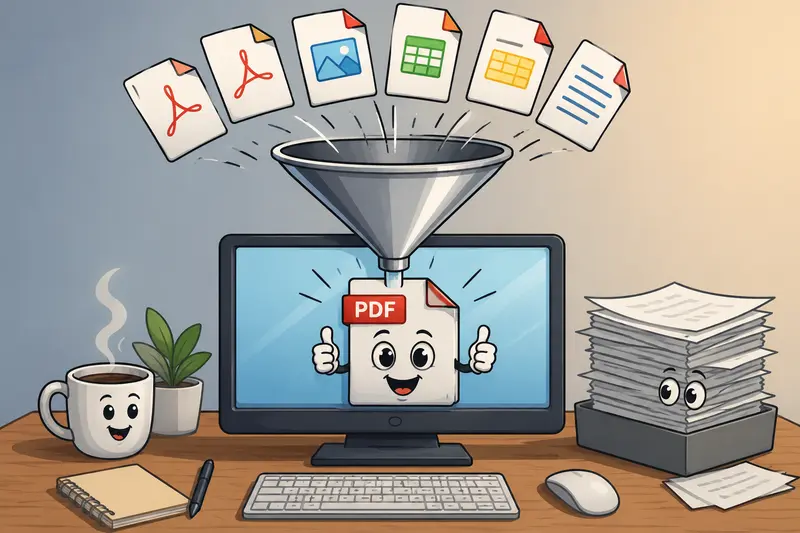
Heres the practical answer
The best way to combine PDFs on desktop is to upload your files to an online PDF merge tool, arrange them in the right order, process the merge, then download one clean PDF.
For small business owners, this is usually faster than opening desktop PDF software, especially when you only need to merge contracts, scanned receipts, proposals, onboarding forms, or client documents occasionally.
A good online workflow should support:
- multiple PDFs in one job
- scanned PDF files
- larger document exports
- clear page ordering
- browser-based processing
- temporary file handling and cleanup
For this, Filemazings merge PDF tool is a strong fit because it is built around practical browser-based file workflows rather than heavy desktop software.
Getting it done from your desktop
The process is straightforward, but the order matters more than many people realize.
Collect the PDFs first
Put all files in one folder before uploading. Rename them with numbers if the sequence matters, such as01-contract.pdf,02-signed-page.pdf, and03-invoice.pdf.Upload the files to the merge tool
Use local upload, URL input, or cloud import if your documents are stored in Google Drive or Dropbox.Check the file order before processing
This is especially important when combining scanned PDFs, because scanned pages often have generic names likescan001.pdf.Run the merge job
The files are processed into one PDF. For larger batches, queued processing helps keep the browser responsive instead of freezing your work session.Download and review the final PDF
Open the merged file before sending it to a client, accountant, vendor, or legal contact.
One small but useful habit: keep the original PDFs until the merged version has been checked. Nobody wants to rebuild a document packet because page 7 decided to go on a small adventure.
Why Filemazing works well for PDF merging
Filemazing is a browser-based file processing SaaS that helps users convert, clean, compress, and prepare files quickly without installing desktop software. For small business owners, that means you can handle routine document work from a normal desktop browser without maintaining extra apps.
Its merge PDF workflow is useful when you need to combine contracts, invoices, tax documents, scanned forms, reports, or client packets into a single file. The platform also supports related tools such as PDF to image, image compression, archive extraction, audio conversion, metadata scrubbing, format conversion, and file encryption.
The main advantage here is batch processing. If you regularly need a batch PDF merge for client folders, monthly reporting packets, vendor paperwork, or onboarding documents, a browser-based workflow can save time without requiring a full PDF editing suite.
Filemazing also uses transparent token pricing instead of a traditional subscription-only model. Each operation consumes tokens based on workload factors such as base cost, file size, page count, file count, and sometimes media duration. For PDF merging, the pricing formula currently includes a base cost plus factors for MB, pages, and file count, which makes it easier to estimate usage before processing.
That matters for small teams. You can start with daily free tokens as an anonymous or registered user, then top up when larger workloads appear. Token packs such as Pack 500, Pack 5000, and Pack 50000 make the system more flexible for occasional document tasks or heavier operational use.
Privacy is also part of the workflow. Uploaded files are treated as temporary processing artifacts and are cleaned on a short retention schedule rather than stored as long-term user storage.
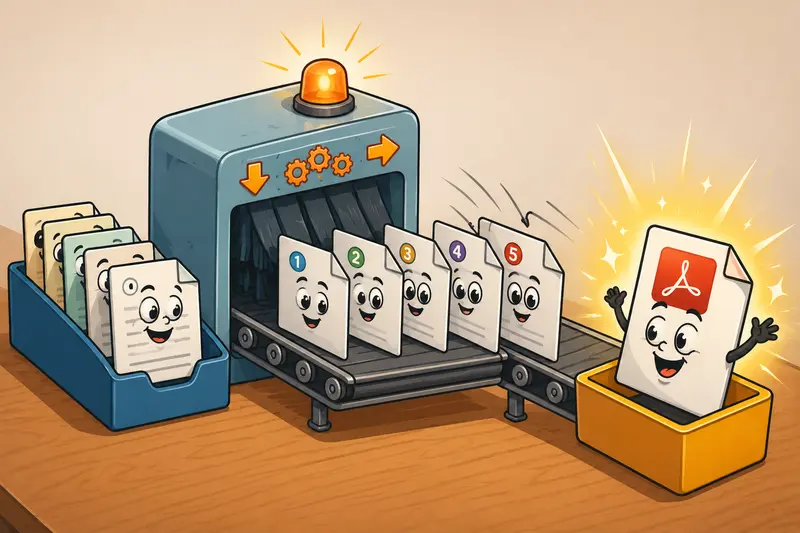
Tested workflow: scanned invoices, contracts, and a large report
A realistic desktop test involved combining eight PDFs for a small service business:
- three scanned invoice PDFs
- two signed contract pages
- one 38-page service proposal
- one image-heavy product sheet
- one payment confirmation export
The total upload was a mixed batch: some text-based PDFs, some scanned pages, and one larger visual document. The merged output kept the document order intact and produced a single PDF that was easier to send as a client packet.
The most important takeaway was not speed alone. It was preparation.
The cleanest result came from renaming files before upload and placing scanned pages near the exact section where they belonged. Scanned PDFs usually do not contain selectable text, so the final PDF may look correct visually but still be harder to search unless OCR has already been applied elsewhere.
For business use, that distinction matters. A merged PDF can be readable and well-organized without being fully searchable.
A few mistakes that make merged PDFs harder to use
Combining PDF files online is simple, but small workflow mistakes can create messy results.
Uploading files in the wrong order is the most common issue. Many systems sort files alphabetically, not by the order you intended. Prefixing filenames with numbers helps.
Mixing portrait and landscape pages can make the final PDF feel inconsistent. This is not always wrong, especially for spreadsheets or diagrams, but review the final file before sending it.
Combining huge scans without checking size can create a bulky document. If your scanned PDFs are image-heavy, the merged file may be large enough to cause email delivery problems.
Forgetting hidden metadata can be risky when sharing contracts, proposals, or internal documents externally. Before sending sensitive files, consider using a tool to remove hidden metadata before document sharing.
Merging before unpacking everything can slow you down. If supporting documents are inside compressed folders, you may first need to unpack files from ZIP or RAR archives before building the final PDF packet.
The non-obvious tip: merge only the final versions. If you combine drafts too early, you may end up repeating the whole workflow after one small edit.
Where this saves time in real business workflows
For small businesses, PDF merging is rarely just a PDF task. It is usually part of a bigger workflow.
You might need to combine:
- signed client contracts with invoice records
- scanned receipts for bookkeeping
- vendor forms and insurance certificates
- employee onboarding documents
- monthly reports from multiple departments
- proposal pages, pricing sheets, and supporting attachments
A real estate office may merge disclosures and signed forms into one client packet. A contractor may combine estimates, scope documents, photos, and billing paperwork. A consultant may package a proposal, case study, and terms page before sending it to a lead.
When the workflow repeats often, Filemazings API support can also matter. Non-technical users can work through the clean web interface, while developers or operations teams can connect API endpoints for automation.
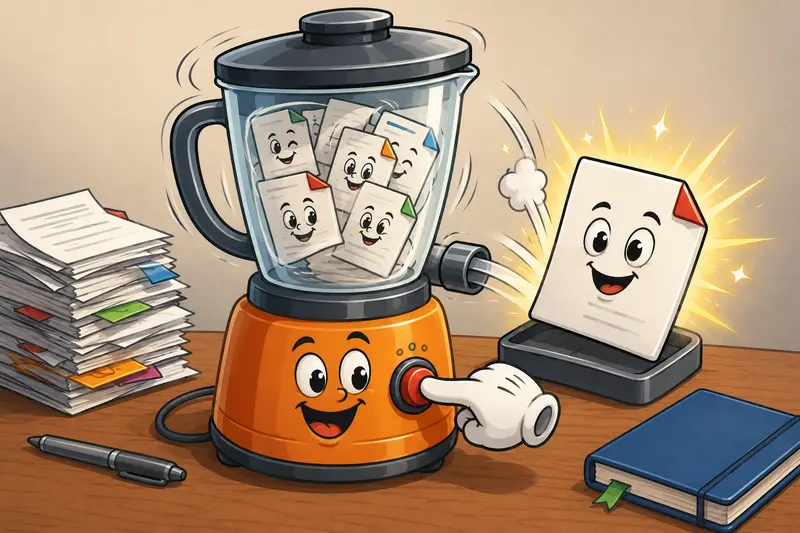
What you gain with an online desktop workflow
The biggest benefit is removing friction. You do not need to install desktop software, manage updates, or move files between different apps just to produce one combined PDF.
Other advantages include:
- faster document preparation
- support for large and multi-file jobs
- cleaner client-facing packets
- predictable token-based usage
- cloud input from Google Drive or Dropbox
- temporary processing instead of long-term file storage
- one platform for related file tasks
After merging, you can also turn merged PDF pages into images when you need previews, thumbnails, visual records, or page-by-page image exports.
There are tradeoffs. Online tools depend on upload speed, and very large PDF files may take longer to transfer. Scanned files can also increase file size quickly. The goal is not always the smallest possible PDF; it is a readable, organized document that works for the person receiving it.
FAQ
Can I combine scanned PDFs online?
Yes. Scanned PDFs can usually be merged like normal PDFs. The main thing to remember is that scanned pages are often image-based, so the merged PDF may not have searchable text unless OCR was already applied.
Is an online PDF merge tool good for large files?
It can be, especially when the service supports queued processing and job status tracking. For very large PDFs, upload speed and file size matter. Image-heavy scans will usually take longer than text-based PDFs.
Will merging PDFs reduce quality?
Merging usually combines files without intentionally lowering visual quality. However, if you compress or convert files before or after merging, quality can change depending on the settings used.
Is it private to combine PDF files online?
Privacy depends on the tool. Filemazing treats uploads as temporary processing artifacts and cleans them on a short retention schedule rather than using the platform as permanent file storage.
Do I need an account?
Filemazing allows anonymous and registered users to start with daily free tokens. Registered users may be better suited for repeat workflows, higher throughput, and token top-ups.
Can I automate PDF merging?
Yes. Filemazing supports API endpoints, which can be useful for teams that repeatedly prepare document packets, client files, reports, or operational paperwork.
Final thought
The best way to combine PDF files online on desktop is to use a browser-based tool that handles batches cleanly, gives you predictable processing costs, and respects temporary file handling.
For small business owners who regularly deal with contracts, invoices, scanned PDFs, and client packets, Filemazings merge PDF tool offers a practical way to turn scattered documents into one organized file without installing desktop software.