Modern Android phones can open almost anything these days until someone sends a HEIC image and your workflow suddenly stalls during a campaign upload, CMS import, or client handoff.
For marketers, that friction shows up everywhere: social scheduling tools rejecting uploads, inconsistent previews in ad dashboards, or image libraries that handle JPG files more predictably than HEIC. A reliable HEIC to JPG converter becomes less about file compatibility and more about keeping content production moving without interruptions.
What makes the situation slightly more annoying is that HEIC files are actually efficient and high quality. The problem is compatibility, especially across web publishing tools, older software, and collaborative workflows.
If youre already optimizing web assets afterward, it also helps to pair conversion with an image optimization workflow like Filemazing image compression tool https://filemazing.com/compress-image so converted JPG files stay lightweight enough for landing pages and campaign uploads.
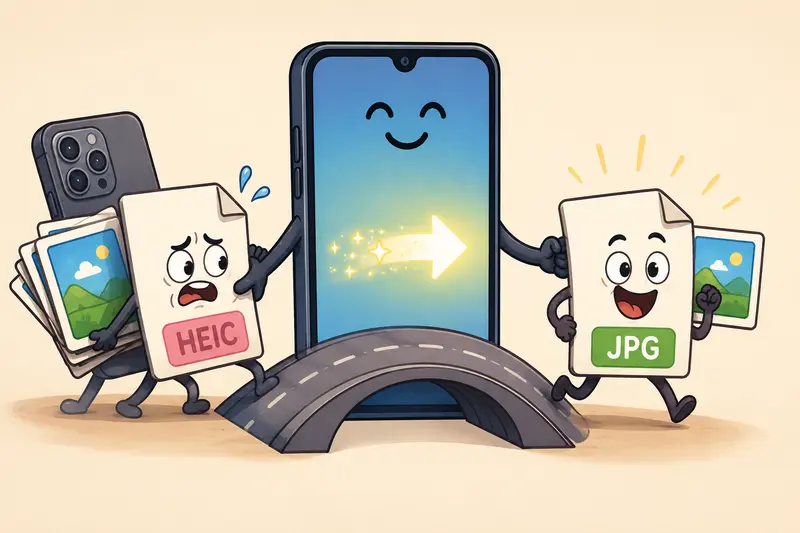
The Short Version
If you need the fastest approach on Android:
- Upload your HEIC images to Filemazing Format Converter https://filemazing.com/format-converter
- Select JPG as the output format
- Process files directly in the browser
- Download converted images individually or in batches
This works particularly well for marketers handling multiple creative assets because the workflow supports batch image format conversion instead of forcing one-by-one uploads.
The browser-based setup also avoids installing another editing app that gets used twice and forgotten forever.
Why HEIC Still Causes Problems in Marketing Workflows
HEIC was designed to reduce storage size while preserving image quality. On phones, thats useful.
In content operations, though, JPG still dominates because:
- most CMS platforms expect it
- ad platforms preview it consistently
- email tools compress it more predictably
- stock asset pipelines are usually JPG-first
A marketing team dealing with:
- product photos
- campaign creatives
- event photography
- influencer assets
- quick mobile uploads
often needs conversion before publishing anything externally.
The issue becomes more noticeable during rapid content cycles where speed matters more than preserving Apples preferred format.
One delayed upload before a campaign deadline is usually enough to convince people to standardize on JPG.
How the Process Works on Android
You do not need desktop software for reliable HEIC image conversion anymore. A browser workflow is usually faster for occasional and mid-volume tasks.
1. Upload the HEIC images
Open the converter from your Android browser and upload:
- single photos
- grouped campaign assets
- exported iPhone image folders
Cloud imports from Google Drive or Dropbox are useful when creatives are shared between teams.
2. Choose JPG output
Select JPG as the destination format.
For web publishing and social media use, standard JPG settings are usually enough. Extremely high quality exports can inflate file sizes without visible marketing benefits.
3. Run the conversion
The platform processes files through queued jobs, which helps larger uploads avoid browser slowdowns.
This matters more than people expect once youre converting dozens of images at once.
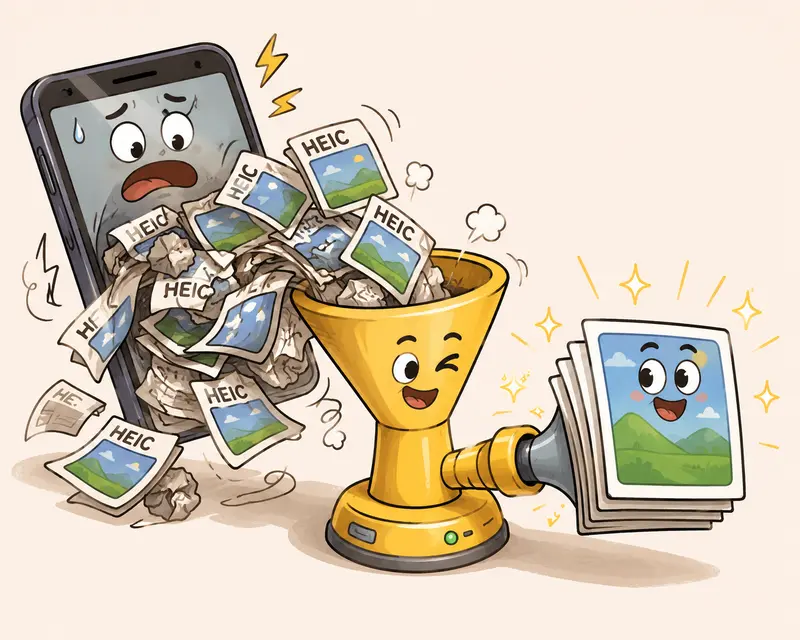
4. Download and optimize
After conversion, marketers often reduce image size before uploading to websites or newsletters.
That is where a secondary workflow like image compression for web-ready assets https://filemazing.com/compress-image becomes genuinely useful, especially for landing pages where oversized visuals quietly hurt performance.
What We Tested
To see how practical the workflow felt on Android, we tested several realistic scenarios:
| Test Type | Details | Result |
|---|---|---|
| Product photos | 18 HEIC files from an iPhone, ~47MB each | Converted cleanly with minimal visual difference |
| Event gallery | 42 mixed-lighting images | Batch handling stayed stable |
| Social media assets | Portrait and landscape images | JPG compatibility improved upload reliability |
| Website banners | High-detail graphics with gradients | Slightly larger JPG sizes after conversion |
The most noticeable takeaway was workflow consistency rather than dramatic image quality changes.
The converted JPG files uploaded more reliably across:
- WordPress media libraries
- Meta Ads Manager
- email campaign builders
- collaborative cloud folders
One tradeoff did appear during testing: converting HEIC to JPG can slightly increase file size depending on image complexity and compression settings. High-detail photography with gradients or shadows tends to grow more than flat-color graphics.
That is normal behavior, not a conversion flaw.
A practical tip: if your final destination is web publishing, compress the JPG afterward rather than exporting aggressively low-quality JPG files upfront. The visual result is usually cleaner.
One Thing Most People Miss About HEIC Conversion
Metadata can survive the conversion
A surprising number of converted images still contain:
- location data
- device information
- timestamps
- camera metadata
For marketers working with:
- client deliverables
- event photography
- agency workflows
- influencer assets
that information is not always something you want distributed externally.
Using a metadata cleanup step after conversion is often smarter than people realize. Tools like Filemazing metadata scrubbing workflow https://filemazing.com/metadata-scrubber can remove embedded metadata before assets get uploaded publicly or shared with partners.
This becomes especially relevant when freelancers and agencies exchange creative files across multiple organizations.
Where Android Users Usually Run Into Trouble
Not every HEIC file behaves identically.
Some common issues include:
Mixed file batches
Older Android apps occasionally fail when:
- HEIC and WEBP files are uploaded together
- image naming structures are inconsistent
- live photos are included accidentally
A converter supporting broader compatibility helps here, especially if you also need to convert WEBP online for web publishing workflows.
Excessive recompression
Some mobile apps compress images too aggressively during export.
The result:
- muddy gradients
- blurred text overlays
- weaker ad creatives
Browser-based conversion workflows tend to preserve more control over the original asset quality.
Large campaign uploads
Uploading 60+ images through mobile apps can become unstable depending on device memory.
Queued browser processing handles heavier workloads more predictably.
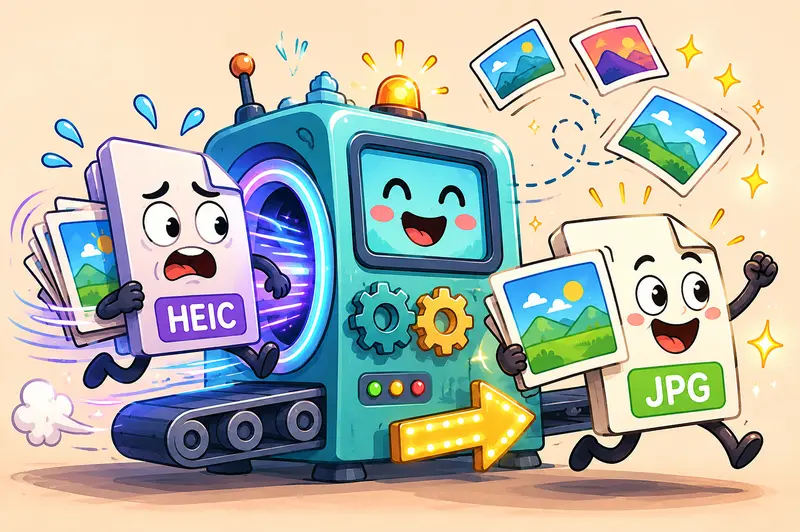
Some file formats cooperate nicely. Others behave like they were created out of spite.
Practical Marketing Use Cases
Here are the situations where Android-based conversion actually saves time:
- converting influencer photos before campaign scheduling
- preparing product images for Shopify uploads
- standardizing event photos from mixed devices
- resizing and converting assets for email newsletters
- preparing JPG visuals for Meta or Google Ads
- cleaning up collaborative content folders before client delivery
In real marketing workflows, compatibility consistency usually matters more than theoretical format advantages.
Why Filemazing Fits This Workflow Well
Filemazing Format Converter https://filemazing.com/format-converter works particularly well for Android users because the workflow stays lightweight:
- browser-based processing
- batch handling support
- no desktop installation
- predictable token pricing
- cloud import compatibility
The token system is also unusually transparent compared to subscription-heavy utility apps.
For format conversion, pricing is based on measurable workload factors rather than vague premium tiers, which helps teams estimate costs before uploading larger image sets.
Another useful detail: uploaded files are treated as temporary processing artifacts rather than long-term storage. That matters when handling unreleased campaign creatives or client materials.
If converted files need secure delivery afterward, especially during agency collaboration, you can also use encrypted file sharing workflows https://filemazing.com/encrypt-file before sending assets externally.
What You Actually Gain
Using a dedicated HEIC to JPG converter on Android helps reduce several quiet workflow bottlenecks:
- fewer failed uploads
- easier collaboration across devices
- faster CMS publishing
- more predictable social media handling
- simpler archive organization
- cleaner compatibility with legacy tools
It is not glamorous work, admittedly.
But neither is fixing broken image uploads ten minutes before a campaign launch.
FAQ
Does converting HEIC to JPG reduce quality?
Potentially, yes but usually very slightly when reasonable JPG settings are used. For marketing visuals, the difference is often invisible unless youre zooming deeply into high-detail photography.
Can Android open HEIC files without conversion?
Many newer Android devices can open them, but compatibility problems still appear with:
- publishing tools
- older apps
- CMS uploads
- ad platforms
That is why JPG remains the safer universal format.
Is batch image format conversion supported?
Yes. Batch processing is especially useful for campaign assets, event photography, or collaborative creative folders where converting files individually would waste time.
Can I also convert WEBP online in the same workflow?
Yes. Multi-format compatibility matters when handling modern web assets because marketing teams often receive mixed file types from different contributors.
Are uploaded files stored permanently?
The workflow is designed around temporary processing rather than long-term storage. Files are cleaned up on a short retention schedule instead of functioning as permanent cloud storage.
Should I compress JPG files after conversion?
Usually yes, especially for websites and email campaigns. Converting first and compressing afterward often produces better visual results than exporting heavily compressed JPG files immediately.
Final Thoughts
For Android users managing creative assets, the best HEIC to JPG converter is usually the one that stays out of the way and keeps content moving.
A browser-based workflow makes sense because it removes installation friction, handles batch workloads more gracefully, and fits naturally into modern cloud-driven marketing operations.
If your team regularly deals with mixed image formats, fast publishing cycles, and mobile-first asset handling, Filemazing Format Converter https://filemazing.com/format-converter offers a practical balance between speed, compatibility, and lightweight processing without forcing a complicated desktop workflow.