Photographers end up with PDFs more often than expected. Client proof sheets, scanned release forms, portfolio exports, lighting diagrams, contact sheets eventually you need those pages as image files instead of documents.
Thats where many Android workflows become frustrating. Some apps reduce image quality, others add watermarks, and a few turn a clean portfolio PDF into blurry PNG files that somehow look older than the original camera sensor.
If you need to convert PDF to PNG on Android without installing desktop software, browser-based tools are usually the fastest route especially when you care about image clarity.
One practical option is Filemazing PDF to Image https://filemazing.com/pdf-to-image, which runs directly in the browser and supports larger file workflows without requiring local software installation.
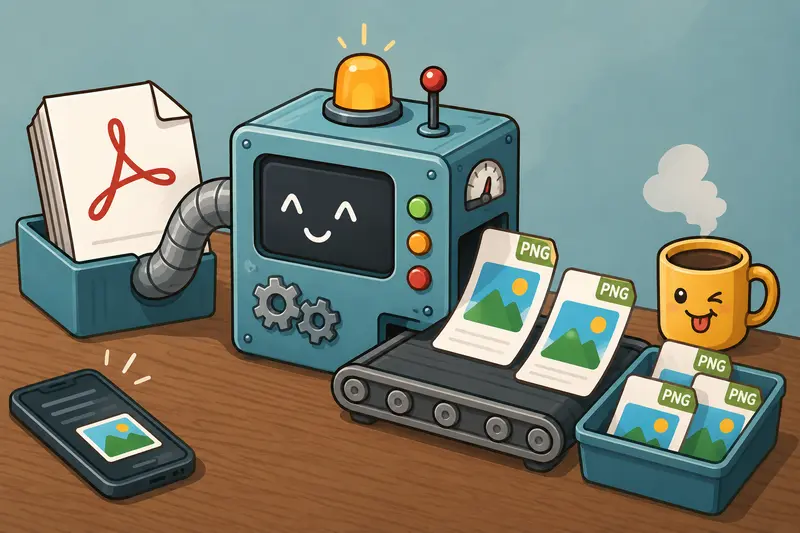
What Matters Most
The fastest method is typically:
- Open a browser-based PDF converter on Android
- Upload the PDF
- Choose PNG as the export format
- Download the converted image files
PNG works especially well for photographers because it preserves detail cleanly, particularly with graphics, text overlays, scanned prints, and layout-heavy portfolio pages.
For photographic previews where file size matters more than perfect detail retention, JPG may still be the better option. That tradeoff becomes important once you start sharing galleries through messaging apps or cloud folders.
Why Android Users Often Run Into Quality Problems
A surprising number of mobile PDF converters optimize for speed by heavily compressing output images in the background.
You notice it immediately when:
- skin tones look muddy
- gradients band visibly
- watermark text becomes fuzzy
- sharp typography softens
- scanned negatives lose edge detail
This becomes even more noticeable with:
- photography contact sheets
- black-and-white scans
- magazine-style layouts
- print proofs
- layered PDFs exported from Lightroom or InDesign
The issue usually isnt the PDF itself. Its the conversion pipeline.
A proper high quality PDF to image workflow should preserve:
- original page dimensions
- sharp edges
- transparency where supported
- color consistency
- readable text overlays
How the Process Works on Android
The workflow itself is fairly straightforward, but a few small choices make a noticeable difference in output quality.
1. Open the PDF conversion tool in your browser
Go to:
Filemazing PDF to Image Converter https://filemazing.com/pdf-to-image
Because its browser-based, it works on Android Chrome, Samsung Internet, Firefox, and most modern mobile browsers.
No APK hunting. No desktop sync required.
2. Upload your PDF
You can upload:
- local files from your phone
- exported Lightroom PDFs
- scanned contracts
- client proof documents
- cloud files from providers like Google Drive or Dropbox
If youre dealing with multiple documents first, it can help to merge PDF files into one document before conversion https://filemazing.com/merge-pdf so the final image export stays organized.
3. Choose PNG output
PNG is usually the better option when:
- preserving sharp text
- retaining fine details
- avoiding visible compression artifacts
- preparing files for editing later
JPG is lighter and faster to share, but PNG preserves more visual precision.
Thats the classic tradeoff:
- PNG larger files, cleaner quality
- JPG smaller files, more compression
4. Start processing and download results
Large PDFs process through queued handling, so the browser doesnt freeze during heavier jobs.
That matters more than people realize on Android devices with limited memory. A 200-page scanned PDF can overwhelm weaker mobile conversion apps surprisingly quickly.
Real-World Test: Portfolio PDF Export From Lightroom
To see how well mobile conversion held up, I tested a 48-page photography portfolio exported from Lightroom on a Pixel device.
Test setup
- PDF size: 182 MB
- Mixed content:
- full-resolution portraits
- typography overlays
- monochrome spreads
- scanned film pages
- Output target: PNG
Observations
The PNG exports retained:
- sharp typography
- consistent shadow detail
- smooth gradients
- accurate page cropping
More importantly, darker image sections avoided the muddy compression artifacts commonly seen in aggressive mobile converters.
Processing time was reasonable even on mobile data, although naturally slower than Wi-Fi.
One practical takeaway:
If your PDF contains mostly photographic spreads rather than text-heavy layouts, exporting only the pages you actually need saves considerable processing time and storage space.
Large PDFs have a habit of appearing right when your phone storage is already nearly full.
A Small but Important Quality Recommendation
Heres something many photographers overlook:
If your PNG exports are meant for social sharing or client previews, convert first, then compress afterward instead of exporting directly to lower-quality JPG.
That sequence usually preserves better visual balance.
For example:
- Export PDF pages as PNG
- Review image quality
- Then compress converted images for faster sharing https://filemazing.com/compress-image if needed
You maintain more control over:
- sharpness
- file size
- compression intensity
- visible artifacting
This tends to produce cleaner results than aggressive one-step JPG conversion.
Performance Considerations for Large PDFs
This is where Android workflows can vary quite a bit.
PNG conversion is heavier than JPG
PNG files:
- preserve more data
- compress differently
- generate larger outputs
- consume more temporary storage
For smaller proof sheets, thats not a problem.
For:
- magazine exports
- scanned archives
- wedding albums
- multi-page commercial presentations
the difference becomes noticeable.
Browser-based processing helps here
Instead of relying entirely on the phones local resources, browser PDF image conversion workflows distribute processing more efficiently and avoid some of the memory limitations common in standalone mobile apps.
Thats especially useful when handling:
- batch exports
- large scans
- multi-file uploads
- mixed-format PDFs
Filemazing also uses temporary processing behavior rather than long-term storage retention, which matters if client documents contain contracts, unreleased work, or identifiable metadata.
For additional privacy cleanup after exporting, you can also remove metadata from exported image files https://filemazing.com/metadata-scrubber before sharing publicly.
Where This Helps Photographers Specifically
Some practical Android workflows where PDF-to-PNG conversion genuinely saves time:
- Exporting Lightroom proof PDFs into individual social-ready slides
- Turning scanned film sheets into editable image files
- Extracting presentation pages for Instagram carousels
- Sharing print layouts with clients through messaging apps
- Converting photography contracts into image previews
- Pulling visual references from mood board PDFs
PNG is particularly useful when the document contains:
- sharp typography
- transparency
- overlays
- diagrams
- high-contrast edits
Why Browser-Based Conversion Often Wins
Desktop software still has advantages for advanced editing pipelines.
But for fast mobile workflows, browser tools remove a surprising amount of friction:
- no installation
- no updates
- no device compatibility concerns
- easier cloud imports
- faster access from multiple devices
For photographers moving between tablets, phones, and laptops, consistency matters more than flashy interfaces.
And honestly, nobody enjoys troubleshooting a conversion app five minutes before delivering client previews.
FAQ
Does converting PDF to PNG reduce image quality?
Not necessarily. PNG is lossless, so it generally preserves detail better than JPG. The real quality difference usually comes from the converters processing settings rather than the PNG format itself.
Is PNG better than JPG for photography PDFs?
It depends on the goal.
PNG is better for:
- sharp detail
- text overlays
- editing workflows
- archival quality
JPG is better for:
- smaller file sizes
- faster uploads
- lightweight previews
If you specifically want PDF to JPG without losing quality, exporting at higher resolution first usually helps preserve detail before compression.
Can I convert large PDFs on Android?
Yes, although processing speed depends on:
- PDF size
- page count
- internet speed
- image density
Browser-based systems tend to handle larger workloads more reliably than lightweight mobile apps.
Are uploaded files stored permanently?
Filemazing treats uploads as temporary processing files rather than permanent cloud storage. Files are cleaned on a short retention schedule after processing.
Does this work without installing an app?
Yes. The entire workflow runs in the browser.
Can I process multiple PDFs together?
Yes. Batch-oriented workflows are supported, and combining files beforehand can simplify exports when handling large projects.
Final Thoughts
For photographers, the biggest challenge usually isnt how to convert a PDF its how to preserve image clarity while keeping the workflow fast enough to use on mobile.
A browser-based approach solves much of that friction.
Filemazing PDF to Image Converter https://filemazing.com/pdf-to-image works well for Android users who need reliable PNG exports, cleaner image quality, predictable processing behavior, and flexible handling for larger document workflows without depending on desktop software.