PDFs are often the final container for work, not the easiest source for reuse. That becomes obvious the moment you need the images back out for print, layout, review, or repurposing.
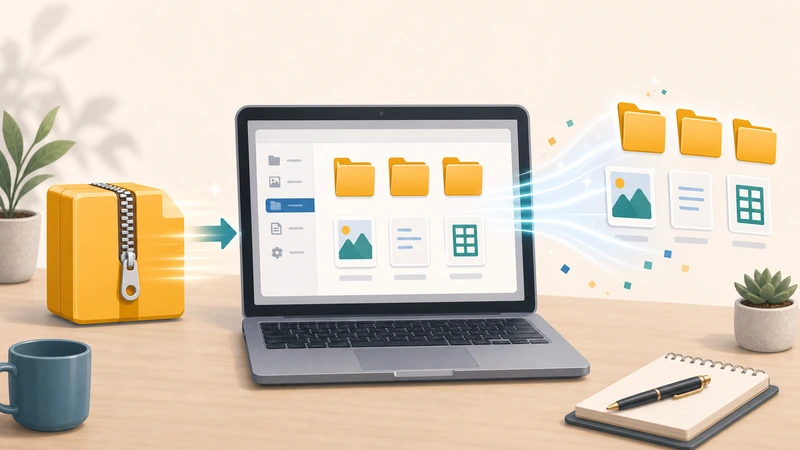
The problem is not just “how do I get an image from this PDF?” The real question is whether you need the original embedded graphic, a page-level export, or simply a printable visual version of what the PDF shows.
If you know which of those you need, the workflow becomes much easier.
When people need images from PDFs
- print teams need artwork from approved documents
- content teams need visuals for reuse elsewhere
- support or admin teams need page snapshots for reference
- someone only received the PDF and not the original assets
These are common situations because PDFs often become the handoff format long after the original editable files are gone or inaccessible.
What to decide first
Do you need the exact embedded image?
If yes, the workflow is about recovering specific assets.
Do you need the page as it appears visually?
If yes, exporting PDF pages into image files may be the better path.
Is the output for print, review, or publishing?
The destination affects what “good enough” looks like in terms of clarity and file type.
Why page export is often the practical answer
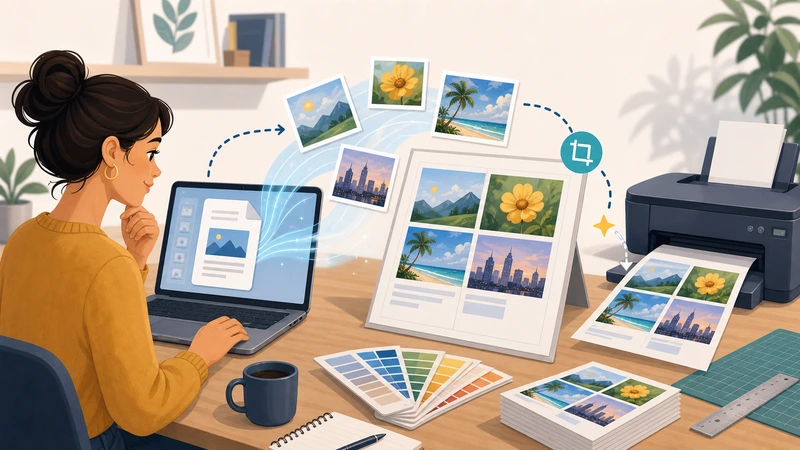
In many real workflows, people do not need to reconstruct the original source asset perfectly. They need a clean visual representation of the page or the area they are working from.
That is why PDF to Image is often the better route. It gives you a usable page-level output quickly, which is often enough for print reference, proofs, documentation, or downstream image handling.
When extracted visuals still need more work
- compress them with Compress Image if they are too heavy
- convert them with Format Converter if the destination prefers another format
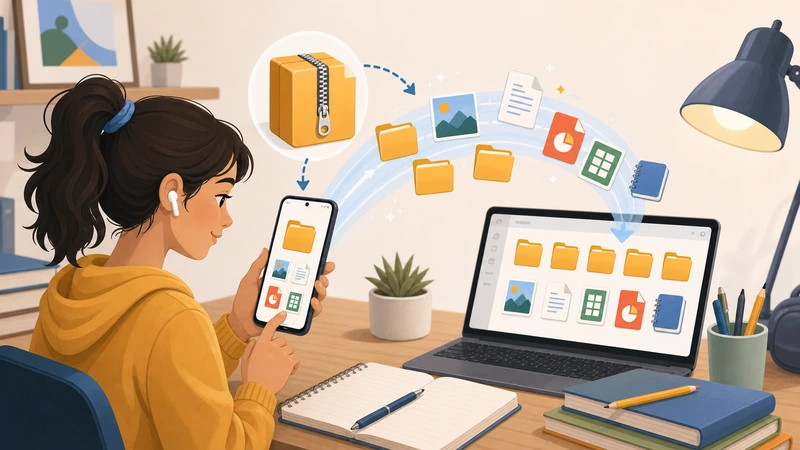
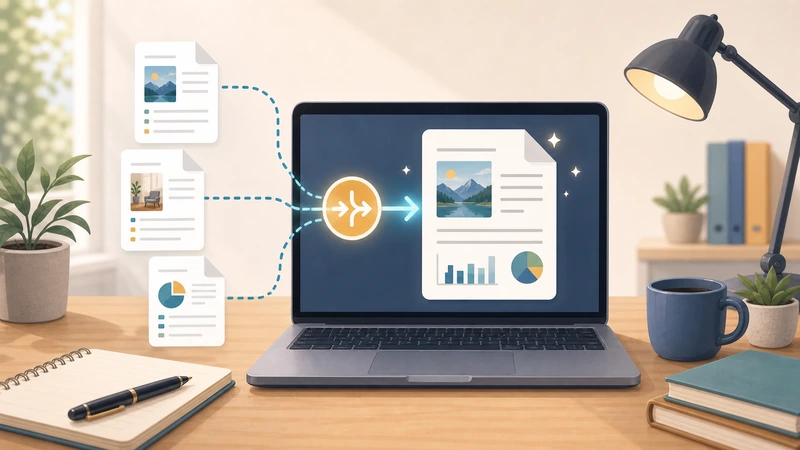
- merge related PDFs first with Merge PDF if the source materials are split across multiple files
Thinking in steps helps you avoid chasing the wrong output too early.
Common mistakes
Assuming every PDF image problem is the same
Sometimes you need page renderings, not asset extraction. Those are different tasks.
Ignoring the print context
If the destination is print-oriented, clarity and output format may matter more than pure file-size concerns.
Expecting the PDF to behave like a source design file
PDF is often a delivery container, not a perfect recovery format for every original asset.
A practical process
- Decide whether you need a page image or a recovered graphic.
- Export or extract based on that real need.
- Check whether the result needs compression or format conversion.
- Move the output into the print or publishing workflow.
Frequently asked questions
What is the easiest way to get printable visuals out of a PDF?
Often it is exporting the relevant PDF pages as images rather than trying to recover every original embedded asset.
When is PDF-to-image better than raw asset extraction?
When you need the page as it appears visually, especially for review, print reference, or fast reuse.
What if the output file is too large?
Compress it afterward if the visual quality is fine but the file weight is inconvenient.
Can I do this in a browser?
Yes. A browser-based PDF page export workflow is often enough for everyday print and reuse tasks.
Final takeaway
Getting images out of a PDF is easier once you stop treating every use case as the same. If what you really need is a clean visual version of the page, a page-export workflow is often the right answer.
When that is the job, start with Filemazing PDF to Image and refine the output afterward only if the print workflow actually needs more.