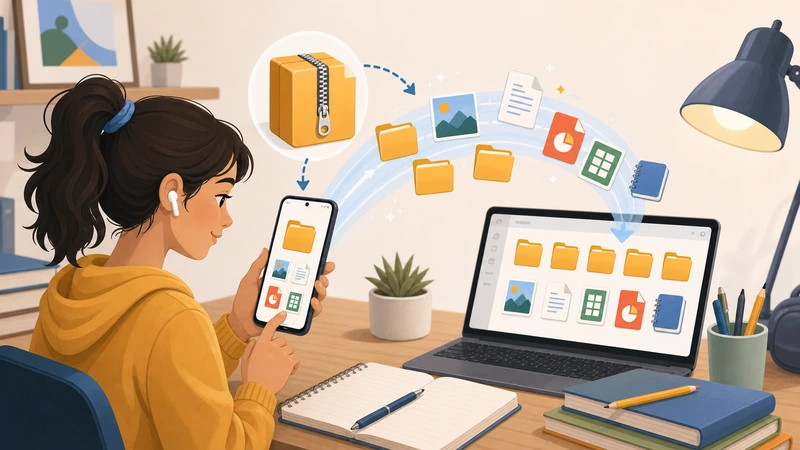
Backup archives are useful because they gather everything in one place. They are also annoying for the same reason. When you open a backup ZIP, you are often digging through far more than you actually need.
That is why extraction for backup review should be deliberate. The goal is not to explode a huge archive across your device and hope for the best. The goal is to inspect the relevant contents, recover what matters, and keep the workflow clean.
If you are reviewing ZIP files from backup workflows, the best approach is usually selective, temporary, and organized from the start.
Why backup ZIP files become messy fast
- They often include mixed documents, exports, screenshots, and logs.
- Folder structures can be deep and confusing.
- You may only need one small part of the archive.
- Extracted files are easy to duplicate, misplace, or leave lying around.
This is especially true when the archive was created for storage efficiency rather than easy day-to-day use.
Start with the recovery goal
Before you extract anything, decide what success looks like. Are you looking for one document, a folder of images, an exported report, or proof that a certain file still exists?
That question changes the whole workflow. If you only need a few files, full extraction is often unnecessary overhead.
What to check before extraction
Archive size versus expanded size
Backup archives can expand dramatically. Do not judge the workload by the ZIP size alone.
Device context
If you are reviewing the backup on a shared or lightly provisioned device, keep the extraction footprint small.
What happens after review
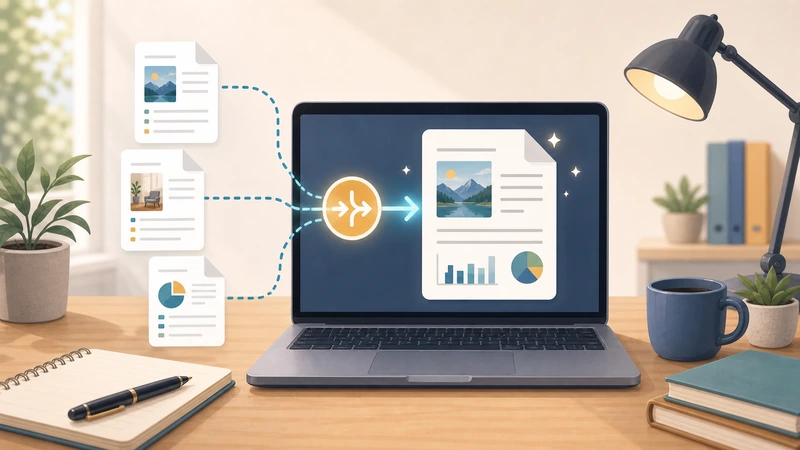
Recovered files may need to be merged, converted, re-shared, or stored securely. Keep the next step in mind from the beginning.
Why online extraction can work well here
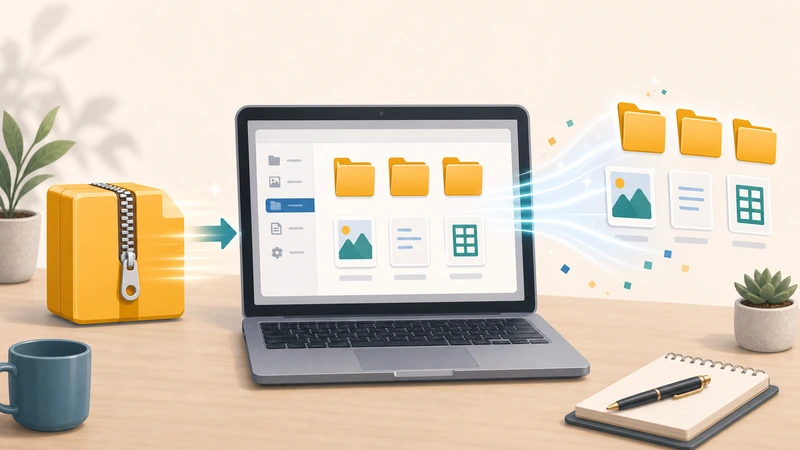
Browser-based extraction is useful when you want to inspect and recover files without turning your device into a temporary archive dump.
Filemazing's Archive Extractor fits that kind of review workflow well because it is based on short-lived processing rather than long-term storage.
That is often the right mindset for backup review: recover what matters, then move it into the right next destination.
Good backup-review follow-up tasks
- merge recovered PDFs with Merge PDF
- turn recovered PDF pages into shareable images with PDF to Image
- compress recovered visual assets with Compress Image
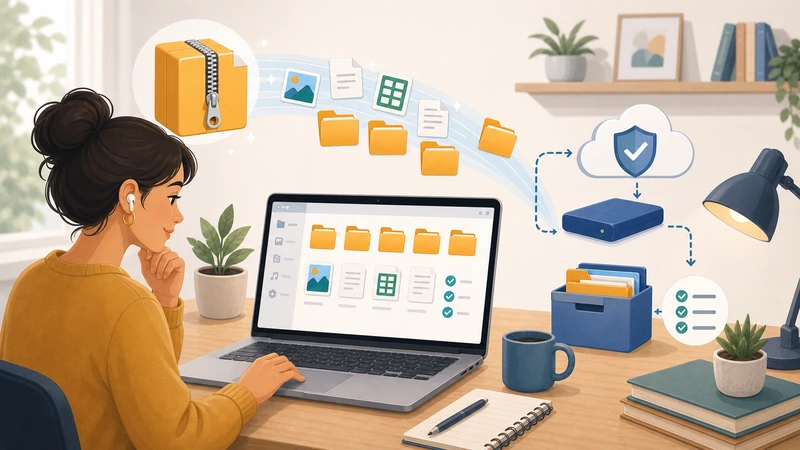
- protect sensitive recovered files with Encrypt File
Thinking in workflow chains helps prevent “recovery clutter” where extracted files scatter across random folders and devices.
Mistakes to avoid
Extracting everything automatically
That is the fastest way to create noise when the archive contains more than the current task requires.
Using the recovered files as if they were already organized
Backup outputs are often not clean working files. They may still need sorting or follow-up processing.
Leaving sensitive recovered files sitting around
Backup archives often contain exactly the kind of material that should not remain on temporary devices longer than necessary.
A clean backup review process
- Define the specific file or folder you are trying to recover.
- Extract only the useful part where possible.
- Review it immediately.
- Move the recovered file into its real destination.
- Clean up temporary copies.
Frequently asked questions
Should I extract an entire backup ZIP every time?
No. If you only need part of it, a smaller review-oriented workflow is usually better.
Why do backup ZIP files feel harder to work with than normal ZIP files?
Because they are often built for storage and retention, not for easy browsing or selective day-to-day access.
Is a browser extractor useful for backup review?
Yes, especially when you want quick access without spreading temporary files all over the current device.
What should I do after I recover the needed files?
Move them into the right long-term destination and remove temporary extracted copies you no longer need.
Final takeaway
Backup review is easiest when you resist the urge to extract everything blindly. A focused workflow saves time, reduces clutter, and lowers the risk of mishandling sensitive recovered files.
If you want a simpler browser-based route for inspecting and recovering files from ZIP archives, start with Filemazing Archive Extractor and keep the process centered on what you actually need to restore.