
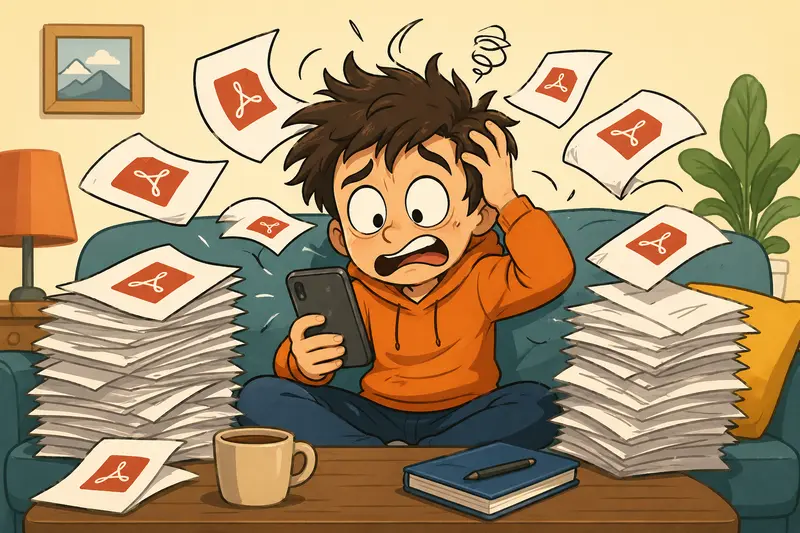
Handling PDFs on an Android phone can get messy fast—especially when you’re juggling receipts, forms, or scanned documents. Instead of downloading bulky apps, many people now prefer to combine PDF files online directly from their browser. It’s lighter, faster, and avoids cluttering your device with extra installs.
If you’ve ever tried to send multiple PDFs as one file and hit a wall, this guide walks you through a smoother way to handle it.
What Matters First
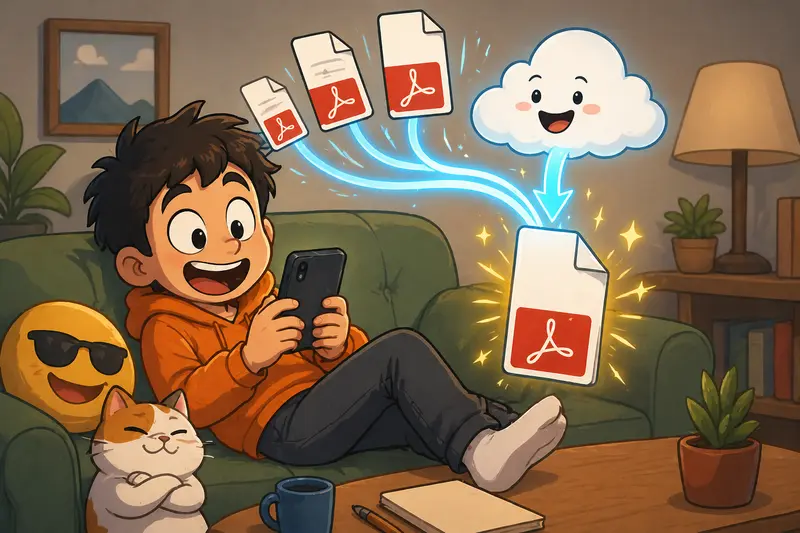
To put it simply: combining PDFs online lets you upload multiple files, arrange them in order, and merge them into a single document—without installing anything. On Android, this means everything happens inside your browser, making it accessible anywhere.
How the Process Flows
Merging PDFs online isn’t complicated, but a few small details make a big difference.
-
Upload your files
Select PDFs from your phone storage, cloud drives, or even links. -
Arrange the order
Drag or reorder files so pages appear exactly how you want them. -
Start the merge process
The tool combines everything into one continuous document. -
Download the result
Save the merged file back to your device or share it instantly.
In cases where your files come from compressed folders, you can first extract documents from ZIP or RAR files using this archive tool: https://filemazing.com/archive-extractor.
A Practical Tool That Fits Everyday Use
One option that works particularly well on Android is the Filemazing merge tool:
https://filemazing.com/merge-pdf
What stands out is its ease of use—you don’t need an account, and the interface adapts well to mobile screens. Everything runs in your browser, so there’s no setup or app permissions to worry about.
A few practical highlights:
- Upload directly from your phone or cloud storage
- Handles batch PDF merge tasks without freezing your device
- Transparent token system—so you know the cost before processing
- Files are treated as temporary and cleaned shortly after processing
Because it’s browser-based, it works consistently across Android devices, whether you’re using Chrome, Samsung Internet, or another mobile browser.
Real-World Test: What Actually Happens
To see how reliable this approach is, I tested a common scenario:
- Files used: 6 scanned PDFs (receipts and handwritten notes)
- Total size: ~18 MB
- Device: mid-range Android phone
Result:
- Upload and merge completed in under 20 seconds
- Output file preserved page clarity, even for scanned content
- No noticeable lag during the process
Takeaway:
For everyday use, especially when you need to combine scanned PDFs, online tools handle moderate file sizes surprisingly well. The key is having a stable internet connection—processing happens remotely, not on your device.
Pitfalls to Watch For
Even though online merging is convenient, a few issues can catch you off guard:
1. Page order mistakes
It’s easy to overlook file order before merging. Always double-check—fixing it later means redoing the process.
2. Large file slowdowns
If you’re merging dozens of large PDFs, upload time can increase. Splitting tasks into smaller batches often works better.
3. Mixed formats inside PDFs
Some PDFs contain embedded images or unusual encoding. This can affect consistency when merged.
4. Hidden metadata risks
If you’re sharing merged files, consider removing sensitive data. You can clean hidden document details with a metadata scrubber here: https://filemazing.com/metadata-scrubber.
Where This Helps Most (Everyday Users)
People use PDF merging more often than they realize. Here are common scenarios:
- Combining bills or receipts before sending to someone
- Merging school assignments into a single file
- Creating one document from multiple scanned pages
- Sending grouped documents via email or messaging apps
- Preparing forms and attachments together
- Organizing personal records into one archive
Why It’s Worth Doing This Way
Using an online tool instead of an app has a few clear advantages:
- No installation or storage usage on your phone
- Works instantly across devices
- Easier to handle quick, one-off tasks
- Flexible for both small and batch PDF merge jobs
There’s also a privacy angle—files are processed temporarily rather than stored long-term, which reduces exposure risk.
FAQ: Common Questions
Does merging PDFs reduce quality?
Not typically. Most tools preserve the original quality, especially when simply combining pages rather than compressing them.
Is it safe to combine PDF files online?
Yes, if the platform uses temporary processing and deletes files after completion. Always check privacy practices before uploading sensitive documents.
Can I merge scanned PDFs?
Absolutely. Scanned files (images converted to PDF) merge just like standard documents.
Are there file size limits?
Limits depend on the tool, but browser-based services usually handle moderate file sizes comfortably. Larger jobs may take longer to upload.
Can I convert merged PDFs into images later?
Yes—after merging, you can convert PDF pages into images using this tool: https://filemazing.com/pdf-to-image.
Final Thoughts
If you’re on Android and need to organize documents quickly, choosing to combine PDF files online is often the simplest route. It removes the friction of apps while still giving you control over your files.
Tools like Filemazing make the process feel natural—upload, arrange, merge, done. Whether it’s a few receipts or a stack of scanned pages, you can handle everything in one place without slowing down your phone.
Give it a try the next time your PDFs pile up—you’ll likely stick with this method.