Designers rarely struggle with creating stunning visuals—the real friction shows up when those visuals need to be shared, uploaded, or embedded without dragging performance down. Large PNGs, especially those with transparency or detailed textures, can quietly bloat file sizes.
If you’ve ever had a client reject an email attachment or watched a landing page crawl because of oversized assets, it’s time to rethink how you compress PNG files—without sacrificing what makes them look sharp.
🔎 What Actually Matters
Reducing PNG size isn’t about blindly shrinking files. It’s about preserving visual fidelity while removing unnecessary data. The right approach keeps gradients smooth, edges crisp, and transparency intact.
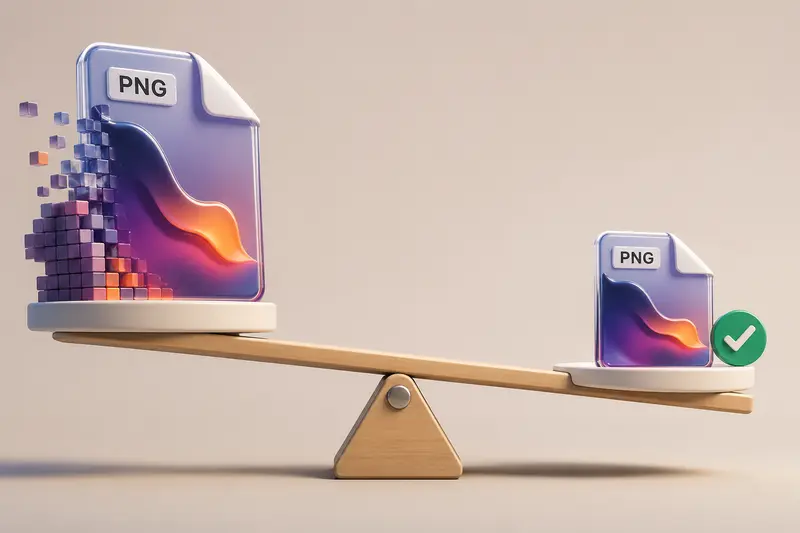
🛠️ How PNG Compression Works (Without Killing Quality)
PNG files are lossless by nature, but that doesn’t mean they’re fully optimized. Compression tools focus on efficiency, not degradation.
Here’s how the process typically unfolds:
- Analyze pixel data – Identifies redundant color information
- Optimize encoding – Rewrites how data is stored without changing appearance
- Remove unnecessary metadata – Strips hidden data like timestamps or device info
- Repackage the file – Outputs a smaller, visually identical image
If you want to go deeper into privacy and cleanup, you can also remove hidden metadata before sharing images, which often trims extra kilobytes and protects sensitive info.
⚡ A Better Way to Compress PNG Files
Instead of juggling desktop tools or plugins, many designers are shifting toward browser-based workflows.
One example is Filemazing’s image compression tool. It leans heavily on batch handling, which is crucial when you’re working with asset libraries or UI kits.
What stands out:
- Processes multiple PNGs in one go
- Runs entirely in the browser—no installs
- Handles large files without freezing your system
- Uses a token system so you only pay for what you process
That last part matters when you’re dealing with unpredictable workloads. You’re not locked into subscriptions just to compress a handful of images.
🧪 Real Test: Compressing a UI Asset Pack
To see how this holds up in a real scenario, I tested a design export:
- Input: 24 PNG files from a Figma export
- Total size: ~48 MB
- Content: UI screens, icons, gradients, shadows
What happened:
- Output size dropped to 19 MB
- No visible degradation in gradients or edges
- Transparent elements remained intact
- Processing completed without slowing down the browser
Key takeaway:
Batch compression isn’t just about convenience—it ensures consistency across assets. Every file gets optimized under the same logic, which avoids mismatched quality levels.

⚖️ Tradeoffs Designers Should Know
PNG compression isn’t a free lunch. There are subtle tradeoffs worth understanding:
1. Size vs. editability
Highly optimized PNGs can be harder to reprocess later without quality shifts.
2. PNG vs. JPG decisions
Sometimes, switching formats is smarter. If transparency isn’t needed, you might reduce JPG size online instead for significantly smaller outputs.
3. Over-compression risk
Even “lossless” tools can introduce inefficiencies if settings are pushed aggressively or repeatedly applied.
Practical tip:
Compress your files once, as the final step before delivery—not during iterative design stages.
🎯 Where This Fits in Real Workflows
For designers working in professional environments, PNG compression shows up everywhere:
- Preparing UI assets for developer handoff
- Optimizing images for landing pages and SaaS dashboards
- Packaging visuals for email campaigns (especially when you need to compress photos for email)
- Cleaning up exported illustrations before uploading to marketplaces
- Reducing file sizes for client presentations
- Managing large design systems with hundreds of assets
🌟 Why This Approach Works
What makes this workflow reliable isn’t just compression—it’s control.
- Predictable output quality
- Scalable for both small and large batches
- No dependency on heavy software
- Works across formats when needed
- Keeps your system responsive during processing
If you’re sharing sensitive work, you can also protect compressed files before sharing, which adds an extra layer of security when sending assets externally.
❓ FAQ
Does compressing PNG files reduce quality?
Not necessarily. Proper compression removes inefficiencies without altering visible pixels. The key is using tools that prioritize lossless optimization.
Can I compress multiple images at once?
Yes, and you should. Batch processing ensures consistent results across all assets and saves time.
Is PNG always better than JPG?
No. PNG is ideal for transparency and sharp edges, while JPG works better for photos. Sometimes switching formats is the bigger win.
Are my files stored after compression?
With modern tools like Filemazing, files are treated as temporary processing data and removed shortly after completion—no long-term storage.
Can I use this for other formats too?
Yes. Many tools also support conversions, like turning documents into images via PDF to image conversion workflows.
🚀 Final Thoughts
Design quality shouldn’t come at the cost of performance. When you compress PNG files the right way, you keep your visuals intact while making them easier to ship, load, and share.
If your workflow involves frequent exports, client deliveries, or asset-heavy projects, it’s worth adopting a system that scales with you—not against you.
Try integrating compression as a final step in your design pipeline. You’ll notice the difference immediately—not just in file size, but in how smoothly everything else runs.