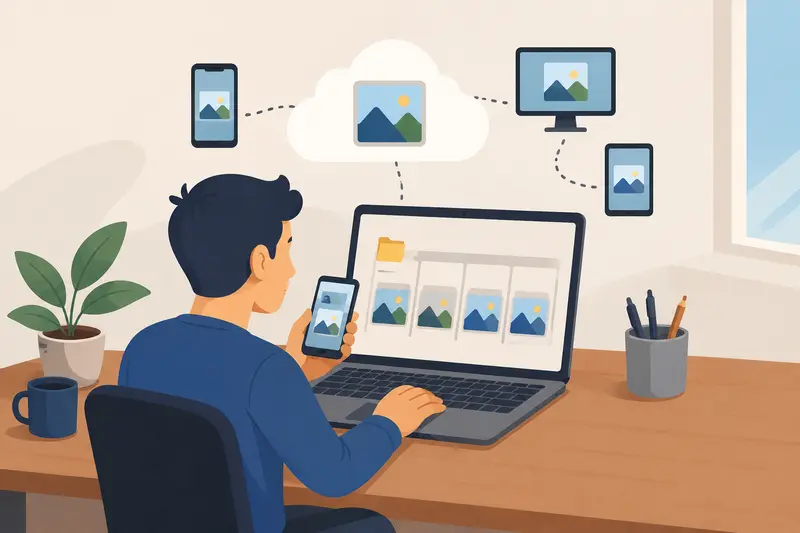
HEIC photos look great on modern phones, right up until someone on your team tries to open them in an older CMS, a shared drive preview fails, or a client asks for regular JPGs instead. Remote teams run into this constantly, especially when files move between Android devices, Macs, Windows laptops, and browser-based collaboration tools.
A reliable HEIC to JPG converter solves that compatibility problem without turning image quality into a blurry mess. The challenge is finding a workflow that handles bulk images efficiently, preserves detail, and doesnt require everyone to install another desktop app theyll forget about two weeks later.
The Simple Version
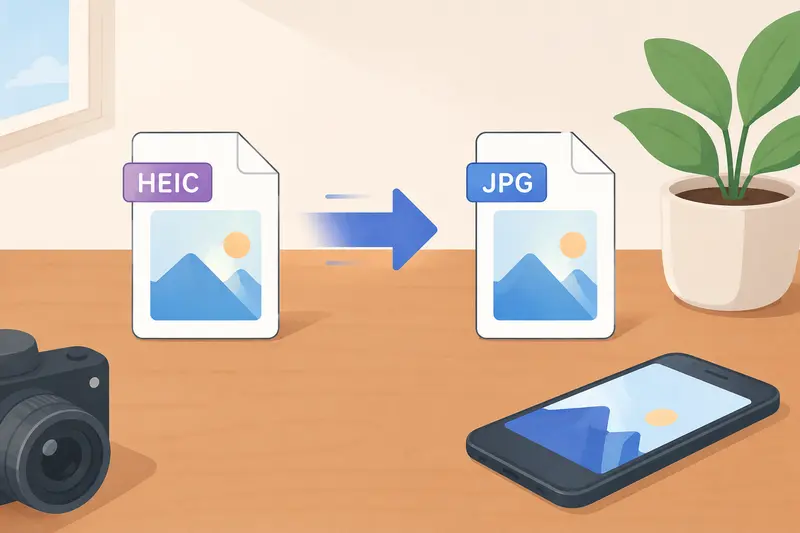
HEIC files are efficient and high quality, but JPG remains the safest universal image format for websites, presentations, email attachments, and shared project assets.
Using a browser-based converter like Filemazing Format Converter https://filemazing.com/format-converter lets teams convert images without losing quality while avoiding software installs or device-specific limitations.
Why HEIC Still Creates Friction for Teams
Apple adopted HEIC because it stores high-quality photos in smaller file sizes than JPG. From a storage perspective, its smart.
From a workflow perspective? It can get messy.
A few common examples remote teams deal with:
- Uploaded HEIC files not previewing correctly in project management tools
- Website image uploads rejecting unsupported formats
- Marketing teams needing JPG assets for newsletters or ad platforms
- Android users receiving HEIC photos they cant edit easily
- Shared folders containing mixed image formats that break automation scripts
Some file formats cooperate beautifully. Others behave like theyve entered contract negotiations.
JPG remains the safest works almost everywhere option, particularly for web publishing and collaborative environments.
How the Conversion Process Usually Works
You dont need a complicated editing workflow to handle HEIC images properly. A streamlined browser workflow is usually enough for most teams.
Typical conversion flow:
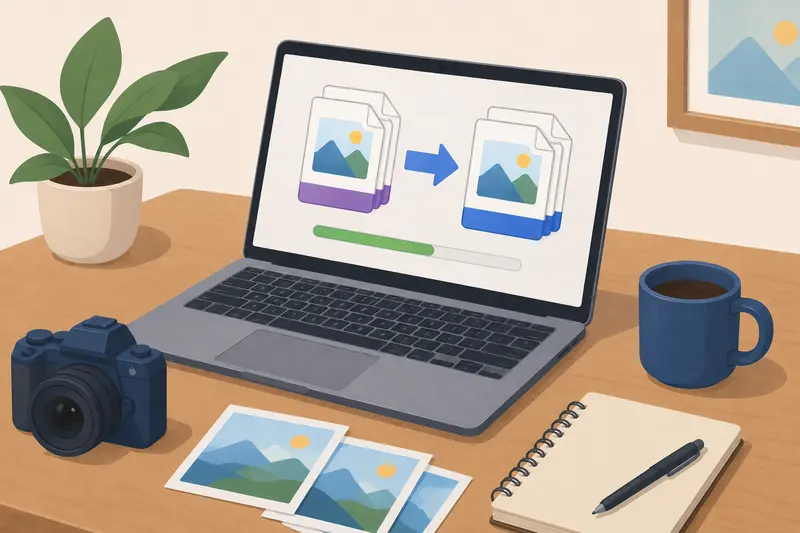
- Upload one or multiple HEIC files
- Select JPG as the output format
- Process the files in the browser-based converter
- Download converted images individually or in batches
- Optionally optimize them further for web publishing
If the converted JPG files still feel too heavy for websites or email delivery, using an additional image compression tool https://filemazing.com/compress-image afterward can noticeably reduce loading times without dramatically affecting visible quality.
A Practical Test With Real Project Files
To see how well browser conversion holds up in real usage, we tested a batch of:
- 42 HEIC images
- exported from mixed Android and iPhone devices
- total upload size: roughly 680 MB
- image resolutions ranging from 12MP to 48MP
The goal wasnt laboratory-grade benchmarking. It was closer to a realistic remote content workflow: preparing images for a distributed marketing team working inside cloud storage and CMS tools.
What happened
The conversion process stayed stable during batch handling, and the resulting JPG files preserved strong color consistency and detail for standard web and presentation use.
A few observations stood out:
- Larger HEIC files converted slightly slower, especially ultra-high-resolution photos
- JPG outputs remained visually clean for web publishing
- Repeated re-saving of JPGs introduced more visible degradation than the original HEIC-to-JPG conversion itself
- Batch processing reduced manual overhead significantly compared to opening files individually in desktop editors
That last point matters more than many teams realize. Manual image handling quietly burns hours during launch weeks.
Where Filemazing Fits Into the Workflow
Filemazing https://filemazing.com/format-converter is designed around lightweight file workflows rather than heavyweight creative software.
For remote teams, the strongest advantage is accessibility. The platform runs directly in the browser, supports multiple file-processing categories, and avoids forcing everyone onto the same operating system.
The image conversion workflow is particularly useful when teams need:
- format conversion for web images
- batch processing support
- predictable operating costs
- temporary file handling instead of long-term storage
- automation options through API endpoints
The token-based pricing model is also unusually transparent compared to many SaaS processing platforms. Teams can estimate processing costs ahead of time based on file size and workload characteristics instead of guessing at subscription tiers they may barely use.
Another practical detail: uploaded files are treated as temporary processing artifacts and cleaned on a short retention schedule rather than becoming permanent cloud storage clutter.
One Overlooked Quality Issue Most People Miss
Heres something many users discover too late:
Converting HEIC to JPG is usually not the moment where noticeable quality loss happens.
Repeated editing and recompression afterward causes far more damage.
For example:
- HEIC JPG once = generally acceptable
- JPG edited and re-exported five times = visible artifact buildup
This matters for remote creative workflows where multiple people touch the same asset.
A smarter approach is:
- convert once
- keep a high-quality master copy
- create compressed delivery versions separately
If privacy is also part of your workflow requirements, especially when exchanging client photography or internal assets, running converted files through a metadata scrubbing tool https://filemazing.com/metadata-scrubber can remove embedded camera and location metadata before distribution.
Real-World Use Cases for Remote Teams
Different teams use HEIC conversion differently. Here are a few practical examples that come up regularly.
Marketing teams
Preparing smartphone photos for CMS uploads, landing pages, and email campaigns where JPG compatibility matters.
Customer support operations
Converting screenshots and device photos submitted by users into universally readable formats for ticket systems.
Developers
Standardizing uploaded media before automated resizing or CDN optimization pipelines.
Operations teams
Handling property photos, inventory images, or documentation images submitted from mixed mobile devices.
HR and recruiting
Preparing employee event photos or onboarding materials for internal platforms that dont reliably preview HEIC files.
Content production teams
Exporting visual assets from shared folders into presentation-ready JPG collections for distributed stakeholders.
Why JPG Still Dominates Web Workflows
HEIC is technically efficient, but JPG continues to dominate because compatibility often beats elegance in production environments.
Thats especially true for:
- web publishing systems
- email clients
- third-party integrations
- presentation software
- older Android devices
- shared collaboration platforms
Theres also a practical speed tradeoff here.
HEIC can preserve excellent quality at smaller sizes, but widespread tooling support still favors JPG. For teams prioritizing predictable workflows over maximum compression efficiency, JPG remains the safer operational standard.
If your workflow also involves document exports, the ability to convert PDF pages into JPG or PNG images https://filemazing.com/pdf-to-image can simplify asset preparation for reports, slide decks, and web publishing.
What You Gain From a Browser-Based Converter
Desktop image tools still have their place, particularly for advanced editing.
But for routine format conversion tasks, browser-based processing changes the operational overhead dramatically.
Key advantages include:
- no dependency on operating system compatibility
- easier onboarding for distributed teams
- centralized workflow consistency
- no local software maintenance
- accessible from temporary or shared devices
- easier automation through APIs when workloads grow
For smaller teams especially, lightweight operational tooling often beats feature-heavy software suites.
FAQ
Does converting HEIC to JPG always reduce image quality?
Not necessarily. A well-configured HEIC to JPG converter can preserve strong visual quality for normal business, web, and presentation use. The bigger issue is repeated JPG recompression over time.
Is JPG better than HEIC for websites?
Usually yes. JPG has broader compatibility across browsers, CMS platforms, plugins, and legacy systems. HEIC is more storage-efficient but less universally supported.
Can I convert images without losing quality completely?
Every JPG conversion introduces some compression, but high-quality export settings can make the difference nearly invisible for practical use cases.
Are uploaded files stored permanently?
Platforms like Filemazing use temporary processing workflows with short-lived file retention rather than acting as permanent cloud storage.
Can remote teams process multiple files together?
Yes. Batch conversion support is especially useful when teams need to standardize large image collections from mixed devices.
Does HEIC work on Android devices?
Some Android devices support HEIC natively, but compatibility varies between apps, browsers, and editing environments. JPG remains more predictable across platforms.
Final Thoughts
HEIC is efficient, modern, and increasingly common. But compatibility still matters more than theoretical efficiency in many remote workflows.
A dependable HEIC to JPG converter helps teams standardize images, reduce workflow interruptions, and prepare assets for broader use without forcing everyone into the same software ecosystem.
For teams dealing with recurring image conversion tasks, Filemazings format conversion tools https://filemazing.com/format-converter offer a practical middle ground: browser-based processing, batch handling, temporary file cleanup, and API-ready scalability without heavyweight setup requirements.