Remote teams pass around PDFs constantly onboarding docs, annotated contracts, design proofs, scanned receipts, training manuals, client presentations. The problem starts when someone needs individual images instead of a full PDF, especially from a phone during travel or while working remotely.
Thats where a reliable PDF to JPG converter becomes less of a convenience and more of a workflow necessity.
Instead of emailing giant attachments back and forth or hunting for desktop software, mobile-friendly browser tools now handle conversion directly online with surprisingly good output quality.
The short version
If speed matters, the fastest approach is usually a browser-based converter that processes PDFs in batches without requiring app installation. Tools like Filemazing PDF to Image https://filemazing.com/pdf-to-image work directly from mobile browsers, which helps remote teams avoid compatibility issues across iOS, Android, tablets, and shared workstations.
The main advantage isnt only conversion speed. Its reducing friction:
- upload PDF
- convert pages to JPG
- share or archive immediately
- move on with the actual work
No one wants to troubleshoot a desktop utility five minutes before a client call.
Why mobile conversion matters more for distributed teams
In-office workflows usually rely on shared desktops or internal file systems. Remote teams rarely have that luxury.
A few common situations:
- a project manager needs slides converted into images for Slack
- marketing teams extract product pages from PDFs for social posts
- recruiters share resume previews without forwarding editable documents
- support teams convert scanned invoices into lightweight images
- field employees upload photographed paperwork from phones
Mobile conversion removes a lot of waiting around.
It also reduces dependency on operating-system-specific software, which becomes important when your team uses a mix of MacBooks, Chromebooks, Windows laptops, and phones.
How the workflow usually looks
Theres no reason this process should be complicated.
1. Upload the PDF from mobile
Most browser-based tools now support:
- local upload
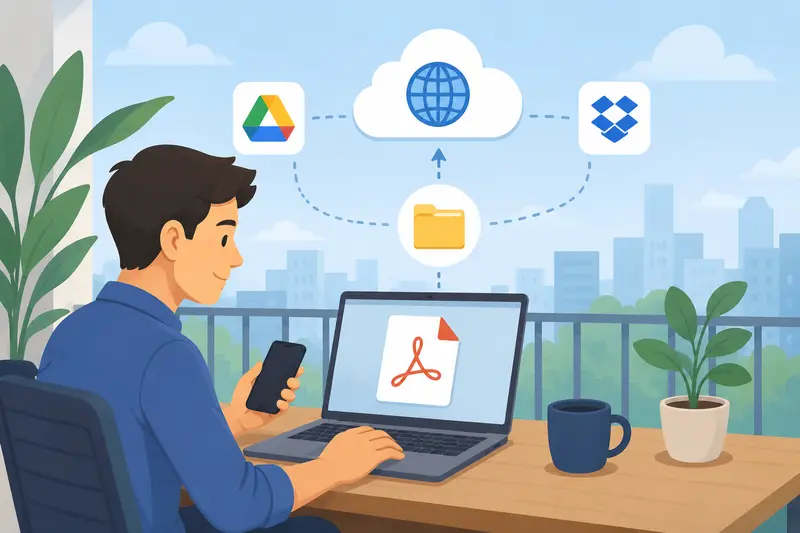
- Google Drive import
- Dropbox import
- direct URL input
That flexibility matters when remote teams are already juggling cloud storage systems.
2. Choose image output settings
Some PDFs work best as JPG. Others should stay PNG if sharp transparency or line precision matters.
JPG is generally the better choice for:
- presentations
- scanned documents
- visual previews
- sharing through messaging apps
PNG may preserve sharper edges for diagrams, but files can become noticeably larger.
3. Convert pages individually or in batches
This is where speed differences become obvious.
A strong batch PDF to image conversion workflow can process dozens of pages without forcing repeated uploads or manual exports page by page.
For larger reports, it helps to combine fragmented documents first using PDF merging workflows https://filemazing.com/merge-pdf before converting everything together.
4. Download and distribute
Once images are generated, teams usually:
- upload them into project boards
- send previews through chat apps
- attach images to CMS systems
- compress them for faster delivery
If image size becomes a problem afterward, using an image compression tool for faster sharing https://filemazing.com/compress-image can significantly reduce upload delays without making screenshots unreadable.
A real-world test from a remote workflow
To see how practical mobile conversion actually feels under normal conditions, we tested a mixed document set during a simulated distributed-team workflow.
Test setup
Files included:
- a 42-page scanned operations handbook
- a 16-page presentation PDF
- 12 mobile-scanned receipts
- several exported design review PDFs
Total size: roughly 118 MB.
The conversion was run from a standard mobile browser over average hotel Wi-Fi not exactly enterprise-grade networking.
What stood out
The biggest improvement wasnt raw processing speed.
It was continuity.
The upload completed in the background while other tabs remained usable, and batch processing avoided the tedious convert one page at a time experience common in older mobile tools.
Image quality also remained surprisingly stable for text-heavy scans. Fine print stayed readable without aggressive artifacting, which matters when teams need to review screenshots inside Slack or Notion.
One useful takeaway: scanned PDFs benefit from moderate JPG quality settings rather than maximum quality. Pushing quality too high often creates much larger files with barely noticeable visual improvement.
Where image quality usually falls apart
A lot of users assume all converters behave similarly. They dont.
Here are the most common reasons people lose quality during PDF to JPG without losing quality workflows:
Oversized compression after conversion
The conversion itself may look fine, but secondary compression tools can aggressively shrink images afterward.
The result:
- blurry text
- muddy charts
- unreadable signatures
Tiny original scans
If the original PDF was already low resolution, no converter can magically restore detail. The output only preserves what exists in the source.
Wrong output format
JPG is efficient, but not ideal for every document.
For:
- engineering drawings
- typography-heavy exports
- transparent graphics
PNG may outperform JPG despite larger file sizes.
Excessive resizing on mobile
Messaging apps sometimes compress images automatically after conversion. Teams often blame the converter when the real issue happened during upload into another platform.
Some file formats cooperate nicely. Others behave like they were created out of spite.
Why browser-based conversion tends to win on mobile
Dedicated apps still exist, but browser workflows have become much more practical for remote collaboration.
A browser-first system means:
- no app installation approvals
- no version mismatch problems
- easier cross-device access
- faster onboarding for temporary contributors
- less storage overhead on mobile devices
Filemazing https://filemazing.com also uses temporary processing rather than long-term storage behavior, which is worth paying attention to when handling invoices, contracts, HR forms, or internal documentation.
For many distributed teams, that cleanup approach matters as much as conversion speed.
Useful situations for converting PDFs into images
The use cases tend to multiply once teams start using the workflow regularly.
Internal documentation previews
Instead of sending full PDFs in chat threads, teams can share individual JPG pages for quicker review.
Marketing collaboration
Campaign teams often export proposal sections or presentation slides as images for social planning and approvals.
Customer support archives
Support staff frequently need screenshots of signed forms or order confirmations rather than editable documents.
Lightweight mobile sharing
Image files usually load faster inside messaging platforms compared to large PDFs.
Content migration
Teams moving assets between CMS systems often need page-by-page images instead of documents.
Multi-format repurposing
After conversion, tools like multi-format image conversion utilities https://filemazing.com/format-converter help standardize JPG, PNG, WEBP, HEIC, or AVIF assets for different publishing environments.
Cost predictability matters more than people expect
One thing many teams underestimate is operational predictability.
Subscription-heavy file tools often charge for unlimited usage while quietly throttling performance or restricting file sizes.
Filemazing instead uses token-based processing tied to workload factors like:
- file size
- page count
- number of files
- media duration for supported formats
For remote teams handling inconsistent workloads, that can actually make budgeting simpler because conversion spikes dont necessarily require upgrading entire plans.
Daily free tokens also make occasional usage practical without creating another monthly SaaS expense floating around accounting spreadsheets forever.
What you actually gain from a faster workflow
Not every productivity improvement feels dramatic. This one is more cumulative.
A faster save PDF as image on mobile workflow usually means:
- fewer delays during approvals
- easier sharing inside chat tools
- reduced formatting issues
- quicker previews for distributed collaborators
- less dependency on desktop software
Those small reductions in friction stack up surprisingly fast across remote teams.
FAQ
Can I convert large PDFs on a phone?
Usually yes, although performance depends on file size, upload speed, and browser memory. Batch workflows are especially useful for large multi-page documents.
Does JPG reduce quality compared to PNG?
Sometimes. JPG uses lossy compression, so tiny details may soften slightly. PNG preserves sharper edges but creates larger files.
Is browser-based PDF conversion safe for business files?
It depends on the provider. Services that use temporary processing and scheduled cleanup reduce long-term storage exposure compared to platforms that retain uploads indefinitely.
Can I process multiple PDFs at once?
Many modern tools support batch PDF to image conversion, which is far more efficient for remote teams handling repetitive document workflows.
What if the converted images are too large?
After conversion, compressing the output with an image optimization workflow https://filemazing.com/compress-image can reduce sharing time while preserving readability.
Do I need to install an app?
Not necessarily. Browser-based systems work directly from mobile devices, which is often easier for distributed teams using mixed hardware.
Final thoughts
The fastest mobile PDF conversion workflow is usually the one that stays out of your way.
For remote teams, that means:
- browser access instead of installations
- reliable batch processing
- readable image quality
- predictable costs
- temporary file handling rather than permanent storage
Filemazings PDF to Image tool https://filemazing.com/pdf-to-image fits particularly well into that style of workflow because it focuses on practical throughput instead of overloaded feature menus.
When the goal is turning documents into shareable images without slowing down collaboration, speed alone isnt enough. Consistency matters too.