Deadlines have a habit of arriving right when someone sends a 180-page PDF full of screenshots, diagrams, or scanned contracts.
At that point, save PDF pages as images stops being a tiny formatting task and turns into a workflow bottleneck.
For developers especially, exporting PDF pages into JPG or PNG files usually happens in the middle of something larger: preparing documentation, generating previews, feeding OCR pipelines, building uploads for CMS systems, or automating client deliverables. The conversion itself is simple. The annoying part is handling it quickly without installing heavyweight desktop tools or babysitting export settings for half an hour.
Thats where browser-based utilities like Filemazing PDF to Image https://filemazing.com/pdf-to-image become useful particularly when you need batch processing, predictable output, and an API-ready workflow instead of another desktop dependency.
The Short Version
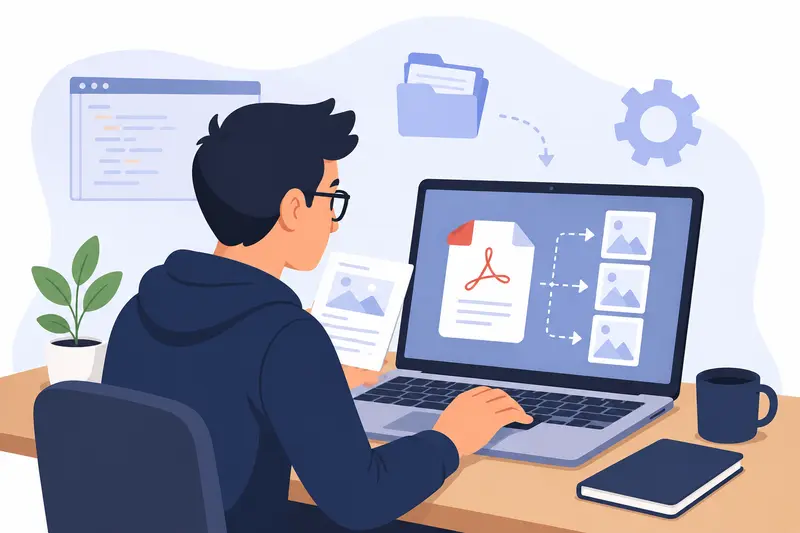
If you need to save PDF pages as images:
- Upload the PDF
- Choose JPG or PNG output
- Run the conversion
- Download individual page images or the full export set
For developers working with larger files, batch PDF to image conversion matters more than fancy editing features. Reliability, speed, and automation support usually win.
PNG exports preserve sharp text and UI screenshots better. JPG exports reduce file size significantly, which helps for web uploads and previews.
Why Developers End Up Doing This More Than Expected
A surprising number of modern workflows still revolve around PDFs.
Some common examples:
- Converting design review documents into image previews
- Extracting slides from exported presentations
- Preparing scanned PDFs for OCR systems
- Creating thumbnails for document management apps
- Sending page previews to mobile apps
- Building image datasets from archived reports
- Splitting large manuals into web-friendly assets
And yes, sometimes a client simply asks for all pages as JPGs five minutes before a meeting.
Large files also expose weaknesses in many converters. Some desktop apps slow down heavily once page counts climb past 100 pages. Others quietly compress text into blurry mush.
Getting the Conversion Done Without the Usual Friction
A browser-based workflow is often faster than installing software especially on managed work machines or temporary environments.
Heres a practical approach that works well.
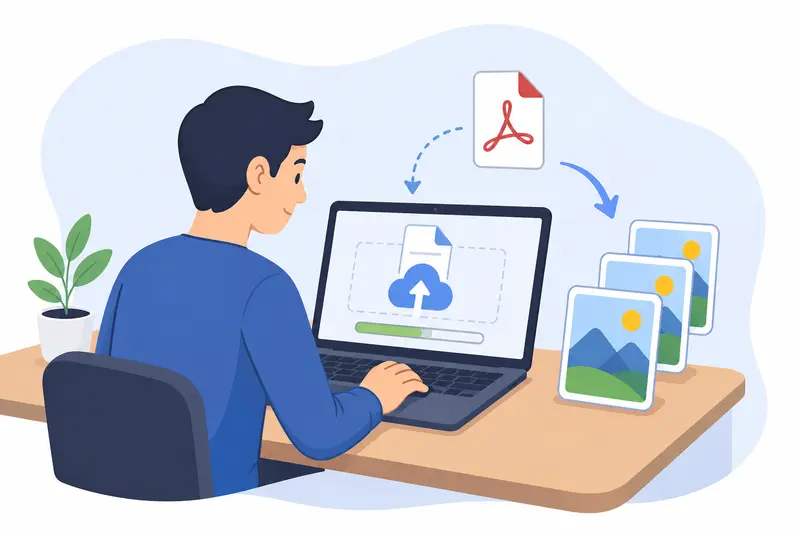
Upload the PDF
Drag in your document or import it from cloud storage.
If youre combining multiple reports beforehand, you can first merge PDF files into a single document https://filemazing.com/merge-pdf so the export process only runs once.
Pick the Right Output Format
This matters more than many people expect.
- PNG better for diagrams, UI captures, text-heavy pages
- JPG smaller files and faster transfers
- WEBP useful for modern web delivery workflows
If you later need additional image formats, the image format converter https://filemazing.com/format-converter can convert JPG, PNG, WEBP, HEIC, or AVIF exports afterward.
Run the Export
The conversion process queues in the browser without locking up the interface. That becomes important during batch PDF to image conversion jobs with larger documents.
Download the Generated Images
Most workflows end here, but developers often pipe the exported files into another process:
- cloud upload
- OCR
- CMS ingestion
- ZIP packaging
- static site generation
- automated reporting pipelines
What We Tested
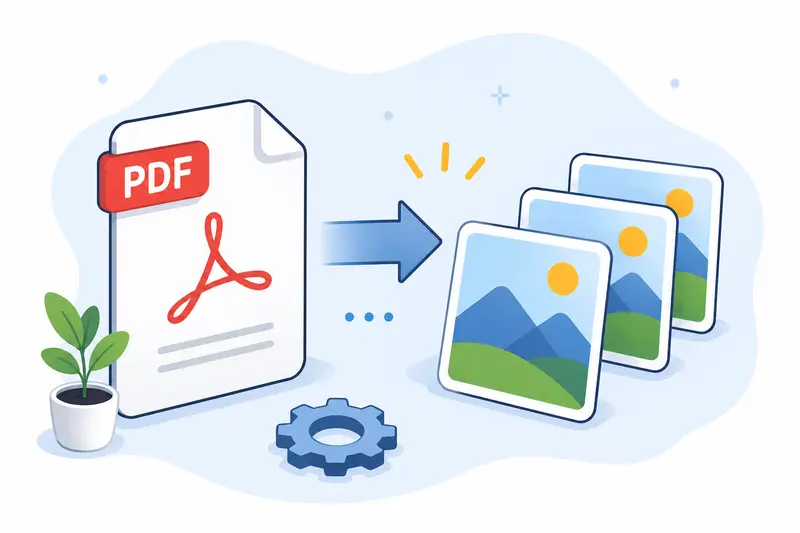
During testing, a 126-page scanned operations manual (roughly 92 MB) was converted into JPG exports to evaluate speed and output consistency.
The PDF included:
- scanned monochrome pages
- embedded diagrams
- dense tables
- mixed orientation pages
A few practical observations stood out:
- JPG output dramatically reduced storage requirements
- PNG retained cleaner line edges on diagrams
- Processing stayed stable even with the larger page count
- Exported pages maintained predictable naming order, which helps automation scripts
One useful takeaway: scanned PDFs often benefit from slightly lower-quality JPG settings because scans already contain compression artifacts. Pushing maximum quality just inflates file size without visibly improving readability.
Large PDFs also tend to reveal another truth: many conversion tools handle the first 20 pages well and then slow down badly afterward. Queue-based processing avoids much of that pain.
A Tradeoff Worth Understanding Before Exporting
Not every conversion target should use the same format.
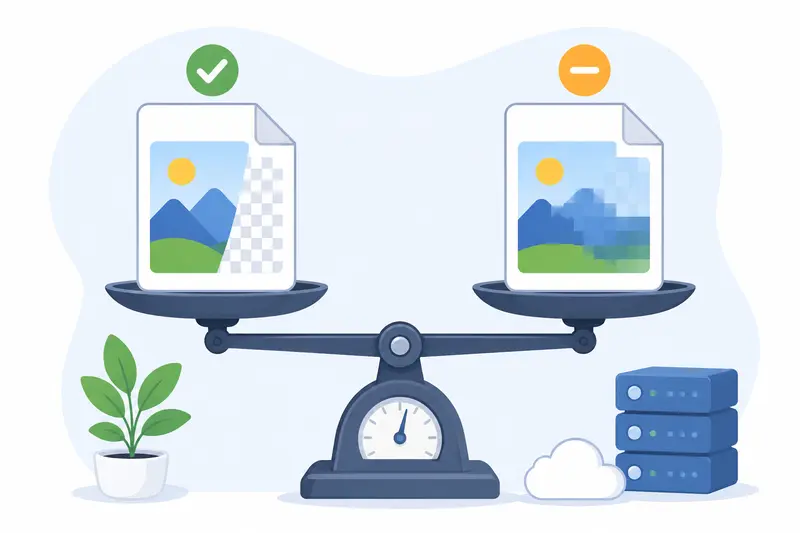
JPG vs PNG for PDF Exports
| Format | Best For | Tradeoff |
|---|---|---|
| JPG | Smaller uploads, previews, mobile delivery | Slight quality loss |
| PNG | Text clarity, diagrams, transparency | Larger files |
| WEBP | Modern web apps | Compatibility varies in older systems |
For documentation systems and developer portals, PNG is often the safer option.
For mobile uploads or email attachments, JPG usually makes more sense.
This becomes especially relevant when trying to save PDF as image on mobile devices where bandwidth and storage are limited.
The Part Most People Forget: Metadata
Exported image files can still contain metadata depending on the workflow.
Thats occasionally a concern for internal documentation, legal records, or client deliverables.
If you need cleaner outputs before distribution, a quick pass through a metadata removal tool for exported images https://filemazing.com/metadata-scrubber can strip unnecessary embedded metadata from the generated files.
Its one of those small operational details that developers appreciate later instead of during an incident review.
Why Browser-Based Processing Actually Helps
Developers sometimes assume desktop software automatically means more control.
Thats not always true anymore.
A browser-based converter works well when:
- switching between devices
- using temporary environments
- working on locked-down corporate machines
- handling quick client requests
- integrating lightweight automation
Filemazing also exposes API workflows, which matters for teams handling recurring conversion jobs.
Instead of manually exporting files every day, developers can automate:
- invoice page rendering
- PDF preview generation
- support attachment pipelines
- reporting exports
- document ingestion systems
The token-based pricing model also keeps workload costs relatively predictable. Operations scale according to file size, page count, and workload complexity rather than vague unlimited plans that quietly throttle usage later.
A Few Real-World Cases Where This Helps
Different teams use PDF-to-image exports for very different reasons.
Some examples:
- Students exporting lecture slides into mobile-friendly images
- Marketing teams generating preview graphics from presentations
- Support teams extracting troubleshooting screenshots from manuals
- SaaS companies generating document thumbnails automatically
- Agencies preparing image assets from branded PDFs
- Internal operations teams converting scanned paperwork into OCR-ready images
The workflow changes slightly, but the core requirement stays the same: reliable conversion without wasting time.
Performance Tip for Large PDFs
Heres a less obvious optimization:
If a PDF contains mixed content types, exporting everything to the same format may not be ideal.
For example:
- diagrams PNG
- photo-heavy pages JPG
In some workflows, developers split the PDF first, export sections differently, then recombine assets downstream.
That approach can significantly reduce storage usage while preserving quality where it matters most.
It sounds excessive until someone uploads a 400-page engineering report to your infrastructure and suddenly storage costs become very real.
Where This Workflow Fits Best
The strongest advantage here is probably operational simplicity.
You avoid:
- desktop installs
- plugin conflicts
- version mismatches
- local processing limitations
At the same time, the platform still supports heavier workloads through queued jobs and API access.
Privacy handling also matters. Uploaded files are treated as temporary processing artifacts and cleaned on a short retention schedule rather than stored indefinitely as long-term cloud storage.
Thats increasingly important when handling internal documents or client materials.
FAQ
What is the best PDF to JPG converter for developers?
That depends on the workflow. Developers usually prioritize batch handling, automation support, predictable exports, and stable processing over editing features. Browser-based tools with API access tend to fit modern workflows better than traditional desktop utilities.
Can I save PDF as image on mobile?
Yes. Browser-based converters work well on mobile devices because they dont require local software installation. JPG exports are often preferable on mobile due to smaller file sizes.
Is PNG better than JPG for PDF exports?
For text-heavy pages, diagrams, and UI screenshots, PNG usually preserves sharper detail. JPG is better when storage size and transfer speed matter more.
Are uploaded files stored permanently?
No. File processing systems like Filemazing use temporary handling and scheduled cleanup rather than permanent cloud storage retention.
Does batch PDF to image conversion slow down with large files?
Some tools do. Queue-based processing helps maintain stability during larger exports involving high page counts or large file sizes.
Can exported images be converted into other formats later?
Yes. After exporting, you can use an additional image format conversion workflow https://filemazing.com/format-converter for formats like WEBP, HEIC, AVIF, JPG, or PNG depending on deployment requirements.
Final Thoughts
When developers need to save PDF pages as images, the conversion itself usually isnt the real problem.
The real challenge is avoiding workflow drag:
- slow exports
- inconsistent output
- oversized files
- desktop tooling overhead
- unreliable batch handling
A lightweight browser-based system with queued processing, temporary file handling, and automation support solves most of those issues cleanly.
For teams dealing with recurring document workflows, that practicality matters more than flashy features.