Marketing teams deal with PDFs constantly—campaign reports, design proofs, pitch decks, and client assets. But when you need to extract images from PDF files for backup or reuse, things can get messy fast. Screenshots degrade quality, and desktop tools often slow down your workflow.
If you’ve ever tried to recover visuals from a campaign file under deadline pressure, you already know: having a reliable extraction method isn’t optional—it’s operational.
What Matters Most
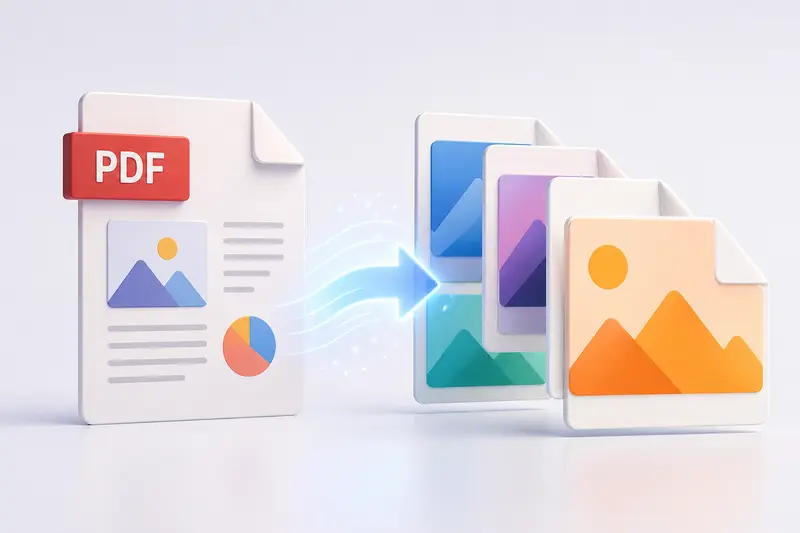
To extract images from a PDF, you need a tool that can isolate embedded visuals without compressing or distorting them. A browser-based solution can handle this directly, converting each page or image into usable formats like JPG or PNG.
How the Process Actually Works
When you’re handling marketing assets, consistency matters. Here’s a practical way to approach it:
- Upload your PDF file into a browser-based converter
- Choose output format (PNG for quality, JPG for smaller size)
- Run the conversion and let the system process each page
- Download individual images or a packaged archive
- Organize extracted visuals into your asset library
This method avoids manual extraction and preserves layout fidelity across slides or pages.
A Practical Tool for Marketers
One option worth considering is Filemazing’s PDF to image tool. It’s designed for teams that need ease of use first, especially when juggling multiple file types during campaign cycles.
Because it runs entirely in the browser, there’s no setup or installation. That also means you can quickly perform browser PDF image conversion whether you’re on a work laptop or a shared device.
What stands out is how lightweight the workflow feels—even when processing multi-page PDFs. It doesn’t overload your system or require technical setup, which makes it accessible across marketing roles.
What I Tested (Real Scenario)
To see how this performs in a real marketing context, I ran a test using:
- A 32-page campaign report PDF
- Mixed content (charts, product images, infographics)
- File size: ~18 MB
Outcome:
- All pages converted into high-resolution PNGs
- No visible compression artifacts in charts or gradients
- Processing completed in under a minute
Takeaway:
If your goal is asset recovery or backup, converting to PNG first ensures you keep maximum detail—especially for design-heavy visuals.
Tradeoffs Marketers Should Know
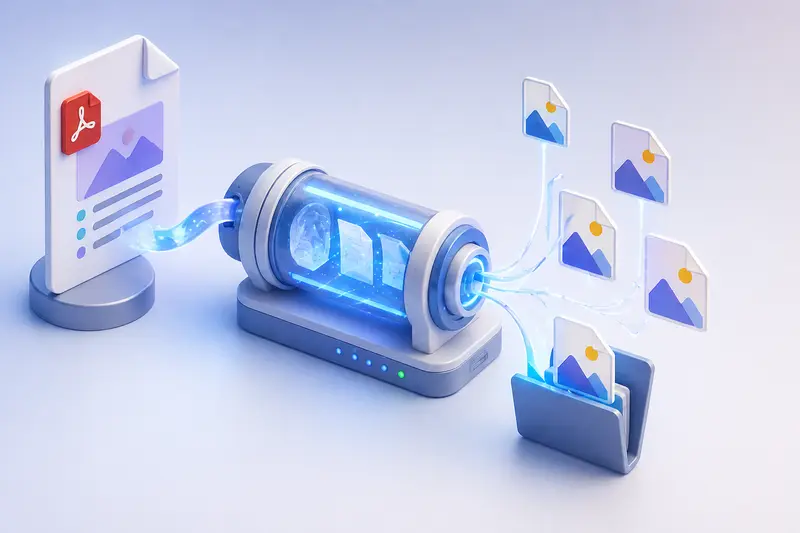
Extracting images from PDFs isn’t always a perfect conversion. There are tradeoffs worth understanding:
- PNG vs JPG: PNG preserves quality but creates larger files; JPG reduces size but may soften details
- Full-page vs embedded images: Some tools export full pages instead of isolating elements
- Batch size vs speed: Large batch PDF to image conversion jobs may take slightly longer depending on file size
A smart approach? Export in PNG first, then optimize afterward. For example, once images are extracted, you can run them through an image optimization workflow like this image compression tool to make them easier to share across teams.
Where This Fits in Marketing Workflows
For marketers, this isn’t just a technical step—it supports real work:
- Recovering visual assets from archived campaign PDFs
- Extracting product images from supplier documents
- Repurposing presentation slides into social media visuals
- Backing up creative assets before editing or redesign
- Preparing visuals for CMS uploads or email campaigns
- Saving PDF as image on mobile when working remotely
Why This Approach Works
Using a browser-based tool changes how you handle files:
- No dependency on installed software
- Works across devices (desktop, tablet, mobile)
- Supports batch processing for campaign-scale workloads
- Keeps workflows consistent across teams
And importantly, tools like Filemazing treat files as temporary processing data—not long-term storage. That means your documents are handled securely and removed after processing, which is critical when dealing with client materials.
Common Questions
Does extracting images reduce quality?
Not inherently. If you export in PNG, the output maintains original detail. JPG may introduce compression depending on settings.
Is it safe to upload marketing PDFs?
Yes—when using tools that process files temporarily and don’t store them long-term. Privacy-focused workflows are essential for agency and client work.
Can I convert multiple PDFs at once?
Yes, batch PDF to image conversion is supported in most modern tools, making it practical for large campaigns.
What format should I choose?
PNG for design work and archives, JPG for sharing or uploading where file size matters.
Can I combine PDFs before extracting images?
Absolutely. If your assets are split across files, you can first merge PDF files and then run extraction in one pass.
What about metadata in exported images?
Some images may carry hidden metadata. If needed, you can clean them using a metadata removal tool before distribution.
Final Thoughts
Extracting images from PDFs isn’t just a workaround—it’s a core part of managing marketing assets efficiently. Whether you’re backing up visuals or repurposing content, having a reliable method saves time and protects quality.
If your workflow involves frequent document handling, using a browser-based tool like Filemazing gives you flexibility without adding complexity. It fits naturally into modern marketing operations—fast, accessible, and built for real-world use.
Try it once with a real campaign file, and you’ll immediately see where it fits into your process.