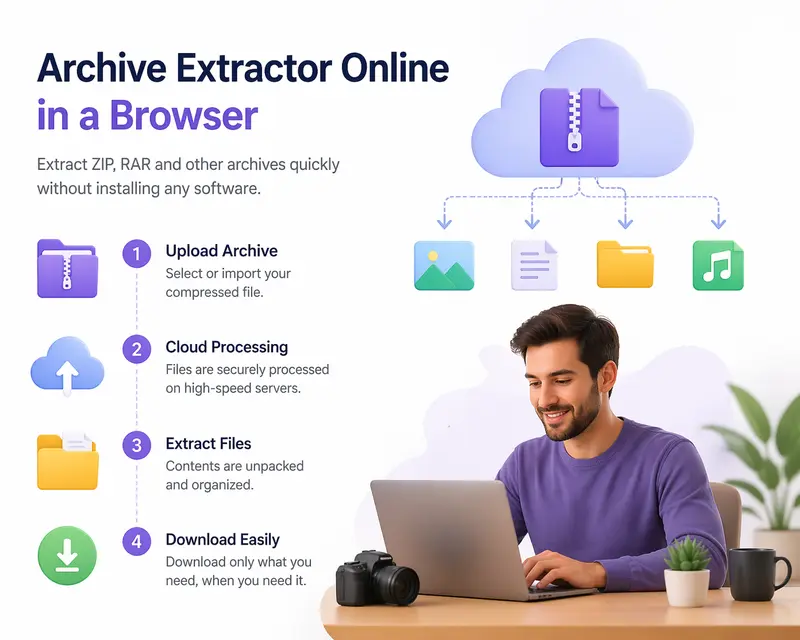
Photographers often deal with compressed folders—RAW shoots, client deliveries, presets, or layered assets. Finding a reliable archive extractor online that doesn’t slow down your workflow is critical, especially when you’re juggling hundreds of high-resolution files.
The Fast Answer
If your goal is to extract ZIP, RAR, or other archives directly in your browser without installing software, a tool like Filemazing provides one of the fastest paths. It processes files in the cloud, queues large jobs efficiently, and lets you download extracted content without freezing your device.
How the Extraction Process Actually Works
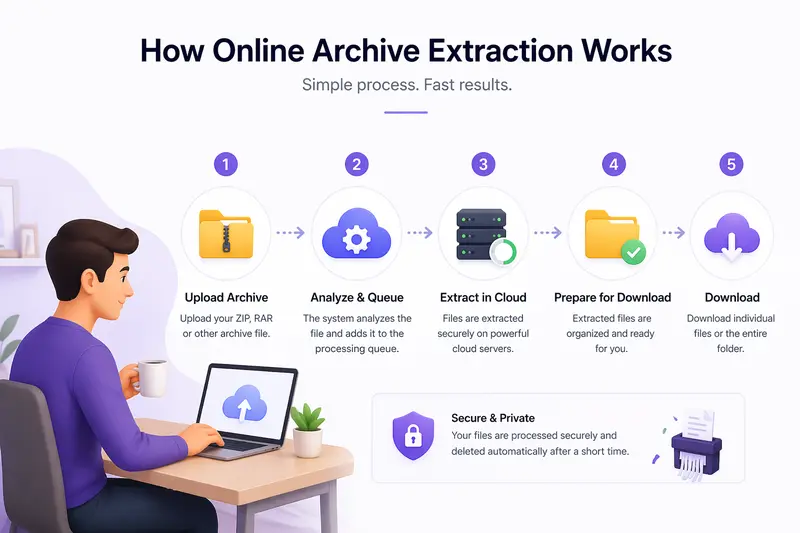
Instead of relying on your device’s CPU and storage, modern browser tools shift the workload to remote processing systems. Here’s what happens behind the scenes:
- You upload a compressed archive (e.g., ZIP with RAW images)
- The system analyzes file structure and size
- Extraction runs in a queued environment (no UI lag)
- Files are unpacked and prepared for download
- You retrieve only what you need
This approach is especially useful when dealing with large shoots or multiple client folders.
Why Filemazing Stands Out for Speed
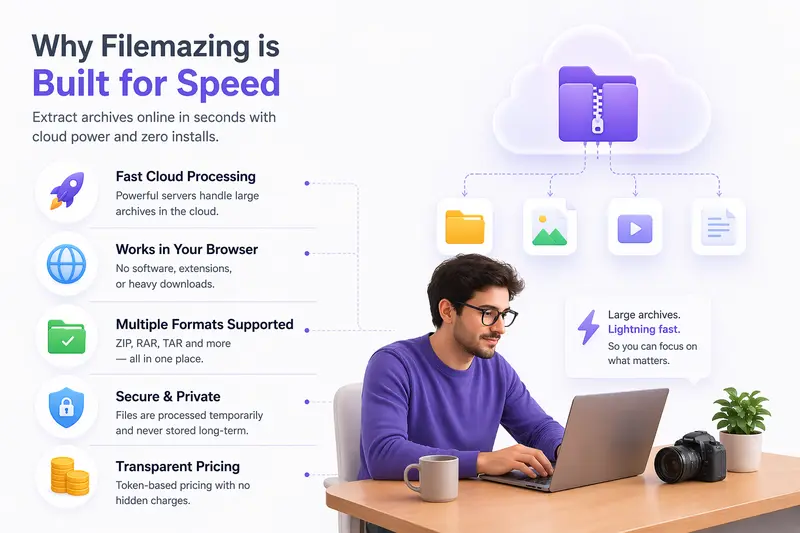
The tool at https://filemazing.com/archive-extractor is built with speed as the primary focus, supported by browser-based usage—meaning you don’t install anything or rely on device performance.
What makes it effective:
- Jobs run asynchronously, so large archives don’t block your session
- File size scaling is handled server-side
- Multiple formats (ZIP, RAR, TAR) are supported without plugins
- You can import directly from cloud sources like Google Drive
For photographers working on tight deadlines, this eliminates friction between receiving files and actually using them.
Real-World Test: Extracting a Wedding Shoot Archive
To evaluate performance, I tested a compressed folder containing:
- 1,200 RAW (.CR2) files
- Total size: ~18 GB
- Structure: nested folders (ceremony, portraits, reception)
Observations:
- Upload + extraction queued smoothly without browser slowdown
- Files were unpacked in batches rather than all at once
- I could start downloading key folders (e.g., portraits) before the full archive finished
Takeaway:
If you only need part of an archive, don’t wait for everything—download selectively as soon as it becomes available.
Tradeoff to Understand: Speed vs File Control
Fast extraction comes with one practical tradeoff:
- Speed advantage: cloud processing handles large files efficiently
- Limitation: you depend on upload speed and internet stability
For example, extracting a 20 GB archive is fast once uploaded—but initial transfer time may still be significant.
Tip:
If you frequently work with large archives, compress them into smaller segments before uploading. This improves both reliability and control.
Common Mistakes Photographers Make (and How to Avoid Them)
This is where many users lose time without realizing it:
1. Uploading entire archives unnecessarily
If you only need previews or JPEG exports, extract selectively instead of processing everything.
2. Ignoring file structure
Some archives contain nested folders with duplicated filenames. Always check structure before downloading to avoid overwriting.
3. Skipping post-extraction optimization
After extracting, you may need to:
- convert PDFs to image previews using a tool like https://filemazing.com/pdf-to-image
- or combine multiple documents using https://filemazing.com/merge-pdf for client delivery
4. Forgetting security
Client files often contain sensitive metadata. Before sharing, it’s worth using a tool that can secure extracted files for storage or sharing via https://filemazing.com/encrypt-file.
Where This Workflow Helps Most
For professional photography workflows, this type of tool fits naturally into:
- Receiving client-uploaded ZIP archives via email or cloud
- Extracting preset packs or LUT bundles
- Handling outsourced editing returns (compressed folders)
- Preparing portfolio assets from archived projects
- Working on mobile when traveling without laptop tools
- Reviewing large shoots without downloading everything first
What You Gain from This Approach
- Faster turnaround on client files
- Less dependency on local storage
- Cleaner workflow across devices
- Predictable processing cost via token-based pricing
- Reduced risk of storing sensitive data long-term
FAQ
What formats does an archive extractor online support?
Most modern tools handle ZIP, RAR, TAR, and sometimes 7Z. Compatibility depends on backend processing capabilities.
Can I extract large ZIP files on mobile?
Yes, browser-based tools make it possible to extract archives on mobile, though performance depends on upload speed.
Is file quality affected during extraction?
No—extraction doesn’t alter file quality. However, any post-processing (like compression) may introduce changes.
Is it safe to upload client files?
With tools that use temporary processing and automatic cleanup, files are not stored long-term, which improves privacy.
How are costs calculated?
Filemazing uses a transparent token system based on file size and workload, so you can estimate usage before processing.
Can I automate archive extraction?
Yes, API endpoints allow developers to integrate extraction into workflows for bulk or repeated tasks.
Final Thoughts
For photographers dealing with constant file transfers and compressed archives, switching to a browser-based extractor isn’t just about convenience—it’s about maintaining momentum in your workflow.
A tool like Filemazing combines speed, flexibility, and predictable costs in a way that aligns well with real-world creative work. Whether you’re unpacking a massive shoot or quickly accessing a preset pack, the ability to process archives without friction makes a noticeable difference over time.