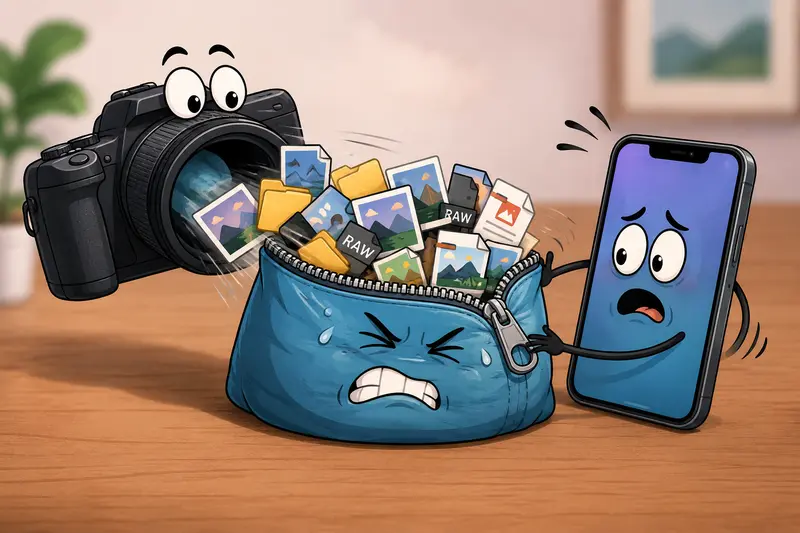
Photographers constantly receive compressed folders from clients, editors, second shooters, and cloud backups. RAW batches, Lightroom presets, contract PDFs, watermark assets they often arrive packed into ZIP archives to keep uploads manageable.
The problem is that trying to extract ZIP files on an iPhone can become frustrating once archives get large or contain mixed formats. Native apps handle basic ZIP folders reasonably well, but bigger shoots and nested compressed folders can quickly become awkward to manage.
Thats where browser-based tools like Filemazing Archive Extractor https://filemazing.com/archive-extractor become useful, especially when you need to open compressed files online without relying on desktop software.
The Fast Answer
If you need to extract ZIP files on an iPhone:
- Upload the ZIP archive to a browser-based extractor
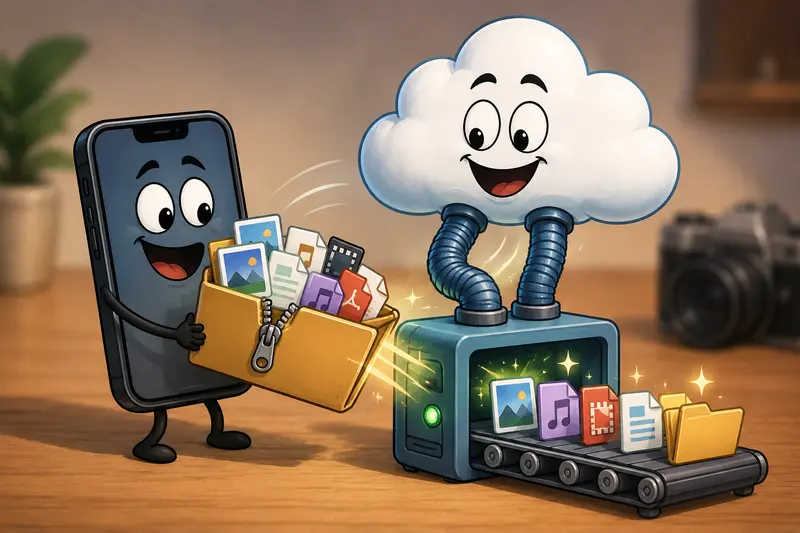
- Let the archive unpack in the cloud
- Download only the files you actually need
This approach is particularly helpful for photographers dealing with:
- large client deliveries
- mixed RAW/JPEG folders
- compressed Lightroom exports
- nested archives from cloud storage
- storage-limited iPhones
Because the workflow runs in a browser, you can also extract ZIP without software installation or app management.
Why Native iPhone Extraction Sometimes Falls Short
Apples Files app works well for lightweight archives. But photography workflows are rarely lightweight.
A single wedding preview folder can easily contain:
- 600+ JPEGs
- layered PSD files
- audio clips from interviews
- PDF contracts
- exported galleries
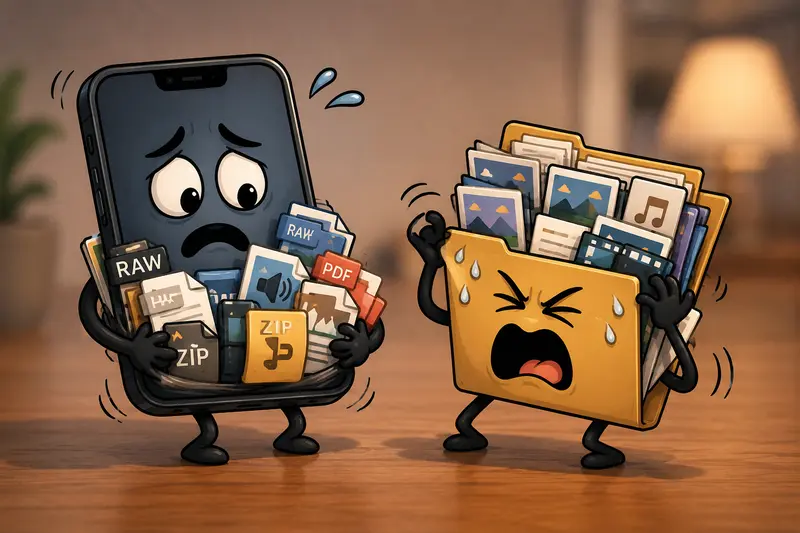
Once archive sizes increase, mobile extraction starts hitting practical limitations:
- slower unpacking
- storage duplication
- difficulty previewing formats
- app switching between file types
Some compressed folders also contain unsupported preview formats that require additional apps anyway.
For photographers working remotely, that extra friction adds up quickly.
A More Flexible Way to Open Compressed Files Online
Filemazing Archive Extractor https://filemazing.com/archive-extractor takes a browser-first approach instead of requiring desktop software or dedicated mobile apps.
You upload the ZIP archive directly from:
- iPhone storage
- Google Drive
- Dropbox
- shared URLs
After processing, the extracted files become individually downloadable.
That matters when you only need:
- a few RAW previews
- a licensing document
- selected JPEG exports
- audio interview clips
Rather than downloading an entire unpacked folder again, you can grab only whats relevant.
The platform also uses temporary processing instead of long-term storage retention, which is important when client galleries or unpublished commercial shoots are involved.
How the Extraction Process Typically Works
Upload the Archive
Open the archive extractor in Safari or Chrome on your iPhone and upload the ZIP file.
If the archive came from a client email, saving it into Files first usually prevents upload interruptions.
Wait for Processing
Larger archives are queued and processed separately so the browser doesnt freeze during extraction.
This is particularly useful when trying to extract large ZIP files containing hundreds of high-resolution images.
Preview the Results
Once unpacked, you can selectively download:
- RAW images
- JPEG exports
- PDFs
- audio files
- sidecar metadata files
If the archive includes PDF shot lists or contracts, you can also use PDF to Image conversion tools https://filemazing.com/pdf-to-image to turn those pages into easily shareable image references for clients or assistants.
Save or Share
Download only the assets you need back to your iPhone or cloud storage.
That selective retrieval surprisingly saves a lot of mobile storage during active projects.
What We Tested
To see how realistic the workflow felt on mobile, we tested a photography delivery archive containing:
- 1 ZIP archive
- 2.4 GB total size
- 480 JPEG previews
- 120 RAW files
- 3 PDF documents
- 2 WAV interview recordings
The extraction was performed entirely from an iPhone over Wi-Fi.
Observed Results
- Uploading took longer than extraction itself
- JPEG previews became accessible first
- Nested folders remained organized correctly
- RAW formats stayed intact without corruption
- Individual file downloads worked better than bulk retrieval on mobile
One useful observation: downloading everything back to the iPhone at once consumed significantly more temporary storage than selecting only required assets.
For photographers editing while traveling, selective downloading is the smarter workflow.
A Small Detail Many Photographers Miss
Heres something that rarely gets mentioned in generic ZIP extraction guides:
Some camera systems generate hidden metadata folders inside archives. If you immediately re-compress extracted files after editing on mobile, those hidden folders can accidentally multiply and create bloated delivery packages.
Before re-sharing extracted content:
- remove duplicate cache folders
- delete temporary previews
- keep only final exports
This becomes especially important when collaborating with retouchers or agencies receiving multiple revisions.
Some file structures behave nicely. Others act like they were assembled during a caffeine emergency.
When Browser-Based Extraction Makes More Sense
This type of workflow fits especially well for photographers who:
Work Across Multiple Devices
You might shoot on camera, review on iPad, message clients on iPhone, and archive on desktop later.
Browser-based extraction keeps everything accessible without syncing apps everywhere.
Receive Client Assets Frequently
Marketing photographers and event shooters often receive:
- logos
- branding kits
- mood boards
- layered assets
- audio references
Being able to open compressed files online directly from a link speeds up review cycles.
Need Temporary Access Only
Sometimes you only need a file once.
Installing a dedicated extraction app for a single archive feels unnecessary, especially on storage-constrained devices.
File Security and Privacy Considerations
Photography files often contain:
- unpublished campaign work
- EXIF metadata
- client identities
- location information
Thats why temporary processing matters.
Filemazing treats uploaded archives as short-lived processing jobs rather than permanent cloud storage. Files are cleaned on a limited retention schedule after processing completes.
For additional protection, photographers handling sensitive client material can also use file encryption tools https://filemazing.com/encrypt-file before archiving finished projects for long-term storage or transfer.
Understanding the Tradeoff With Large Archives
Theres one realistic tradeoff worth mentioning.
Extracting very large ZIP archives in a browser depends heavily on:
- upload speed
- network stability
- archive complexity
A 300 MB client gallery feels lightweight.
A 12 GB commercial shoot with nested folders and layered PSDs is a completely different experience.
For extremely large productions:
- extracting only needed folders first
- splitting archives into smaller batches
- using Wi-Fi instead of mobile data
usually improves reliability.
Speed and convenience are excellent, but giant archives still benefit from thoughtful organization before upload.
Useful Follow-Up Workflows After Extraction
Once files are unpacked, photographers often need additional processing steps.
Examples include:
- converting interview recordings using audio conversion tools https://filemazing.com/audio-converter
- preparing PDFs for visual previews
- compressing exports before delivery
- scrubbing metadata from client images
Having those tools available in the same browser ecosystem keeps the workflow more consistent across devices.
Common Questions
Can I extract ZIP without software on iPhone?
Yes. Browser-based extraction tools allow you to upload and unpack archives directly online without installing dedicated desktop utilities.
Does extraction affect image quality?
No. ZIP extraction itself does not reduce image quality because files are unpacked rather than recompressed.
Can large RAW photo archives be extracted?
Yes, although performance depends on internet speed and archive size. Larger projects may take longer to upload than to process.
Are extracted files stored permanently?
Temporary processing systems generally remove uploaded files after processing completes rather than storing them indefinitely.
What archive types are usually supported?
Most extraction platforms support ZIP files and often additional formats like RAR, 7Z, and TAR archives.
Is browser extraction practical for professional photographers?
For previewing, downloading selected assets, and mobile collaboration workflows, absolutely. Full multi-terabyte production archives are still usually easier to manage on desktop systems.
Final Thoughts
For photographers, compressed archives are part of everyday work. The challenge isnt just opening them its doing it efficiently on mobile without turning file management into a separate project.
Using a browser-based option like Filemazing Archive Extractor https://filemazing.com/archive-extractor makes it easier to extract ZIP files from an iPhone while keeping workflows flexible, temporary, and storage-conscious.
When you only need a handful of images from a massive archive, that difference matters more than most people expect.