
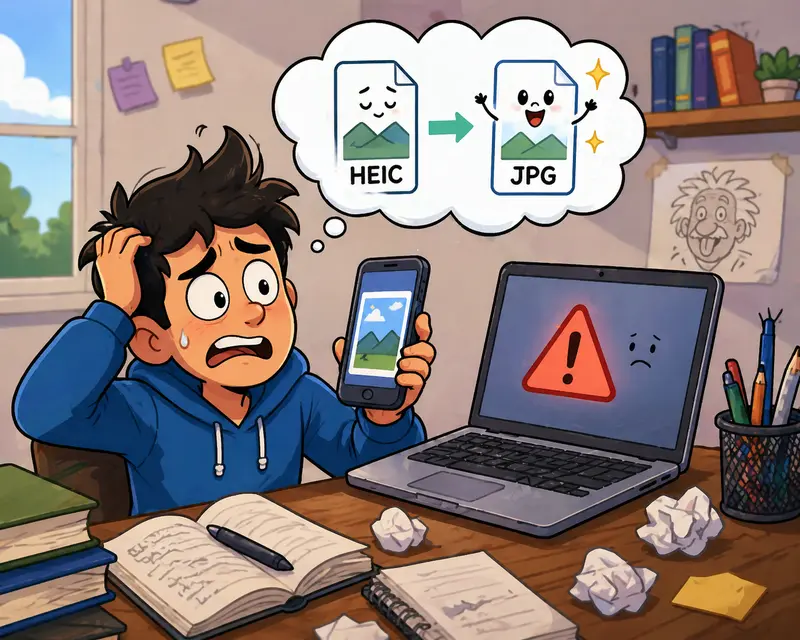
You snap lecture slides, whiteboards, and assignments on your phone… only to realize later that the files are in HEIC format and won’t upload properly to your university portal.
That’s where a HEIC to JPG converter becomes essential—especially on Android, where compatibility issues show up more often than expected.
What You Should Know First
HEIC files are efficient but not universally supported. Converting them to JPG ensures compatibility across browsers, LMS platforms, and sharing tools.
The goal isn’t just conversion—it’s doing it without degrading quality or wasting time on manual work.
How the Conversion Actually Works
Instead of relying on apps that clutter your phone, modern students are shifting to browser-based tools. Here’s a practical flow:
- Upload your HEIC images (single or multiple files)
- Choose JPG as the output format
- Start the conversion process
- Download the converted images instantly
No installation, no system slowdown—everything runs in your browser.
Where Filemazing Fits Into This
The real advantage comes from using a tool like Filemazing’s format converter.
It’s designed for situations students face daily:
- Handling multiple images from lectures
- Preparing assignments for upload
- Sharing files across devices
What stands out is its bulk processing capability. Instead of converting images one by one, you can process an entire folder in one go.
It’s also browser-based, which means you can use it from your phone, tablet, or laptop without syncing apps.
Another subtle benefit: transparent token pricing. You know upfront how much a batch conversion will cost—no surprises.
Real-World Test: Lecture Notes Conversion
I tested this with a realistic scenario:
- 32 HEIC images from a 2-hour lecture
- Mixed lighting conditions and text-heavy slides
- Total size: ~85MB
Result:
- All files converted to JPG in under a minute
- Text remained sharp and readable
- File sizes increased slightly but stayed manageable
One thing stood out: converting in bulk saved far more time than expected. Doing this manually would’ve taken at least 15–20 minutes.
Takeaway: If you’re working with lecture-heavy images, batch conversion is where you gain the most efficiency.

Tradeoffs You Should Understand
Not all formats behave the same, and students often overlook this.
HEIC vs JPG in practice:
- HEIC → smaller size, better compression
- JPG → universal compatibility
The compromise:
- JPG files are slightly larger
- Minor quality loss can happen in aggressive compression
If your goal is submitting assignments or sharing notes, JPG is the safer choice.
But here’s a smart move: after converting, you can reduce file size with image compression to make uploads faster—especially useful on slow campus Wi-Fi.
A Useful Tip Most Students Miss
If you’re converting screenshots or scanned documents, convert first, then clean them.
Why?
Because HEIC files often carry metadata like location and device info. After conversion, running them through a metadata removal tool helps protect your privacy—something rarely discussed but worth doing.
When You’ll Actually Need This
Here are common student scenarios where this becomes necessary:
- Uploading assignments to Moodle or Blackboard
- Sharing notes with classmates using older devices
- Submitting scanned handwritten work
- Preparing images for presentations
- Converting iPhone photos received via AirDrop
- Creating web-friendly images for student projects
Why This Approach Works Better
Instead of juggling apps, cables, or cloud sync issues:
- You stay device-independent
- You handle multiple files at once
- You avoid installing unnecessary software
- You maintain control over file quality
It’s a workflow upgrade more than just a tool.
FAQs
Does converting HEIC to JPG reduce quality?
Slightly, yes—but in most academic use cases, the difference is negligible. Text and diagrams remain clear.
Can I convert multiple images at once?
Yes, and you should. Batch image format conversion saves significant time, especially for lecture materials.
Is it safe to upload files?
With tools like Filemazing, files are treated as temporary and removed after processing—not stored long-term.
What if I need images from a PDF?
You can extract them using a PDF to image converter before converting formats.
Does it work on Android browsers?
Yes. Since it’s browser-based, it works seamlessly on Chrome, Firefox, or any mobile browser.
Final Thoughts
If you’re a student dealing with mixed file formats, relying on a HEIC to JPG converter isn’t optional—it’s part of staying productive.
The smarter approach is choosing tools that handle bulk tasks, respect your privacy, and don’t slow you down with unnecessary steps.
Try it once with a full set of lecture images—you’ll immediately see the difference in workflow.