Designers run into HEIC files more often than they’d like—especially when assets come straight from iPhones or clients working in Apple ecosystems. The format is efficient, but compatibility? Not always ideal.
That’s where a HEIC to JPG converter becomes essential. But not all converters are built the same—especially when privacy and workflow efficiency matter.
What to Know Before Converting HEIC Files
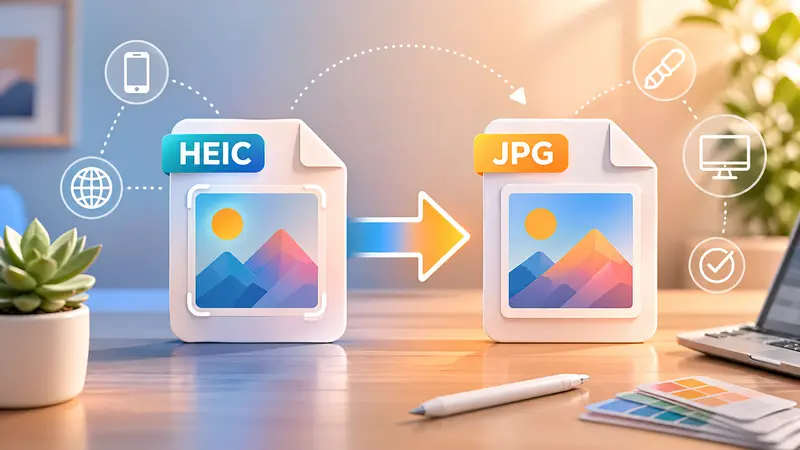
HEIC (High Efficiency Image Format) keeps file sizes low while preserving quality. JPG, on the other hand, is universally supported across design tools, browsers, and platforms.
Here’s the tradeoff in plain terms:
- HEIC → smaller size, limited compatibility
- JPG → larger size, universal usability
For designers, accessibility usually wins.
Why Privacy Matters More Than You Think
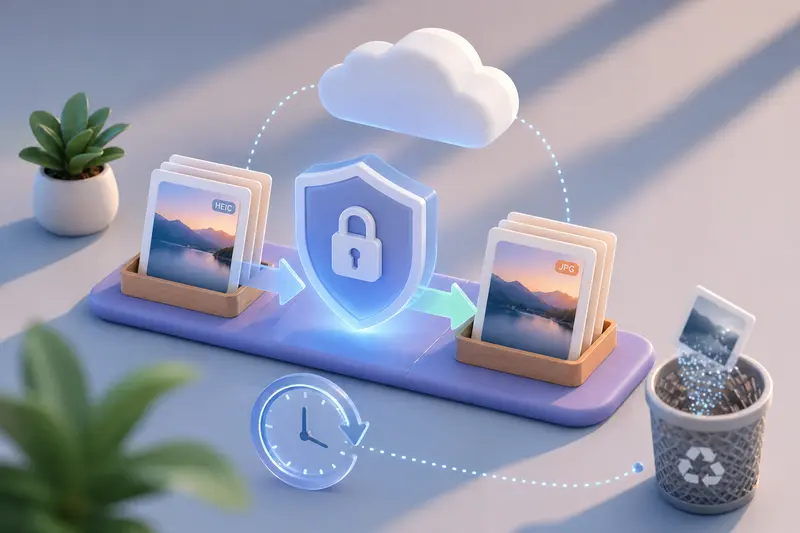
When you upload client visuals—mockups, brand assets, or campaign imagery—you’re often handling sensitive material. Many converters store files longer than expected or process them in ways that aren’t transparent.
A privacy-first approach changes that.
With tools like https://filemazing.com/format-converter, files are treated as temporary processing artifacts. They’re uploaded, converted, and then cleaned up automatically. No long-term storage. No lingering copies.
That’s a critical distinction for agencies and freelancers working under NDAs.
A Real-World Test (From a Designer’s Perspective)
To see how this holds up in practice, I tested a batch of assets:
- 18 HEIC images exported from an iPhone
- Total size: ~92 MB
- Mixed content: product shots, UI mockups, lifestyle imagery
What happened:
- Upload completed smoothly without throttling
- Conversion to JPG preserved color accuracy (no visible banding)
- Output files were slightly larger—as expected—but consistent
- Processing didn’t freeze the browser (jobs run in the background)
Insight you might not expect:
If you’re converting images intended for web use, it’s worth compressing them immediately after. Pairing conversion with a tool like image compression can significantly reduce final asset size without noticeable quality loss.
How the Conversion Workflow Feels
Instead of complicated setup or downloads, the process stays minimal:
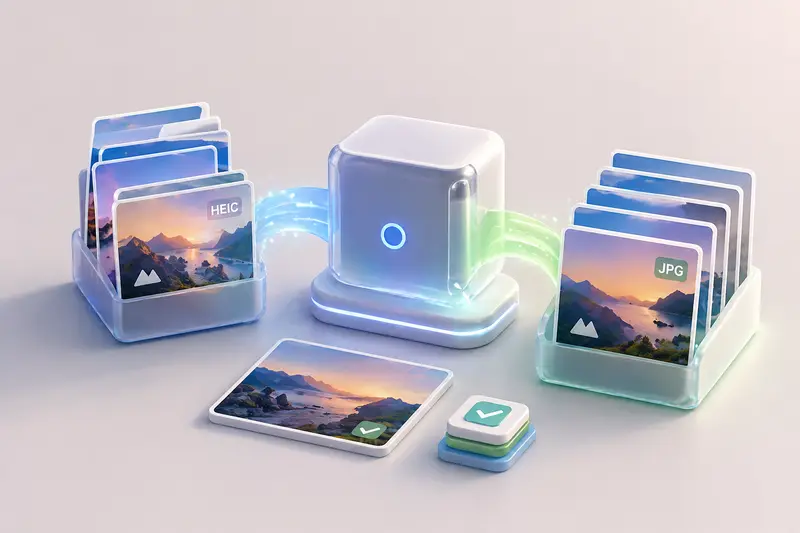
- Upload HEIC files (single or batch)
- Choose JPG as output
- Let the system process in the background
- Download converted files
Because it’s browser-based, there’s no dependency on operating systems or plugins. That flexibility is especially useful when switching between devices.
Where This Fits in a Designer’s Workflow
For professionals managing multiple assets, this isn’t just about format conversion—it’s about maintaining momentum.
Practical use cases:
- Preparing client-delivered iPhone photos for Adobe workflows
- Converting large batches of product images for eCommerce listings
- Standardizing image formats across design systems
- Exporting visuals for web development teams
- Cleaning up assets before uploading to CMS platforms
- Preparing presentation-ready visuals from mixed sources
If your workflow also involves document assets, converting visuals from PDFs using PDF to image tools can complement your pipeline.
Unique Insight: When HEIC Conversion Falls Short
There’s one edge case designers should be aware of.
HEIC supports advanced features like depth data and multiple image layers (used in portrait mode shots). When converting to JPG:
- Depth effects are flattened
- Live photo elements are lost
This isn’t a flaw—it’s a limitation of JPG itself.
What to do instead:
If those features matter (e.g., for interactive or AR design work), keep original HEIC files archived and only convert copies.
Strengths That Actually Matter
Instead of generic benefits, here’s what stands out in real usage:
- Privacy-first handling → files don’t linger on servers
- Batch image format conversion → efficient for large projects
- Predictable pricing model → token-based, no surprise billing
- No signup required → quick access when you need it
- Consistent output quality → reliable across different image types
And if you’re sharing sensitive visuals externally, combining conversion with file encryption adds another layer of protection.
Performance Considerations
Speed is rarely the bottleneck—but file size and volume can influence processing time.
- Small batches (under 20 images) → near-instant
- Large sets (100+ images) → queued processing kicks in
- High-resolution files → slightly longer conversion time
The key advantage is that tasks don’t block your workflow—you can continue working while processing runs in the background.
FAQ: HEIC to JPG Conversion
Does converting HEIC to JPG reduce quality?
Slightly, yes. JPG uses lossy compression. However, for most design use cases, the difference is barely noticeable.
Is it safe to upload client files?
With privacy-focused tools, files are processed temporarily and removed after completion, reducing exposure risks.
Can I convert multiple images at once?
Yes, batch image format conversion is supported and highly efficient for designers working with asset libraries.
What other formats are supported?
Beyond HEIC and JPG, many tools handle PNG, WEBP, PDF, and more—making them a versatile best image format converter.
Do I need to install anything?
No. Browser-based tools eliminate the need for downloads or updates.
What’s the best way to optimize converted images for web?
After conversion, reducing file size with compression tools helps improve load speed without sacrificing visual clarity.
Final Thoughts
HEIC isn’t going away—but neither are compatibility challenges.
If your workflow depends on consistent, accessible image formats, having a reliable HEIC image conversion solution is essential. The difference lies in how that tool handles your files.
With a privacy-first approach, flexible batch processing, and predictable costs, https://filemazing.com/format-converter fits naturally into modern design workflows—without adding friction.
Try it with your next batch of assets and see how much smoother your pipeline becomes.