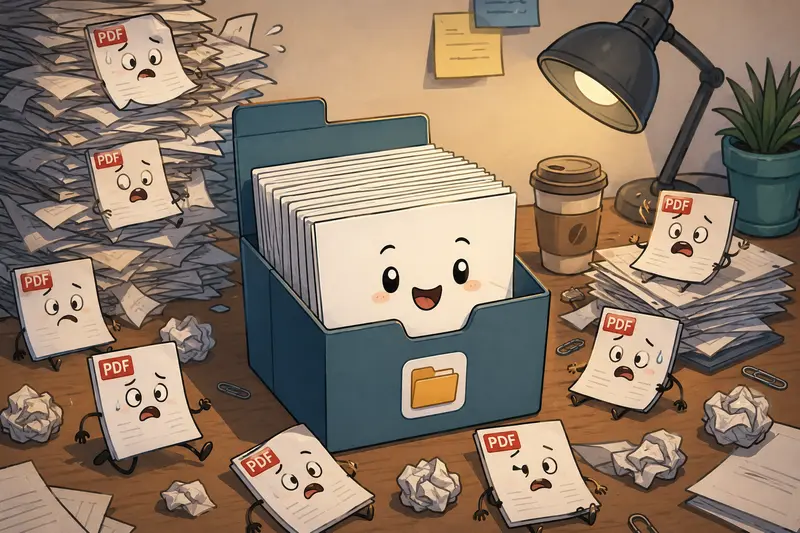
Backup folders have a habit of turning into document chaos over time. A few scanned invoices here, exported reports there, and suddenly youre juggling dozens of PDFs that should really live in one organized archive. Thats where the ability to merge multiple PDFs becomes surprisingly useful.
For general users, especially people managing personal records or small work archives, combining documents into a single backup file reduces clutter and makes retrieval easier later. It also helps when sharing historical records with accountants, clients, or family members.
One detail people often overlook: before archiving sensitive paperwork, it can help to remove hidden metadata before document sharing. PDFs sometimes carry author details, editing history, or device information you never intended to keep in long-term backups.
The Short Version
If your goal is to keep backups manageable, merging related PDFs into larger categorized files works better than storing hundreds of separate documents.
A browser-based tool like Filemazing Merge PDF Tool https://filemazing.com/merge-pdf lets you:
- merge large PDF files without installing software
- combine PDFs without signup
- handle batch PDF merge tasks directly in the browser
- keep processing lightweight with temporary file handling
This is especially useful for yearly archives, scanned records, receipts, contracts, or exported reports.
Why Backup Workflows Become Messy So Quickly
In real workflows, backups rarely arrive in tidy packages.
You might download:
- monthly bank statements
- exported email receipts
- scanned identity documents
- warranty PDFs
- tax paperwork
- project reports from different systems
Individually, each file is manageable. Six months later, finding the correct version becomes an archaeological exercise.
A merged archive changes that dynamic. Instead of searching through 80 filenames, you can maintain:
- one PDF for annual finances
- one for insurance documents
- one for project history
- one for client deliverables
That structure becomes even more valuable when backups move to external drives or cloud storage.
A Practical Merge Workflow That Actually Holds Up
The process itself is straightforward, but the order and preparation matter more than people expect.
Start by grouping related PDFs
Avoid merging everything into one giant document. Large catch-all archives become difficult to search later.
A better approach:
- financial records by year
- contracts by client
- manuals by device category
- school documents by semester
Remove unnecessary duplicates first
Scanned PDFs often contain repeated exports or outdated versions. Cleaning these out reduces final archive size and keeps navigation manageable.
If supporting documents arrive inside compressed downloads, you can first use an archive extraction workflow for ZIP or RAR files before combining the PDFs themselves.
Arrange files in reading order
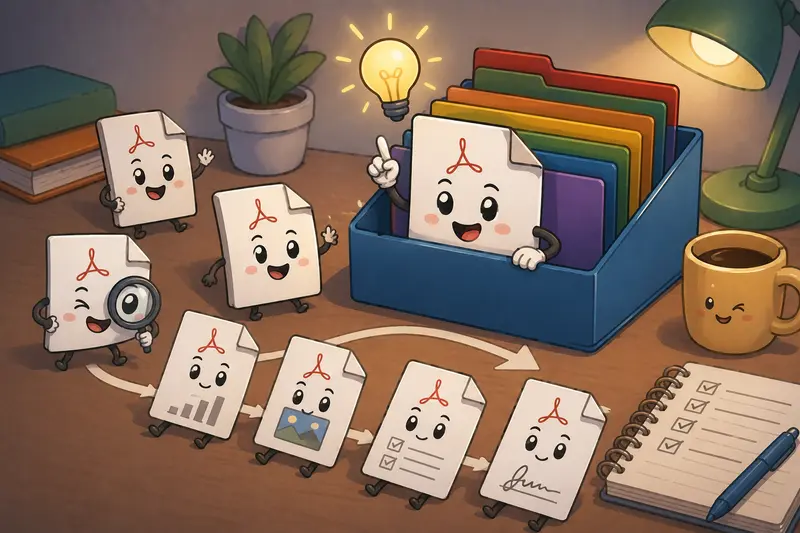
Merged backups are far more useful when pages follow a logical sequence.
For example:
- Cover page or summary
- Chronological records
- Supporting attachments
- Signed versions
- Scanned references
That sounds obvious until you open a 400-page archive and discover page 212 belongs at the beginning.
Merge and verify
After processing:
- confirm page order
- check bookmarks if applicable
- skim for rotated scans
- ensure text readability remains acceptable
Large scanned files occasionally produce oversized merged outputs if source scans were already bloated.
What Testing Looked Like in Practice
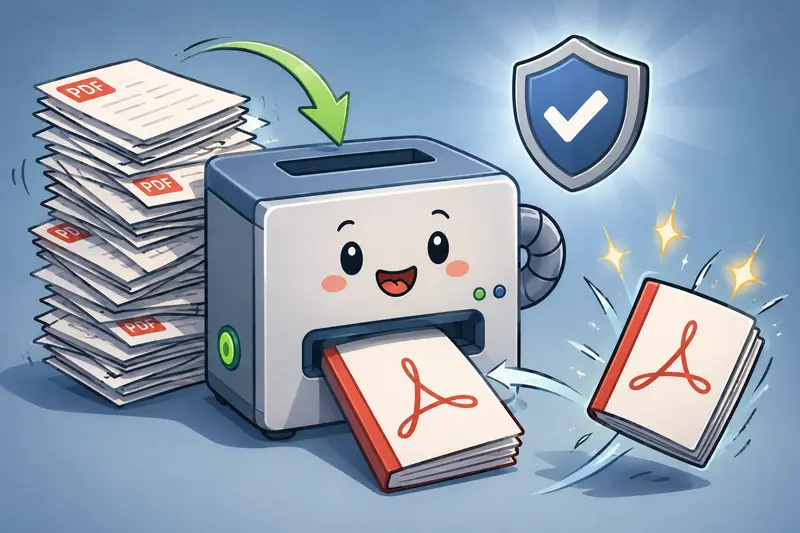
During testing, a mixed backup set containing:
- 37 PDFs
- roughly 620 pages total
- a combination of scanned receipts and exported reports
- total size around 480 MB
was processed using a browser-based merge workflow.
The result:
- one consolidated archive PDF
- preserved page order
- no noticeable corruption in scanned sections
- stable download delivery after processing completed
The biggest observation was how much easier retrieval became afterward. Searching one categorized archive was dramatically faster than navigating dozens of separate folders.
A second takeaway involved upload behavior. Large uploads are usually fine until your connection suddenly decides it wants to become vintage dial-up for five minutes.
Splitting extremely large archives into themed collections often improves reliability.
Where Filemazing Fits Into Larger Backup Routines
Filemazing https://filemazing.com/merge-pdf works well for backup workflows because it focuses on lightweight browser-based processing rather than forcing a heavy desktop setup.
Several practical aspects stand out:
- temporary processing instead of long-term storage
- queued jobs for larger operations
- predictable token-based pricing
- local upload, URL import, and cloud-provider input options
- support for both casual users and automated workflows
The platform also supports API-driven automation, which matters for teams processing recurring document batches.
For example, a small operations team could automatically:
- extract uploaded ZIP files
- merge monthly PDFs
- scrub metadata
- encrypt finalized archives
without moving between separate utilities.
One Important Tradeoff People Ignore
Merging large PDF files is convenient, but theres a balancing act between archive simplicity and file size.
A single 2 GB PDF may technically work, yet:
- opening becomes slower on older devices
- mobile viewing can struggle
- cloud syncing takes longer
- corruption risk affects a larger archive chunk
In practice, moderate-sized grouped archives tend to age better.
A good target for long-term backups is often:
- 100500 pages per archive
- grouped by category or timeframe
- compressed only when readability remains acceptable
Scanned image-heavy PDFs deserve extra caution. Aggressive compression saves storage space but can reduce OCR accuracy and make small text difficult to read later.
That tradeoff matters more than people realize during audits or record retrieval.
Backup Optimization Tips Most People Learn Late
Keep filenames consistent before merging
Instead of:
- final.pdf
- final2.pdf
- scan-new.pdf
use:
- 2025-tax-summary.pdf
- 2025-tax-receipts.pdf
- 2025-tax-supporting-docs.pdf
Merged archives inherit organizational quality from source files.
Merge after OCR when possible
If scanned PDFs support OCR first, your final archive becomes searchable.
That dramatically improves future retrieval.
Encrypt sensitive archives afterward
Once merged, its smart to protect merged documents with password encryption before storing backups externally or sharing them.
This is particularly useful for:
- tax records
- HR paperwork
- legal files
- medical documentation
Dont over-merge unrelated material
Huge mixed-topic PDFs become difficult to maintain. Separation still matters.
Think organized collections, not single mega-file.
Everyday Situations Where Batch PDF Merge Helps
Different users approach backups differently, but these scenarios come up constantly:
- A family organizing years of scanned property paperwork into yearly archives
- Freelancers combining invoices and receipts before tax season
- Students merging lecture notes, assignment exports, and research scans into semester backups
- Small businesses consolidating signed contracts for long-term storage
- Remote workers archiving exported reports from multiple SaaS platforms
- Home users combining appliance manuals and warranty documents into one searchable PDF
In all of these cases, the main benefit is less friction later.
Future-you usually appreciates organized archives more than present-you expects.
What You Gain From Consolidated PDF Archives
Merged backup workflows help with more than tidiness.
They also improve:
- portability across devices
- easier cloud syncing
- simplified document sharing
- cleaner offline storage
- faster retrieval during audits or reviews
Browser-based processing adds another layer of convenience because theres no desktop software maintenance involved.
For occasional users especially, avoiding installations can be preferable to maintaining another utility application.
Common Questions
Can I combine PDFs without signup?
Yes. Filemazing supports workflows where users can combine PDFs without signup using browser-based processing and temporary job handling.
Is there a limit when merging large PDF files?
Practical limits usually depend on browser memory, upload bandwidth, and overall archive size. Extremely large scanned files may process more slowly than text-based PDFs.
Will merged PDFs lose formatting?
Normally no. Most merge operations preserve page formatting exactly as provided in the source files. Problems typically originate from damaged source PDFs rather than the merge itself.
Is browser-based PDF merging private?
Privacy depends on the platform. Filemazing treats uploaded files as temporary processing artifacts and removes them on a short cleanup schedule rather than storing them as permanent cloud files.
Does batch PDF merge work for scanned documents?
Yes. Scanned PDFs merge normally, although image-heavy scans can create significantly larger output files.
Can merged archives still be password protected?
Absolutely. After combining documents, you can encrypt the final archive for secure long-term storage or sharing.
Final Thoughts
For backup workflows, the biggest win usually isnt speed. Its clarity.
Being able to open one organized archive instead of digging through dozens of disconnected PDFs saves time every single time you revisit old records. Whether youre handling personal paperwork or maintaining larger document collections, a structured approach to merge multiple PDFs tasks keeps backups far easier to manage over the long term.
If you want a lightweight way to handle recurring document organization, Filemazings merge PDF workflow https://filemazing.com/merge-pdf offers a practical browser-based option with transparent processing costs, temporary handling, and support for larger batch operations without unnecessary complexity.