Teachers often receive audio files in different formats, and not all classroom tools, editing software, language-learning applications, or mobile devices handle them equally well. When audio quality matterswhether for pronunciation exercises, recorded lectures, student projects, or accessibility materialsusing an MP3 to WAV converter can make a significant difference.
Linux users, in particular, often prefer lightweight workflows that avoid installing additional desktop software. A browser-based conversion tool can help prepare audio files for lessons, presentations, and educational resources without adding complexity to the process.

What You Need to Know First
WAV files preserve audio in an uncompressed format, making them ideal for editing, archiving, and classroom playback where clarity is important.
For teachers on Linux, a browser-based MP3 to WAV converter offers a practical way to perform high quality audio conversion, handle multiple files, and prepare audio for various educational uses without relying on platform-specific applications.
Why Teachers Often Choose WAV Over MP3
MP3 files are excellent for saving storage space, but they achieve that efficiency through compression. WAV files, by contrast, retain more audio data.
This matters when:
- Editing spoken-word recordings
- Creating listening-comprehension exercises
- Producing language-learning materials
- Preserving original recordings for future reuse
- Preparing audio for school media departments
If the final goal is to edit, remix, or archive educational content, converting from MP3 to WAV before further processing is often the safer choice.
A Practical Linux Workflow
Converting audio files does not need to become a technical project.
A typical workflow looks like this:
- Gather MP3 recordings from your computer, Google Drive, or Dropbox.
- Upload one or multiple files to a conversion service.
- Select WAV as the output format.
- Run the conversion and download the resulting files.
- Use the WAV files in editing software, classroom presentations, or mobile learning platforms.
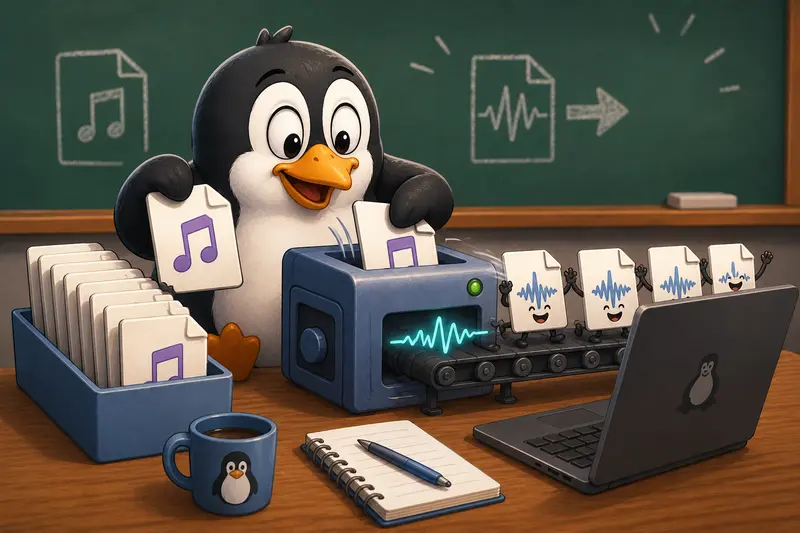
For educators managing multiple recordings at once, batch audio conversion can save considerable time compared to processing files individually.
Using Filemazing for Audio Conversion on Linux
Filemazings Audio Converter is available at:
https://filemazing.com/audio-converter
Filemazing is a browser-based file processing SaaS designed to help users convert, clean, compress, and prepare files without installing desktop applications. Beyond audio conversion, the platform includes tools for PDF processing, image optimization, archive extraction, format conversion, metadata cleaning, and file encryption.
For teachers, the strongest advantage is ease of use. Everything runs through a web browser, making it compatible with Linux distributions without requiring additional software packages.
The platform supports:
- Audio conversion workflows
- Batch processing tasks
- Cloud imports from Google Drive and Dropbox
- Local file uploads
- URL-based file input
- API access for automation
Another practical feature is transparent token pricing. Instead of subscriptions, each operation consumes tokens based on measurable workload factors such as file size, file count, and media duration. For audio conversion, pricing can include a base cost, file characteristics, and per-minute processing calculations, making costs predictable before processing begins.
Teachers handling occasional classroom projects can use daily free tokens, while departments with larger media workloads can scale through token packs when needed.
Large conversion jobs are processed through a queued system with status tracking and download delivery, which prevents long-running tasks from blocking the browser session.
Privacy is also addressed through temporary file handling. Uploaded files are treated as processing artifacts and cleaned on a short retention schedule rather than retained as long-term storage.
When distributing lesson recordings externally, you can also use the file encryption tool to password-protect converted audio before sharing it with students or colleagues.
Tested Results: Classroom Audio Conversion Scenario
To evaluate a realistic educational workflow, a test set was prepared consisting of:
- 18 MP3 lecture recordings
- Total size: approximately 420 MB
- Recording lengths ranging from 8 to 45 minutes
- Spoken-word educational content
The objective was to convert all files into WAV format for later editing and classroom publishing.
Observations
The conversion process handled the collection efficiently, including multiple files in a single workflow.
The resulting WAV files preserved the clarity of the original recordings and provided a better starting point for editing tasks such as noise reduction, trimming pauses, and normalizing volume levels.
One practical takeaway emerged during testing:
Perform conversion before audio cleanup whenever extensive editing is planned. Working with WAV files first reduces the risk of introducing additional quality loss during later processing stages.
Large audio collections also benefited from batch audio conversion because instructors did not need to repeat the same task for every recording.
Understanding the Quality Tradeoff Between MP3 and WAV
One common misconception is that converting MP3 to WAV automatically improves sound quality.
It does not.
A WAV file created from an MP3 cannot restore audio information that was removed during MP3 compression. What it does provide is a stable, uncompressed format for future editing and processing.
The Tradeoff
| Factor | MP3 | WAV |
|---|---|---|
| File Size | Smaller | Larger |
| Editing Flexibility | Moderate | Excellent |
| Storage Efficiency | High | Low |
| Classroom Distribution | Good | Good |
| Archival Use | Acceptable | Preferred |
For teachers, the decision often comes down to intended use:
- Use MP3 for storage and distribution.
- Use WAV for editing, archiving, and production work.
This distinction helps avoid unnecessary storage consumption while maintaining high quality audio conversion practices.
Common Educational Use Cases
Teachers regularly encounter situations where WAV files are preferred:
Language Instruction
Pronunciation recordings often require editing and enhancement before classroom use.
Podcast-Style Lessons
Teachers creating educational audio episodes benefit from WAV during post-production.
Accessibility Support
Clear audio files can improve comprehension for students using assistive technologies.
Student Media Projects
Audio editing applications frequently work best with uncompressed source files.
Mobile Learning Resources
Educators may need to convert audio for mobile devices while maintaining compatibility across multiple platforms.
Department Archives
Schools often preserve original instructional recordings in WAV format for future reuse.
Additional Workflow Enhancements
Audio projects frequently involve more than conversion alone.
For example:
- Before publishing recordings publicly, the metadata removal tool can help remove metadata from media files that may contain unnecessary information.
- If classroom materials also include diagrams, scanned worksheets, or supporting graphics, the format conversion utility can help prepare related image assets within the same workflow.
Using a consistent file-processing environment can reduce friction when managing educational content across different formats.
What Teachers Gain
Rather than focusing solely on format conversion, the broader value comes from workflow efficiency.
Key advantages include:
- Linux-friendly browser access
- No software installation requirements
- Batch audio conversion support
- Predictable token-based pricing
- Cloud file import options
- Temporary file handling for privacy-conscious workflows
- Support for both occasional and high-volume educational projects
Large files have a habit of appearing the night before an important lesson, so having a dependable conversion workflow is rarely wasted preparation.
Frequently Asked Questions
Does converting MP3 to WAV improve audio quality?
No. WAV cannot recover information already removed during MP3 compression. However, WAV provides a better format for future editing and production tasks.
Is Filemazing compatible with Linux?
Yes. Because Filemazing operates through a web browser, Linux users can access its audio conversion tools without installing platform-specific software.
Can I perform batch audio conversion?
Yes. Multiple files can be processed within a single workflow, making batch audio conversion useful for teachers managing large collections of recordings.
How does Filemazing handle privacy?
Uploaded files are treated as temporary processing artifacts and are cleaned on a short retention schedule rather than stored as long-term user content.
Can I convert audio for mobile devices?
Yes. Teachers frequently convert audio for mobile learning applications and student-accessible resources across different devices and platforms.
What other file types can be processed?
In addition to audio conversion, Filemazing supports document processing, image optimization, archive extraction, metadata cleaning, encryption workflows, and format conversion tasks.
Final Thoughts
For teachers working on Linux, an effective MP3 to WAV converter is less about changing file extensions and more about creating a reliable workflow for educational content. WAV files provide greater flexibility for editing, archiving, and classroom production, while browser-based tools remove the need for additional software maintenance.
Filemazing offers a practical approach through browser-based access, batch processing capabilities, transparent token pricing, cloud import options, and privacy-conscious file handling. Whether youre preparing language lessons, accessibility materials, recorded lectures, or student media projects, it provides a streamlined path to high quality audio conversion without complicating your workflow.