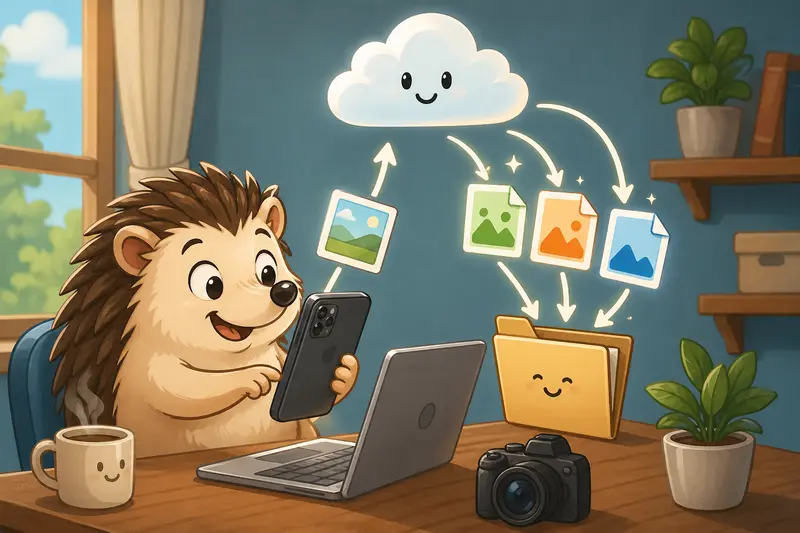
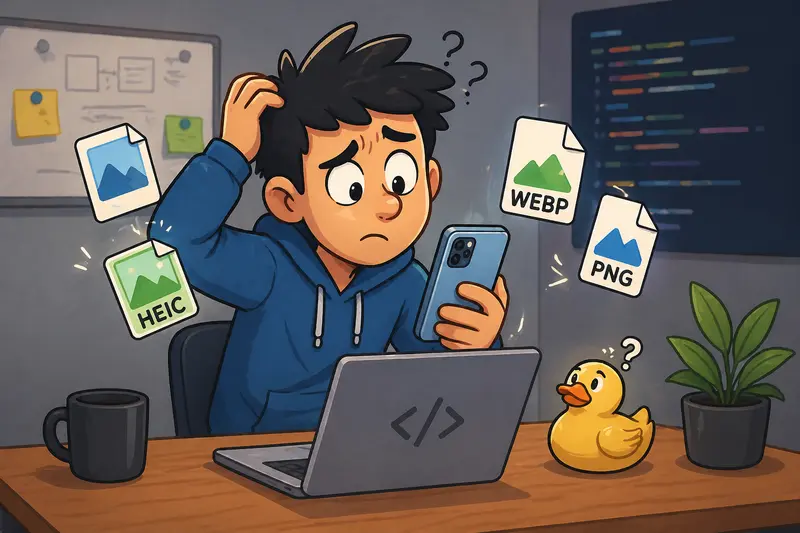
If you’ve ever pushed assets from your iPhone into a dev pipeline, you’ve probably hit format friction—HEIC files that don’t render, WEBP images that need fallback versions, or oversized PNGs slowing things down.
When you need to change image format online, especially on mobile, the goal isn’t just conversion—it’s doing it without breaking your workflow or sacrificing quality.
What actually solves this
You don’t need desktop tools or complex scripts. A browser-based converter lets you upload, transform, and download images directly from your iPhone.
The right setup also ensures your files stay private and don’t linger in storage longer than necessary.
A clean way to handle it on iPhone
Here’s a practical flow that works reliably:
- Open your browser (Safari or Chrome works fine)
- Go to the format conversion tool
- Upload your image (HEIC, PNG, WEBP, etc.)
- Choose the target format (JPG, WEBP, PNG…)
- Download the converted file directly to your device
No app installs. No sync delays.
Where Filemazing fits into this workflow
The Filemazing format converter is designed for this exact use case—fast, browser-based processing with predictable results.
What stands out is simplicity as the primary strength. The interface avoids unnecessary steps, which matters when you’re working from mobile.
At the same time, it supports multiple formats, including WEBP and HEIC, making it flexible enough for frontend and backend needs alike.
If you’re dealing with sensitive assets, it also helps that files are treated as temporary—processed, delivered, and then cleaned up automatically.
Real-world test: iPhone images into a web project
To see how this holds up, I ran a small test:
- Input: 12 HEIC images from an iPhone 14
- Average size: ~3.2 MB each
- Target format: JPG + WEBP
- Total batch: ~38 MB
Result:
- Conversion completed without failures
- JPG outputs preserved color accuracy well
- WEBP versions reduced size by ~40–55%
Takeaway:
If you’re preparing assets for the web, converting HEIC → WEBP gives you a strong balance between size and visual fidelity. But for compatibility, keeping a JPG fallback is still smart.
Comparing formats developers actually care about
Choosing the right format isn’t just about conversion—it affects performance and compatibility.
-
HEIC → JPG
Best for compatibility. Slightly larger files, but universally supported. -
PNG → WEBP
Ideal for web delivery. Smaller size, good transparency handling. -
JPG → WEBP
Useful for optimizing existing assets without major quality loss. -
WEBP → PNG
Needed when working with older systems or editing tools.

Tips for better results (especially from iPhone sources)
This is where most people lose quality or waste time.
-
Avoid double compression
If you plan to compress later, don’t aggressively convert first. Instead, convert and then run it through an image compression workflow. -
Check color profiles
HEIC files sometimes shift slightly when converted. Test at least one image before batch processing. -
Batch strategically
Large batches are fine, but grouping by format (HEIC → JPG separately from PNG → WEBP) helps avoid inconsistent outputs. -
Strip metadata if needed
iPhone images often carry GPS and device data. You can clean that using a metadata removal tool before shipping assets.
Where this workflow fits in real projects
For developers and technical teams, this approach is useful in:
- Preparing assets for frontend performance optimization
- Converting user-uploaded images into standardized formats
- Handling CMS media uploads from mobile contributors
- Creating fallback images for browsers without WEBP support
- Cleaning up design handoff files from iOS devices
- Automating pipelines via API instead of manual conversion
What you gain from doing it this way
- No dependency on local apps or OS limitations
- Consistent output across formats
- Better control over file size vs quality
- Reduced friction when working from mobile
- Cleaner handling of temporary files (no long-term storage concerns)
FAQ
Is it safe to change image format online?
Yes—if the platform processes files temporarily. Tools like Filemazing don’t store files long-term, which reduces exposure risk.
Can I convert WEBP online to JPG or PNG?
Absolutely. WEBP can be converted into more compatible formats when needed for older browsers or tools.
What about HEIC image conversion from iPhone?
HEIC works well for storage, but converting to JPG or WEBP makes it easier to use across web environments.
Will I lose quality during conversion?
Some loss is inevitable depending on format. For example, JPG introduces compression, while PNG preserves detail but increases size.
Can I secure files before sharing?
If you’re sending sensitive assets, consider encrypting them using a tool like file encryption after conversion.
Is there a limit to how many images I can process?
That depends on token usage and file size, but batch processing is supported and predictable thanks to transparent pricing.
Final thoughts
Handling image formats from an iPhone doesn’t have to slow down your workflow.
When you use a browser-based approach, you remove friction—no installs, no sync issues, no environment mismatches.
If your goal is to change image format online efficiently while keeping control over quality and privacy, a tool like Filemazing gives you that balance without overcomplicating the process.