Remote teams rarely struggle with creating PDFs. The problem usually starts afterward.
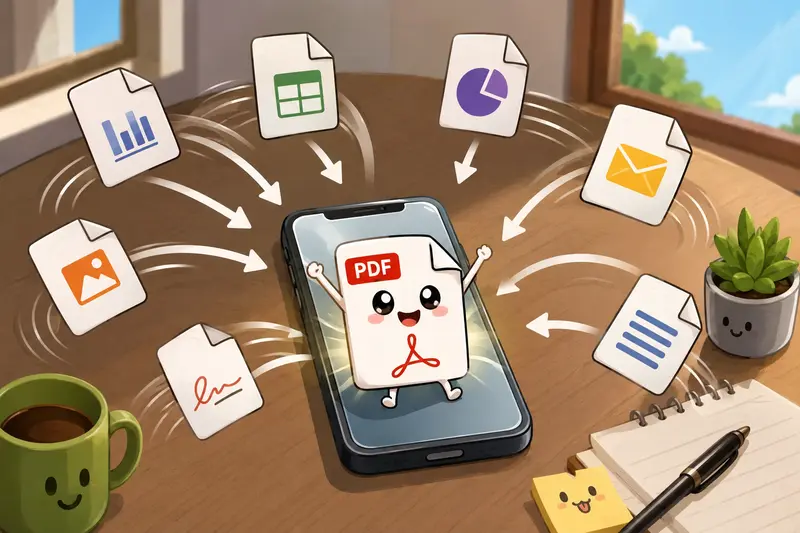
One person exports contracts from Google Drive, another scans signed pages from a phone, and someone else uploads meeting notes as separate files five minutes before a deadline. Suddenly you need to join PDFs into one file on Android without moving everything to a desktop app first.
That situation comes up constantly in distributed teams especially when documents are shared across Slack, email, cloud storage, and mobile devices.
A browser-based workflow can make the process much easier to manage, particularly when you need to combine files quickly without installing heavyweight software.
What You Need to Know First
If your goal is to join PDFs into one file from Android, a browser-based merger is usually the most practical option for remote work.
Tools like Filemazing Merge PDF https://filemazing.com/merge-pdf let you upload several PDFs directly from your phone, cloud storage, or shared folders, arrange them in order, and export a single combined document without relying on desktop software.
This approach works especially well for:
- client packets
- onboarding documents
- weekly reports
- scanned paperwork
- combined presentation exports
It also avoids the version-control chaos that happens when five people send final_v2_REAL.pdf.
Where Android Workflows Often Break Down
Many Android users try to merge PDFs using:
- file manager apps with limited page handling
- free apps overloaded with ads
- desktop-only tools accessed remotely
- messaging apps that compress or reorder files
The friction becomes obvious with larger documents. A 120-page scan combined with image-heavy reports can slow down mobile apps quickly, and some free tools fail entirely once file sizes increase.
This is where browser-first tools tend to hold up better because processing happens through queued server-side workflows instead of depending entirely on the phones memory.
For remote teams, that matters more than people expect.
How the Process Works on Android
Heres a workflow that stays manageable even when multiple contributors are involved.
1. Collect the PDFs in One Place
Gather:
- exported reports
- scanned pages
- signed contracts
- presentation handouts
- invoices or supporting documents
If teammates send ZIP or RAR packages, using an archive extraction workflow for unpacking supporting files https://filemazing.com/archive-extractor first can save time before merging everything together.
2. Upload Files From Android
Open the merge tool in your browser and upload PDFs from:
- local storage
- Google Drive
- Dropbox
- shared download folders
This is especially useful when working between personal devices and company cloud storage.
3. Arrange File Order Carefully
This sounds obvious until somebody merges:
- appendix
- signature page
- actual proposal
Large remote teams run into document-order problems surprisingly often.
A good rule:
- cover pages first
- primary content second
- supporting material last
4. Process and Download
After processing finishes, download the combined PDF directly to your Android device or share it immediately with your team.
Because Filemazing uses queued processing rather than locking the browser tab during heavy jobs, larger merges remain usable even when multiple files are involved.

What We Tested
To see how practical this workflow actually feels on mobile, we tested several real-world scenarios common in remote collaboration.
Test Setup
We merged:
- 14 PDFs
- roughly 186 pages total
- combined file size around 92 MB
The batch included:
- scanned contracts
- exported slide decks
- image-heavy reports
- digitally generated PDFs from Docs and Office exports
The process was run entirely from an Android phone over standard Wi-Fi.
Observed Results
The merger handled mixed PDF sources well, including scanned pages that often create compatibility issues in lighter mobile apps.
One noticeable advantage was stability during larger uploads. Instead of freezing the browser while processing, the queued job system kept the workflow responsive.
A practical takeaway:If you need to merge large PDF files on Android, splitting extremely image-heavy scans into smaller groups before combining them can noticeably reduce processing time. Large scanned pages tend to be the real bottleneck not the page count itself.
Thats particularly relevant for remote HR teams and operations staff dealing with scanned paperwork.
A Useful Trick Most Teams Miss
When combining documents from multiple contributors, metadata can quietly expose information you didnt intend to share.
PDFs often contain:
- author names
- software history
- editing timestamps
- embedded location data
- hidden revision details
Before sharing merged client files externally, its worth using a metadata scrubbing tool for removing hidden document details https://filemazing.com/metadata-scrubber especially when documents come from several departments or freelancers.
This step gets skipped surprisingly often.
Browser-Based Merging vs Desktop Software
Desktop PDF suites still offer deeper editing controls. If you need advanced annotation layers, OCR correction, or page-level editing, dedicated software remains stronger.
But for remote teams focused on speed and accessibility, browser-based tools solve a different problem:
- no installation management
- easier collaboration
- accessible from mobile devices
- fewer compatibility headaches across operating systems
The tradeoff is that very large or highly sensitive enterprise workflows may still prefer fully local processing environments.
For everyday document assembly, though, browser workflows are often the faster operational choice.
Where This Saves Time for Remote Teams
Different teams use merged PDFs differently. Here are a few common examples.
Client Deliverables
Combine proposals, contracts, and supporting diagrams into one clean attachment.
Recruiting & HR
Merge resumes, onboarding paperwork, and signed agreements before archiving.
Marketing Teams
Package campaign reports, exported analytics dashboards, and creative approvals together.
Developers & Technical Teams
Bundle API documentation, diagrams, and release notes into a single reference file.
Finance Operations
Consolidate invoices and receipts for approval workflows.
Education & Training
Join lesson PDFs, worksheets, and reference material into one distribution file.
Large image files also have a habit of showing up right before deadlines.
Why File Order Matters More Than File Size
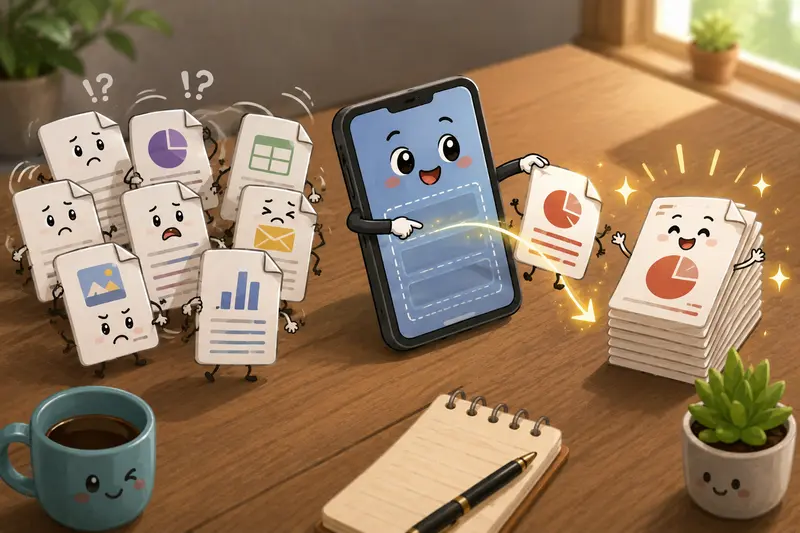
One issue that comes up repeatedly with merged PDFs is navigation fatigue.
When a document exceeds 100 pages, bad ordering becomes a bigger usability problem than file size itself.
A few workflow optimizations help:
- place summary pages near the beginning
- keep appendices grouped together
- avoid mixing portrait and landscape scans randomly
- compress oversized image pages before merging
- standardize naming before upload
For teams generating presentation decks from merged PDFs, converting selected pages afterward with PDF-to-image conversion for turning merged PDF pages into shareable visuals https://filemazing.com/pdf-to-image can also simplify Slack or documentation sharing.
What You Gain From This Workflow
The biggest advantage is operational consistency.
Instead of depending on:
- different desktop apps
- OS-specific software
- random mobile utilities
- email attachment chains
the workflow stays centralized and accessible through the browser.
Other practical benefits include:
- support for larger workloads
- cloud import convenience
- temporary processing instead of long-term storage
- transparent token-based pricing
- no forced subscription commitment
The token model is also fairly predictable for teams. Merge operations factor in file count, size, and pages rather than hiding limits behind vague premium restrictions.
FAQ
Can I merge PDFs directly from Android without installing an app?
Yes. Browser-based tools allow Android users to upload and combine PDFs directly from mobile storage or cloud providers without requiring installation.
Is there a file size limit when trying to join PDFs into one file?
Limits vary by platform, but larger scans and image-heavy PDFs usually affect processing speed more than document count alone.
Is merge PDF online free for small workloads?
Many tools offer free daily usage tiers. Filemazing provides free tokens for anonymous and registered users, which can cover smaller merges before additional token packs are needed.
Does merging PDFs reduce document quality?
Usually no, unless the workflow includes compression or image optimization during processing. Standard PDF merging should preserve page quality.
Are uploaded documents stored permanently?
Filemazing treats uploaded files as temporary processing artifacts rather than permanent cloud storage, with cleanup handled on a short retention schedule.
Whats the best PDF merger for remote teams?
The best PDF merger depends on workflow needs. Remote teams often benefit most from browser-based tools that support cloud imports, larger uploads, and cross-device access rather than desktop-only software.
Final Thoughts
For remote teams working across phones, cloud drives, and shared documents, being able to join PDFs into one file from Android removes a surprising amount of friction from everyday work.
The most effective workflows are usually the ones people can use consistently without training, installations, or device restrictions.
If your team regularly combines reports, scans, contracts, or exported documents, a browser-based merge workflow is worth keeping in your toolkit especially when larger files and mixed document sources start showing up at the same time.