Passing documents around on Android sounds easy until the file contains something you really dont want exposed. Contracts, API exports, scanned IDs, client PDFs, test builds, screenshots from staging environments once those files leave your phone, control disappears quickly.
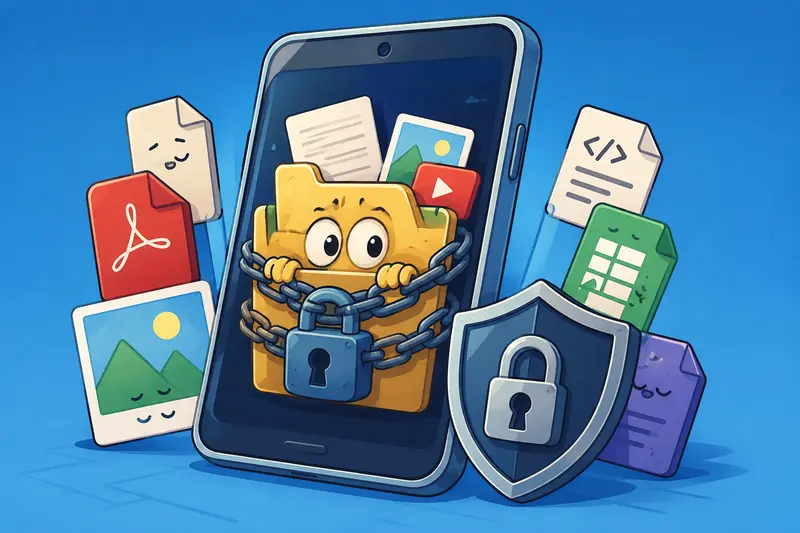
Thats why many developers and technical teams now prefer workflows that let them protect files with password before sharing them through email, cloud storage, or messaging apps.
Instead of relying only on device-level security, password protection adds another layer directly to the file itself. Even if someone downloads the attachment, they still need the password to open it.
For Android users, browser-based encryption tools have become especially useful because they avoid desktop software installs while still fitting into automated or semi-technical workflows.
The Short Version
If you need to:
- encrypt documents before emailing them
- password protect PDFs and images
- share sensitive files from Android without desktop software
a browser-based workflow is usually the fastest option.
A tool like Filemazing Encrypt File Tool https://filemazing.com/encrypt-file lets you upload files directly from Android, apply password protection, and download the encrypted version without installing native apps.
For developers handling recurring document workflows, the API support also makes automation possible later.
Why Android File Sharing Still Creates Security Gaps
Android itself already supports lock screens, biometric access, and encrypted storage. The issue starts once files leave the device.
Common examples:
- emailing exported logs to a client
- sending PDFs through Slack or Telegram
- sharing signed contracts over cloud drives
- transferring screenshots containing credentials
- forwarding ZIP archives between contractors
The file becomes portable, and portability changes the risk profile.
Password-protected encryption reduces accidental exposure during transfer, especially when combined with temporary cloud links or separate password delivery.
A practical approach is:
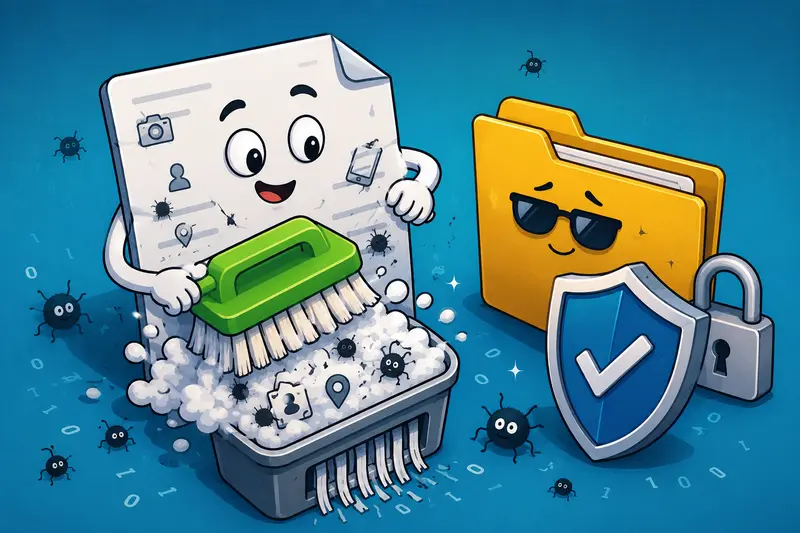
- clean metadata
- compress large assets if needed
- encrypt the final package
- send password separately
If your files contain hidden author or device data, using a metadata scrubbing workflow https://filemazing.com/metadata-scrubber before encryption is often worth the extra minute.
A Practical Android Encryption Workflow
Heres a lightweight process that works well directly from a mobile browser.
1. Gather the files first
Create a dedicated folder in Android Files or Google Drive before uploading anything.
For mixed file batches:
- PDFs
- PNG screenshots
- exported CSVs
- DOCX files
it helps to organize everything first to avoid encrypting outdated versions by mistake.
2. Reduce unnecessary file size
Large encrypted files can become annoying to email or upload repeatedly.
For image-heavy reports or screenshots, using an image compression tool before secure sharing https://filemazing.com/compress-image can dramatically reduce transfer time without noticeably affecting readability.
This matters more on mobile networks than many people expect.
A 40MB screenshot package quickly becomes painful over unstable connections.
3. Upload the files to the encryption tool
Open:Filemazing Encrypt File Workflow https://filemazing.com/encrypt-file
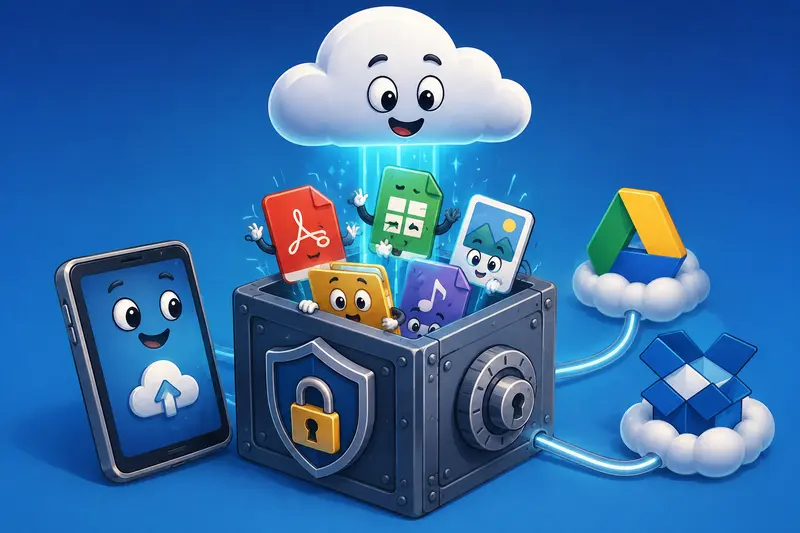
The platform works in-browser, so Android users can upload from:
- local storage
- Google Drive
- Dropbox
- direct URLs
That flexibility becomes useful when files already live in cloud project folders.
4. Apply a strong password
Avoid weak passwords like:
- project123
- android2026
- password1
Yes, people still use these.
A better approach:
- 1420 characters
- mixed words + symbols
- unique per project/client
For client-facing workflows, sending the password through a different channel than the file itself is still best practice.
5. Download and distribute the encrypted file
Once processing finishes, download the encrypted output and share it normally through:
- messaging apps
- cloud links
- ticket systems
Because Filemazing uses queued processing rather than long-running browser sessions, larger uploads dont completely freeze the interface during processing.
What We Tested on Android
To evaluate the workflow realistically, we tested:
- a 26-page scanned PDF
- 14 PNG screenshots
- one exported JSON config file
Device used:
- Pixel 8
- Chrome mobile browser
- Wi-Fi + LTE mixed connection
Observations
The encryption process itself was fast even with multiple files involved. The bigger delay came from upload speed on LTE.
One useful detail: compressing screenshots before encryption reduced the final encrypted package size by roughly 45%, which made email delivery noticeably smoother.
The scanned PDF preserved readability correctly after encryption and download. No rendering artifacts appeared after reopening the protected file on desktop and Android PDF viewers.
A practical takeaway here:
compress first, encrypt second.
Doing it in reverse usually limits optimization options later.
One Mistake That Causes Sharing Problems
A surprisingly common issue is encrypting files individually when the recipient expects a single package.
For example:
- 12 separate protected screenshots
- each requiring extraction or multiple downloads
- scattered across messaging threads
That becomes frustrating quickly.
A cleaner approach is:
- combine related files into an archive
- encrypt the archive once
- share one protected download
If you receive compressed archives from teammates first, an archive extraction workflow for encrypted preparation https://filemazing.com/archive-extractor can help unpack files before applying new encryption settings.
This also simplifies version control for document batches.
Where This Workflow Fits Well for Developers
Developers usually care less about photo privacy and more about operational file handling.
Typical use cases include:
- sharing staging screenshots with external QA teams
- sending exported database subsets to clients
- protecting environment configuration files
- securing PDFs containing architecture diagrams
- emailing invoices or signed vendor agreements
- transferring generated reports from Android while traveling
In small SaaS teams, lightweight browser-based encryption is often more practical than maintaining dedicated desktop security tooling for occasional tasks.
Why Browser-Based Encryption Is Becoming More Common
There are a few reasons these workflows are growing in popularity.
Reduced setup friction
No APK installation.No desktop dependency.No admin rights required.
That matters in distributed teams.
Easier cross-device access
A workflow started on Android can continue later on desktop using the same browser-based interface.
API-ready scaling
Developers handling repetitive document operations can later automate workflows through APIs instead of manually encrypting files one by one.
This is especially useful for:
- generated reports
- scheduled exports
- automated client delivery systems
Predictable pricing
Filemazing uses token-based pricing rather than subscriptions, which works well for inconsistent workloads.
For example, the encrypt-file operation uses lightweight token consumption compared to heavier media processing tasks.
That model tends to fit indie SaaS teams better than paying monthly for tools they only use occasionally.
Tradeoffs Worth Knowing
Password protection is useful, but it is not magic security.
A few realities to keep in mind:
Strong encryption still depends on password quality
Weak passwords undermine the entire process.
Encryption adds workflow friction
Recipients now need:
- the file
- the password
- compatible software
For technical teams this is manageable. For non-technical recipients, support questions increase quickly.
Large encrypted files can slow transfers
Especially on mobile networks.
Compressing images and removing unnecessary metadata beforehand usually improves the experience significantly.
Privacy Handling Matters Too
One reason browser-based tools raise concern is temporary file handling.
Filemazing treats uploads as short-lived processing artifacts rather than permanent cloud storage. Completed jobs are cleaned automatically after retention windows expire instead of being stored indefinitely.
For sensitive developer workflows, temporary processing is generally preferable to leaving files sitting permanently in shared folders.
Frequently Asked Questions
Can I password protect PDFs and images directly from Android?
Yes. Browser-based tools allow Android users to encrypt PDFs, images, archives, and other common file types without desktop software.
Does encryption reduce PDF quality?
No, encryption itself typically does not reduce PDF quality. Compression performed before encryption can affect image clarity depending on settings.
Is it better to encrypt files before email?
Usually, yes.
Email attachments can be forwarded accidentally or accessed from compromised inboxes. Encrypting files for email adds an extra security layer independent of the email provider itself.
Can encrypted files still be compressed later?
Sometimes, but results are usually worse.
Compression works best before encryption because encrypted data appears random to compression algorithms.
Are browser-based encryption tools safe for sensitive files?
That depends on operational practices.
Look for:
- temporary file cleanup
- transparent processing behavior
- HTTPS transfer security
- predictable retention policies
Avoid platforms that behave like permanent file storage unless that is specifically required.
Does this workflow work for batch operations?
Yes. Browser-based systems like Filemazing are useful for bulk processing because they support multiple uploads and queued jobs rather than forcing one-file-at-a-time handling.
Final Thoughts
If your Android workflow regularly involves contracts, exported reports, screenshots, or technical documents, adding password protection directly to the files themselves is one of the simplest security improvements you can make.
A browser-based option like Filemazing Encrypt File Tool https://filemazing.com/encrypt-file keeps the process lightweight while still supporting larger operational workflows, temporary processing, and future API automation if your needs grow later.
For developers especially, that balance between privacy, flexibility, and minimal setup is often more valuable than heavyweight desktop encryption suites that rarely get used consistently.