Design work rarely stays in one place anymore. A logo draft might start in Figma on a laptop, get reviewed from a phone during a commute, and end up shared with a client before the day is over.
That flexibility is useful until sensitive files travel through email threads, messaging apps, or shared cloud folders without protection.
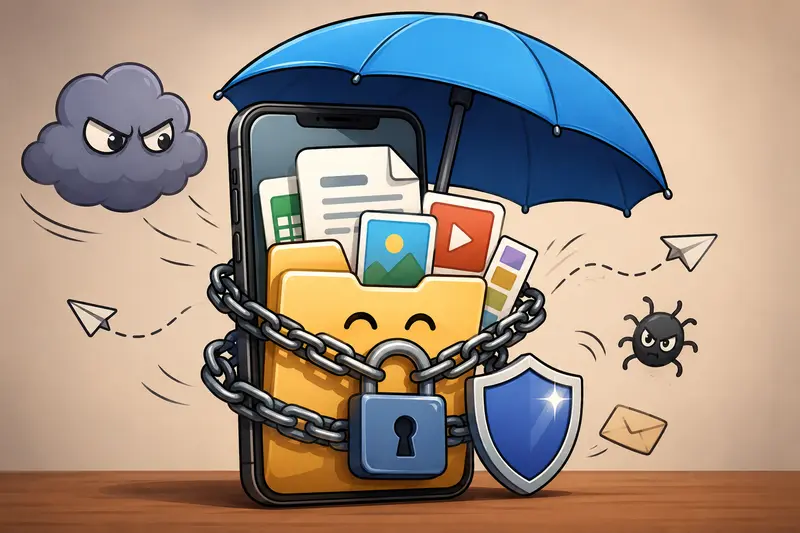
For designers handling mockups, contracts, layered PSD files, or presentation decks, learning how to password protect files directly from a mobile device is one of those low-effort habits that prevents very avoidable problems.
And importantly, it no longer requires desktop software.
What Actually Works Well on Mobile?
Many mobile file encryption apps feel overloaded with permissions, ads, or unnecessary storage syncing. Some are surprisingly slow with larger creative assets too.
A browser-based workflow is often cleaner for occasional or mixed-format use cases.
One practical option is Filemazing Encrypt File Tool https://filemazing.com/encrypt-file, which lets you encrypt files directly from a mobile browser without installing desktop software. The process works for PDFs, ZIP archives, image files, presentation exports, and other common designer deliverables.
Because the workflow runs as a temporary processing task rather than permanent cloud storage, files are cleaned up automatically after processing instead of sitting indefinitely on a shared server.
That matters more than people think.
Especially when client revisions contain unpublished branding, pricing sheets, or campaign material.
A Mobile-Friendly Private File Sharing Workflow
In real-world creative workflows, encryption usually becomes necessary right before delivery.
Typical example:
- A designer exports:
- a 42-page PDF brand guide
- several PNG mockups
- two editable Illustrator files
- The client requests mobile delivery before a meeting
- Email attachment limits become annoying immediately
- Some files contain internal notes not meant for broader sharing
Instead of sending everything raw, a safer workflow looks like this:
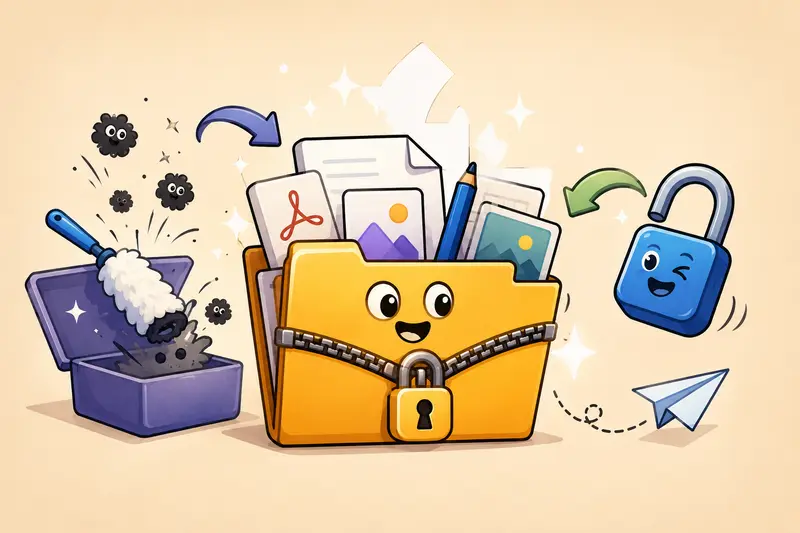
- Clean hidden metadata from exported files
- Combine documents where appropriate
- Encrypt the final package with a password
- Share the password separately through another channel
That sequence sounds technical, but it takes only a few minutes on a phone.
For example, before protecting exported design assets, you can use metadata scrubbing for creative files https://filemazing.com/metadata-scrubber to remove embedded author information, GPS data, software history, or hidden document properties that often survive export workflows.
Then, if multiple PDFs need to be delivered together, combining them first through PDF merging workflow for client deliverables https://filemazing.com/merge-pdf makes password management much simpler later.
One protected package is easier to manage than six separate encrypted attachments.
The Workflow, Without the Desktop Detour
Heres the process many designers end up using after trying several alternatives.
1. Prepare the Files First
Mobile encryption is fastest when unnecessary clutter is removed before upload.
Good candidates include:
- final presentation PDFs
- compressed image exports
- invoice documents
- ZIP archives containing source assets
- licensing agreements
Very large layered files may still work, but browser-based tools naturally depend on upload bandwidth and device memory.
Thats one tradeoff worth understanding:
- mobile convenience is excellent
- desktop batch processing is still stronger for extremely heavy production assets
For normal delivery workflows though, phones handle encryption surprisingly well now.
2. Combine or Organize Before Encrypting
This step gets skipped constantly.
And later becomes annoying.
If files belong together, package them before protection. Designers frequently send:
- typography guidelines
- logo exports
- social templates
- usage instructions
as separate attachments when one organized archive would be cleaner.
If your materials are already compressed into ZIP or RAR format, you can also use archive extraction before secure packaging https://filemazing.com/archive-extractor to unpack older client bundles and reorganize them before re-encrypting updated versions.
Some file formats cooperate nicely. Others behave like they were designed during an argument.
One Useful Tip Most People Miss
Passwords matter less if the delivery method is careless.
A surprisingly common mistake:
- encrypted file sent by email
- password included in the same email thread
That defeats much of the protection.
A better habit:
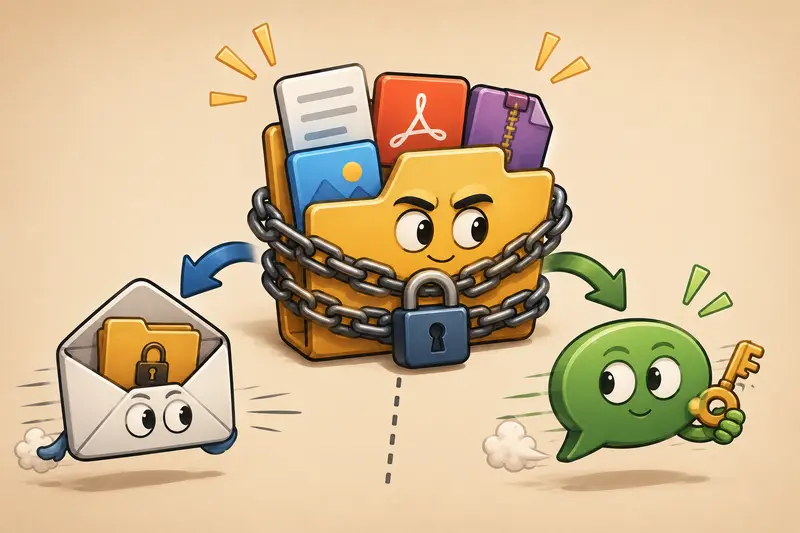
- send the encrypted file through email or cloud link
- send the password through Signal, Slack, SMS, or a separate channel
Its a small workflow adjustment, but it dramatically improves practical security.
Especially for freelance and agency collaboration.
Why Designers Often Prefer Browser-Based Encryption
Creative teams already juggle enough software.
Installing another desktop utility for occasional file protection often feels unnecessary especially on tablets or secondary devices.
A browser-based approach offers a few practical advantages:
| Workflow Need | Browser-Based Approach |
|---|---|
| Quick client delivery | Works from mobile instantly |
| Mixed file formats | Easier handling without dedicated apps |
| Temporary processing | Less persistent file storage |
| Occasional encryption tasks | No software maintenance |
| Team flexibility | Works across devices |
Filemazing also uses transparent token pricing rather than subscriptions, which suits irregular creative workflows well.
For example, the encrypt-file operation uses a lightweight token calculation model based on workload factors like file size and count, making costs easier to estimate before processing.
That predictability matters for freelancers and smaller studios managing variable workloads.
A Few Performance Notes Worth Knowing
Mobile encryption speed depends on three things more than anything else:
- upload speed
- file size
- number of files processed together
A single 12MB PDF typically processes quickly.
A folder containing:
- multiple TIFF exports
- layered PSDs
- high-resolution packaging renders
will naturally take longer.
Another subtle consideration:encrypted archives can become slightly larger after protection depending on compression behavior and original file structure.
So if you need to encrypt files for email, compressing oversized assets beforehand may still help avoid attachment limits.
Nobody enjoys discovering a 200MB PDF five minutes before a submission deadline.
When This Workflow Is Especially Useful
Designers tend to benefit most from mobile encryption in situations like:
- sharing pitch decks before public launch
- transferring client contracts
- delivering premium digital products
- protecting unreleased branding assets
- sending invoices while traveling
- reviewing confidential presentation files remotely
The convenience factor becomes obvious during client-heavy weeks.
You stop delaying secure delivery simply because youre away from a desktop.
Common Questions
Can I password protect files directly from an iPhone or Android browser?
Yes. Modern browser-based encryption tools work well on both platforms without requiring desktop software installation.
Is encrypted file sharing safer than standard email attachments?
Generally, yes. Encryption adds a protection layer so files remain inaccessible without the password, even if the attachment is intercepted or forwarded.
What kinds of files can usually be encrypted?
Common examples include:
- PDFs
- ZIP archives
- images
- presentation files
- office documents
- audio exports
Compatibility depends on the tool and browser limits.
Does encrypting files reduce image quality?
No. Encryption itself does not alter file quality. Compression tools may affect quality, but encryption simply protects access to the existing file.
Is browser-based encryption private enough for client work?
It can be appropriate for many professional workflows when the platform uses temporary processing and automatic cleanup practices rather than long-term storage retention.
Whats the best file encryption tool for occasional creative work?
For designers who want mobile flexibility without maintaining desktop software, lightweight browser-based tools like Filemazings encryption workflow https://filemazing.com/encrypt-file are often easier to integrate into existing delivery habits.
Final Thoughts
Secure delivery used to feel like a separate technical task.
Now its mostly just part of good creative workflow hygiene.
If you already send files from your phone, adding encryption before delivery is a small adjustment with a meaningful payoff especially when handling client materials, unreleased assets, or contracts outside your main workstation.
The easiest systems are usually the ones people actually keep using.
And in practice, that matters more than having the most complicated security setup imaginable.