Remote teams collect PDFs from everywhere: phone scans, signed forms, exported invoices, meeting notes, receipts, contractor paperwork, and shared drive folders that somehow contain three versions of the same document.
When you need to merge PDF documents from an Android phone, the goal is not only combining files. The real goal is creating one clean, shareable document without installing heavy desktop software or sending teammates a messy pile of attachments.
That is where a browser-based workflow helps. You can upload files from your phone, cloud storage, or a URL, arrange them in the right order, and produce one combined PDF that is easier to review, archive, or send.
The Core Idea
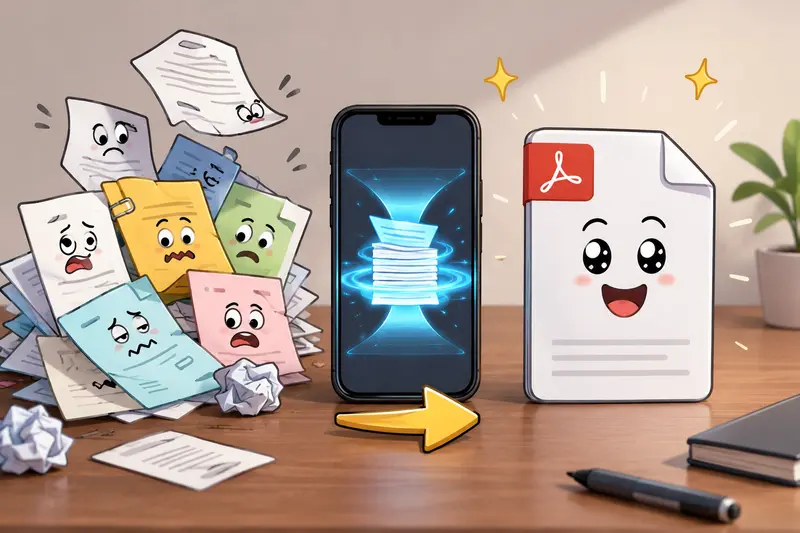
You can merge PDFs on Android by using a web-based PDF merge tool in your mobile browser. This works well for remote teams because it avoids device-specific software, keeps the workflow accessible across locations, and makes document handoff cleaner.
For teams handling scanned contracts, onboarding forms, reports, or client packets, a tool like Filemazings merge PDF tool is useful because it runs in the browser and supports practical file workflows without requiring desktop installation.
A Practical Android Workflow for Remote Teams
Start by gathering the PDFs you want to combine. On Android, these might come from your Downloads folder, Google Drive, Dropbox, email attachments, or a scanner app.
Then follow this workflow:
Check the file order first
Rename files if needed, especially when combining scanned PDFs. Names like01-contract.pdf,02-signature-page.pdf, and03-appendix.pdfreduce confusion.Open the merge tool in your Android browser
Use Chrome, Firefox, or another modern mobile browser. Upload the PDFs from local storage, cloud storage, or URL input if available.Arrange the files before processing
Put cover pages, signed forms, supporting documents, and appendices in the order readers expect. This step matters more than people think.Run the merge job
Filemazing uses queued processing and job status tracking, so larger tasks do not freeze the interface while the combined document is prepared.Download and review the final PDF
Open the merged file before sharing it. Check page order, scan rotation, missing pages, and readability.
If your supporting documents arrive in ZIP or RAR format, it can help to first unpack supporting files from archives before merging the final PDFs.
Why Filemazing Fits This Use Case
Filemazing is a browser-based file processing SaaS for converting, cleaning, compressing, and preparing files without desktop software. Its tools include PDF to image, merge PDF, image compression, archive extraction, audio conversion, metadata scrubbing, format conversion, and file encryption workflows.
For remote teams, the strongest advantage is bulk workflow efficiency. A distributed team does not need everyone using the same operating system or installed app. One person can prepare files from Android, another can review the output on a laptop, and a developer can automate repeat tasks through API endpoints.
The supporting benefit is transparent token pricing. Instead of a subscription-only model, Filemazing uses tokens based on workload factors such as file size, page count, file count, and operation complexity. For merge PDF jobs, token cost can account for base cost, MB size, pages, and number of files, which helps teams estimate usage before processing.
That predictability matters when a team is handling occasional small tasks one week and heavier batch PDF merge work the next.
Tested Scenario: Combining Scanned PDFs from a Phone
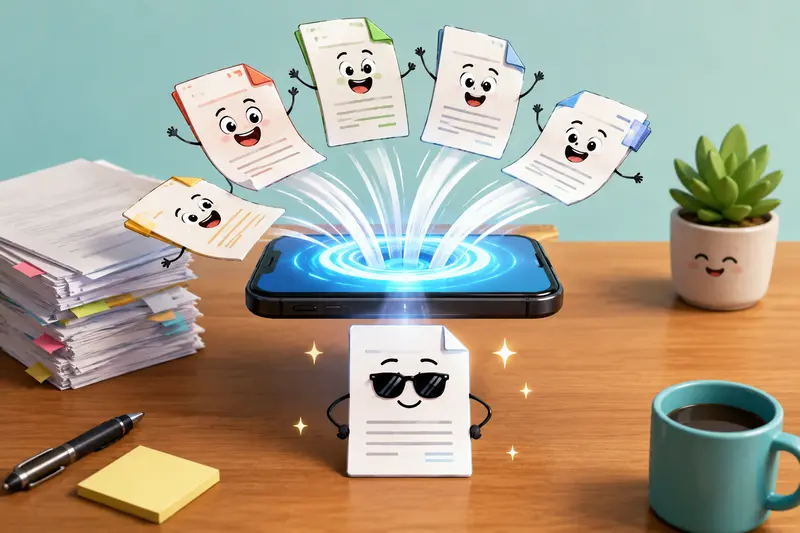
A realistic test involved six scanned PDFs collected from an Android device: three signed agreement pages, two ID verification scans, and one supporting receipt PDF. Together, the files were about 18 MB and contained 14 pages.
The processing situation was typical for remote admin work: files had been captured by different apps, saved with inconsistent names, and stored partly in local downloads and partly in cloud storage.
The outcome was a single merged PDF with the pages in the selected order. The most important takeaway was that file preparation mattered more than the merge itself. Renaming the files before upload made ordering faster and reduced the chance of sending a document packet with pages in the wrong sequence.
A useful optimization: when combining scanned PDFs, preview the largest scan before merging. One oversized image-heavy scan can make the final document much larger than expected.
The Android-Specific Catch: Scans Are Not Always Equal
Combining normal digital PDFs is usually straightforward. Scanned PDFs are different.
A scanned PDF is often a container for images. That means file size can grow quickly, especially when pages were captured at high resolution. For remote teams working from phones, this creates a common tradeoff:
Higher scan quality improves readability, but it can produce a heavier merged PDF.
Lower scan quality makes sharing easier, but text, signatures, and small details may become harder to verify.
For legal, finance, HR, or client-facing documents, readability should usually win. Nobody wants a beautifully small file that turns a signature page into a blurry fossil. For internal references, lighter scans may be acceptable.
Before sharing externally, you may also want to remove hidden metadata from documents, especially when files pass through several phones, apps, or contributors.
Real-World Uses for Remote Teams
Remote teams use PDF merging in more situations than they expect:
- HR teams can combine signed offer letters, tax forms, and onboarding documents into one employee packet.
- Operations teams can merge vendor invoices, delivery notes, and approval forms for monthly records.
- Sales teams can combine proposals, pricing pages, and signed agreements before client handoff.
- Finance teams can turn scattered receipts and statements into a single reimbursement file.
- Project managers can combine meeting exports, scope documents, and stakeholder approvals.
- Customer support teams can prepare evidence bundles from screenshots, forms, and exported case notes.
For frequent document operations, Filemazings API support can also help teams automate recurring merge PDF online free-style workflows where manual upload is not ideal every time.
What You Gain
A good Android PDF merge workflow saves time in three places: collecting files, organizing them, and sharing the result.
It also reduces back-and-forth. Instead of sending five attachments and explaining the order, you send one reviewed document. For remote teams, that small improvement can prevent confusion across time zones.
Filemazing also treats uploaded files as temporary processing artifacts rather than long-term storage. Files are handled for processing and cleaned on a short retention schedule, which is important when teams work with contracts, IDs, internal reports, or client material.
If the merged PDF contains sensitive content, you can add another layer by using password encryption for merged documents before distribution.
FAQ
Is it safe to merge PDF documents in a browser?
It can be safe when the tool uses temporary processing and cleanup rather than permanent file storage. Filemazing is designed around short-lived processing artifacts, which makes it better suited for practical team workflows than tools that behave like long-term file repositories.
Will merging PDFs reduce quality?
Merging usually keeps the original pages intact. Quality issues are more likely to come from the source files, especially scanned PDFs with low resolution or heavy compression.
Can I combine scanned PDFs from Android?
Yes. You can combine scanned PDFs as long as they are saved as PDF files. The main thing to watch is file size, since image-based scans can become large when merged.
Is there a limit to batch PDF merge jobs?
Limits depend on file size, page count, file count, and processing rules. Filemazing uses token-based pricing with workload-based calculations, which helps make larger jobs more predictable.
How fast is the process?
Small PDF merges are typically straightforward. Larger batches may take longer, but queued processing and job status tracking help prevent the browser interface from getting stuck.
Can remote teams use this without installing software?
Yes. Since Filemazing works in the browser, team members can use it from Android, desktop browsers, or cloud file sources without installing a dedicated PDF app.
Final Takeaway
When remote teams need to merge PDF documents from Android, the best workflow is simple: prepare files, order them carefully, merge in the browser, review the output, and protect or clean the final document when needed.
For scattered scans, signed forms, and team document packets, Filemazing gives you a practical way to turn messy PDF collections into one organized file.