Distributed teams do not always get to handle documents from a desk. A contract might arrive in Slack, a scanned invoice might come through email, and a field report might be sitting in Google Drive while someone is reviewing it from an Android phone.
That is where the ability to merge PDF documents on Android becomes useful. Instead of sending five separate attachments and hoping everyone opens them in the right order, remote teams can combine them into one cleaner file that is easier to review, approve, archive, or share.
The Practical Answer
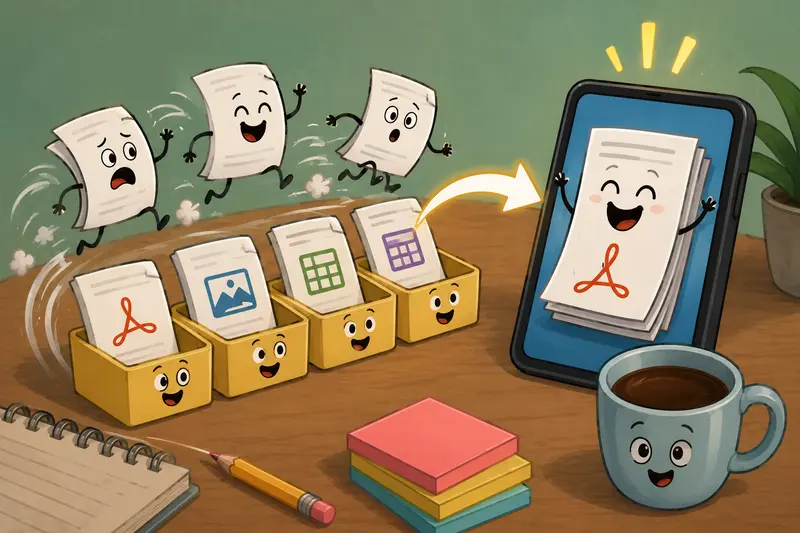
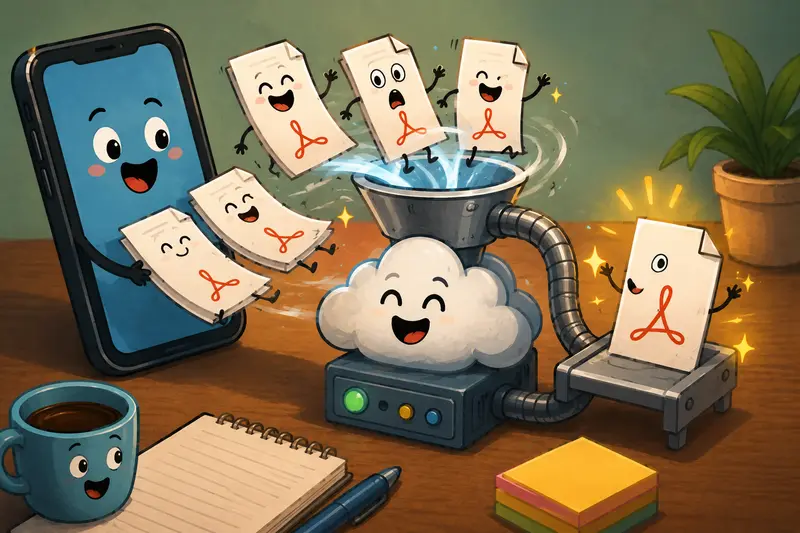
Yes, you can merge PDF documents on Android without installing heavy desktop software. A browser-based tool lets you upload multiple PDFs, arrange them in the right order, process the job, and download one combined file.
For remote teams, the main advantage is consistency. Everyone can use the same workflow whether they are on Android, a laptop, or a shared device. That matters when documents move between departments, time zones, and storage platforms.
Why Android PDF Merging Matters for Remote Work
Remote teams often deal with document fragments:
- signed pages from different people
- scanned receipts from mobile cameras
- proposals exported from separate apps
- onboarding forms sent one file at a time
- compliance packets that need a fixed order
A merged PDF reduces confusion. It also lowers the chance that someone reviews final_contract_page_3.pdf before final_contract_page_1.pdf, which is the kind of tiny chaos nobody puts in a project plan.
A Clean Workflow for Combining PDFs on Android
A reliable merge process does not need to be complicated. The important part is preparing files before upload and checking the output before sharing it.
Collect the PDFs first
Gather the files from local Android storage, Google Drive, Dropbox, email downloads, or a shared team folder.Rename files before merging
Use names like01-cover.pdf,02-contract.pdf, and03-appendix.pdf. This makes ordering much easier.Upload and arrange the files
Place the PDFs in the sequence your team expects reviewers to read them.Merge and download the final file
Once processed, save the combined PDF back to your device or cloud workspace.Review before sending
Open the merged file and check page order, scanned page orientation, and readability.
For teams that also need to convert pages after merging, Filemazings PDF to image tool can turn merged PDF pages into image files for previews, thumbnails, or visual review workflows.
Using Filemazing to Merge PDFs Without Desktop Software
Filemazing is a browser-based file processing SaaS that helps users convert, clean, compress, and prepare files quickly without installing desktop software. For Android users, that means your team can open the merge tool in a mobile browser and process documents without relying on a specific operating system.
You can use Filemazings merge PDF tool to combine PDFs without signup, arrange files, and download a finished document through a clean web interface. It also supports broader workflows such as PDF to image, archive extraction, audio conversion, metadata scrubbing, format conversion, image compression, and file encryption.
Filemazing uses transparent token-based pricing instead of forcing every team into a subscription. Merge PDF jobs currently use a pricing formula based on factors such as base cost, file size, page count, and file count, so teams can estimate workload cost more clearly before processing larger batches.
This is especially helpful for distributed teams that handle occasional document-heavy days rather than a perfectly predictable monthly workload.
Real-World Test Scenario
A realistic remote-team workflow might involve merging:
- 4 scanned onboarding forms
- 2 signed policy PDFs
- 1 exported HR checklist
- about 48 total pages
- roughly 36 MB of files
In testing this type of workflow, the merged output kept the document sequence intact and made review easier because the HR lead only had to open one file. The main thing worth checking was scan quality: a few mobile-scanned pages were readable, but slightly tilted.
The takeaway is simple: merging does not fix poor scans. If a scanned PDF is blurry before merging, it will still be blurry afterward. Review scan quality before combining files, especially when the final document is going to clients, legal teams, or finance.
Mobile-Specific Bottlenecks Teams Should Watch
Merging PDFs on Android works well, but mobile workflows have their own small traps.
Large files can take longer to upload on unstable mobile connections. Scanned PDFs are often heavier than digitally exported PDFs because each page may contain image data. A 12-page scanned document can sometimes be much larger than a 60-page text-based report.
A useful habit is to split the workflow into two checks:
- Before merging: confirm file order, names, and scan readability.
- After merging: confirm page count, orientation, and final file size.
There is also a tradeoff between quality and file size. High-resolution scanned PDFs preserve details, but they create heavier files. Smaller files are easier to share, but aggressive compression can make signatures, stamps, or small text harder to read.
If supporting materials arrive inside ZIP or RAR folders, teams can use the archive extractor before merging the relevant PDFs.
Where This Helps Distributed Teams Most
Remote teams benefit from merged PDFs when the document needs to travel cleanly between people, tools, and approvals.
Common examples include:
- Client approvals: combine proposal, scope, pricing, and signature pages into one review packet.
- Finance handoffs: merge invoices, receipts, and reimbursement forms before submitting them.
- HR onboarding: collect employee forms, ID scans, agreements, and checklists in one file.
- Legal review: bundle contract drafts, amendments, and signed pages in the right order.
- Operations reporting: combine field photos converted to PDF, inspection notes, and summary pages.
- Developer or product teams: package API docs, export notes, and compliance references for review.
For sensitive files, teams can also protect finished documents with password encryption before sharing them outside the organization.
Privacy and File Handling Considerations
Remote teams should be careful with document tools, especially when files include contracts, IDs, invoices, or internal reports.
Filemazing treats uploaded files as temporary processing artifacts rather than long-term storage. Jobs are processed through queued handling with status tracking and download delivery, while files are cleaned on a short retention schedule.
That makes the workflow more privacy-conscious than uploading documents into a random permanent storage service. Still, teams should avoid merging files on public Wi-Fi when handling sensitive material and should only share final PDFs through approved channels.
Advantages That Actually Matter
Merging PDFs on Android helps because it removes friction from team review.
The biggest wins are practical:
- fewer attachments to manage
- clearer document order
- better mobile accessibility
- easier client and stakeholder review
- less dependence on desktop-only software
- smoother handling of scanned PDFs and large PDF files
For distributed teams, the benefit is not just convenience. It is reducing small document mistakes before they become approval delays.
Common Questions
Can I merge large PDF files on Android?
Yes, but upload speed and mobile connection quality matter. Large scanned PDFs may take longer because they often contain image-heavy pages.
Can I combine scanned PDFs?
Yes. Scanned PDFs can be merged like regular PDFs, but the final quality depends on the original scans. Check readability before processing.
Do I need an account?
Filemazing allows users to combine PDFs without signup using daily free tokens. Registered users can top up when they need higher throughput.
Will merging PDFs reduce quality?
Merging usually preserves the existing PDF content rather than improving or degrading it dramatically. The bigger issue is the quality of the source files.
Is this safe for team documents?
Filemazing uses temporary processing and short-retention cleanup rather than long-term file storage. For confidential files, use approved sharing practices and consider encrypting the merged document.
Can developers automate this?
Yes. Filemazing supports API endpoints, which can help teams automate repeated document workflows instead of manually processing every batch.
Final Takeaway
When remote teams need to organize contracts, scans, invoices, reports, or approval packets from Android, merging PDFs into one file keeps the workflow cleaner.
Use Filemazings browser-based merge PDF tool when you need a practical way to combine documents, keep costs predictable, and avoid installing desktop software. Prepare the files carefully, check the final output, and your team gets one document that is much easier to review, share, and store.