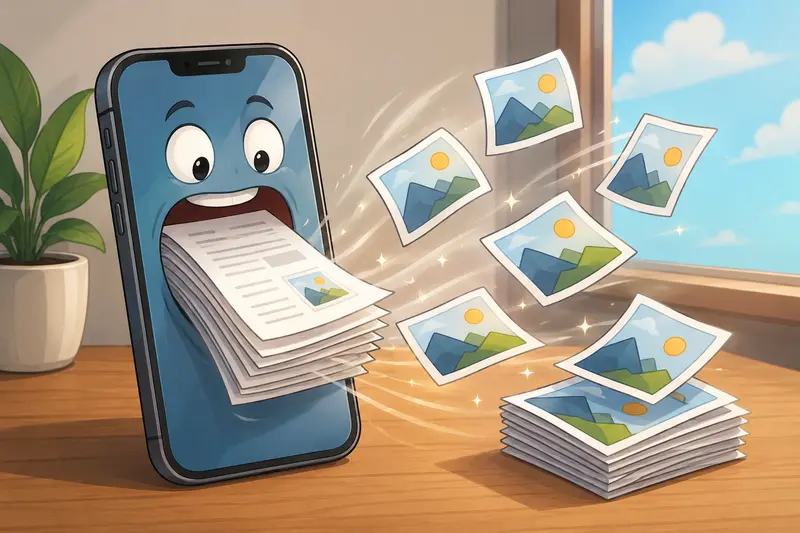
Freelancers end up handling PDFs constantly client contracts, scanned invoices, design previews, pitch decks, receipts, onboarding documents. The problem starts when those PDFs need to become images fast.
Maybe a client needs JPG previews for Slack approval. Maybe a marketplace only accepts image uploads. Maybe you need lightweight visuals for social posts or presentations. Suddenly, a bulky PDF becomes friction.
Thats where a reliable PDF to JPG converter matters, especially on iPhone where desktop-style file handling can feel awkward during busy workdays.
Instead of emailing files to yourself or opening random apps filled with ads, a browser-based workflow is often faster and cleaner.
What You Actually Need
A good workflow should do four things well:
- preserve image quality
- handle multiple pages properly
- avoid permanent file storage
- work directly in the browser
That combination is surprisingly rare.
Many free converters either compress the output aggressively or limit multi-page exports unless you install software. Others bury downloads behind queues or signup walls.
If your priority is a high quality PDF to image workflow that works smoothly from iPhone, browser-based tools are usually the least frustrating option.
A Practical iPhone Workflow That Works
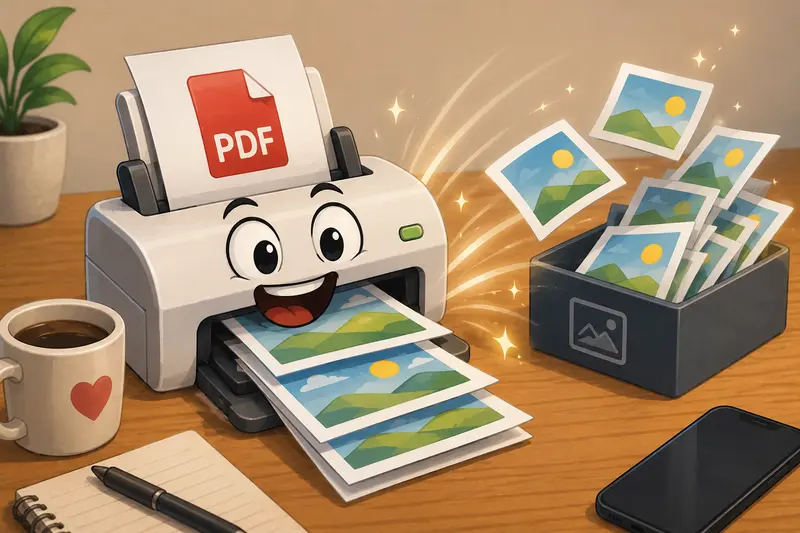
One setup that fits freelance work particularly well is Filemazing PDF to Image tool https://filemazing.com/pdf-to-image.
Because it runs in the browser, you can open it directly from Safari without installing another app that quietly consumes storage for the next two years.
The process is straightforward but still flexible enough for heavier workloads.
How the Process Works
- Open the PDF to Image tool in Safari on iPhone
- Upload your PDF from Files, Google Drive, Dropbox, or URL
- Choose JPG output
- Run the conversion
- Download individual images or the full export set
For freelancers working between client calls, this matters more than it sounds. Reducing context switching is half the battle.
The platform also supports larger processing queues, which helps when converting:
- proposal decks
- scanned paperwork
- portfolio PDFs
- client documentation
- multi-page presentations
And since processing is temporary rather than long-term storage based, uploaded files are cleaned after processing instead of remaining indefinitely on servers.
What I Tested
To see how usable the workflow felt in real conditions, I tested three common freelance scenarios:
| Test File | Size | Pages | Result |
|---|---|---|---|
| Scanned contract PDF | 18MB | 22 pages | JPGs stayed readable with clean text edges |
| Design presentation | 42MB | 31 pages | Color gradients remained stable |
| Invoice archive | 9MB | 57 pages | Batch export completed without browser lag |
The strongest result was consistency.
Some converters perform well on one-page PDFs but struggle once page counts increase. Here, exports stayed predictable even when multiple pages contained images, signatures, and mixed typography.
The JPG output also avoided the over-sharpened look that cheaper converters sometimes produce.
That matters if your exported images will be:
- uploaded to marketplaces
- embedded into presentations
- compressed again later
- shared through messaging platforms
JPG vs PNG on Export: The Tradeoff Most People Ignore
This is where many freelancers accidentally create problems for themselves.
JPG is usually the better choice for:
- client previews
- web uploads
- faster sharing
- social media
- email attachments
PNG is better when:
- transparency matters
- screenshots contain tiny UI details
- text must remain perfectly crisp
- editing is still planned afterward
But PNG exports from PDFs can become huge very quickly.
A 30-page PDF exported as PNG can balloon into hundreds of megabytes, especially with scanned pages. Nobody enjoys discovering that five minutes before a client upload deadline.
If you need smaller files afterward, using the image compression tool https://filemazing.com/compress-image after conversion helps reduce transfer size without aggressively destroying visual quality.
Why Browser-Based Conversion Is Useful for Freelancers
Desktop software still has a place, especially for heavy publishing workflows. But browser tools are often better for day-to-day operational tasks.
Heres why this setup works well on iPhone:
No installation overhead
You can process files immediately from Safari.
Easier cloud imports
Importing from Google Drive or Dropbox is faster than moving files manually between apps.
Predictable processing
The token-based pricing model is transparent instead of hiding limits behind vague premium tiers.
Useful for recurring work
If you regularly convert documents, Filemazing also supports automation through API endpoints.
That last part matters more for growing freelance operations than solo one-off tasks. Teams handling repeated document workflows can standardize conversions instead of juggling separate tools.
One Small Optimization That Saves Time
If your PDF contains scanned pages, export to JPG first before running any resizing or cleanup.
Why?
Because repeated compression passes usually degrade text clarity faster than a single controlled export followed by targeted optimization.
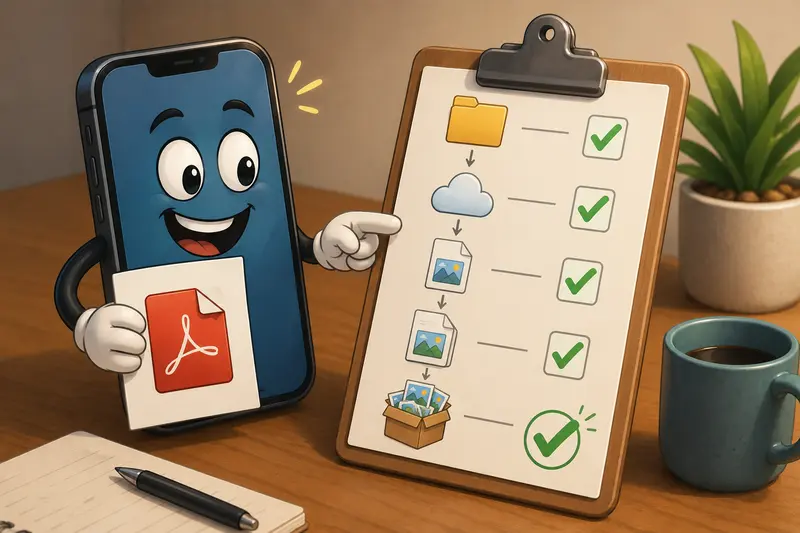
A cleaner workflow looks like this:
PDF JPG export optional compression delivery
Not:
PDF PNG screenshot JPG messenger compression chaos
That path rarely ends well.
Related File Workflows Worth Combining
Freelance projects rarely stop at one file conversion step.
Depending on the job, you may also need to:
- convert exported formats between JPG, PNG, WEBP, HEIC, or AVIF using the format conversion tool https://filemazing.com/format-converter
- remove hidden EXIF or metadata information from exported images with the metadata removal tool https://filemazing.com/metadata-scrubber
That second one is especially useful when handling client-sensitive files or screenshots generated from personal devices.
Where This Workflow Helps Most
Different freelance roles tend to hit the same conversion issues repeatedly.
Designers
Export portfolio previews from PDF case studies into lightweight JPGs for faster sharing.
Copywriters
Convert annotated PDF drafts into markup images for client review threads.
Consultants
Break presentation PDFs into shareable slide images.
Social media managers
Extract visual pages from branded PDFs for campaign scheduling.
Virtual assistants
Handle invoice archives and scanned paperwork without desktop software.
Developers
Use the API workflow for recurring document automation tasks.
Common Questions
Is it safe to convert PDFs online?
It depends on the platform. Filemazing processes files as temporary artifacts rather than permanent storage, which reduces long-term retention concerns.
Does JPG reduce quality compared to PDF?
Usually yes, but the difference depends on export settings and intended usage. For sharing, previews, and uploads, JPG is often more practical than preserving full PDF fidelity.
Whats the best PDF to JPG converter for large files?
For larger page counts, tools that support queued processing and batch handling tend to perform better than lightweight single-file converters.
Can I convert PDF pages online from iPhone without an app?
Yes. Browser-based tools work directly through Safari, including uploads from Files, Drive, and Dropbox.
Should I choose PNG instead of JPG?
Choose PNG if sharp detail or transparency is critical. For most freelance delivery workflows, JPG is smaller and easier to distribute.
Can exported images be compressed afterward?
Yes. After conversion, image compression tools can reduce file size further for uploads, email delivery, or client portals.
Final Thoughts
A dependable PDF to JPG converter becomes surprisingly valuable once freelance workloads start scaling.
The best setups are the ones that remove friction:
- no installs
- predictable output
- batch-friendly processing
- privacy-conscious handling
- flexible file imports
Filemazing PDF to Image https://filemazing.com/pdf-to-image fits that workflow well, especially for iPhone users who need reliable conversions without turning document handling into a separate project.