Developers collect audio in awkward places: voice memos from testing sessions, raw WAV exports from apps, QA recordings, podcast clips, notification sounds, and sample files from mobile workflows.
WAV is great when you need uncompressed audio. It is not great when you need to send, store, preview, or upload files from an iPhone.
That is where a practical WAV to MP3 converter workflow helps. Instead of moving files to a desktop app, you can convert audio from your browser, keep the process lightweight, and prepare files for mobile-friendly sharing.
What You Should Know First
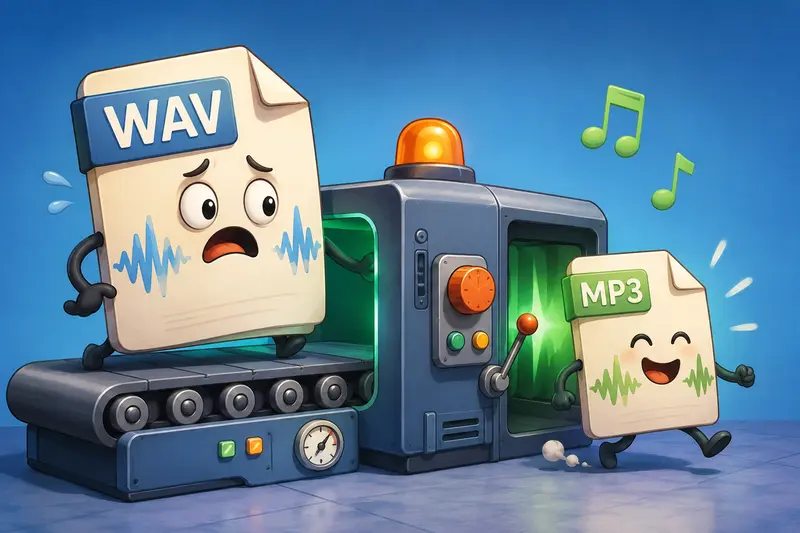
WAV files are usually larger because they preserve audio data with little or no compression. MP3 files are smaller, easier to share, and widely supported across mobile apps, browsers, APIs, CMS platforms, chat tools, and product workflows.
For developers, the useful part is not just make it smaller.
It is:
- convert test audio for mobile playback
- reduce storage and transfer overhead
- prepare files for upload limits
- normalize audio assets before publishing
- handle repeat conversions without installing software
A browser-based tool like Filemazings audio converter fits this workflow because it can process audio files without requiring a desktop converter, and it also supports automation-friendly use cases through API endpoints.
A Practical iPhone-Friendly Workflow
Here is the workflow I would use when handling WAV files from an iPhone or mobile testing process.
Save or export the WAV file
This may come from Voice Memos, Files, a test app, a browser download, or a cloud folder.
Open the audio converter in Safari or another mobile browser
Use the browser workflow instead of sending the file to a laptop first.
Upload the WAV file
You can use local upload, URL input, or cloud import options like Google Drive and Dropbox when available.
Choose MP3 as the output format
MP3 is usually the safest target when you need broad compatibility and smaller file size.
Download the converted file
Keep the MP3 in Files, attach it to a ticket, upload it to a CMS, or pass it into your next workflow.
This is especially useful for mobile debugging. Nobody wants a 96 MB audio sample blocking a bug report because the upload field taps out at 50 MB.
Why Filemazing Works Well for Developers
Filemazing is a browser-based file processing SaaS for converting, cleaning, compressing, and preparing files without installing desktop software. For this specific use case, the important angle is batch handling: you can process repeated audio conversions in a consistent workflow instead of manually juggling apps.
Its audio conversion tool uses queued processing, job status tracking, and downloadable completed jobs, which helps when files are larger or when multiple conversions are running.
The supporting benefit is automation. Developers can use the clean web interface for manual work or API endpoints when audio conversion becomes part of a repeatable pipeline.
Filemazing also uses transparent token-based pricing. For audio conversion, token usage can account for base cost, file size, file count, and media duration, so larger files and longer recordings are easier to estimate before processing.
Real-World Test Scenario
A realistic developer scenario might look like this:
A mobile app team exports 12 WAV recordings from iPhone QA sessions. Each file is around 1835 MB, with durations between 45 seconds and 3 minutes. The total batch is too large for quick sharing in Slack, and some files fail when attached to issue tracker comments.
After converting the WAV files to MP3, the files become much easier to upload and preview. The observed result is not studio mastering quality, but that is not the goal. The practical win is fast playback, smaller file size, and fewer compatibility problems during review.
Takeaway: for QA notes, app sound previews, voice references, and internal review clips, MP3 is often the better delivery format.
Quality Tradeoffs Developers Should Actually Care About
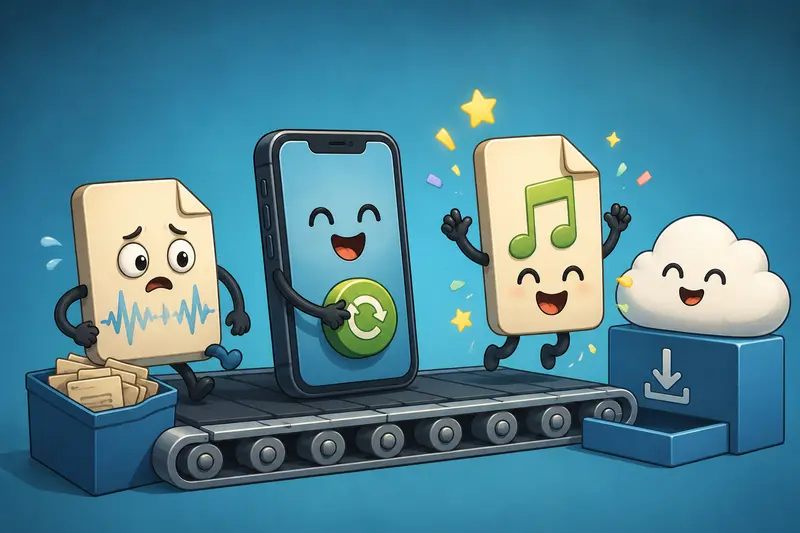
Converting WAV to MP3 introduces compression. That means you are trading perfect source fidelity for smaller size and broader compatibility.
For most mobile workflows, that tradeoff is acceptable.
Use WAV when:
- you need editing masters
- you are doing audio analysis
- you need uncompressed archival files
- quality inspection matters
Use MP3 when:
- you need mobile playback
- you need smaller uploads
- the file is for review, sharing, or publishing
- compatibility matters more than perfect fidelity
A non-obvious tip: keep the original WAV file until the MP3 has been approved. Treat MP3 as the delivery copy, not the source of truth.
If the WAV files arrived inside a ZIP or RAR archive, you can first unpack audio archives with Filemazings archive extractor before converting the files.
A Developer-Specific Edge Case: Audio Used in Apps
If you are converting audio for an app, avoid blindly compressing everything.
Short UI sounds, alerts, and notification tones may need tighter quality checks than long voice recordings. A tiny artifact in a 2-second sound can be more noticeable than mild compression in a 3-minute voice memo.
For app assets:
- test the MP3 on actual target devices
- listen through phone speakers, not only headphones
- compare volume levels after conversion
- keep naming consistent for build scripts
- store the original WAV files separately
Some formats cooperate nicely. Others seem personally offended by compatibility.
If files contain sensitive metadata before publishing or sharing, use a tool to remove metadata from media files before release.
Where This Workflow Saves Time
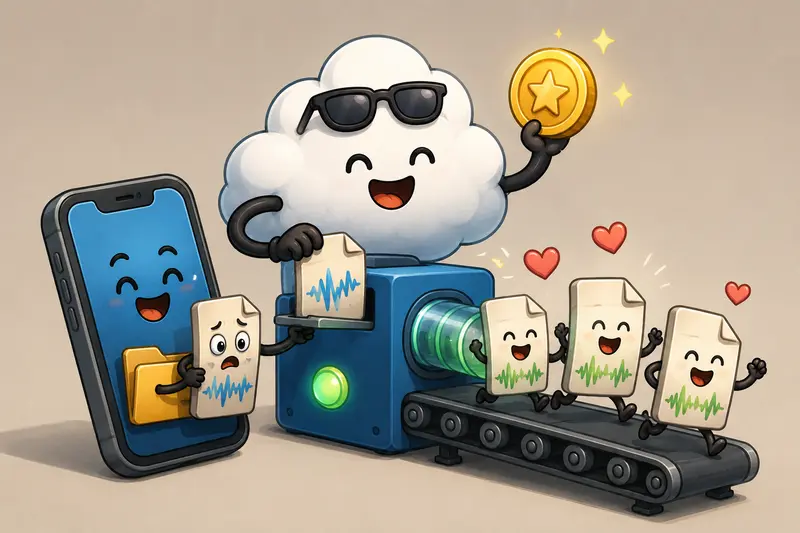
This WAV to MP3 converter workflow is useful when you need to:
- convert iPhone voice recordings for issue reports
- prepare audio samples for mobile playback
- reduce file size before uploading to a CMS
- batch audio conversion for internal review
- convert audio for mobile without installing desktop software
- generate MP3 delivery files while preserving WAV originals
For sensitive client work, Filemazing treats uploads as temporary processing artifacts and uses cleanup behavior instead of long-term file storage. That matters when audio contains private calls, internal QA notes, or unreleased product material.
When you need to share converted audio more securely, you can also password-protect converted audio files before sending them externally.
FAQ
Is MP3 always better than WAV for iPhone workflows?
No. MP3 is better for sharing, previewing, and uploading. WAV is better when you need uncompressed source quality.
Can I use this for batch audio conversion?
Yes. Batch audio conversion is useful when you have multiple WAV files from testing, interviews, product recordings, or exported assets.
Does converting WAV to MP3 reduce quality?
Yes, MP3 uses lossy compression. The practical question is whether the quality loss matters for the use case. For mobile review and sharing, it usually does not.
Can I convert audio online free?
Filemazing offers daily free tokens for anonymous and registered users, then token packs are available when you need more throughput.
Is browser-based conversion private?
Filemazing treats uploaded files as temporary processing artifacts and cleans them on a short retention schedule rather than using the platform as long-term storage.
Final Recommendation
Use WAV as your source format when quality matters. Use MP3 when you need something smaller, easier to upload, and better suited for mobile playback.
For developers handling iPhone recordings, app audio samples, or QA clips, Filemazings WAV to MP3 converter gives you a practical browser-based workflow with batch handling, predictable token usage, and API-ready options when the process needs to scale.