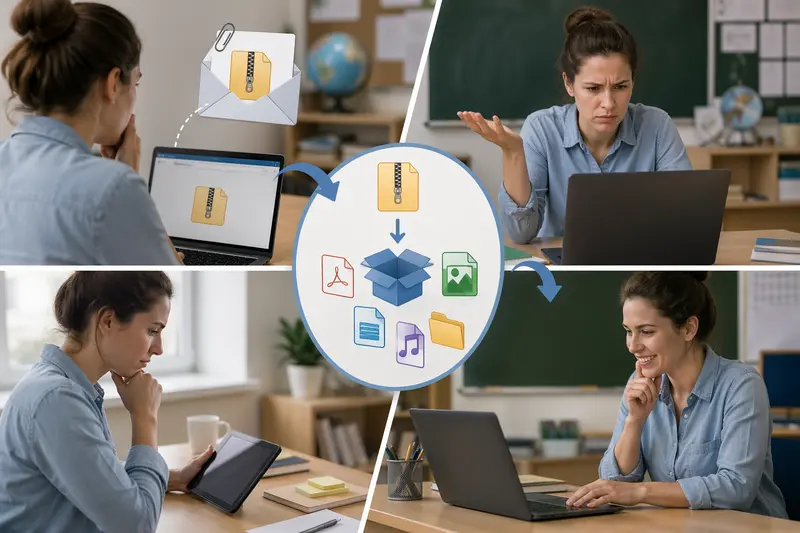
Teachers often receive lesson materials, worksheets, or student submissions packed into compressed files—especially RAR archives. The challenge? School computers or tablets don’t always allow installing software, and opening those files can quickly turn into a time sink.
That’s where the ability to open RAR files online becomes genuinely practical—no installations, no IT hurdles, just access when you need it.
What matters most
If you need to extract RAR files from email attachments, a browser-based tool lets you upload, unpack, and download the contents without installing anything. It’s especially useful on shared or restricted devices.
Getting it done without software
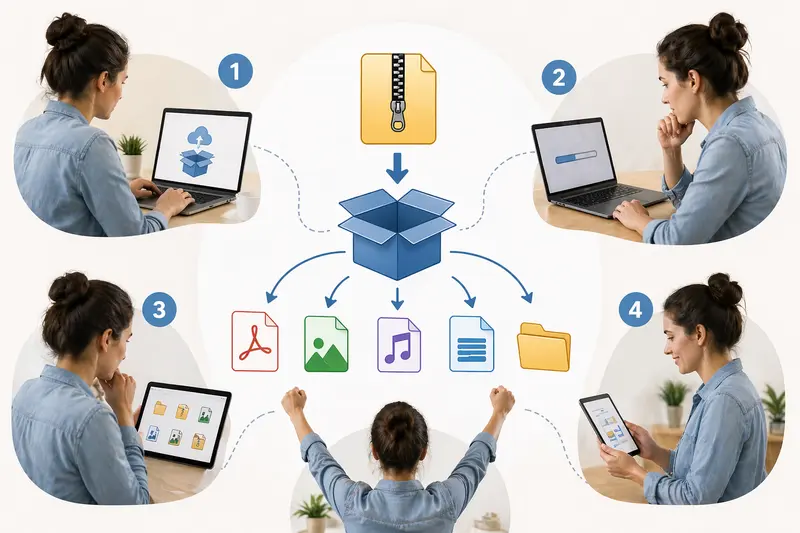
You don’t need technical expertise to extract compressed files online. The process is straightforward:
- Upload your RAR file directly from your device, cloud storage, or email download
- Let the tool process and unpack the archive
- Preview or select the files you need
- Download them individually or as a new archive
This approach works equally well for ZIP files, meaning you can also extract ZIP without software using the same method.
Where Filemazing fits in
A tool like Filemazing’s archive extractor is built specifically for situations like this. Its biggest advantage isn’t flashy features—it’s how simple and usable it feels.
You open the page, upload your archive, and the system handles the rest in the background. No accounts are required to get started, which is helpful in school environments where signups can be restricted.
Behind the scenes, processing happens in a queue, so even larger files don’t freeze your browser. And because it’s browser-based, it works equally well when you need to extract archives on mobile devices during quick classroom prep.
What I tested (and what stood out)
To see how this performs in a real teaching scenario, I tried the following:
- A 42 MB RAR file containing:
- 15 PDF worksheets
- 8 PNG diagrams
- 3 short audio clips for listening exercises
The extraction completed smoothly, and all files were organized exactly as expected. The audio files played without issues, and the PDFs retained their formatting.
One useful follow-up: I took the extracted PDFs and used a tool to convert PDF pages into images via https://filemazing.com/pdf-to-image, which made it easier to embed them into slides.
Takeaway: For mixed-content archives (common in teaching materials), online extraction handles file structure reliably without breaking formats.
Common mistakes teachers overlook
When working with compressed files, a few small missteps can slow things down:
- Downloading everything blindly: Sometimes only one file is needed—preview before downloading
- Ignoring file formats: Extracted files may need conversion (e.g., audio formats not supported in classroom players—use https://filemazing.com/audio-converter if needed)
- Forgetting file privacy: Always ensure the tool deletes files after processing
- Re-compressing incorrectly: Sending large extracted files back via email can exceed limits
A smarter approach is to extract only what’s necessary, convert formats if needed, and repackage efficiently.
Practical classroom scenarios
Here’s where this workflow becomes genuinely helpful:
- Opening student submissions sent as compressed folders
- Accessing shared teaching resources from colleagues
- Extracting multimedia lesson packs on tablets
- Preparing files quickly before class starts
- Reviewing zipped exam materials without installing software
- Handling archived school documents on shared devices
Why this approach works well
Using an online extractor offers a few clear advantages:
- No dependency on installed software
- Works across school computers, tablets, and phones
- Handles mixed file types in one archive
- Keeps workflow lightweight and flexible
- Allows quick follow-up actions like conversion or compression
A quick note on privacy
When uploading school-related files, privacy matters.
Tools like Filemazing treat uploads as temporary processing data. Files are not stored long-term and are automatically removed after processing. This reduces the risk of sensitive materials lingering online.
Tradeoffs to keep in mind
Online extraction isn’t perfect in every case.
- Large files vs speed: Bigger archives take longer due to upload time
- Internet dependency: No connection means no processing
- Batch limits: Extremely large bulk operations may be better handled with desktop tools
For most classroom use cases, though, the convenience outweighs these limitations.
FAQ
Can I open RAR files online on a school tablet?
Yes, as long as the device has a browser. No installation is required.
Is it safe to upload student materials?
Reputable tools use temporary processing and delete files automatically, reducing exposure risks.
What if the extracted files are in unsupported formats?
You can convert them afterward—for example, using an audio conversion tool if playback is an issue.
Does it work for ZIP files too?
Yes, you can also open compressed files online regardless of whether they’re RAR or ZIP.
Will file quality change after extraction?
No—extraction simply unpacks files. Quality changes only occur during compression or conversion steps.
Final thoughts
For teachers juggling multiple file formats and limited device control, being able to open RAR files online removes a surprising amount of friction.
Instead of troubleshooting software or asking IT for help, you can simply upload, extract, and move forward with your lesson. Whether you're working from a classroom computer or your phone between classes, the workflow stays consistent.
If you frequently deal with compressed materials, it’s worth trying a browser-based extractor—you may find it becomes part of your everyday teaching routine.