Design presentations often carry more than visuals—they include drafts, client notes, and sometimes confidential brand assets. When sharing work with stakeholders or collaborators, knowing how to password protect files becomes part of your creative workflow, not just an afterthought.
If you’ve ever sent a polished pitch deck or layered design files and wondered who else might access them, you’re not alone. Security and presentation go hand in hand.
🧭 A Quick Overview
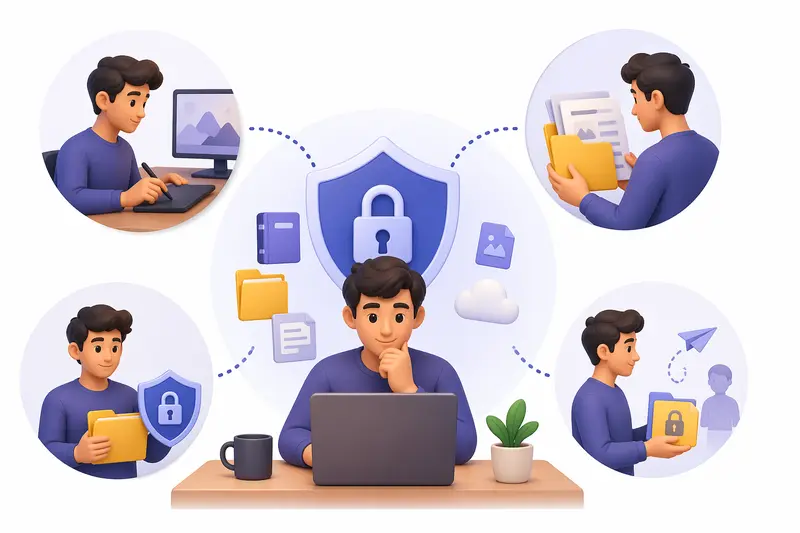
Protecting files isn’t just about locking them—it’s about controlling access while keeping your workflow efficient. Designers benefit most from tools that balance privacy with speed and minimal friction.
🛠 A Practical Way to Secure Your Files
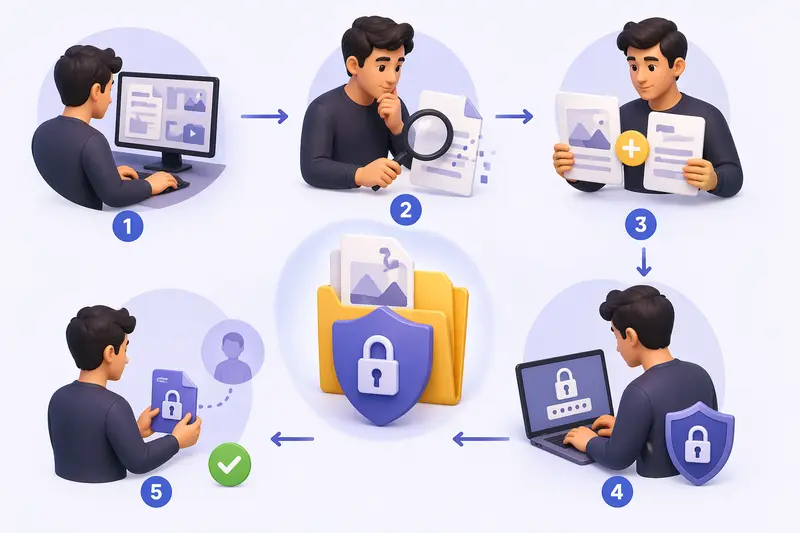
Here’s a straightforward method designers can follow when preparing presentations:
- Finalize your files (PDFs, images, or compressed archives)
- Clean up sensitive metadata before sharing
- Combine related files into a single document if needed
- Apply encryption with a strong password
- Share securely with your client or team
If your presentation is split across multiple PDFs, it helps to first combine documents using a tool like merge PDF files so you only protect one final file instead of several scattered versions.
🔐 Where Filemazing Fits In
When working with multiple design assets, a browser-based solution like Filemazing’s encrypt tool becomes especially useful.
Its main advantage lies in privacy-focused processing—files are treated as temporary and removed shortly after processing. For designers handling client work, this reduces the risk of long-term storage exposure.
As a secondary benefit, the workflow stays entirely browser-based. No installations, no dependency conflicts—just upload, process, download.
🧪 Real Usage Insight
During a recent test, a presentation package included:
- 1 main PDF (32 pages, ~18MB)
- 6 high-resolution PNG mockups
- 1 ZIP archive with source files
Before encrypting, the archive was unpacked using the archive extractor to ensure everything was reviewed and cleaned. Hidden metadata was also removed via the metadata scrubbing tool—this step revealed embedded author info and editing timestamps that weren’t meant for clients.
After encrypting the final merged PDF, the result was:
- Same visual quality
- Slight increase in file size (~5%) due to encryption overhead
- Secure, password-protected delivery
Takeaway: Always scrub metadata before encryption. Once locked, hidden data becomes harder to detect and remove.
⚠️ Common Mistakes Designers Should Avoid
Even experienced designers overlook a few critical details:
- Encrypting multiple versions instead of one final file
This creates confusion and increases risk of sharing the wrong version - Skipping metadata cleanup
Design files often carry hidden data like software versions or author names - Using weak or predictable passwords
Client name + “123” won’t cut it—use passphrases instead - Forgetting file structure organization
Encrypting messy folders makes it harder for recipients to navigate
A bit of preparation upstream saves a lot of friction downstream.
🎯 Practical Applications for Designers
- Sharing pitch decks with potential clients
- Sending branding packages to external partners
- Delivering final assets to agencies or studios
- Protecting portfolio files before public release
- Securing draft concepts during collaboration
- Managing private file sharing workflows across distributed teams
🌟 Why This Matters
File protection isn’t just about security—it’s about professionalism.
- Clients trust designers who handle assets responsibly
- Clean, encrypted files reduce accidental leaks
- Temporary processing ensures files aren’t stored indefinitely
- Organized delivery improves client experience
In short, it elevates your workflow from creative to reliable.
❓ Frequently Asked Questions
Does encryption reduce design quality?
No, encryption doesn’t alter visual quality. It only adds a security layer. You might notice a slight increase in file size.
Is it safe to use online tools for secure files online?
Yes—if the platform uses temporary processing and doesn’t store files long-term. Filemazing follows this approach with short retention cleanup.
Can I encrypt multiple files at once?
You can, but it’s usually better to combine them into a single document first for easier sharing and management.
What file formats work best for encrypted presentations?
PDF is the most reliable format for presentations. It preserves layout and is widely supported.
Is encryption enough for complete security?
It’s a strong layer, but pairing it with good password practices and metadata removal creates a much more secure workflow.
🚀 Final Thoughts
Designers juggle creativity, deadlines, and client expectations—security shouldn’t slow that down.
Using a tool that prioritizes privacy while staying lightweight makes a noticeable difference. With Filemazing, you can prepare, clean, and password protect files without disrupting your flow.
When your work represents both your brand and your client’s, protecting it properly isn’t optional—it’s part of delivering a complete, professional experience.