Uploading documents to websites is routine now, but that convenience comes with a risk: once files leave your device, you often lose control over who can access them. Thats why many people search for ways to password protect files before sharing contracts, scanned IDs, invoices, PDFs, or image collections online.
Whether youre sending sensitive paperwork to clients or uploading tax documents to a portal, encrypting files beforehand adds another layer of protection that travels with the file itself.
For browser-based workflows, tools like Filemazing Encrypt File Tool https://filemazing.com/encrypt-file make the process practical without requiring desktop software or complicated setup.
What Matters Most Before Uploading Files
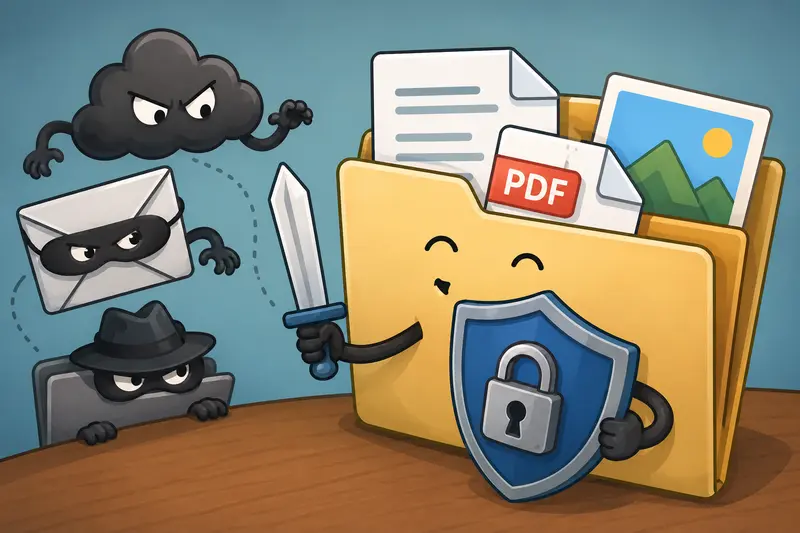
If a website account gets compromised or a shared link is forwarded accidentally, encrypted files remain inaccessible without the password.
In practical terms, password protection helps with:
- financial documents
- HR paperwork
- scanned IDs
- client PDFs
- legal contracts
- compressed archives
- confidential images
This is especially useful when multiple people handle uploads internally. A protected file adds separation between having the file and being able to open it.
One thing many users overlook: encryption works best before upload, not afterward.
A Practical Way to Secure Files Online
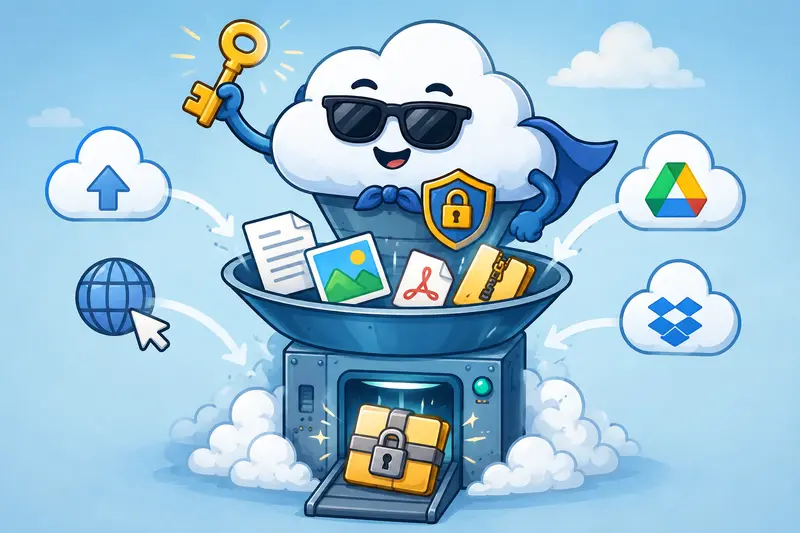
Browser-based encryption tools have become popular because they remove the friction of installing desktop utilities. With modern SaaS workflows, you can encrypt PDFs, ZIP archives, images, or mixed document sets directly from a browser session.
Filemazing https://filemazing.com approaches this with a lightweight workflow:
- upload files locally, from URL, or cloud providers
- apply password-based encryption
- process jobs through queued handling
- download the secured output afterward
The platform is designed for short-term processing rather than long-term storage, which matters when dealing with sensitive uploads.
Its token pricing model is also unusually transparent compared to many utility platforms. For example, the encrypt-file workflow uses a low base token cost with predictable file-based scaling instead of unclear subscription tiers.
For people processing occasional uploads, that predictability can be more practical than paying monthly for software they barely use.
How the Workflow Usually Looks
Encrypting files before website uploads does not need to be technical.
A typical workflow looks something like this:
- Select the document or image set you want to secure.
- Choose a strong password that isnt reused elsewhere.
- Encrypt the file through the browser-based tool.
- Upload the protected version to the website or share it through email/cloud storage.
- Send the password separately.
That final step matters more than people think. Sending the password in the same email as the file defeats much of the purpose.
If the file is oversized, it often helps to first use an image optimization utility like Filemazing Compress Image https://filemazing.com/compress-image before encryption, especially for large PNG scans or photo-heavy PDFs.
Real-World Testing Notes
To see how browser-based encryption performs in realistic conditions, a mixed upload set was tested:
- a 42-page scanned PDF contract
- six JPG identity images
- one 18 MB ZIP archive
The PDF had already been OCR-scanned, which tends to increase size considerably. After encryption, download speed remained reasonable, though the protected archive became slightly larger due to encryption overhead.
One interesting observation: compressing image-heavy files before encryption noticeably reduced upload and processing time.
In one case, shrinking PNG screenshots into optimized JPGs reduced the final encrypted package by nearly 40%. That matters when uploading to portals with file-size limits.
This is also where workflows can combine naturally:
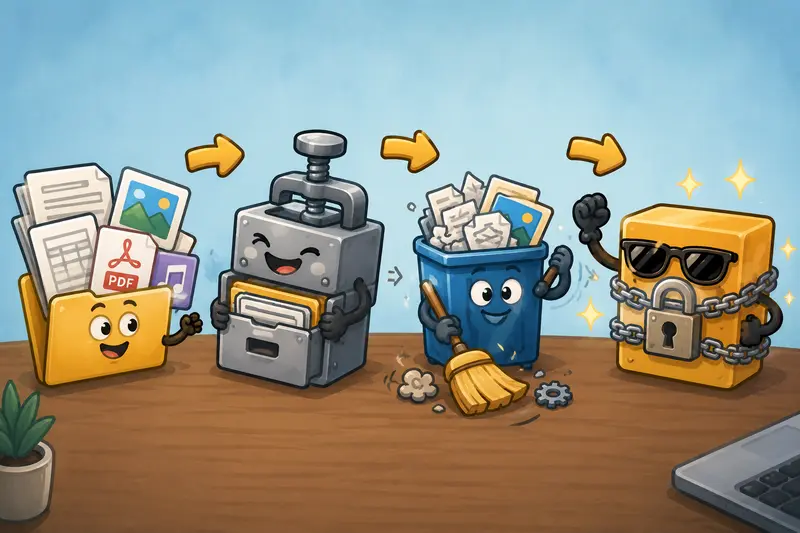
- optimize visuals first with Filemazing Compress Image https://filemazing.com/compress-image
- combine related documents using Filemazing Merge PDF https://filemazing.com/merge-pdf
- remove hidden metadata using Filemazing Metadata Scrubber https://filemazing.com/metadata-scrubber
- then encrypt the final version
That sequence tends to produce cleaner and smaller secure uploads.
One Common Mistake People Make
A surprising number of users encrypt files after exporting bloated scans or image-heavy PDFs.
That creates two problems:
- slower upload speeds
- unnecessarily large encrypted files
Once a file is encrypted, compression becomes far less effective because encrypted data appears random to compression algorithms.
So if you need both optimization and security:
compress first, encrypt second
It sounds minor, but for large uploads the difference becomes very noticeable.
Another practical issue: extremely aggressive JPG compression can make scanned text harder to read after encryption and download. Theres always a balance between readability and file size.
Where Password Protection Helps Most
Different users rely on encrypted uploads for different reasons.
Everyday personal use
People often secure:
- tax records
- ID scans
- insurance forms
- lease agreements
Especially when uploading through unfamiliar portals.
Freelancers and consultants
Client contracts and invoices frequently move through shared systems. Password-protected PDFs help reduce accidental exposure.
Marketing and creative teams
Campaign assets sometimes include embargoed visuals or unreleased drafts. Protecting image bundles before sharing avoids awkward leaks. Deadlines are stressful enough without discovering someone uploaded the wrong folder publicly.
Students
Assignment submissions occasionally contain personal data or signed forms. Encrypting those files adds basic privacy protection.
HR and recruiting
Candidate documents often circulate internally before storage. Encrypting uploads creates an additional barrier if links are shared improperly.
Developers and operations teams
API-accessible encryption workflows are useful when automated systems generate downloadable reports or exports.
Why Browser-Based Encryption Appeals to Many Users
Traditional desktop encryption tools still exist, but browser workflows have advantages:
| Factor | Browser-Based Workflow | Traditional Desktop Software |
|---|---|---|
| Setup | Immediate | Installation required |
| Device flexibility | Works across systems | Often platform-specific |
| Maintenance | Managed online | Requires updates |
| Accessibility | Useful for occasional use | Better for constant heavy usage |
| Automation | API-ready workflows available | Depends on software |
For non-technical users, avoiding software installation is often the deciding factor.
For teams, centralized workflows matter more than raw feature count.
Privacy Considerations Worth Knowing
Not all online file tools handle uploads the same way.
A trustworthy workflow should clearly explain:
- whether uploads are temporary
- how long files remain stored
- cleanup timing
- processing behavior
Filemazing positions uploaded files as temporary processing artifacts instead of permanent cloud storage, which is generally preferable for sensitive uploads.
That does not eliminate all risk no online system can promise absolute security but short retention windows are still a meaningful privacy advantage.
Its also smart practice to avoid weak passwords like:
123456- birthdays
- company names
- reused login passwords
A long passphrase is usually better than a short complex password thats easy to forget.
When Encryption May Not Be Necessary
Not every upload requires password protection.
For example:
- public marketing PDFs
- downloadable brochures
- social media graphics
- open educational material
Adding passwords to low-risk files can create unnecessary friction for recipients.
The goal is targeted protection where confidentiality actually matters.
Questions People Commonly Ask
Can I password protect PDFs and images together?
Yes. Many encryption workflows support mixed file types inside a single protected archive or encrypted package.
Does encryption reduce image quality?
Encryption itself does not reduce quality. However, if you compress images beforehand, aggressive compression settings can affect readability or sharpness.
Is browser-based encryption safe?
It depends on the providers handling practices. Look for temporary processing behavior, cleanup policies, and transparent workflow explanations rather than vague security claims.
What happens if I forget the password?
In most cases, encrypted files cannot realistically be recovered without the password. Keeping a secure password manager is strongly recommended.
Should I combine files before encryption?
Often yes. If youre uploading multiple documents, using a utility like Filemazing Merge PDF https://filemazing.com/merge-pdf can simplify sharing and reduce confusion for recipients.
Can large uploads slow encryption processing?
Yes. Multi-page scans, high-resolution PNGs, and large archives naturally take longer to process. Compressing oversized assets beforehand usually improves overall speed.
Final Thoughts
The need to password protect files has become much more common as everyday workflows move online. Upload portals, shared cloud folders, and browser-based collaboration tools all increase convenience, but they also increase exposure.
Encrypting files before upload gives you an additional layer of control that remains attached to the file itself.
For users who want browser-based convenience without heavyweight desktop software, Filemazing Encrypt File Tool https://filemazing.com/encrypt-file offers a practical approach with temporary processing, flexible workflows, transparent token pricing, and support for multiple file types.
And if you regularly handle large uploads, optimizing and cleaning documents before encryption can save more time than most people expect.