Students deal with PDFs constantly lecture slides, scanned textbook chapters, assignment sheets, handwritten notes, research papers. The problem starts when those PDFs need to become images for presentations, annotations, uploads, or mobile sharing.
A lot of tools promise a fast conversion, but the output often ends up blurry, over-compressed, or strangely distorted. That is especially frustrating when formulas, highlighted notes, or diagrams become unreadable after export.
Using a reliable PDF to JPG converter matters more than most people expect.
Filemazing approaches the process differently by focusing on high-quality conversion while keeping the workflow lightweight and browser-based. Instead of forcing desktop installs or subscriptions, it processes files online with transparent token usage and temporary handling policies.
What Actually Preserves Image Quality?
The biggest mistake many users make is assuming every PDF page behaves like a normal image.
Some PDFs contain:
- embedded vector graphics
- compressed scans
- layered text
- mixed-resolution pages
- screenshots already degraded before export
A good converter should preserve the source quality rather than aggressively recompress everything during export.
With a high quality PDF to image workflow, readability usually depends on:
- export resolution
- JPG compression level
- original scan quality
- page complexity
- color handling
In practice, lecture notes with small fonts and diagrams benefit from higher export settings, while plain text documents can usually tolerate lighter compression.
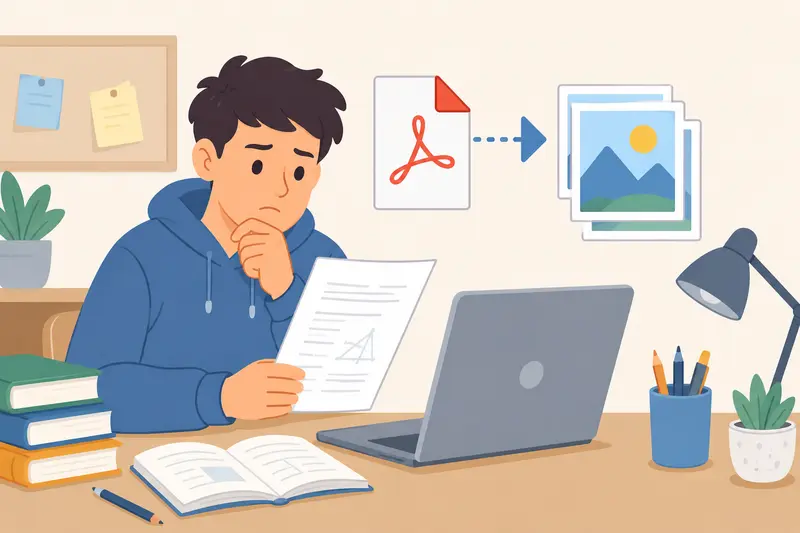
A Faster Way to Save PDF Pages as Images
If your goal is simply to save PDF pages as usable JPG files without quality loss, the workflow is straightforward:
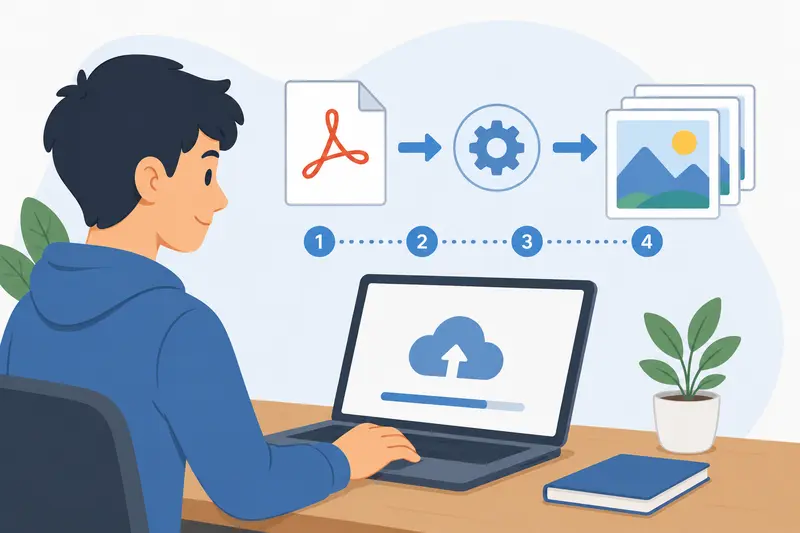
- Upload the PDF
- Choose JPG output
- Process the file
- Download the exported images
Using Filemazing PDF to Image Tool https://filemazing.com/pdf-to-image keeps the process entirely in the browser, which is useful for students switching between campus computers, tablets, and phones.
The platform also handles larger documents through queued processing, so lengthy PDFs dont freeze the interface while pages are being rendered.
One detail that stands out is the predictable token pricing model. Instead of hidden upload limits, processing cost is calculated transparently based on factors like page count and file size.
That becomes useful when dealing with huge semester archives or scanned course packets.
What We Tested
To see how well the conversion held up, we tested several common student-style files:
| File Type | Size | Pages | Result |
|---|---|---|---|
| Scanned lecture notes | 48 MB | 96 pages | Text remained readable even after zooming |
| Research paper with charts | 12 MB | 34 pages | Graph labels stayed sharp |
| Mixed image/text PDF | 85 MB | 140 pages | Consistent page rendering across sections |
| Mobile-scanned handwritten notes | 18 MB | 52 pages | Slight grain remained but no major artifacting |
One interesting observation: image-heavy PDFs exported more cleanly when the source file itself had not already been compressed multiple times.
That sounds obvious, but many students repeatedly save and reshare PDFs through messaging apps before conversion. By the time the file reaches a converter, quality has already been lost upstream.
A useful tactic is to keep the original scan untouched and convert directly from that version whenever possible.
Why Students Often Need JPG Instead of PDF
The use cases are broader than people think.
Students commonly convert PDFs into images for:
- uploading assignment pages into online forms
- inserting textbook diagrams into slides
- annotating notes on mobile apps
- sharing single pages in group chats
- creating study flashcards
- posting visual summaries to collaboration boards
On mobile devices especially, individual JPG pages are often easier to preview and share than full PDFs.
If you also need to combine multiple class documents before exporting them, merge PDF files into one document https://filemazing.com/merge-pdf can simplify the workflow beforehand.
Mobile Conversion Has Different Challenges
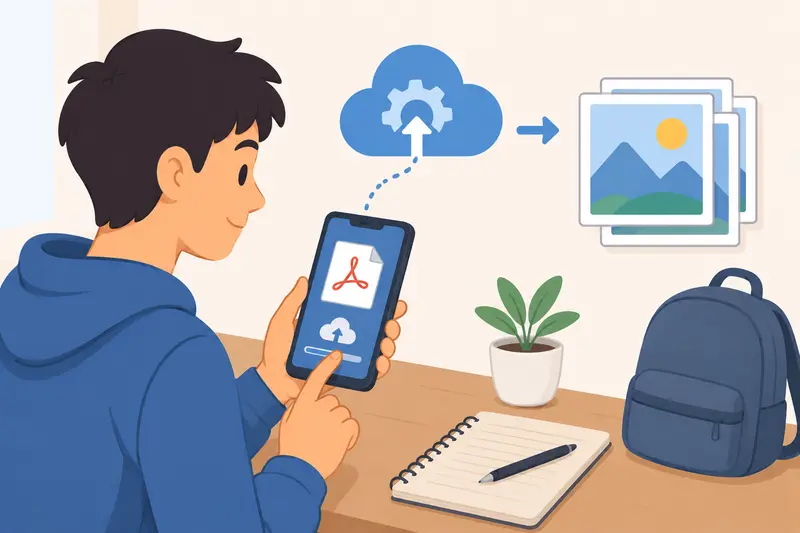
Trying to save PDF as image on mobile introduces a different set of limitations.
Phones typically struggle with:
- very large scanned PDFs
- memory-heavy rendering
- multi-hundred-page exports
- unstable upload interruptions
Browser-based processing helps because most of the workload happens server-side instead of relying entirely on device memory.
This is especially noticeable with scanned engineering notes or art portfolios where individual pages can contain dense textures and high-resolution imagery.
For students working mostly from tablets or phones, avoiding desktop-only software becomes a real productivity advantage.
JPG Isnt Always the Best Choice
Heres a tradeoff many guides skip.
JPG works well for:
- photographs
- scanned pages
- visual documents
- sharing smaller files
But PNG may preserve sharper edges for:
- diagrams
- mathematical notation
- screenshots
- UI-heavy pages
If you later need to change image formats again, convert JPG, PNG, WEBP, HEIC, and AVIF files online https://filemazing.com/format-converter without rerunning the entire PDF export process.
That flexibility matters when different submission systems demand different file types.
One Overlooked Quality Problem: Metadata and Reprocessing
Students often compress exported JPG files repeatedly to fit upload limits.
That creates cumulative degradation:
- text edges soften
- diagrams blur
- handwritten notes become muddy
- contrast shifts over time
Another overlooked issue is metadata exposure from exported images, especially when documents contain location or device information from mobile scans.
If privacy matters, particularly for shared coursework or administrative documents, you can also remove metadata from exported image files https://filemazing.com/metadata-scrubber before distributing them.
Filemazing treats uploads as temporary processing artifacts rather than permanent storage, which is an important distinction for academic documents.
Where This Workflow Helps Most
Some scenarios benefit more than others from a dedicated PDF to JPG converter.
Best-fit situations
- scanned class notes
- slide deck exports
- archival digitization
- image-heavy coursework
- mobile-friendly page sharing
Less ideal situations
- editable text extraction
- OCR-intensive workflows
- heavily encrypted PDFs
- low-resolution source scans
No converter can fully restore detail missing from the original PDF. Garbage in still produces garbage out.
But preserving the available quality correctly makes a major difference.
Why Browser-Based Processing Feels Easier
Traditional desktop converters still exist, but students increasingly move between:
- school labs
- Chromebooks
- iPads
- borrowed laptops
- shared computers
A browser-first workflow removes installation friction completely.
Filemazing also supports cloud imports through providers like Google Drive and Dropbox, which is practical when class materials already live in cloud folders instead of local storage.
For heavier workflows, API access is available too, though most students will simply use the standard web interface.
Common Questions
Does converting a PDF to JPG always reduce quality?
Not necessarily. Most visible quality loss comes from aggressive JPG compression or low export resolution settings. A proper high quality PDF to image workflow minimizes additional degradation.
Can I save PDF as image on mobile without installing apps?
Yes. Browser-based converters allow uploads and processing directly from mobile browsers, which is often more convenient than app-based tools for occasional use.
Are exported JPG files smaller than PDFs?
Usually, but not always. Image-heavy PDFs can sometimes become larger after export depending on resolution and compression choices.
Is there a limit to how many pages can be converted?
Large files are generally handled through queued processing systems. Processing time may increase with higher page counts and larger scans.
What file types are supported after conversion?
JPG is common, but many workflows later require PNG, WEBP, HEIC, or AVIF conversions. Tools like Filemazing Format Converter https://filemazing.com/format-converter help handle those secondary format changes.
Are uploaded files stored permanently?
Filemazing processes files temporarily and cleans them on a short retention schedule rather than acting as long-term cloud storage.
Final Thoughts
A good PDF to JPG converter should preserve readability first especially for academic material where tiny text, equations, and annotations matter.
Filemazing works well because it keeps the process lightweight while still handling larger or image-heavy PDFs reliably. The combination of browser accessibility, temporary file handling, and transparent token pricing makes it practical for students who need occasional conversions as well as bulk document processing.
For lecture notes, scanned assignments, or visual study material, maintaining quality during export can save a surprising amount of frustration later.