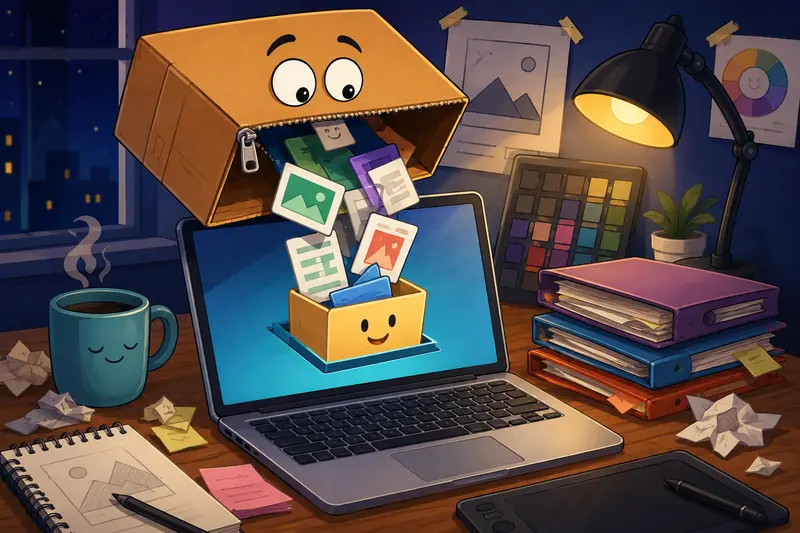
Design projects have a habit of arriving in giant ZIP or RAR folders five minutes before a client call. Fonts, layered PSDs, exported PDFs, reference images all packed together like digital nesting dolls. On macOS, that usually means juggling downloads, desktop clutter, and another utility app you forgot you installed last year.
Using an archive extractor online changes that workflow completely. Instead of adding more software to your Mac, you can unpack archives directly in the browser, review files, and move into production faster.
For designers working across client assets, shared drives, and compressed deliverables, that convenience matters more than it sounds.
What You Need to Know First
If your goal is to:
- unpack archives fast
- extract ZIP without software
- preview project contents on macOS
- avoid installing another desktop utility
a browser-based workflow is often the cleaner option.
Tools like Filemazing Archive Extractor https://filemazing.com/archive-extractor let you upload compressed files, process them online, and download the extracted contents without relying on dedicated Mac archive software.
That becomes especially useful when working on temporary client machines, shared studio setups, or lightweight MacBooks where storage is already under pressure.
Why Designers Often Prefer Browser-Based Extraction
Traditional extraction apps still work, of course. But design teams increasingly move between cloud storage, browser collaboration tools, and remote assets. Keeping extraction inside the browser reduces friction.
A few practical advantages stand out:
- No separate installation process
- Easier handling of large client deliverables
- Better compatibility across ZIP, RAR, and mixed archive types
- Faster access when collaborating remotely
- Cleaner temporary-file handling
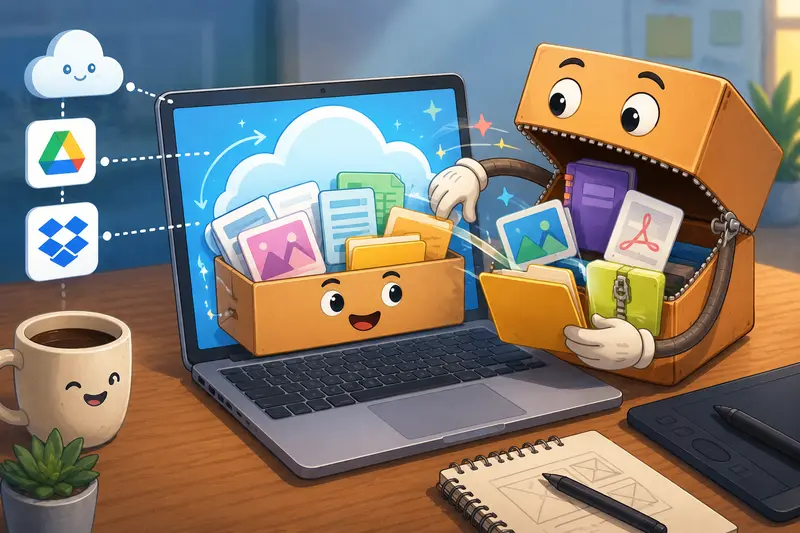
Filemazing also supports imports from cloud providers like Google Drive and Dropbox, which saves time when clients send compressed project packages through shared folders instead of email.
And honestly, some archive utilities on Mac still look like they were designed during an office disagreement in 2009.
The Process Explained
Heres a practical workflow designers can use when extracting archived project files online on Mac.
1. Upload the archive
Open the archive extractor tool and upload your ZIP, RAR, or compressed package.
This works well for:
- design handoff folders
- font bundles
- marketing asset packs
- exported PDFs
- layered image archives
If your archive includes presentation PDFs, you can later use the PDF to image converter https://filemazing.com/pdf-to-image to turn extracted pages into PNG previews for quick client review.
2. Let the archive process in the browser workflow
Filemazing uses queued processing instead of locking the interface while files unpack. Larger archives continue processing in the background, which helps when dealing with multi-gigabyte asset collections.
Thats particularly useful for designers exporting high-resolution mockups or packaging multiple deliverables together.
3. Download only what you need
One underrated benefit of online extraction is selective downloading.
Instead of unpacking everything onto your desktop, you can retrieve only the required files:
- PSDs
- SVG exports
- presentation documents
- source images
- typography assets
That reduces clutter and helps keep active projects organized.
4. Continue your workflow
Once extracted, you can move directly into related tasks.
For example:
- combine multiple extracted documents using the PDF merge tool https://filemazing.com/merge-pdf
- protect client deliverables with the file encryption workflow https://filemazing.com/encrypt-file
- compress oversized image exports before delivery
The workflow stays inside one environment instead of bouncing between unrelated desktop apps.
Real Testing Notes From a Design Asset Workflow
To see how practical the process felt on macOS, a test archive containing:
- 184 JPG and PNG assets
- 3 layered PSD files
- 2 exported PDFs
- several SVG icon sets
was uploaded from a MacBook Air.
The compressed archive size was roughly 1.3GB.
A few observations stood out during testing:
- Smaller assets extracted very quickly
- PSD-heavy folders took slightly longer because of file size
- The browser remained responsive during processing
- Downloading only selected folders reduced unnecessary transfers
One surprisingly useful detail was avoiding duplicate extraction clutter. Traditional desktop extraction often creates nested folders across Downloads and Desktop locations. Browser extraction kept the workflow cleaner.
The tradeoff, however, is browser upload dependency. Extremely large archives still rely on stable internet bandwidth. If youre unpacking massive video production bundles repeatedly, a local desktop workflow may still be faster overall.
For typical design deliverables, though, browser extraction felt efficient and easier to manage.
What Most Designers Miss When Extracting Archives
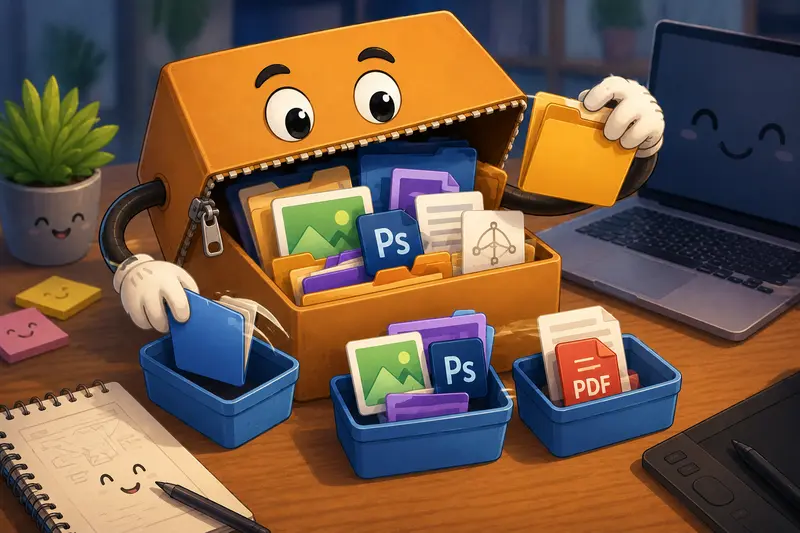
A common mistake is unpacking everything immediately without checking archive structure first.
That becomes a problem when:
- fonts overwrite existing versions
- duplicate assets create confusion
- exported JPGs mix with source PSDs
- clients include outdated revisions
A better approach is to:
- extract selectively
- organize assets before editing
- rename ambiguous folders early
- separate production exports from source files
Another useful tip: keep vector assets separate from flattened exports after extraction. SVG and AI files are easier to lose once mixed into large image folders.
This sounds minor until someone spends twenty minutes searching for the final-final-actual-final logo version.
Where an Online Archive Extractor Fits Best
For designers specifically, online extraction tends to work well in these situations:
Client handoff packages
Agencies frequently compress deliverables into single archives before transfer.
Shared branding systems
Teams unpack icon sets, logos, and templates across multiple devices.
Remote collaboration
Freelancers working between office and home setups avoid reinstalling utilities everywhere.
Presentation preparation
Extracted PDFs and visual exports can quickly move into presentation workflows.
Asset recovery
Older ZIP backups can be unpacked without rebuilding old software environments.
Lightweight Mac workflows
Designers using MacBook Air systems often prefer minimizing extra utilities and background apps.
Privacy and File Handling Considerations
When using any archive extractor online, privacy matters especially with unreleased client materials.
Filemazing positions uploads as temporary processing artifacts rather than permanent cloud storage. Files are processed, delivered, and cleaned on a short retention schedule instead of sitting indefinitely on storage servers.
For design studios handling confidential branding work or embargoed campaign assets, that short-lived processing model is significantly safer than leaving files scattered across unmanaged systems.
It also helps reduce local storage buildup on macOS devices.
Why This Workflow Saves Time
The real advantage is less about raw extraction speed and more about workflow reduction.
Instead of:
- downloading a utility
- installing software
- extracting locally
- reorganizing folders
- cleaning temporary files
you move directly from compressed archive to usable assets.
For busy creative teams, that reduction in friction adds up surprisingly fast.
The transparent token pricing model also helps predict processing cost before larger jobs begin, which is useful for agencies handling recurring asset batches or high-volume client workflows.
Common Questions
Is it safe to use an archive extractor online for client files?
It depends on the platform. Privacy-conscious services that use temporary processing and scheduled cleanup are generally preferable to long-term storage systems.
Can I extract ZIP without software on Mac?
Yes. Browser-based tools let you upload and unpack compressed files without installing dedicated extraction apps.
What archive formats are usually supported?
Most modern tools support common formats such as ZIP, RAR, and other compressed archive variations.
Does extraction affect image quality?
No. Archive extraction itself does not compress or degrade files. Quality changes only happen if files are later converted or compressed separately.
Is online extraction slower than desktop apps?
For very large archives, local extraction can still be faster because uploads are avoided. For standard design packages, browser extraction is usually competitive and more convenient.
What happens after files are extracted?
Typically, extracted files become downloadable assets. Some workflows also allow additional actions like converting documents or encrypting extracted materials before sharing.
Final Thoughts
For designers working primarily in cloud-based or browser-heavy environments, using an archive extractor online on Mac simplifies more than just extraction itself.
It reduces software clutter, keeps workflows flexible, and helps manage compressed client assets without unnecessary overhead. The biggest advantage is consistency: upload, extract, organize, continue working.
If your projects regularly arrive as compressed bundles, a browser-based approach like Filemazing Archive Extractor https://filemazing.com/archive-extractor offers a cleaner and more practical alternative to piling more utilities onto your Mac.