Why This Matters More Than You Think
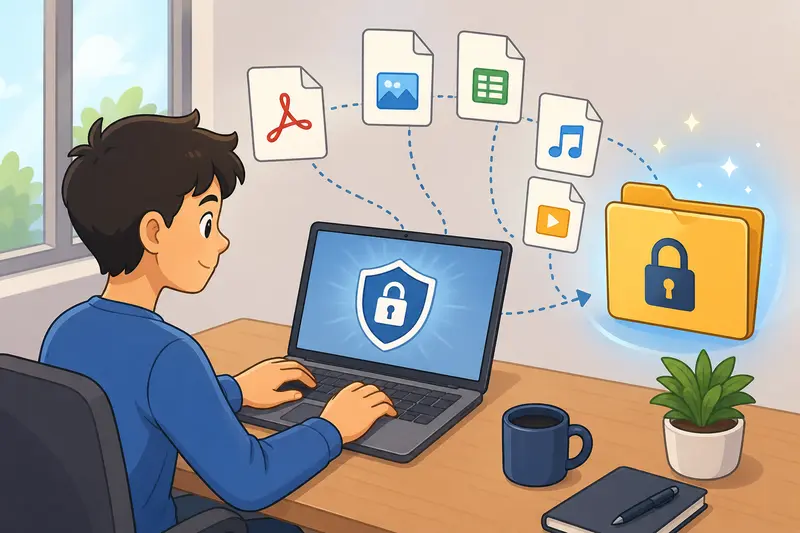
You probably don’t think twice before sharing a document—until it contains something sensitive. Bank statements, scanned IDs, contracts, even personal photos. Once a file leaves your desktop unprotected, control over it disappears.
That’s where learning how to protect files with password becomes essential. It’s not just about locking files—it’s about controlling access, even after sharing.
Before encrypting anything, it’s also worth checking for hidden data. For example, you can remove invisible file details using a tool like this metadata cleaning workflow:
👉 https://filemazing.com/metadata-scrubber
In Short
Password protection adds a secure layer around your files so only authorized users can open them.
Modern tools make this possible directly in your browser without installing anything.
The key is combining encryption with clean file preparation.
A Practical Workflow You Can Follow
Instead of jumping straight into encryption, a structured approach prevents common mistakes.
1. Prepare your files
If you’re working with compressed folders, extract them first.
You can unpack files safely here: https://filemazing.com/archive-extractor
2. Clean hidden metadata (optional but recommended)
Documents and images often contain hidden details like author names or location data.
3. Combine files if needed
If you’re sharing multiple PDFs, merging them into one file simplifies access control.
👉 https://filemazing.com/merge-pdf
4. Apply password protection
Encrypt the final version of your file with a strong password.
5. Share securely
Send the password separately (never in the same email as the file).
A Tool That Keeps Things Private by Design
One practical option is
👉 https://filemazing.com/encrypt-file
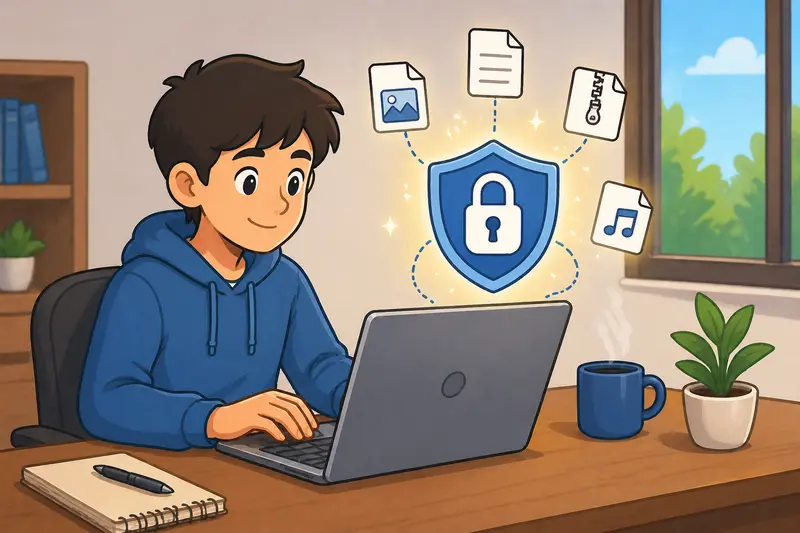
What stands out here is its privacy-first approach.
- Files are processed temporarily—not stored long-term
- Encryption happens in a controlled environment
- No heavy software installation required
- Works directly in your browser
This makes it particularly useful for everyday users who don’t want to install complex encryption software.
There’s also a predictable system behind usage. Instead of subscriptions, it uses a transparent token model, so you know exactly what each encryption task costs.
What Happened When Tested
To see how this works in practice, I tested a realistic scenario:
- 3 scanned PDFs (total 18 pages)
- 5 JPG images (high resolution)
- Combined into one document before encryption
Observations:
- Upload and processing stayed responsive even with multiple files
- The encrypted file retained original quality—no compression artifacts
- Download was available immediately after processing
One useful takeaway:
If you’re encrypting multiple documents, merging them first reduces friction for the recipient—they only need one password and one file.
Common Pitfalls When Protecting Files
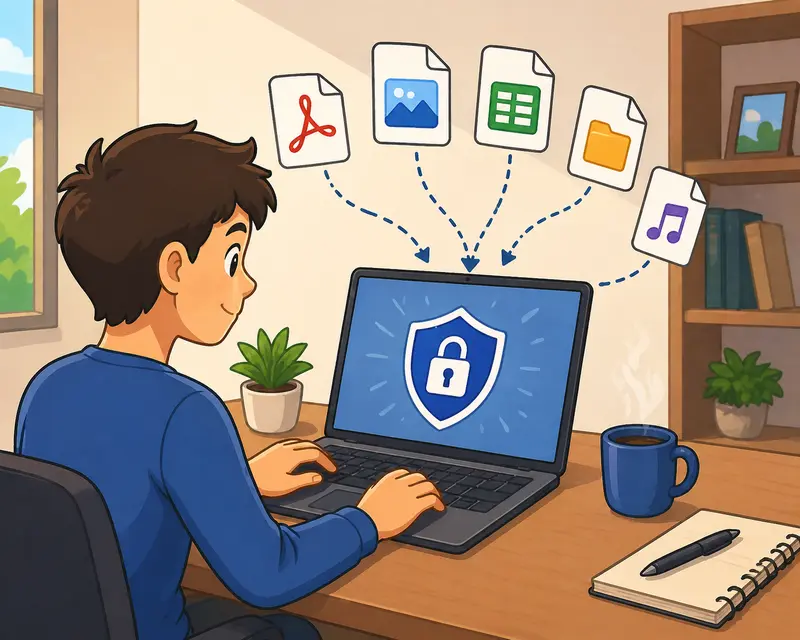
Even when people try to secure files, a few mistakes show up repeatedly:
Weak passwords
Using something like “123456” defeats the purpose entirely.
Use a mix of words, symbols, and numbers.
Sending password and file together
If both are in the same message, encryption becomes meaningless.
Ignoring metadata
Even encrypted files can expose information if metadata isn’t removed beforehand.
Encrypting the wrong version
Always double-check you’re encrypting the final file—not a draft.
Overcomplicating the process
Some tools are unnecessarily complex. A clean workflow avoids errors.
Where This Workflow Fits in Everyday Life
For general users, this isn’t just a technical task—it’s practical protection.
- Sending personal documents via email
- Sharing financial files with family members
- Backing up private data on cloud storage
- Protecting school or university submissions
- Sending scanned IDs for verification
- Keeping sensitive photos secure
What You Gain From Doing This Right
- Control over who can access your files
- Reduced risk of accidental exposure
- Cleaner, safer file sharing habits
- No dependency on installed software
- Predictable processing without hidden costs
Common Questions
Can I encrypt multiple file types?
Yes. PDFs, images, and other formats can be processed before encryption. Combining files first often helps.
Is it safe to encrypt files online?
With tools that use temporary processing and automatic cleanup, files are not stored long-term, reducing exposure risk.
Will encryption reduce file quality?
No. Encryption wraps the file—it doesn’t alter the content itself.
What if I forget the password?
There’s typically no recovery. That’s the tradeoff for strong security.
Should I clean files before encrypting?
Yes. Removing hidden data adds an extra layer of privacy. You can do that here:
https://filemazing.com/metadata-scrubber
Ready to Lock Your Files Properly?
Protecting files isn’t complicated—but doing it carelessly can cancel out the benefits.
A clean workflow—prepare, clean, combine, then encrypt—keeps things reliable and secure.
If you want a straightforward way to secure files online without installing software, try it here:
👉 https://filemazing.com/encrypt-file
It’s fast, privacy-focused, and built for real-world use—not just technical setups.