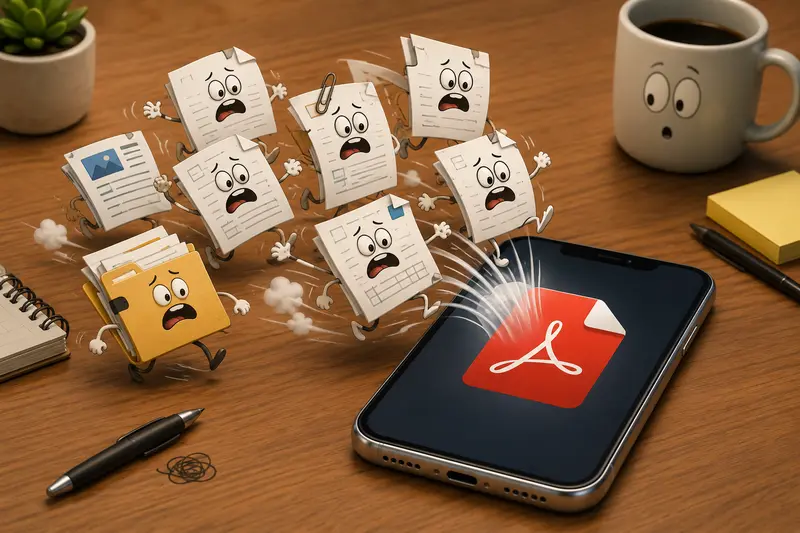
Remote work has a way of turning one document into six separate PDFs scattered across email threads, cloud folders, and chat apps. A signed contract arrives as one file, scanned notes arrive as another, and someone always uploads a version called final-final-v2.pdf.
When you need to merge PDF documents on an iPhone, the goal usually isnt fancy editing. You just want one clean file thats organized, readable, and ready to send before the next meeting starts.
What You Should Know First
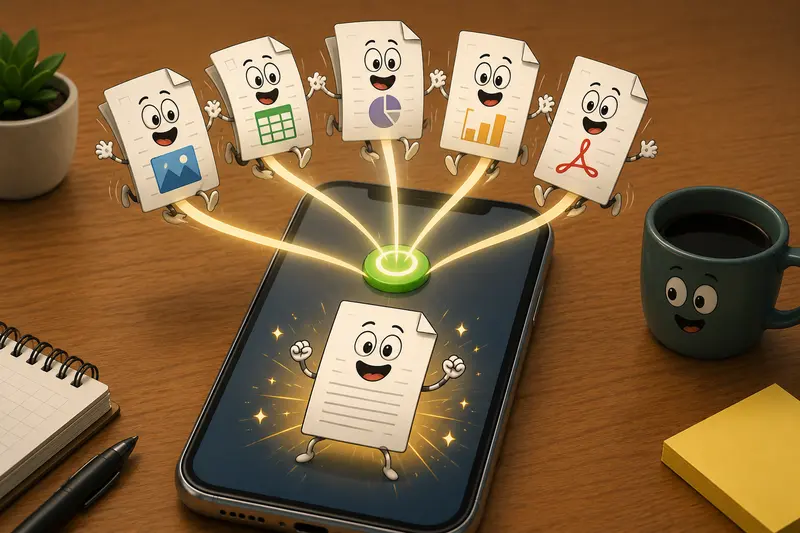
If you want to combine PDFs without signup on iPhone, a browser-based workflow is usually the fastest option. Instead of moving files into desktop software, you can upload multiple PDFs directly from your phone, arrange them in the correct order, and export a merged file immediately.
For teams handling recurring paperwork, browser tools also avoid the friction of app installations and device-specific compatibility issues.
One practical option is Filemazing Merge PDF Tool https://filemazing.com/merge-pdf, which works entirely in the browser and supports both individual and batch PDF merge tasks.
Why Mobile PDF Workflows Often Break Down
The problem usually isnt merging itself. Its everything surrounding it:
- inconsistent file naming
- oversized scanned PDFs
- documents exported from different apps
- attachments coming from Slack, Gmail, Drive, or Dropbox
- mobile storage limitations
On iPhone, these issues become more noticeable because multitasking between apps can feel slower when large files are involved. Especially with image-heavy PDFs, mobile workflows can become surprisingly clunky.
Thats why lightweight browser tools tend to work better for remote teams than traditional desktop-first software. The process stays centralized and accessible from any device.
A Practical iPhone Workflow That Actually Scales
Heres a workflow that works well when multiple people contribute documents during a project cycle.
1. Collect files into one temporary folder
Before uploading anything, place all PDFs into a single Files app folder on your iPhone.
This sounds obvious, but it avoids one of the most common mobile mistakes: uploading the same document twice because it lives in different apps.
If teammates are sharing files through cloud storage, importing directly from Google Drive or Dropbox can reduce duplicate downloads.
2. Arrange documents before merging
Order matters more than most people expect.
For example:
- invoices should usually appear chronologically
- contracts should place signatures at the end
- scanned meeting notes often need section grouping
A merged PDF becomes difficult to navigate when pages are randomly ordered. Fixing this afterward is much more annoying on mobile devices.
3. Upload and merge
Open the merge tool in Safari or Chrome, upload your PDFs, and combine them into a single file.
Some browser-based systems also support batch PDF merge operations, which helps when multiple client folders need processing in one session.
4. Review the final file before sharing
Always scroll through the merged document once before sending it.
This catches:
- upside-down scanned pages
- duplicate attachments
- blank pages from scanners
- incorrect ordering
Nobody enjoys discovering page 14 is sideways after sending a proposal to a client.
Testing the Workflow With Real Files
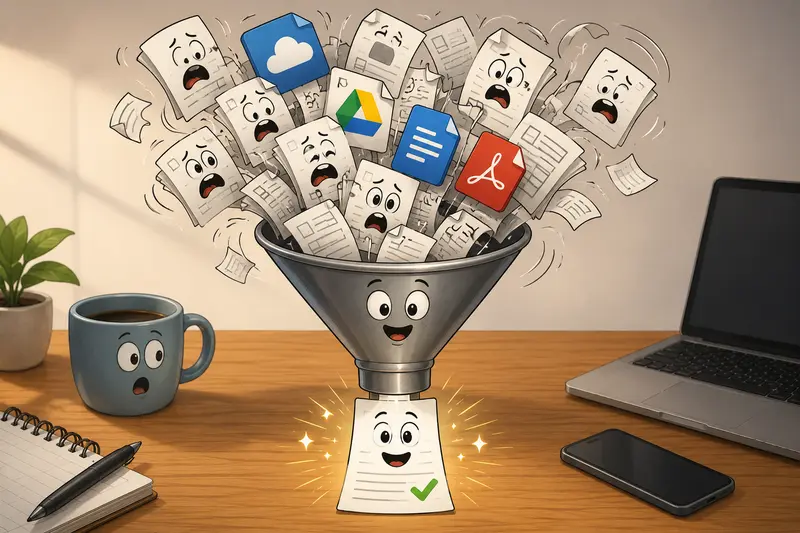
To see how well this worked on mobile, I tested the process using:
- 12 PDFs
- roughly 148MB combined size
- mixed exports from Notes, Adobe Scan, and Google Drive
- several image-heavy scanned pages
The merge completed without needing a desktop device, and the resulting document stayed readable even with compressed scans.
One thing worth noting: scanned PDFs containing high-resolution photos increase processing time more than text-based documents. Thats normal because image layers require heavier handling during merge operations.
A useful takeaway from the test was keeping scan quality moderate rather than maximum resolution. Extremely large scans add size quickly without improving readability for most business documents.
Where This Saves Time for Remote Teams
Different teams use merged PDFs differently, but a few patterns appear repeatedly.
Client delivery packets
Sales and operations teams often combine:
- proposals
- signed agreements
- onboarding forms
- supporting documentation
into one shareable PDF instead of sending fragmented attachments.
Distributed approval workflows
Managers reviewing contracts from mobile devices usually prefer one consolidated document instead of five separate downloads.
Weekly reporting
Marketing and analytics teams frequently merge exported reports from multiple systems before internal reviews.
HR documentation
Hiring workflows commonly involve:
- resumes
- signed forms
- policy acknowledgements
- ID scans
Keeping these bundled simplifies secure forwarding and archiving.
One Overlooked Issue: Mixed PDF Sources
Heres something many people only notice after problems appear.
Not all PDFs behave the same way.
A PDF exported from Microsoft Word is structurally different from:
- a scanned camera image
- a flattened print-to-PDF export
- a form generated by accounting software
When several formats mix together, you can occasionally encounter:
- inconsistent page sizes
- unusual margins
- embedded font issues
- oversized outputs
For larger document sets, its often smarter to standardize files before merging them.
For example, if pages contain hidden metadata from multiple contributors, using a metadata cleanup workflow beforehand can reduce unnecessary embedded information. Filemazing includes a dedicated metadata scrubbing tool https://filemazing.com/metadata-scrubber for that purpose.
This becomes especially relevant for remote teams sharing client-facing or compliance-sensitive files.
Browser-Based Processing vs Installed Apps
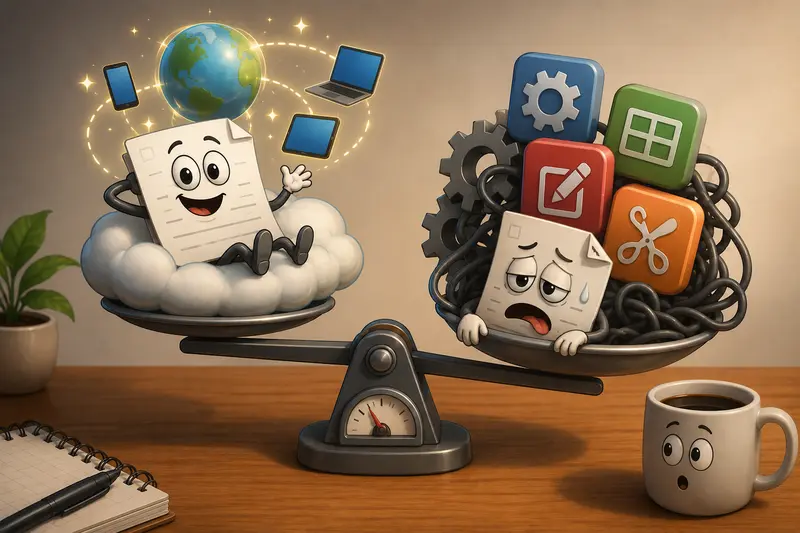
Installed apps still have advantages for advanced editing, but browser-based workflows are often more practical for fast operational tasks.
Heres the tradeoff:
| Approach | Strength | Limitation |
|---|---|---|
| Browser-based merge tools | Fast access from any device | Depends on stable internet |
| Desktop PDF suites | More advanced editing controls | Higher complexity and setup overhead |
| Mobile apps | Convenient offline access | Can become cluttered or storage-heavy |
For remote teams that mainly need reliable document assembly rather than deep editing, browser workflows are usually easier to maintain across devices.
Another advantage is transparency around processing costs. Filemazing uses token-based pricing rather than subscriptions, so occasional users dont end up paying for full desktop software they barely use.
Privacy Considerations Matter More Than People Think
PDFs often contain more sensitive information than expected:
- hidden metadata
- signatures
- internal comments
- embedded author details
Thats why temporary processing matters.
Filemazing treats uploaded files as short-term processing artifacts instead of long-term cloud storage. Files are cleaned on a short retention schedule after processing completes, which is preferable for privacy-conscious workflows.
For especially sensitive reports or legal documents, you can also encrypt merged PDF files with password protection https://filemazing.com/encrypt-file before distribution.
Additional Workflow Ideas
Once documents are merged, teams often need secondary processing afterward.
Examples include:
- turning presentation pages into shareable images
- creating preview thumbnails
- extracting pages for approvals
If thats part of your process, converting merged pages into image assets using a PDF-to-image conversion workflow https://filemazing.com/pdf-to-image can make collaboration easier in chat apps and project boards.
This is especially useful when reviewers dont want to open large PDFs repeatedly on mobile.
Common Questions
Can I merge PDF online free from an iPhone?
Yes. Many browser-based tools support free usage tiers or daily free processing limits. This allows lightweight merging without installing software.
Is it safe to upload confidential PDFs?
That depends on the service. Privacy-focused platforms that use temporary processing and scheduled cleanup are generally safer than services storing files indefinitely.
Why do merged PDFs sometimes become very large?
Image-heavy scans dramatically increase file size. High-resolution photos embedded in scanned pages are usually responsible.
Can batch PDF merge workflows handle dozens of files?
Yes, although very large batches may take longer depending on file size and browser memory limits.
Will formatting change after merging?
Usually no, but inconsistencies can appear if source PDFs use unusual page dimensions, embedded fonts, or corrupted structures.
What if I need to share only certain pages afterward?
You can merge first, then split or convert sections later depending on the workflow. Some teams export important pages as images for easier mobile review.
Final Thoughts
When teams rely heavily on mobile devices, document workflows need to stay lightweight and predictable. The best merge process is usually the one that removes friction instead of adding another app to manage.
A browser-based approach works particularly well for remote collaboration because files can move from upload to delivery quickly without locking people into desktop software ecosystems.
If your team regularly needs to merge PDF documents on iPhone, having one consistent workflow for uploads, organization, merging, and secure sharing can eliminate a surprising amount of operational clutter.