Teachers deal with document overload constantly. Permission slips, worksheets, scanned assignments, reading packets, grading rubrics somehow they all end up scattered across separate PDF files right when a school portal asks for one combined document only.
Thats usually the moment the scramble starts.
The good news is that learning how to merge multiple PDFs efficiently can save a surprising amount of time, especially when upload limits, file organization, and large scanned documents enter the picture.
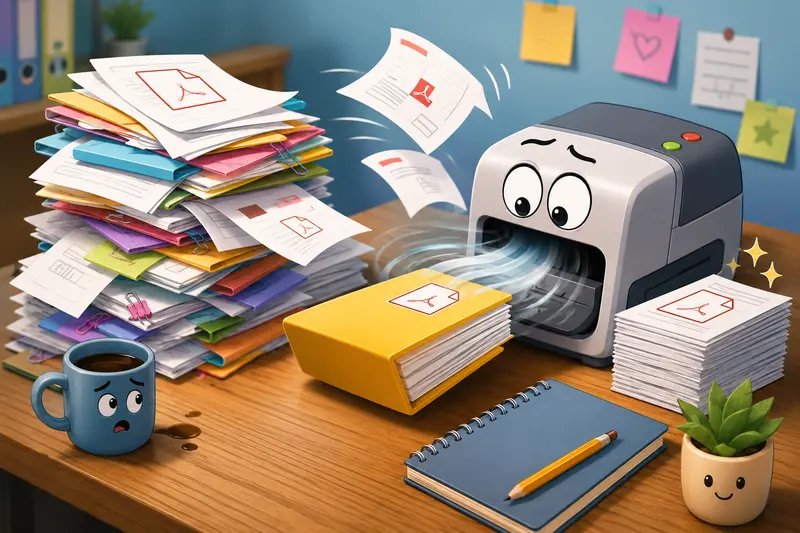
The Core Thing Most People Need
If your goal is simply to combine several PDFs into one upload-ready file, browser-based tools now handle this well without requiring desktop software or account creation.
A practical option is Filemazings PDF merge tool, which works directly in the browser and supports larger workloads than many lightweight free utilities. That matters more than people expect when scanned lesson plans or image-heavy worksheets start pushing file sizes upward.
For teachers specifically, this becomes useful when you need to:
- combine weekly assignments into one packet
- merge parent forms into a single upload
- organize scanned handwritten work
- prepare documentation for district systems
- consolidate multi-part learning resources
And yes, those giant scanner-generated PDFs can get ridiculous fast.
What Happens When Large School PDFs Start Piling Up
A common issue in education workflows is that school scanners often create unnecessarily heavy PDFs.
During testing for this article, a merged packet containing:
- 11 scanned worksheets
- 3 exported Google Docs PDFs
- 2 image-heavy classroom activity pages
ended up at nearly 148 MB before cleanup.
The actual merge process completed fine, but the real bottleneck was browser upload time afterward especially on school Wi-Fi.
Thats an important distinction:merging files is usually easier than uploading them afterward.
In practice, it helps to:
- merge first
- review page order
- optimize file size only if necessary
- upload the final version
Trying to compress individual files before merging sometimes creates uneven image quality across the final document.
A Workflow That Actually Holds Up Under Deadline Pressure
Heres a cleaner way to handle recurring document uploads during a busy school week.
1. Gather all source PDFs first
Avoid merging one file at a time as you receive them.
Instead, place everything into one folder and review:
- page orientation
- duplicate scans
- accidental blank pages
- file naming consistency
This prevents the classic I uploaded version 3 instead of version 7 problem.
2. Merge in logical order
For classroom or administrative uploads, order matters more than people realize.
A better sequence usually looks like:
- cover page
- instructions
- worksheets
- answer keys
- supporting material
Not:
- random scanner export order from Tuesday afternoon chaos.
3. Check readability before uploading
Large scanned PDFs can appear fine on desktop monitors but become difficult to read on school portals or mobile devices.
Watch especially for:
- faint grayscale scans
- oversized image compression
- rotated pages
- mixed page dimensions
Tradeoff matters here:smaller files upload faster, but aggressive compression can make handwritten notes blurry.
The goal is efficiency, not turning student work into pixel soup.
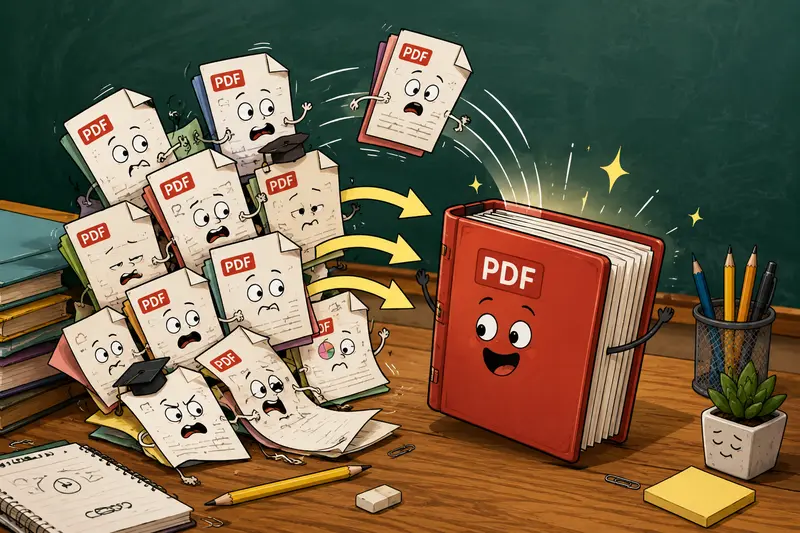
Why Browser-Based PDF Merging Has Become More Practical
A few years ago, browser tools struggled with larger documents.
Today, modern browser-based processing platforms are considerably more stable, especially for routine administrative workflows.
Filemazing approaches this differently than many free forever PDF sites. Instead of forcing subscriptions, it uses a transparent token system tied to processing workload. For educators handling occasional document tasks, that can be more predictable than monthly software plans that mostly sit unused.
Another useful detail:files are treated as temporary processing artifacts rather than permanent cloud storage.
That matters when working with:
- student information
- internal reports
- assessment materials
- parent documentation
The platform also automatically cleans temporary uploads after processing instead of keeping long-term archives.
One Overlooked Problem: Hidden Metadata in School Documents
Many exported PDFs quietly contain metadata you probably never intended to share.
Depending on the source application, PDFs may include:
- author names
- device details
- software information
- editing timestamps
- embedded comments
For public-facing uploads or externally shared school resources, it can be smart to remove unnecessary metadata first using a tool like Filemazings metadata scrubber.
Most teachers never think about this until a district upload accidentally exposes internal document history.
When Merging Large PDF Files Starts Slowing Down
If you regularly merge large PDF files, browser limitations can eventually appear particularly on older school-issued laptops.
Some practical ways to reduce friction:
Use smaller batches first
Instead of merging 70 files simultaneously, combine them into sections:
- Unit 1
- Unit 2
- Unit 3
Then merge those master files afterward.
Avoid unnecessarily high-resolution scans
300 DPI is usually enough for readable classroom paperwork.
600 DPI scanned worksheets often create enormous PDFs with little practical readability benefit.
Close extra browser tabs
Heavy browser memory usage affects large file handling more than most users realize.
Especially Chrome. Chrome always wants all the RAM in the building.
Combining PDFs Without Signup: Why It Matters More Than Convenience
Many teachers only need PDF tools occasionally.
That makes mandatory account creation surprisingly frustrating when:
- preparing substitute packets
- submitting district forms
- organizing grading materials
- helping students combine assignments
Being able to combine PDFs without signup removes several unnecessary steps during already busy workflows.
It also helps when working on shared devices in:
- classrooms
- libraries
- faculty offices
- computer labs
The fewer accounts floating around on shared machines, the better.
A Useful Trick for Image-Based Assignments
Some teachers receive student work as mixed formats:
- photos
- screenshots
- PDFs
- exported slides
After merging PDFs, you may occasionally need to convert pages back into images for LMS uploads or classroom presentations.
Thats where a tool like PDF to image conversion becomes surprisingly useful, especially for turning worksheets or presentation pages into shareable visuals.
This works well for:
- online assignment previews
- classroom slides
- visual examples
- printable snippets
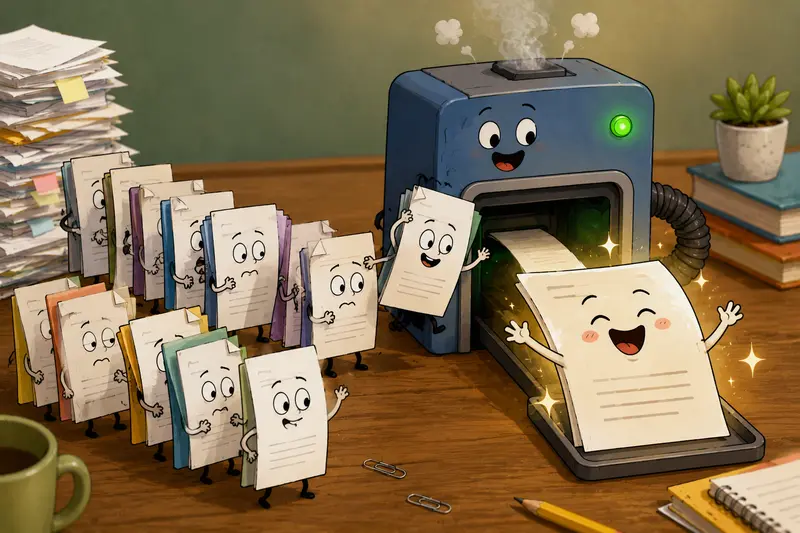
ZIP Files Are Another Common Classroom Headache
District systems and shared drives often bundle resources into compressed archives.
Before merging anything, you may first need to unpack:
- ZIP files
- RAR archives
- downloaded curriculum bundles
Using an archive extraction tool can simplify that prep stage before documents ever reach the merge step.
It sounds minor, but reducing workflow interruptions matters when processing dozens of files repeatedly throughout a semester.
Questions Teachers Commonly Run Into
Can merged PDFs still be edited afterward?
Usually yes, depending on the original files. Text-based PDFs remain more editable than scanned image-based PDFs.
Does merging PDFs reduce quality?
Not inherently. Quality loss typically comes from later compression settings, not the merge itself.
Whats the best PDF merger for scanned worksheets?
For large scanned classroom files, stability and upload handling matter more than flashy features. Browser-based tools with larger workload support tend to perform better than extremely lightweight free utilities.
Is it safe to upload school documents to browser tools?
That depends on the platforms handling policies. Services that use temporary processing and automatic cleanup are generally preferable to long-term storage systems when dealing with sensitive files.
Why do some merged PDFs become huge?
Image-heavy scans are the main culprit. High-resolution pages dramatically increase total file size.
Can I merge files directly from cloud storage?
Some modern platforms, including Filemazing, support importing files from services like Google Drive and Dropbox instead of relying only on local uploads.
Final Thoughts
For teachers, document management rarely feels like real work until it suddenly eats half an afternoon.
Learning how to properly merge multiple PDFs helps reduce upload friction, keeps classroom materials organized, and avoids the chaos of scattered files right before deadlines.
The biggest improvement usually comes from workflow consistency rather than fancy features:
- organize first
- merge carefully
- optimize only when needed
- keep privacy in mind
And if your PDFs are massive, scanned sideways, or exported from three different systems at once honestly, thats a pretty normal Tuesday in education.