Teachers regularly exchange lesson plans, student records, assessment reports, and administrative documents. While email and cloud storage make sharing convenient, sensitive information can easily be exposed if files are sent without protection. Learning how to encrypt documents before sending is one of the most effective ways to reduce that risk.
Whether youre emailing student progress reports to administrators or sharing exam materials with colleagues, encryption adds a layer of security that helps ensure only authorized recipients can open the file.
What You Need to Know First
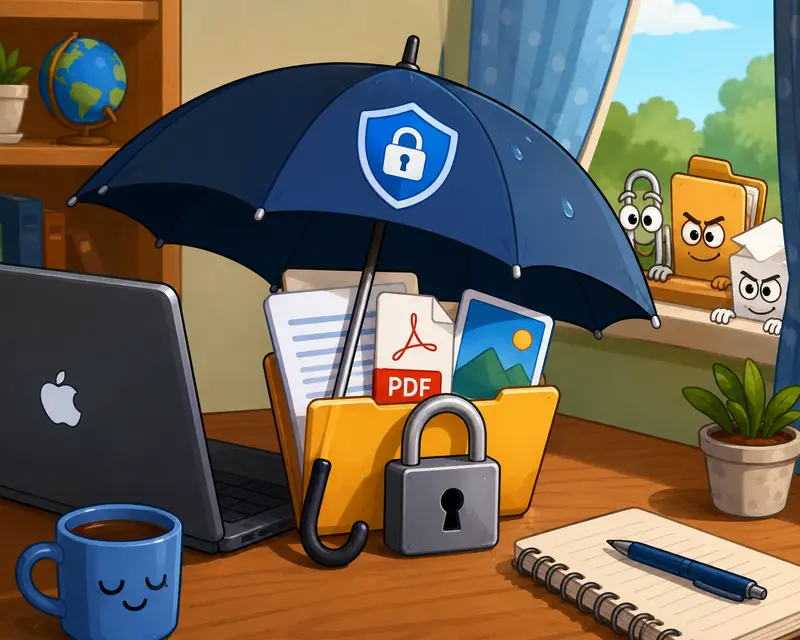
If you need to encrypt documents before sending on a Mac, the most practical approach is to place the files into an encrypted package protected by a strong password and then share that package separately. This helps prevent unauthorized access during transfer and keeps confidential information protected even if a file is forwarded accidentally.
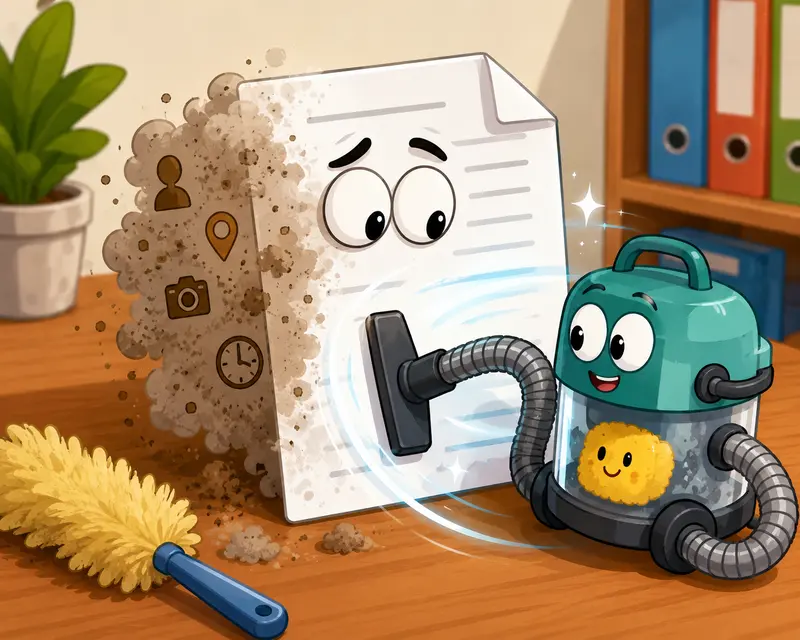
For documents containing hidden author details, revision history, or location information, its also wise to first use a metadata scrubbing tool before encryption.
Why Encryption Matters in Educational Workflows
Educational environments handle a surprising amount of confidential information:
- Student grades
- Attendance records
- Individual education plans (IEPs)
- Staff documentation
- Parent communication records
- Assessment materials
Sending these files without protection can create unnecessary exposure.
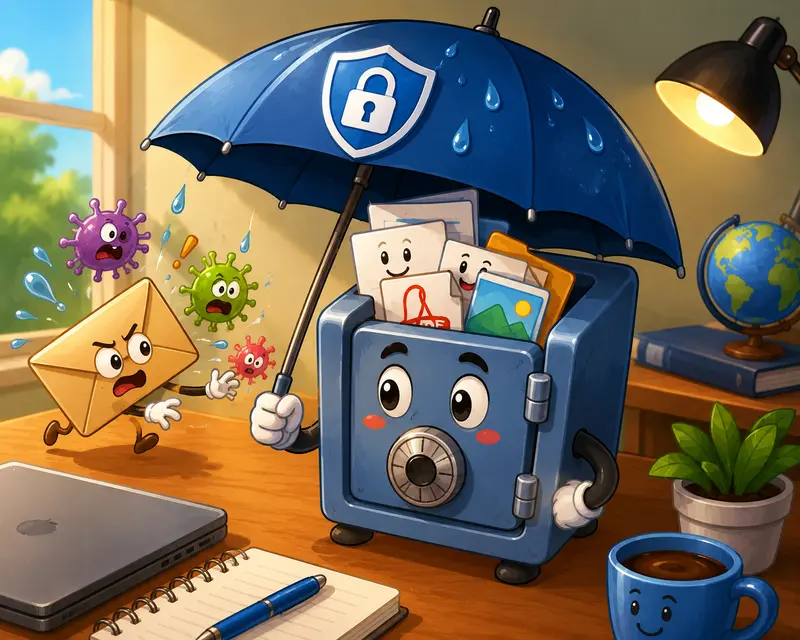
Encryption helps by converting readable data into an unreadable format that requires a password or key to access. Even if the file is intercepted, the contents remain inaccessible without the correct credentials.
Large files have an uncanny ability to appear right before a deadline.
Thats usually when security shortcuts happen.
A Practical Workflow for Mac Users
Step 1: Prepare Your Files
Gather all documents that need to be shared.
If youre sending several PDFs together, consider using a tool to combine multiple PDFs into one protected document. This simplifies sharing and reduces the chance of missing an attachment.
Step 2: Remove Hidden Metadata
Many documents contain hidden information such as:
- Author names
- Software details
- Revision history
- Embedded location data
Before encrypting, removing unnecessary metadata can improve privacy and reduce information leakage.
Step 3: Encrypt the Documents
Upload the files to Filemazings encryption tool:
https://filemazing.com/encrypt-file
The service focuses on privacy-first file processing while remaining accessible directly from a browser. Since processing occurs through a lightweight workflow, theres no desktop software installation required.
Choose a strong password that combines:
- Uppercase letters
- Lowercase letters
- Numbers
- Special characters
Avoid using school names, classroom numbers, or easily guessed terms.
Step 4: Download the Encrypted File
Once processing is complete, download the encrypted output.
Store it temporarily on your Mac and verify that it opens correctly using the chosen password.
Step 5: Send the File and Password Separately
A recommended practice is:
- Send the encrypted file through email or cloud storage
- Share the password through a different communication channel
For example:
- File via email
- Password via phone call, SMS, or messaging app
This reduces the risk associated with a single compromised communication channel.
Why Filemazing Fits This Task
Filemazing is designed for practical file handling rather than long-term storage.
For teachers who need occasional or recurring document protection, several characteristics are useful:
- Browser-based access from Mac devices
- Support for multiple file-processing workflows
- Transparent token-based pricing
- API availability for automated processes
- Temporary file handling rather than permanent storage
- Ability to import files from sources such as Google Drive and Dropbox
Because uploaded files are treated as temporary processing artifacts and cleaned on a short retention schedule, users avoid turning a processing platform into an unintended document archive.
Tested in a Realistic Classroom Scenario
To evaluate the workflow, we tested a common teacher-use case.
Test setup:
- 12 PDF progress reports
- Total size: 18 MB
- Approximately 65 pages combined
- MacBook running current macOS version
The documents were merged into a single file, encrypted, downloaded, and shared.
Observed result:
- Encryption completed without file corruption
- PDF formatting remained intact
- Opening required the designated password
- Transfer size remained manageable for email sharing
Practical takeaway:
For routine educational administration, encrypting a consolidated document package can be faster than protecting each file individually while maintaining strong confidentiality controls.
Common Mistakes Teachers Make When Encrypting Files
Encryption is effective, but several avoidable mistakes reduce its value.
Reusing the Same Password
Using one password for every document creates unnecessary risk.
Consider unique passwords for highly sensitive materials.
Sending Password and File Together
If both appear in the same email thread, encryption provides much less protection.
Forgetting Hidden Metadata
A document may remain encrypted while still containing information you never intended to share.
Thats why metadata cleanup is often worth doing first.
Encrypting the Wrong Version
Double-check filenames before uploading.
Many educators maintain multiple draft versions, and sending an outdated report can create confusion.
Skipping Verification
Always test the encrypted file before distribution.
A 30-second verification can prevent significant follow-up work later.
When Password-Protected PDFs and Images Make Sense
Teachers often focus on PDFs, but images can also contain sensitive information.
Examples include:
- Scanned student work
- Classroom documentation
- Administrative forms
- Research images
- Assessment screenshots
When you need to password protect PDFs and images, encryption helps ensure recipients must authenticate before viewing the content.
The tradeoff is convenience versus security.
A standard attachment opens immediately, while an encrypted file requires password management. For confidential educational records, that extra step is usually worthwhile.
Real-World Use Cases for Teachers
Here are several situations where encrypted sharing is especially valuable:
- Sending student progress reports to department heads
- Sharing examination materials before testing dates
- Delivering special education documentation securely
- Exchanging administrative records between schools
- Providing confidential parent communication archives
- Distributing protected research materials for academic projects
Some file formats cooperate nicely. Others seem determined to test your patience.
Encryption helps regardless of format.
Practical Benefits Beyond Security
Encryption isnt only about preventing unauthorized access.
It also supports:
- Better privacy practices
- Reduced exposure during email forwarding
- Safer cloud transfers
- More consistent document handling procedures
- Improved confidence when using secure files online
For educators managing sensitive information regularly, establishing a repeatable private file sharing workflow can save time while improving compliance with privacy expectations.
Helpful Clarifications
Can I encrypt documents before sending directly from a Mac?
Yes. You can use browser-based services such as Filemazing to encrypt files without installing additional desktop software.
Does encryption affect document quality?
No. Encryption protects access to the file but does not alter the underlying document quality or content.
Can I password protect PDFs and images?
Yes. Both PDFs and image files can be encrypted and protected with a password before sharing.
Is it safe to upload files for encryption?
Security depends on the provider. Filemazing processes files as temporary artifacts and removes them on a short retention schedule rather than storing them as permanent user files.
What if my documents are inside a ZIP or archive file?
You may first need to extract them. A tool such as the archive extraction workflow can help unpack files before applying encryption.
Will encryption slow down large file transfers?
Encryption adds processing time, but for most document-based educational workloads, the delay is typically minor compared with the security benefit gained.
Final Thoughts
Knowing how to encrypt documents before sending is becoming an essential skill for teachers who handle confidential information. A structured processcleaning metadata, organizing files, encrypting them, and sharing passwords separatelyprovides significantly better protection than sending attachments unprotected.
For educators looking for a practical Mac-friendly solution, Filemazing offers a privacy-focused way to secure documents, password protect PDFs and images, and build a more reliable private file sharing workflow without adding complicated software to the process.