Teachers often end up with multiple PDFs for the same lesson: worksheets, scanned assignments, reading materials, grading rubrics, and parent handouts. Managing them separately can be inconvenient for both sharing and archiving. When you need to combine PDF files online from a phone or tablet, a browser-based solution can save time while keeping the workflow simple.
Whether youre organizing classroom materials or preparing a complete resource packet for students, merging PDFs on mobile is often the fastest way to create a single, easy-to-distribute document.
What You Need to Know First
If your goal is to combine several PDFs while working from a mobile device, a browser-based PDF merger is usually the most practical option. It eliminates software installation, works across devices, and allows you to assemble lesson materials wherever you are.
For teachers handling multiple files at once, support for batch PDF merge workflows becomes especially valuable when preparing weekly or monthly learning resources.
Why Mobile PDF Merging Has Become So Useful
Educational workflows rarely happen at a desk anymore. Many teachers review assignments on tablets, receive scanned documents through email, and share materials through learning platforms.
Instead of moving files between devices, you can merge them directly from your mobile browser and immediately distribute the final document.
Some common examples include:
- Combining weekly worksheets into one packet
- Merging scanned student submissions
- Creating complete lesson guides
- Consolidating parent communication documents
- Preparing printable resource bundles
- Organizing field trip forms and permissions
A Practical Walkthrough
Heres a straightforward way to combine PDFs using a mobile device.
1. Gather the PDFs
Collect all files you want to merge. These may come from:
- Local device storage
- Google Drive
- Dropbox
- Email attachments
2. Open an Online PDF Merger
Visit Filemazings PDF merge tool:
https://filemazing.com/merge-pdf
Because it runs in a browser, there is no desktop software to install.
3. Arrange Files in Order
Place lesson plans, worksheets, answer keys, and supporting materials in the sequence you want students or colleagues to view them.
4. Start the Merge Process
Upload the files and begin processing. The service handles document assembly through a queued workflow, allowing larger jobs to complete without locking up the interface.
5. Download the Final PDF
Once processing finishes, download the merged file and share it through your preferred learning platform or email system.

Why Filemazing Fits Teacher Workflows
Filemazing is designed for practical file-processing tasks rather than complex document management.
Its PDF merge tool focuses heavily on usability and simplicity, making it easy to combine multiple PDFs from a phone, tablet, or desktop browser.
Additional advantages include:
- Browser-based operation
- Support for batch processing tasks
- Google Drive and Dropbox imports
- Predictable token-based usage model
- API availability for automated workflows
- Temporary processing rather than long-term storage
Teachers who routinely prepare resource packs may also find related tools useful. Before sharing documents externally, you can use the metadata scrubbing tool to remove hidden metadata from files that may contain unwanted document information.
Real-World Test and Findings
To evaluate performance, we tested a realistic classroom scenario.
Test Setup
Files included:
- 8 scanned homework PDFs
- 2 lesson handouts
- 1 grading rubric
Total size:
- Approximately 38 pages
- Around 18 MB combined
Results
The files were uploaded from a mobile browser, arranged into the desired order, and merged into a single PDF.
The final document preserved page order and remained fully readable, including scanned pages and text-heavy content.
Practical Takeaway
When working with mixed content such as scanned assignments and digital worksheets, it helps to verify page order before starting the merge. Reordering files beforehand is often faster than editing the final PDF later.
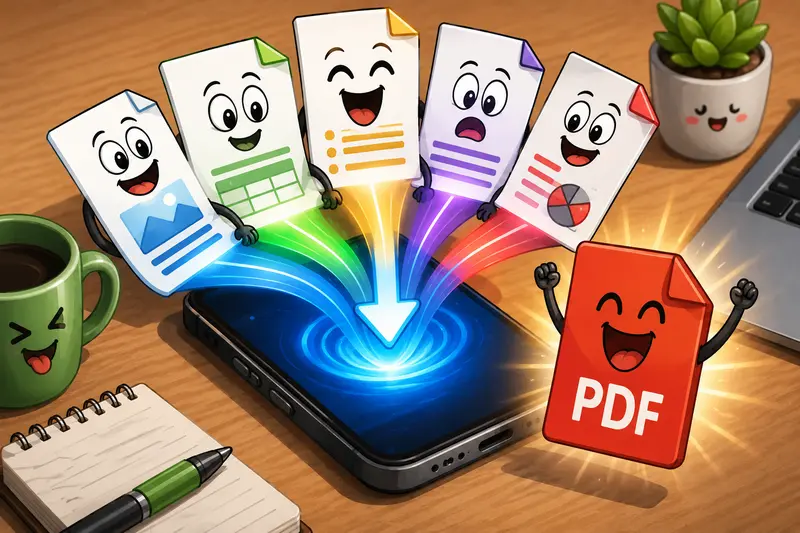
Common Mistakes When Combining Scanned PDFs
Scanned documents can behave differently from digitally created PDFs.
Here are a few issues teachers commonly encounter:
Mixing Page Orientations
Portrait and landscape pages may appear inconsistent after merging. Reviewing page orientation beforehand helps create a cleaner final packet.
Combining Extremely Large Scans
High-resolution scans can significantly increase file size. Large files seem to appear precisely when school upload limits become relevant.
If distribution size matters, consider optimizing files before sharing.
Ignoring Hidden Metadata
Documents created from different sources may contain author details or editing history. Using a dedicated metadata removal tool before distribution can provide an additional privacy layer.
Forgetting Supporting ZIP Files
Sometimes lesson materials arrive in compressed archives rather than individual PDFs. In those cases, the archive extraction tool can unpack supporting files before the merge process begins.
A Useful Tradeoff to Consider
There is one important balance when working with combine scanned PDFs projects.
Quality vs File Size
Higher-quality scans:
- Preserve small text better
- Improve readability for worksheets
- Increase storage and upload size
Lower-quality scans:
- Reduce file size
- Upload faster
- May make handwritten content harder to read
For educational documents, readability usually matters more than aggressive size reduction. If students need to print materials, maintaining clear text should be the priority.
Where Teachers Can Apply This Workflow
A merged PDF can simplify many classroom tasks.
Weekly Learning Packs
Bundle all assignments into one downloadable document.
Homework Collections
Combine multiple worksheets for easier distribution.
Parent Information Packs
Create a single file containing schedules, policies, and announcements.
Assessment Materials
Keep instructions, questions, and answer sheets together.
Substitute Teacher Resources
Provide one organized reference document instead of several attachments.
Student Portfolios
Merge scanned work samples into a single record for review or evaluation.
What You Gain From a Single PDF
Combining documents is about more than convenience.
Key advantages include:
- Easier file management
- Fewer email attachments
- Cleaner LMS uploads
- Better organization of classroom materials
- Simplified document sharing
- Improved student access to resources
For teachers managing large numbers of files, even small reductions in administrative work can add up over a semester.
Privacy Considerations
Whenever student-related documents are involved, privacy matters.
Filemazing processes uploaded files as temporary artifacts rather than permanent cloud storage. Completed files are cleaned according to a short retention schedule, reducing the risk associated with long-term storage.
This approach is especially useful when handling classroom documents that contain educational or administrative information.
Frequently Asked Questions
What is the best PDF merger for mobile devices?
The best PDF merger depends on your workflow, but browser-based tools are generally the most convenient because they work across phones, tablets, and desktops without installation.
Can I perform a batch PDF merge from my phone?
Yes. Many online PDF tools allow multiple files to be uploaded and merged in a single operation, making them suitable for classroom document bundles.
Will combining PDFs reduce quality?
Merging PDFs typically combines pages without intentionally reducing quality. The final result largely depends on the quality of the original files.
Can I combine scanned PDFs?
Yes. Scanned documents can be merged alongside standard PDFs. Just verify page order and orientation before processing.
What if I need images instead of a PDF afterward?
After merging, you can use a PDF-to-image conversion tool to turn individual pages into image files for presentations, classroom displays, or online content.
Are my files stored permanently?
Filemazing treats uploaded files as temporary processing data and removes them according to its cleanup schedule rather than functioning as long-term storage.
Final Recommendation
For teachers who regularly manage worksheets, scanned assignments, lesson plans, and classroom handouts, the ability to combine PDF files online from a mobile device can simplify everyday document handling.
A browser-based tool such as Filemazing offers a practical approach by focusing on straightforward workflows, temporary file processing, support for batch PDF merge tasks, and reliable handling of combine scanned PDFs scenarios. When the goal is creating organized, shareable educational materials without installing extra software, it provides an efficient solution that fits naturally into modern teaching workflows.