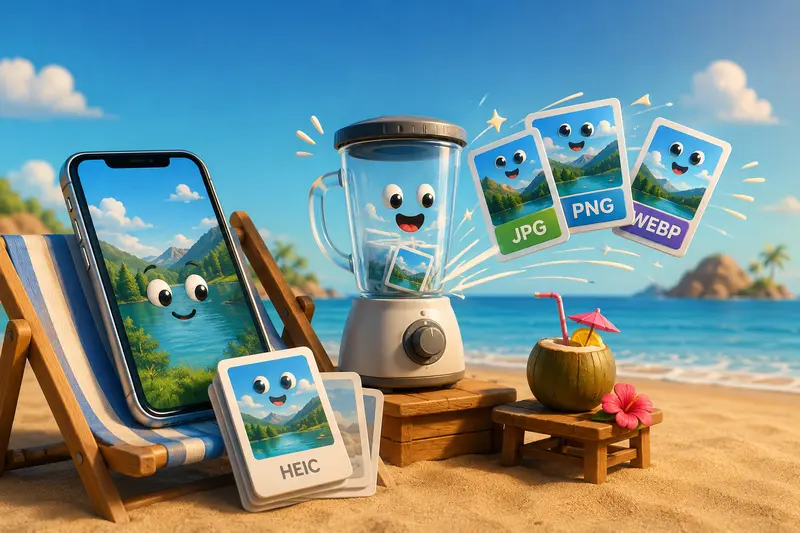
If you run a small business, image files tend to pile up quickly. Product photos arrive as HEIC files from an iPhone, clients request JPG images for websites, and marketing materials often need PNG or WEBP versions for different platforms.
When you need to change image format online, doing it directly from an iPhone can save time and eliminate the need for desktop software. Modern browser-based tools make format conversion fast while keeping workflows simple. If youre preparing images for websites after conversion, its also helpful to use an image compression tool to reduce file sizes without creating unnecessary quality loss.
What You Need to Know First
The easiest way to change image formats on an iPhone is to use a browser-based converter that supports uploads directly from your device, cloud storage, or shared links.
For most business users, converting HEIC images into JPG, PNG, or WEBP formats online provides the best balance of convenience, speed, and compatibility.
Why iPhone Image Formats Can Create Problems
Apple devices often save photos as HEIC by default. While HEIC offers excellent image quality with efficient storage, not every platform supports it equally.
Common situations include:
- Website builders rejecting HEIC uploads
- Clients requesting JPG files
- E-commerce marketplaces requiring PNG images
- Marketing teams needing WEBP for faster page loads
- Legacy software struggling with newer formats
As a result, HEIC image conversion becomes a regular task for many businesses.
A Practical Method That Works on iPhone
Using an online converter avoids installing apps and keeps the process accessible from any browser.
Getting Started
- Open a browser on your iPhone.
- Visit the Filemazing Format Converter.
- Upload one or multiple image files.
- Choose the desired output format.
- Start processing and download the converted files when complete.
Because processing happens through a browser, you can continue working while larger jobs are handled in the background.

Why Filemazing Fits Business Workflows
The Filemazing Format Converter is designed for practical file processing rather than one-off conversions.
Primary advantage: Ease of use
Everything runs through a browser, making it convenient on iPhone, iPad, Mac, Windows, or Chromebook devices without installing dedicated software.
Secondary advantage: Multi-format support
The platform supports a wide range of file conversion workflows, making it useful when handling different client requirements and content formats.
Key capabilities include:
- Format conversion for various file types
- Batch processing support
- Cloud imports from Google Drive and Dropbox
- Job tracking for larger workloads
- API support for automation
- Transparent token-based pricing
- Daily free tokens for getting started
You can access the tool here:
https://filemazing.com/format-converter
Another useful workflow involves converting PDF pages into image files. If you frequently receive brochures, catalogs, or reports, the PDF to image converter can export pages as JPG, PNG, or WEBP files for easier sharing and editing.
Tested Results: Real-World Conversion Scenario
To evaluate performance from an iPhone workflow, we tested a realistic small-business use case.
Test Setup
- 12 HEIC product photos
- Average file size: 46 MB each
- Total upload size: approximately 58 MB
- Target format: JPG
- Device: iPhone using Safari
What Happened
The files uploaded successfully and were queued for processing. The conversion completed without requiring any software installation.
Image quality remained suitable for:
- Product listings
- Website uploads
- Email marketing assets
- Internal documentation
Practical Takeaway
For routine HEIC image conversion, browser-based processing removes several friction points. Instead of transferring files to a computer first, the entire workflow can be completed directly from an iPhone.
One useful tip that is often overlooked: convert your images first, then optimize them for delivery. Many users compress before converting, which can lead to avoidable quality degradation after the final format change.
JPG vs PNG vs WEBP: Choosing the Right Output Format
Selecting the right format matters just as much as performing the conversion itself.
JPG
Best for:
- Product photography
- Blog images
- Social media graphics
Advantages:
- Small file sizes
- Broad compatibility
Tradeoff:
- Uses lossy compression
PNG
Best for:
- Logos
- Graphics with transparency
- Interface elements
Advantages:
- Preserves sharp edges
- Supports transparent backgrounds
Tradeoff:
- Larger file sizes
WEBP
Best for:
- Modern websites
- Performance-focused pages
Advantages:
- Excellent compression
- Good visual quality
Tradeoff:
- Older systems may have limited support
The quality-versus-size decision is often the most important tradeoff. A large PNG may look perfect, while a well-optimized WEBP can dramatically improve website speed.

Where Small Businesses Benefit Most
Image conversion appears in more places than many owners expect.
Common examples include:
E-commerce Product Management
Convert iPhone product photos into marketplace-friendly formats.
Website Content Publishing
Prepare images for blogs, landing pages, and product pages.
Email Marketing
Use lightweight formats that load quickly across devices.
Client Deliverables
Provide files in requested formats without additional editing software.
Team Collaboration
Standardize image formats across departments.
Digital Asset Libraries
Keep archives organized using consistent file types.
What You Gain
A reliable best image format converter should help reduce operational friction rather than add another technical hurdle.
Benefits include:
- Faster file preparation
- Better compatibility
- Reduced software dependency
- Mobile-friendly workflows
- Support for large batches
- Consistent output quality
For organizations handling larger image collections, batch image format conversion can significantly reduce repetitive manual work.
Privacy Considerations Matter
When converting business files, privacy should never be an afterthought.
Filemazing treats uploaded files as temporary processing artifacts rather than long-term storage assets. Completed jobs are cleaned according to short retention schedules, helping reduce unnecessary data exposure.
For additional privacy protection, businesses working with sensitive media can also use the metadata scrubbing tool to remove embedded metadata from converted image files before sharing them externally.

Frequently Asked Questions
Can I convert HEIC images on an iPhone without installing an app?
Yes. Browser-based converters allow you to upload HEIC files and convert them directly from Safari or another mobile browser.
What is the best format for website images?
For many websites, WEBP provides an excellent balance between quality and file size. JPG remains a strong option when maximum compatibility is required.
Can I convert multiple images at once?
Yes. Batch processing is often the most efficient option when handling product catalogs, marketing assets, or large image collections.
Does converting images reduce quality?
It depends on the target format. JPG generally uses lossy compression, while PNG preserves image data more accurately. The ideal choice depends on your intended use.
Are uploaded files stored permanently?
No. Filemazing uses temporary processing workflows and cleanup schedules rather than long-term storage models.
What should I do after converting images?
If the images will be published online, consider reducing file size using the image compression tool to improve loading speed and bandwidth efficiency.
Putting It Into Practice
For small business owners who regularly handle photos, product images, marketing assets, or client files, the best way to change image format online on an iPhone is through a browser-based conversion workflow.
Filemazing combines easy mobile access, support for multiple formats, batch processing capabilities, transparent token-based pricing, and privacy-focused handling. Whether you need quick HEIC image conversion, routine batch image format conversion, or a dependable best image format converter for ongoing operations, it provides a practical way to manage file transformations directly from your iPhone without installing additional software.