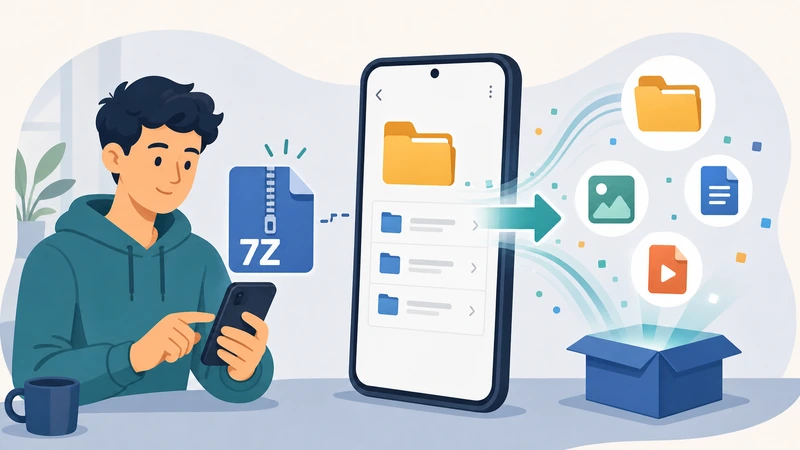
7Z is a useful archive format, but it is not always pleasant on mobile. People usually discover that at the worst possible moment: they download an archive on Android, tap it, and nothing helpful happens.
The issue is not that 7Z is broken. The issue is that support for it varies across phones, file managers, and archive tools. Some archives open easily. Others fail because of encryption settings, compression methods, or plain old device limitations.
If you are trying to open a 7Z file on Android, the goal is not to learn everything about archive formats. The goal is to get your files out with the least friction possible.
Why 7Z files are awkward on phones
ZIP files are widely supported. 7Z files are more hit-and-miss. They can use stronger compression and different methods, which is part of why they are popular, but that flexibility can create compatibility problems on mobile devices.
The pain usually comes from one of four places:
- The Android file manager does not support the archive format well.
- The archive is password-protected.
- The archive is large enough to stress memory or storage.
- The sender used a compression method your current tool does not fully handle.
The simplest decision tree
If you want the least frustrating route, use this order:
- Try your existing file manager only if you already know it supports 7Z reliably.
- If that fails, use a dedicated archive workflow instead of tapping the file repeatedly.
- If the archive is very large or uses unusual settings, ask for a ZIP version or extract it on a desktop machine.
This saves time because it treats failed mobile extraction as a workflow problem, not a personal skill problem.
When a browser workflow helps
A browser-based archive tool is useful when you need quick access to files without installing yet another utility app. It is especially helpful on locked-down work devices, borrowed devices, or one-off situations where software setup is more annoying than the task itself.
Filemazing's Archive Extractor is built around that convenience model: short-lived processing, temporary outputs, and easy follow-up actions when the extracted files need more work.
That said, the exact outcome still depends on the archive you were sent. Some 7Z packages are straightforward. Others are better handled by asking the sender for ZIP or by unpacking them on a desktop system first.
Common reasons 7Z extraction fails on Android
Password-protected archives
If the password is wrong, nothing else matters. Double-check copy-paste errors, spaces, and case sensitivity.
Partial downloads
A 7Z file that did not finish downloading can look normal until extraction starts. If the file fails unexpectedly, re-download it before trying three more tools.
Large archives
Phones have tighter memory and storage ceilings than desktops. Even if the compressed file size looks manageable, the extracted contents may expand dramatically.
Unsupported methods
Some archives use settings that are not handled consistently in lightweight mobile tools. That is not unusual, and it is one reason 7Z tends to feel less predictable than ZIP on phones.
What to do after extraction
For many people, extraction is only the first step. Once the archive opens, the real job begins:
- documents need reviewing
- images need compressing
- PDFs need splitting or page export
- sensitive files need encryption before re-sharing
That is where connected browser workflows can save time. For example, extracted images may go to Compress Image, PDFs may go to PDF to Image, and sensitive handoff files may go to Encrypt File.
How to reduce friction when someone sends you 7Z regularly
If 7Z files are part of your recurring workflow, it helps to standardize expectations with the sender.
- Ask whether the archive is password-protected.
- Ask how large the extracted contents are likely to be.
- If mobile access matters, ask whether ZIP is acceptable instead.
- Clarify whether you need every file or only documents or images from inside the archive.
Those questions usually solve more problems than experimenting with random apps.
When Android is the wrong place to fight the archive
Some tasks are simply better on desktop:
- huge engineering bundles
- heavily encrypted archives
- backups with deep folder structures
- archives that must be unpacked and reorganized immediately
There is no prize for forcing a painful mobile workflow to work. If the archive is clearly outside what your phone handles comfortably, moving to desktop early is often the most efficient choice.
Frequently asked questions
Can Android open 7Z files natively?
Sometimes, but not consistently. Support depends on the file manager, Android version, and the specific archive.
Why does a 7Z file download fine but fail during extraction?
Common causes include partial downloads, wrong passwords, unsupported methods, or large extracted size.
Should I ask for ZIP instead?
If mobile compatibility matters more than maximum compression, ZIP is often the easier choice.
Is a browser archive workflow useful on Android?
Yes, especially for one-off archive jobs or when you do not want to install extra software just to inspect or unpack a file.
Final takeaway
Opening 7Z files on Android is possible, but it is not always smooth. The best results come from treating it as a workflow decision instead of assuming every archive should open cleanly on every phone.
Start simple, re-download if needed, verify passwords, and be willing to switch approaches quickly. When the job fits a browser workflow, tools like Filemazing Archive Extractor can reduce friction. When the archive is unusually complex, asking for ZIP or moving to desktop is often the smarter call.