Audio conversion sounds trivial until youre dealing with campaign assets, podcast clips, ad voiceovers, or archived recordings that suddenly refuse to cooperate with editing software.
Thats usually when marketers start searching for a reliable MP3 to WAV converter that works well on Linux without dragging them into dependency issues or heavyweight desktop installs.
WAV files are often preferred for editing, mastering, and professional reuse because they preserve more audio information than compressed MP3 files. The tradeoff, of course, is larger file size. But in many real workflows, quality matters more than storage.
For browser-based conversion tasks, tools like Filemazing Audio Converter https://filemazing.com/audio-converter offer a practical alternative to installing local conversion packagesespecially when you need to process files quickly across multiple devices.
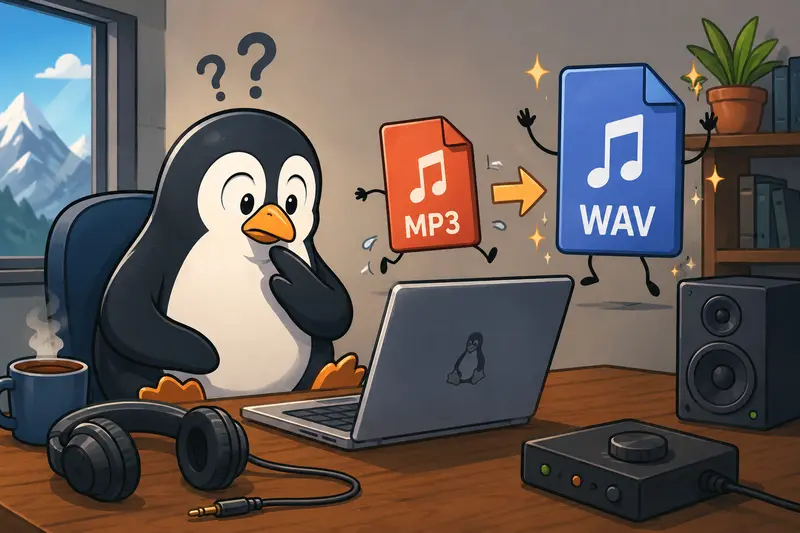
What You Should Know First
An MP3 file uses lossy compression to reduce file size. WAV files are usually uncompressed, which makes them larger but more suitable for editing, syncing, archiving, or re-exporting.
If youre converting audio for:
- podcast editing
- ad production
- video timelines
- voice AI tools
- radio uploads
- mobile editing apps
WAV is often the safer working format.
Linux users traditionally rely on FFmpeg or desktop utilities, but browser-based workflows have become increasingly practical for teams that need flexibility without maintaining software environments.
Why Marketers Often Need WAV Instead of MP3
This comes up more often than people expect.
A marketing team might receive:
- compressed interview recordings from freelancers
- MP3 voiceovers from clients
- ZIP archives full of campaign audio
- exported webinar snippets for editing
The problem is that compressed audio can create issues during editing or repeated exporting. Every additional compression cycle risks degrading clarity.
WAV files avoid that problem because they preserve the original decoded audio data after conversion.
For example:
- video editors generally behave better with WAV
- speech enhancement tools often prefer WAV input
- transcription accuracy can improve with higher quality audio
- some mobile editing suites reject lower bitrate MP3 files entirely
And yes, large files tend to appear right before deadlines with suspicious consistency.
How the Process Works on Linux
You can convert MP3 to WAV locally with command-line tools, but browser-based conversion has become attractive for distributed teams and quick production tasks.
Heres a practical workflow using Filemazing Audio Converter https://filemazing.com/audio-converter.
Prepare the source audio
Collect the files you need to convert.
If your recordings arrive inside ZIP or RAR bundles from agencies or contractors, using the archive extraction tool https://filemazing.com/archive-extractor beforehand can save time during batch preparation.
Supported sources typically include:
- local uploads
- Google Drive imports
- Dropbox imports
- direct URL-based input
Choose WAV as the output format
Once the MP3 files are uploaded, select WAV output.
This is where format flexibility matters. Some workflows need:
- WAV for editing
- FLAC for archival
- AAC for mobile publishing
- MP3 again for distribution
Switching between formats without juggling separate Linux packages can simplify production pipelines.
Start processing
The conversion job is queued and processed in the browser workflow.
Large tasks dont lock the interface while processing happens in the background. Thats particularly useful when handling multiple campaign assets at once.
Download the converted files
After completion, download the WAV files individually or in batches.
If youre sharing sensitive pre-release audio, interview recordings, or paid ad assets externally, the file encryption tool https://filemazing.com/encrypt-file can help password-protect the converted output before distribution.

Tested Workflow: Converting Campaign Audio on Ubuntu
To evaluate real-world usability, I tested a small batch workflow on Ubuntu using:
- 12 MP3 files
- total size: roughly 280 MB
- mixed bitrates between 128 kbps and 320 kbps
- average duration: 39 minutes per file
The files included:
- webinar clips
- ad voiceovers
- short social media narration segments
Observations from the test
The conversion process stayed stable even with multiple uploads running together.
A few things stood out:
- Higher bitrate MP3 files produced noticeably cleaner WAV output for editing
- Browser uploads remained responsive during queued processing
- Batch handling reduced repetitive manual work
- Download delivery was straightforward without forcing desktop software installation
One practical takeaway:
Converting low-quality MP3 files into WAV does not magically improve the original recording.
That sounds obvious, but many users expect WAV output alone to increase clarity. WAV preserves audio after conversionit doesnt reconstruct information already removed during MP3 compression.
So if source quality is poor, the converted WAV will mainly help with editing stability, not restoration.
A Common Mistake That Hurts Audio Quality
Heres a surprisingly frequent workflow issue:
Teams repeatedly convert the same audio between MP3 and WAV during revisions.
Example:MP3 WAV edited MP3 revised WAV again
Every lossy re-export to MP3 introduces additional degradation.
A better workflow is:
- Convert the original MP3 to WAV once
- Perform all edits using WAV
- Export to MP3 only at the final publishing stage
This reduces cumulative quality loss significantly.
For marketers working with voice-heavy campaigns, webinars, or paid social ads, that difference can become audible after multiple revision rounds.
Some file formats cooperate nicely. Others behave like they were designed during an argument.

Where Browser-Based Conversion Helps Most
Linux users often already know about FFmpeg. Its powerful.
But browser-based tools solve different operational problems.
Distributed marketing teams
Not everyone on a team wants to manage terminal commands or package dependencies.
A browser workflow creates consistency across:
- Linux
- macOS
- Windows
- Chromebooks
Fast turnaround projects
When campaigns move quickly, installation friction becomes unnecessary overhead.
Especially for:
- freelancers
- contractors
- remote collaborators
- short-term production teams
Mobile publishing workflows
Some mobile editing environments behave unpredictably with compressed source files.
Using high quality audio conversion into WAV before editing can improve compatibility and reduce sync issues later.
Bulk audio preparation
Handling multiple files through queued processing is often easier than manually running repeated terminal commands.
This matters for:
- podcast batches
- webinar segmentation
- multilingual ad exports
- influencer campaign assets
Privacy-conscious temporary processing
Filemazing treats uploaded files as temporary processing artifacts rather than long-term storage.
Thats useful when working with:
- unreleased ad campaigns
- client interviews
- internal recordings
- embargoed launch assets
The short retention model is practical without making exaggerated military-grade promises nobody can realistically verify.
Why This Workflow Is Useful Beyond Linux
Although this guide focuses on Linux users, the browser-based approach creates flexibility across devices.
You can:
- start processing on a desktop
- download results on another machine
- avoid syncing conversion software everywhere
- keep workflows consistent for contractors
For marketers who frequently convert audio for mobile publishing, that portability matters more than it used to.
And because Filemazing uses transparent token pricing instead of subscriptions, occasional conversion workloads remain predictable without paying for permanent seats you barely use.
What You Gain From WAV Conversion
A good MP3 to WAV converter workflow can improve several downstream tasks:
- better compatibility with editing suites
- reduced artifacts during production
- cleaner audio handoff between tools
- more stable archival workflows
- improved speech processing compatibility
- easier reuse across campaigns
The biggest advantage is usually workflow reliability rather than dramatic sound improvement.
That distinction matters.
Questions People Commonly Ask
Does converting MP3 to WAV improve sound quality?
Not directly.
WAV preserves audio without further compression, but it cannot restore data already removed from the original MP3 file.
Is browser-based conversion safe for client audio?
Reasonably safe workflows rely on temporary processing and cleanup policies rather than permanent storage.
Filemazing processes uploaded files as short-lived artifacts rather than keeping them indefinitely.
Can Linux users still use FFmpeg instead?
Absolutely.
FFmpeg remains one of the best audio converter options for advanced users. Browser-based tools mainly help teams that want convenience, portability, or batch-friendly workflows without setup overhead.
What if the audio files arrive inside ZIP archives?
You can unpack them first using the archive extractor workflow https://filemazing.com/archive-extractor before conversion.
Thats especially helpful when agencies send bundled campaign assets.
Will WAV files be much larger?
Usually yes.
Thats the tradeoff:
- WAV larger size, better editing reliability
- MP3 smaller size, easier distribution
The right choice depends on where the audio sits in your workflow.
Should metadata be removed before publishing?
Sometimes.
Audio files can contain embedded metadata such as software names, creator info, or device details. The metadata scrubbing tool https://filemazing.com/metadata-scrubber can help remove unnecessary metadata before distribution or client delivery.

Final Thoughts
Linux users have plenty of technical ways to convert audio, but practicality matters just as much as capability.
A browser-based MP3 to WAV converter can reduce setup friction, simplify collaboration, and make recurring audio workflows easier to manage across teams and devices.
For marketers handling interviews, ads, podcasts, or mobile content production, the real benefit is consistency: fewer compatibility surprises, cleaner editing workflows, and predictable processing without maintaining another desktop utility stack.
If your workflow regularly involves audio preparation, its worth exploring Filemazing Audio Converter https://filemazing.com/audio-converter as a lightweight option for high quality audio conversion and cross-device file handling.