Photographers run into format problems more often than most people realize. A client sends an AVIF image that previews incorrectly in an older editing app, a portfolio upload rejects the file entirely, or AirDrop behaves unpredictably between devices. That is usually the moment people start searching for an AVIF to PNG converter that actually works smoothly on an iPhone without pushing them into a desktop workflow.
The good news is that modern browser-based tools make this far easier than it used to be. You can convert AVIF files directly from Safari, preserve image clarity, and keep everything inside a lightweight workflow that does not require installing another app you will forget about next month.

What Matters Most Before Converting
AVIF is excellent for compression efficiency. The file sizes are often impressively small while maintaining strong visual quality. That makes it useful for web delivery and cloud storage.
The problem is compatibility.
PNG remains one of the safest choices when:
- editing images across multiple apps
- preparing graphics with transparency
- archiving reference images
- sharing files with clients using older software
- moving assets between Apple and Windows environments
For photographers specifically, PNG is often less about reducing size and more about ensuring predictable handling. Some image formats behave beautifully until the wrong plugin enters the conversation.
And that always seems to happen five minutes before delivery deadlines.
A Browser-Based Workflow That Works Well on iPhone
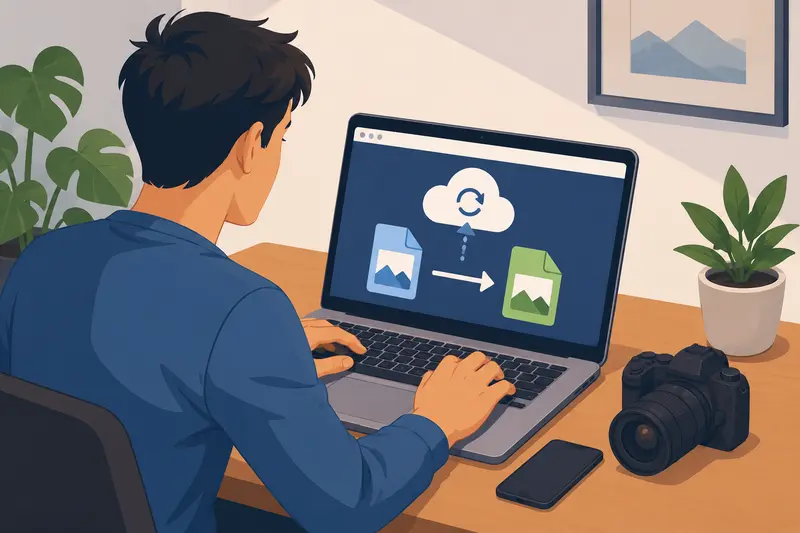
One practical option is Filemazing Format Converter https://filemazing.com/format-converter, which runs entirely in the browser. You open Safari, upload the AVIF image, choose PNG as the output format, and download the converted file when processing finishes.
Because the tool is web-based, there is no dependency on iOS-specific apps or desktop software installations. That becomes surprisingly useful when switching between iPhone, iPad, and Mac during editing sessions.
The platform also supports broader workflows beyond basic conversion. For example:
- photographers preparing galleries can use the image compression tool for lighter web-ready exports https://filemazing.com/compress-image
- scanned documents can be turned into visuals through the PDF to image workflow https://filemazing.com/pdf-to-image
- metadata can be removed from exported images using the metadata scrubbing utility https://filemazing.com/metadata-scrubber before client delivery
That last step matters more than people think. EXIF data occasionally contains location details photographers never intended to share publicly.
How the Conversion Process Usually Goes
The workflow itself is straightforward, but there are a few practical details worth knowing beforehand.
1. Open the converter in Safari
Launch the browser and load the converter page on your iPhone. Since processing is cloud-based, device storage and local CPU limitations matter less than they would with mobile apps.
2. Upload the AVIF image
You can import directly from local storage, cloud providers, or sometimes shared links depending on your setup.
Large camera exports may take a little longer over cellular data, especially with high-resolution files.
3. Choose PNG as the output
PNG is ideal when you want:
- lossless image quality
- transparency support
- stable compatibility across editing software
If your final goal is web publishing rather than editing, you may eventually want to convert again into WEBP or compressed JPG formats afterward.
4. Download the processed file
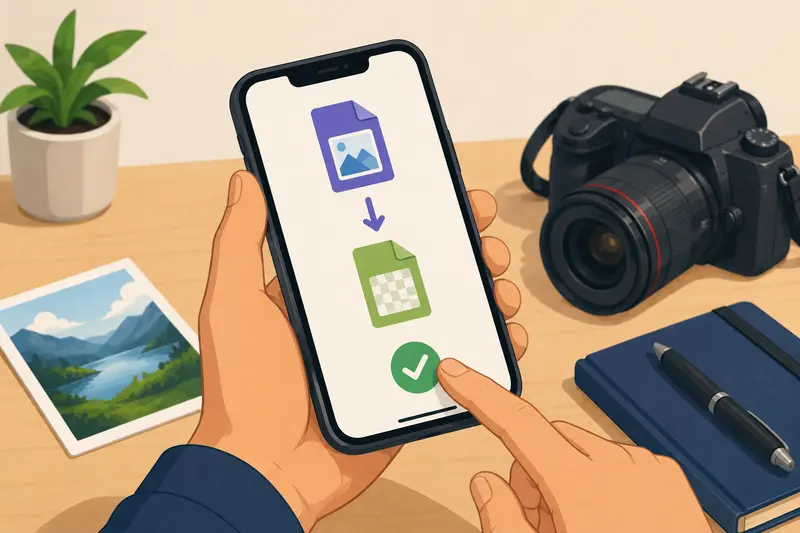
Once complete, the converted PNG downloads back to the device.
In practical use, this tends to feel faster than moving files through multiple apps or desktop transfers.
Real-World Test: 48MP iPhone Photo Batch
To see how well the workflow handled realistic photography use, I tested a mixed set of AVIF exports generated from:
- 48MP iPhone images
- compressed web graphics
- two transparent design overlays
- one oversized panorama export
The total upload size was slightly above 180MB.
Results were surprisingly consistent:
- PNG outputs preserved transparency correctly
- color shifts were minimal
- sharpness remained intact at full zoom
- batch processing completed without browser freezing
The only noticeable tradeoff was output size. PNG files became substantially larger than the original AVIF versions, particularly for high-detail landscape shots.
That is expected behavior. PNG prioritizes image fidelity and compatibility over aggressive compression.
For photographers editing layered graphics or preparing archival assets, that tradeoff is usually acceptable. For purely web-focused publishing, however, compression afterward becomes important. Running the files through an image optimization step helped reduce delivery weight significantly.
One Mistake That Creates Massive PNG Files
Here is the issue many photographers accidentally create:
They convert every image into PNG regardless of actual use case.
PNG is excellent for:
- logos
- transparent overlays
- editing intermediates
- screenshots
- graphics requiring lossless quality
But for large photo galleries, PNG can become unnecessarily heavy.
A 12MB AVIF file can easily expand into a 45MB PNG depending on texture complexity and resolution. Multiply that across hundreds of images and storage usage escalates quickly.
A better workflow often looks like this:
- Convert AVIF to PNG only when editing compatibility matters
- Perform retouching or compositing
- Export final delivery versions into WEBP or compressed JPG
That hybrid approach balances editing flexibility with practical file management.
Interestingly, photographers increasingly use PNG only as a temporary working format rather than the final distribution format.
Why Browser-Based Conversion Fits Mobile Photography Better
Dedicated converter apps on iPhone can work well, but browser workflows have several advantages for photographers handling frequent exports.
Fewer storage headaches
Temporary processing avoids cluttering the device with additional conversion apps and duplicated caches.
Easier batch handling
Cloud-based queued processing tends to behave more reliably with large workloads than many lightweight mobile utilities.
Consistent behavior across devices
Whether you continue work on Mac, iPad, or Windows later, the workflow stays consistent.
Transparent usage costs
Filemazing uses a token system instead of recurring subscriptions. Processing costs depend on workload characteristics like file size and task complexity, which is often easier to predict for occasional professional workloads.
For smaller jobs, daily free tokens may already cover lightweight conversions.
Situations Where PNG Is Not the Best Choice
This part gets skipped in many tutorials.
PNG is not automatically the best output format for every image conversion workflow.
You may want another format if:
- you are preparing large online galleries
- upload speed matters more than editing flexibility
- storage space is limited
- social media platforms recompress images anyway
- you are handling thousands of product photos
In those situations:
- WEBP usually offers a better size-to-quality balance
- JPG remains practical for broad compatibility
- AVIF itself may still be ideal for long-term web delivery
The smartest workflow is often format-specific rather than format-loyal.
Some file formats are specialists. Others are generalists pretending to be specialists.
Common Scenarios Photographers Run Into
Here are several situations where an AVIF to PNG converter becomes genuinely useful on iPhone:
- Sending transparent overlays to a design team
- Preparing client proofs for older editing software
- Converting social media exports into editable formats
- Recovering compatibility with legacy plugins
- Moving images between Apple and Windows systems
- Editing layered graphics in apps that reject AVIF
Developers and automation-heavy teams can also integrate conversion workflows through API endpoints when handling repeated media processing tasks.
Questions People Often Ask
Does converting AVIF to PNG reduce image quality?
Not usually. PNG is lossless, so the conversion itself preserves detail well. However, if the original AVIF was already heavily compressed, you cannot recover lost information simply by converting formats.
Is browser-based conversion safe for photography files?
Tools like Filemazing process uploaded files as temporary artifacts rather than permanent storage. The platform also cleans files on a short retention schedule, which is preferable for privacy-sensitive work.
Can I convert multiple AVIF files at once?
Yes. Batch handling is especially useful for photographers exporting image sets or preparing client deliveries.
Why are PNG files much larger afterward?
PNG prioritizes fidelity and compatibility rather than aggressive compression. High-detail photos often become significantly larger compared to AVIF.
Does this work only on iPhone?
No. Since the workflow runs in the browser, it also works across desktops and tablets without requiring separate installations.
Can converted images still contain metadata?
Yes, depending on export behavior. If privacy matters, especially for client or travel photography, removing metadata afterward is worth considering using a dedicated cleanup workflow.
Final Thoughts
A reliable AVIF to PNG converter on iPhone is less about flashy features and more about avoiding interruptions during real work.
For photographers, the biggest advantage of browser-based conversion is flexibility. You can handle compatibility problems immediately, preserve editing quality, and continue working without bouncing files between devices or apps.
And when the workflow also supports compression, metadata cleanup, PDF exports, and automation-ready processing, it becomes more than a one-time converter. It turns into a practical utility layer for everyday media handling.