Teachers rarely receive files in the format they actually need.
A worksheet arrives as a scanned PDF, but students need image slides in a messaging app. A parent sends a multipage handout that has to be uploaded into a classroom platform accepting JPG only. Sometimes you just want one clean page from a PDF without dragging a laptop into the situation.
Thats where learning how to save PDF pages as images on mobile becomes genuinely useful especially during busy school days when time disappears between classes.
Modern browser tools now make this much easier than it used to be. Instead of installing bulky apps, you can convert PDF pages directly from your phone browser and export them as JPG or PNG files within minutes.

What You Should Know First
If you need to save PDF pages as images on mobile, the easiest approach is to use a browser-based PDF conversion tool that works directly on your phone.
With tools like Filemazing PDF to Image https://filemazing.com/pdf-to-image, you upload the PDF, choose an output format, and download individual image files without installing extra software. This works particularly well for worksheets, scanned lesson materials, visual references, and presentation pages.
Why Teachers Often Convert PDFs Into Images
In real classroom workflows, image files are sometimes more flexible than PDFs.
A few common examples:
- Uploading assignment pages into Google Classroom announcements
- Sharing visual study guides through messaging apps
- Posting single pages to digital whiteboards
- Printing only selected pages from large packets
- Adding diagrams into presentation slides
- Sending annotated worksheets to parents or students
Image formats also behave more consistently across phones and tablets. PDFs occasionally zoom awkwardly on smaller screens, while a JPG opens instantly almost everywhere.
And yes giant scanned PDFs somehow always appear ten minutes before homeroom.
How the Mobile Workflow Actually Looks
The process is straightforward once you know the sequence.
1. Open the PDF conversion tool in your browser
Go to Filemazing PDF to Image https://filemazing.com/pdf-to-image using Chrome, Safari, or another mobile browser.
Because the platform runs in-browser, theres no need to install a separate app first.
2. Upload your PDF
You can import:
- files stored locally on your phone
- documents from Google Drive
- Dropbox files
- direct URLs when needed
This is especially helpful when colleagues share materials through cloud storage rather than email attachments.
3. Choose image output settings
Most teachers will use:
- JPG for smaller file sizes and easier sharing
- PNG for diagrams, handwriting, or pages needing sharper detail
If you later need to convert those exported files into other formats like WEBP or HEIC, Filemazing also includes a dedicated image format conversion tool https://filemazing.com/format-converter for handling additional image formats.
4. Start the conversion
The tool processes each PDF page individually and generates downloadable image files.
For larger documents, queued processing helps prevent the browser from freezing during conversion.
5. Save or share the exported images
Once finished, the images can be:
- downloaded individually
- shared directly from mobile
- uploaded into classroom platforms
- inserted into presentations or worksheets
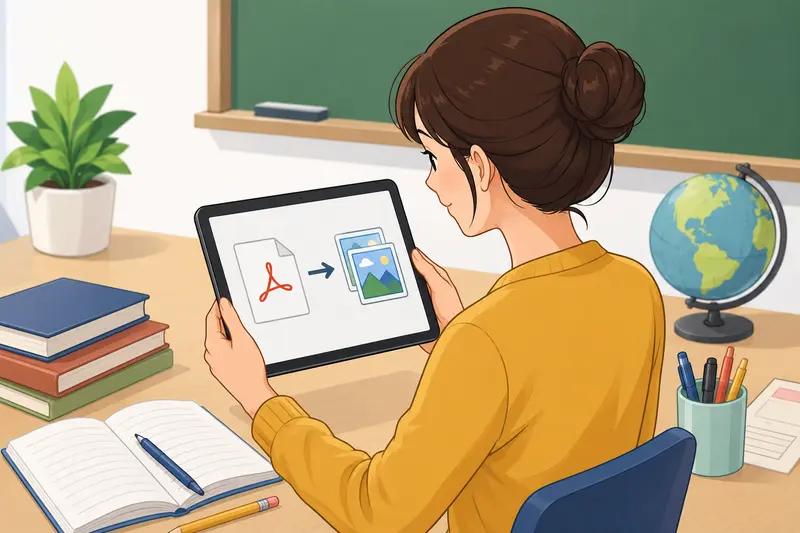
A Real-World Test With Classroom Material
To see how practical this feels on mobile, I tested the workflow using a scanned 42-page classroom packet exported from a school copier.
Details:
- PDF size: 31 MB
- mixture of text pages and handwritten diagrams
- processed entirely from a mid-range Android phone over Wi-Fi
What happened
- JPG exports completed faster and produced much smaller files
- PNG pages looked noticeably sharper for handwritten annotations
- Batch processing handled the full document without crashing the browser
- Individual page downloads were easier to organize afterward than one giant ZIP archive
One useful takeaway
For classroom distribution, JPG is usually the better choice unless students need to zoom heavily into diagrams or math notation.
PNG quality looks excellent, but file sizes increase quickly on long multipage documents.
Nobody wants a shared folder full of blurry chemistry labels but oversized PNGs can also slow down student downloads on weaker connections.
The Tradeoff Most People Notice Too Late
PNG vs JPG on mobile
This matters more than many users expect.
| Format | Best For | Tradeoff |
|---|---|---|
| JPG | Worksheets, quick sharing, classroom uploads | Slight compression artifacts |
| PNG | Detailed diagrams, scanned handwriting, visual charts | Larger files and slower uploads |
If youre converting dozens of pages at once, file size becomes a real issue on phones with limited storage.
A practical workflow is:
- export as PNG for editing or annotation
- compress afterward for distribution
Filemazing includes an image compression tool for exported classroom images https://filemazing.com/compress-image that helps reduce upload size while keeping pages readable.
One Overlooked Tip for Better Results
Scanned PDFs from school copiers often contain uneven lighting and unnecessary metadata.
Before sharing exported pages publicly, especially outside internal school systems, it can help to remove embedded metadata from image files. Filemazing offers a dedicated metadata cleanup tool for exported images https://filemazing.com/metadata-scrubber that strips hidden file information before distribution.
This becomes more relevant when handling student-related documents or externally shared teaching materials.
The platform also treats uploads as temporary processing files rather than long-term storage, which is reassuring when dealing with classroom documents containing sensitive information.
Where This Saves the Most Time
Teachers tend to benefit from mobile PDF image conversion in very specific situations.
Useful scenarios include:
- turning worksheet pages into presentation visuals
- extracting pages from scanned textbooks
- sharing homework pages in chat groups
- uploading assignment previews into LMS platforms
- creating image flashcards from PDFs
- converting lesson packets for students using phones only
In practice, mobile conversion works best for quick distribution tasks rather than heavy desktop publishing.
For extremely large archival documents, a desktop workflow may still feel more comfortable.
Why Browser-Based Conversion Fits School Workflows
The biggest advantage is flexibility.
You can process files:
- from nearly any device
- without school-managed installations
- without admin permissions
- without filling your phone with specialty apps
That browser-first workflow becomes especially convenient when switching between personal devices, classroom tablets, and shared school computers.
Filemazing also uses transparent token-based pricing instead of forcing subscriptions for occasional use. Small classroom tasks can often be handled using free daily tokens, while larger batch jobs remain predictable in cost.
For schools or teams automating repetitive workflows, API support is available as well, although most teachers will likely stick to the browser interface.
Common Questions Teachers Ask
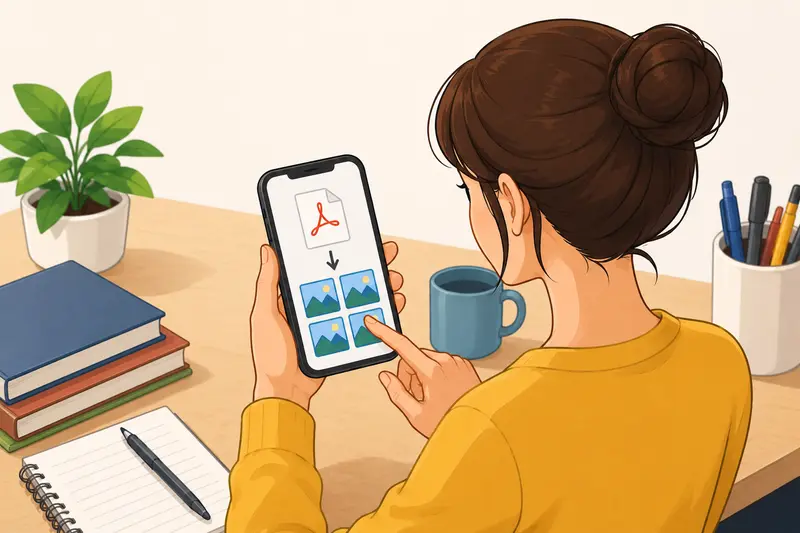
Can I save only one page from a PDF as an image?
Yes. Most browser PDF image conversion tools allow individual page exports instead of forcing the entire document.
Does converting PDFs reduce quality?
It depends on the output format and settings.
PNG generally preserves more detail, while JPG reduces file size through compression. For scanned text-heavy pages, moderate JPG quality is usually sufficient.
Is it safe to upload school documents?
You should still avoid uploading highly sensitive student information whenever possible, but temporary-processing systems are safer than platforms that permanently store files long term.
Filemazing processes uploads as temporary artifacts with scheduled cleanup rather than permanent cloud storage.
Will this work on iPhone and Android?
Yes. Browser-based tools work across most modern mobile browsers including Safari and Chrome.
How long does batch PDF to image conversion take?
For average classroom documents, usually under a few minutes depending on:
- page count
- image density
- connection speed
- output quality settings
Large scanned PDFs naturally take longer because image-heavy pages require more processing.
What if the exported images are too large to send?
Compressing the converted images afterward usually solves this problem. Using JPG instead of PNG can also reduce size dramatically.
Final Thoughts
Learning how to save PDF pages as images on mobile removes a surprising amount of friction from day-to-day teaching tasks.
Instead of wrestling with incompatible uploads, oversized scans, or awkward PDF previews on phones, browser-based conversion gives you a faster way to reuse classroom materials wherever students actually access them.
Filemazing PDF to Image https://filemazing.com/pdf-to-image works particularly well for this because it combines mobile-friendly processing, batch support, temporary file handling, and flexible export options without requiring installed software or a subscription commitment.
For teachers juggling documents across devices, that lightweight workflow can make classroom prep noticeably smoother.