Large image files have a habit of showing up at the worst possible moment right before an upload deadline, during email attachment limits, or while trying to speed up a slow-loading website.
If you want to reduce image file size on Windows without turning photos into blurry messes, the good news is that you no longer need heavy desktop software or complicated editing tools. Modern browser-based compression tools can shrink JPG and PNG files significantly while keeping visual quality surprisingly intact.
If youre also cleaning files before sharing them publicly, tools like metadata scrubbing for images https://filemazing.com/metadata-scrubber can remove hidden camera, GPS, and author information at the same time.
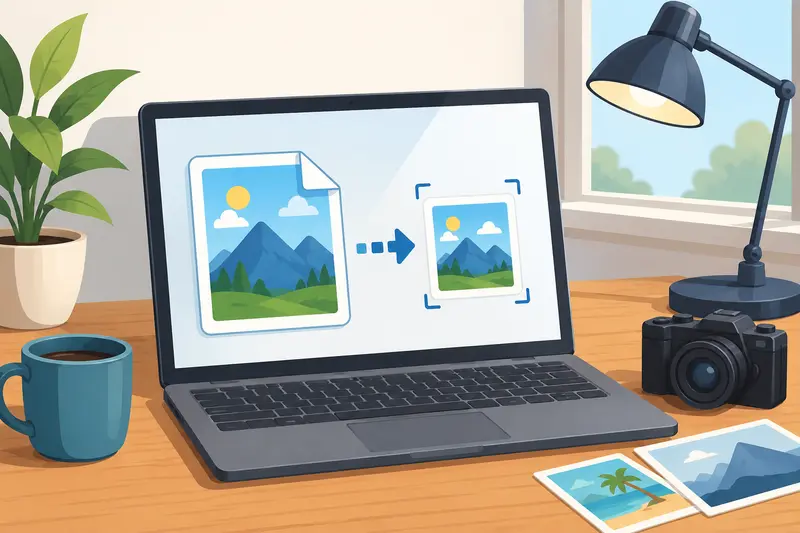
The Short Version
For most Windows users, the easiest approach is to use a browser-based compression tool that supports JPG and PNG optimization directly online.
Filemazing Compress Image https://filemazing.com/compress-image works especially well when you need:
- fast uploads
- reasonable image quality
- no software installation
- batch processing
- predictable processing costs
It runs entirely through the browser, which makes it useful on work laptops, shared PCs, or lightweight Windows setups where installing image editors isnt ideal.
Why File Size Becomes a Problem So Quickly
Modern phones and cameras produce huge images by default. A single screenshot might be small, but high-resolution photos can easily exceed:
- 815 MB per JPG
- 20+ MB for PNG graphics
- hundreds of MB across folders
That creates problems for:
- website performance
- cloud uploads
- email attachments
- online forms
- document sharing
- team collaboration
And yes, some PNG files seem emotionally attached to being gigantic.
For Windows users handling marketing graphics, school submissions, blog assets, or ecommerce images, high quality image compression becomes more important than most people expect.
A Practical Workflow That Actually Works
Instead of manually resizing every image in an editor, this process tends to be faster and more consistent.
1. Separate photos from graphics
Photos usually compress best as JPG or WEBP.
Graphics with transparency, logos, or screenshots often need PNG or WEBP instead.
If you need format flexibility first, convert JPG, PNG, WEBP, HEIC, and AVIF files https://filemazing.com/format-converter before compressing.
2. Upload images into the compression tool
Browser-based tools eliminate local setup headaches.
With Filemazing, uploads can come from:
- local Windows folders
- Google Drive
- Dropbox
- direct URLs
That matters more than people think when managing large batches.
3. Adjust compression intensity
This is where the tradeoff happens.
Higher compression:
- smaller files
- faster websites
- quicker sharing
But:
- possible softness
- texture loss
- visible artifacts on aggressive settings
For most website images, moderate compression usually hits the best balance.
4. Download optimized files
Compressed files are processed as temporary jobs rather than permanent storage, which is useful when handling personal or client images.
What I Tested on Windows
To see how well browser compression holds up in realistic use, I tested several image types on a Windows 11 laptop:
| File Type | Original Size | Compressed Size | Notes |
|---|---|---|---|
| JPG product photo | 8.4 MB | 1.9 MB | Minimal visible quality loss |
| PNG screenshot | 5.2 MB | 2.8 MB | Text remained readable |
| Travel photo JPG | 12.7 MB | 3.1 MB | Slight texture smoothing |
| Blog header PNG | 9.8 MB | 4.0 MB | Transparency preserved |
The interesting result wasnt just the size reduction.
It was processing consistency.
Large batches didnt freeze the browser, and queued jobs continued running in the background instead of locking the interface. Thats particularly helpful when compressing folders for websites or client uploads.
The token-based pricing model also makes usage predictable because processing costs scale transparently with workload size rather than vague subscription limits.
PNG vs JPG: Where People Often Choose Wrong
This is one of the biggest reasons image sizes stay unnecessarily large.
JPG works best for:
- photographs
- gradients
- social media images
- ecommerce photos
- blog visuals
PNG works best for:
- transparency
- UI graphics
- diagrams
- screenshots
- logos
Trying to compress PNG for website speed can help, but PNG files often remain larger than JPG even after optimization.
If transparency isnt required, converting PNG to JPG before compression can dramatically reduce size.
Sometimes by 7090%.
Thats the kind of difference that noticeably improves page speed.
A Few Non-Obvious Compression Tips
These tend to produce better results than simply cranking compression to maximum.
Resize before compressing
Compressing a 6000px-wide image for a website banner rarely makes sense if the final display width is only 1200px.
Resolution reduction often matters more than compression percentage.
Compress copies, not originals
Especially for photographers or designers.
Once compression artifacts appear, quality recovery is basically impossible.
Use WEBP when compatibility allows
WEBP often delivers:
- smaller sizes than JPG
- better quality retention
- improved web performance
Windows users increasingly rely on WEBP for blog images and landing pages.
Where This Helps Most
The benefits vary depending on your workflow.
Students
- upload assignments faster
- reduce LMS upload failures
- shrink presentation assets
Marketers
- improve landing page speed
- optimize ad creatives
- reduce media library bloat
Ecommerce sellers
- speed up product galleries
- improve mobile browsing
- reduce CDN bandwidth usage
General Windows users
- send images through email more easily
- save cloud storage space
- organize media archives
Teams handling PDFs
Sometimes the fastest workflow is converting pages into optimized images first. Tools like PDF to image conversion for JPG and PNG exports https://filemazing.com/pdf-to-image can help when extracting visual pages from large documents.
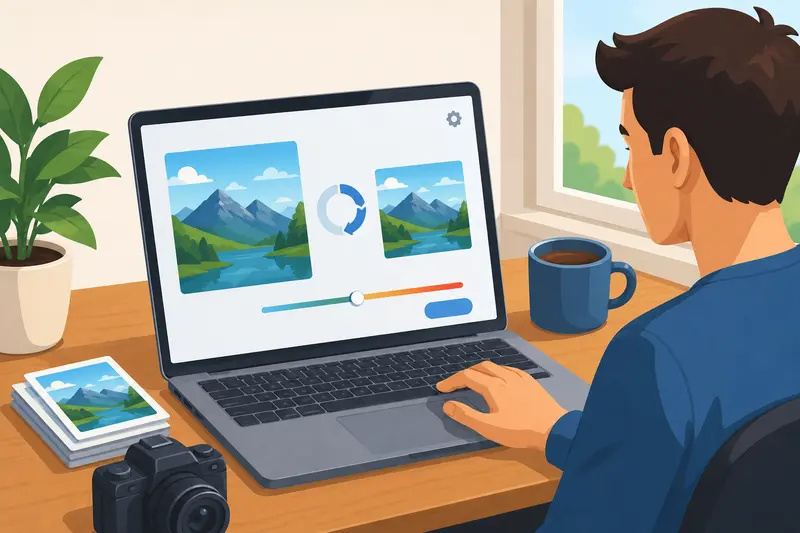
Why Browser-Based Compression Is Becoming More Common
Desktop image software still has advantages for advanced editing, but browser workflows are catching up quickly for everyday optimization.
A few reasons:
- no installation
- works across devices
- easier collaboration
- quick batch handling
- simpler automation options
Filemazing also supports API-based processing for teams that need recurring workflows instead of one-off uploads.
That becomes useful for:
- content pipelines
- ecommerce automation
- CMS media optimization
- recurring document/image tasks
Practical Questions People Usually Have
Does image compression always reduce quality?
Technically yes, especially with lossy formats like JPG.
But moderate compression is often visually unnoticeable for websites, presentations, and email sharing.
Is online compression safe for personal files?
Privacy depends on the platform.
Filemazing treats uploads as temporary processing artifacts with short retention cleanup behavior instead of permanent storage, which reduces long-term exposure risk.
Whats the best format for website images?
Usually:
- JPG or WEBP for photos
- PNG for transparency
- WEBP for modern performance-focused sites
Can I reduce JPG size online without installing software?
Yes. Browser-based tools are now one of the easiest options for Windows users, especially for occasional compression tasks.
Why are PNG files still large after compression?
PNG uses lossless compression, which preserves detail but limits size reduction potential.
Thats why converting to JPG or WEBP sometimes produces dramatically smaller files.
Can compressed images still look professional?
Absolutely if compression settings stay balanced.
Over-compression tends to show up first in:
- skin textures
- gradients
- shadows
- small text areas
Moderate optimization usually avoids those issues.
Final Thoughts
If your goal is simply to reduce image file size on Windows without turning file management into a project of its own, browser-based compression tools are often the most practical solution today.
Filemazing Compress Image https://filemazing.com/compress-image stands out because it keeps the workflow lightweight:
- upload
- compress
- download
- move on
No bulky installs. No complicated editing pipeline.
Just faster, smaller images that are easier to upload, share, and publish.