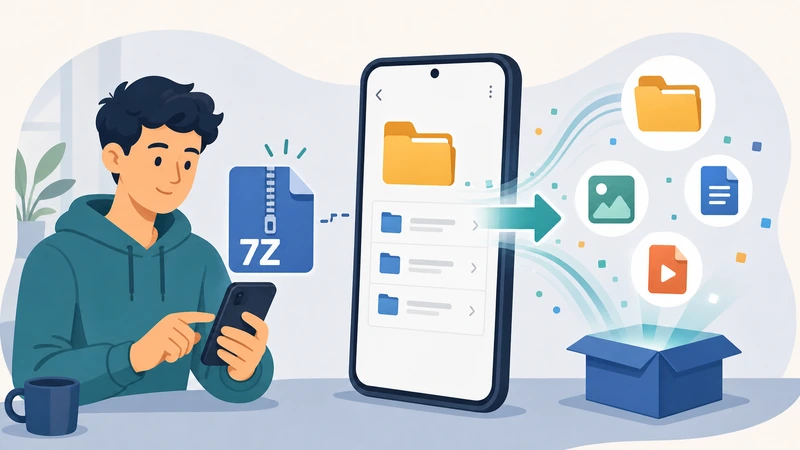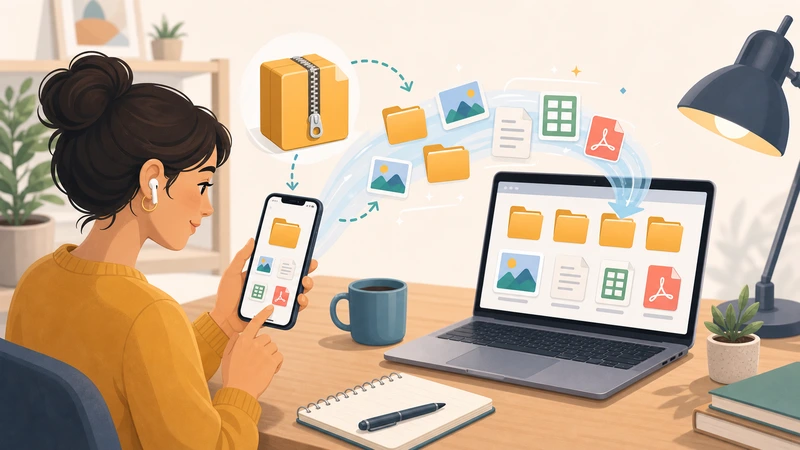
Remote teams deal with compressed files constantly. Shared design assets, archived contracts, exported analytics, onboarding materials they all tend to arrive packed inside ZIP, RAR, or 7z archives. The challenge appears when someone needs to unzip files online quickly without installing software on a managed company laptop or waiting for IT approval.
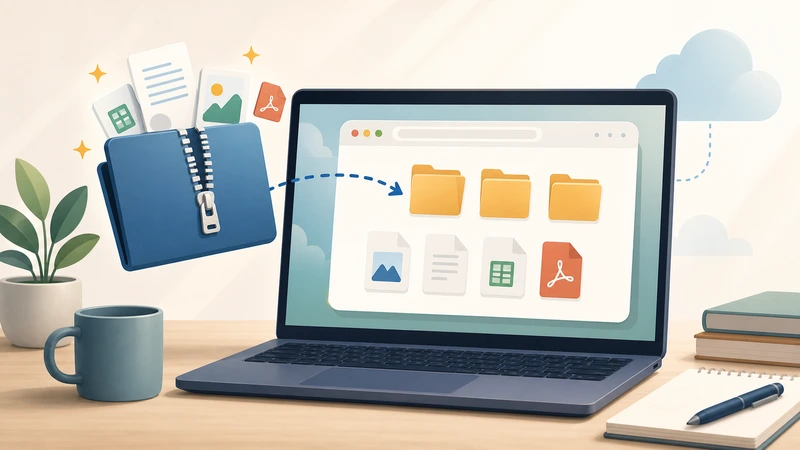
Thats where browser-based extraction tools become practical. Instead of downloading desktop apps, teams can open compressed files online directly from the browser, review contents, and continue working without interrupting the workflow.

What You Should Know First
If your goal is to extract ZIP without software, modern browser tools can handle most archive formats directly online, including larger batches and mixed file collections.
Platforms like Filemazing Archive Extractor are especially useful for remote collaboration because they combine browser-based convenience with temporary processing workflows rather than long-term storage. That matters when teams exchange sensitive documents or media files across multiple locations.
Why Browser-Based Extraction Fits Remote Workflows
Traditional extraction software still works, but distributed teams often run into avoidable friction:
- restricted corporate devices
- incompatible operating systems
- outdated extraction apps
- security policies blocking installations
- inconsistent archive support
A browser workflow removes most of those issues.
Someone on Windows can upload the same archive a MacBook user receives from Dropbox or Google Drive, process it in the browser, and continue immediately. No compatibility troubleshooting required.
Large files also tend to show up right before deadlines. Somehow that part never changes.
How the Process Usually Works
Online extraction is straightforward, but there are a few workflow habits that make the process smoother for teams handling recurring archives.
1. Upload the archive
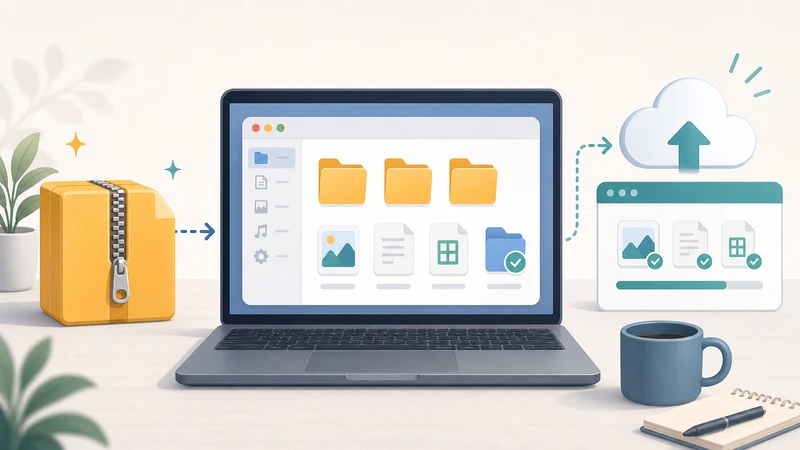
Start by adding your ZIP, RAR, TAR, or 7z file through the browser. Many teams pull files directly from cloud storage instead of downloading locally first.
2. Let the extraction process run
Browser-based systems like Filemazing queue processing jobs rather than freezing the page while large archives unpack. That becomes useful when you need to extract large ZIP files containing hundreds of assets.
3. Review extracted contents
Once processing finishes, you can download specific files or entire extracted batches.
If the archive contains PDFs from scanned paperwork, you can later use the PDF merge tool to reorganize documents into a single deliverable.
4. Continue the workflow
Remote teams rarely stop at extraction. Audio files might need conversion, documents may require encryption, and images often need compression before sharing externally.
For example, extracted meeting recordings can later be processed through the audio converter for compatibility with different platforms.

A Practical Test With Large Project Files
To evaluate how well browser extraction performs in real conditions, a mixed archive set was tested using Filemazings extraction workflow.
Test setup
The archive package included:
- 3 ZIP archives
- roughly 2.4 GB total size
- high-resolution marketing assets
- scanned PDF contracts
- WAV audio interviews
- nested folders with older RAR archives
The goal was to open compressed files online without relying on desktop extraction software.
Observed results
The extraction process remained stable even with larger batches. Instead of forcing the browser to hold everything in memory simultaneously, queued processing handled files progressively.
Two details stood out:
- nested archives extracted correctly
- PDF filenames preserved original structure during download
That second point matters more than people expect. Broken folder hierarchies become surprisingly expensive when multiple remote contributors are hunting for assets in Slack threads afterward.
One useful takeaway
If your archive contains very large media files alongside smaller documents, separating them into multiple archives can noticeably improve processing predictability and download organization afterward.
Where Teams Commonly Run Into Problems
Extracting files online is usually straightforward, but a few edge cases appear regularly in professional workflows.
Password-protected archives
Some online extractors support encrypted ZIPs, while others fail silently. Always verify password compatibility before relying on browser extraction for client deliverables.
Deep nested folders
Archives generated automatically by export systems sometimes contain excessive folder depth. That can lead to awkward path structures after extraction, especially when collaborators use different operating systems.
Mixed archive standards
Not all ZIP files are created equally. Older compression methods occasionally behave differently depending on how the archive was generated.
A practical workaround:
- repackage problematic archives locally once
- standardize future exports using ZIP instead of obscure proprietary formats
Large image batches
When teams extract design assets containing PNGs and RAW images, download size becomes a secondary issue. In those cases, compressing extracted visuals before redistribution can save substantial transfer time.
Theres always a balancing act between smaller files and preserving visual fidelity. Marketing teams generally notice over-compression immediately.

Why Filemazing Works Well for Distributed Teams
Filemazing positions itself more as a lightweight processing workspace than a single-purpose extractor.
That distinction matters because archive extraction is usually just one step inside a broader operational workflow.
A remote operations team might:
- extract uploaded project archives
- merge onboarding PDFs
- scrub metadata from shared files
- encrypt sensitive deliverables
- convert audio recordings for transcription
Handling those tasks through one browser environment reduces context switching and keeps processes consistent across team members.
The platform also uses transparent token pricing instead of feature-gated subscriptions. Teams can estimate processing costs ahead of time based on file size, quantity, and workload complexity rather than guessing usage tiers afterward.
Useful Real-World Scenarios
Remote teams often use online extraction for more than basic ZIP downloads.
Client asset delivery
Creative agencies receive compressed campaign packages containing:
- logos
- layered PSD exports
- video clips
- licensing PDFs
HR onboarding kits
Recruiters frequently share compressed folders containing contracts, training materials, and benefits documents for distributed hires.
Podcast production
Audio teams may extract raw recordings and then use the file encryption workflow before long-term storage or external sharing.
Shared analytics exports
Marketing departments often receive zipped CSV exports from analytics platforms and ad networks.
Developer handoff packages
Developers regularly exchange compressed builds, deployment assets, and log archives between staging environments.
Legal document exchange
Law firms and compliance teams commonly work with password-protected archives containing scanned records and signed PDFs.
Privacy Considerations Matter More Than Most Teams Realize
When teams unzip files online, they are often uploading:
- contracts
- customer exports
- media assets
- internal reports
- recordings
That makes temporary processing policies important.
Filemazing treats uploaded files as short-lived processing artifacts rather than permanent cloud storage. Files are cleaned automatically after processing windows expire, reducing long-term retention concerns.
For many remote organizations, that approach aligns better with operational privacy requirements than storing archives indefinitely inside shared cloud folders.
What Actually Saves Time
The biggest advantage is not simply browser convenience.
Its workflow continuity.
People can:
- process archives from any device
- avoid installation friction
- keep extraction consistent across teams
- combine multiple file operations in one environment
- scale occasional workloads without infrastructure setup
The API support also helps technical teams automate repetitive archive handling jobs when manual extraction becomes too repetitive.
FAQ
Can I unzip files online without installing anything?
Yes. Browser-based extractors allow you to upload archives directly and download extracted contents afterward without desktop software.
Is it possible to extract large ZIP files online?
Yes, although performance depends on browser memory, connection speed, and how the processing platform handles queued jobs. Systems designed for larger workloads generally perform more reliably with multi-GB archives.
Which archive formats are usually supported?
Most modern extraction tools support:
- ZIP
- RAR
- 7z
- TAR
- GZ
Compatibility can vary with older or proprietary compression methods.
Are uploaded files stored permanently?
Typically no. Services focused on temporary processing remove uploaded data after short retention windows rather than acting as permanent storage systems.
Can extracted files be processed further afterward?
Yes. Teams often continue workflows after extraction, such as converting media formats, combining documents, or encrypting sensitive files for delivery.
Does browser extraction work well for remote collaboration?
In many cases, yes. Especially when teams operate across different operating systems or restricted work devices where installing extraction utilities is inconvenient.

Final Thoughts
For remote teams, the ability to unzip files online is less about novelty and more about reducing operational friction.
Browser-based extraction simplifies cross-device collaboration, removes software dependency issues, and helps teams move directly into the next processing step without unnecessary delays.
If your workflow regularly involves compressed archives, Filemazing provides a practical way to extract ZIP without software while keeping processing lightweight, privacy-aware, and scalable for both occasional tasks and larger recurring workloads.